How to Fix Keyboard Shortcuts Not Registering in Screen Studio
If your keyboard shortcuts aren’t working properly in Screen Studio, you’re not alone. This is a common issue that can be frustrating when you’re trying to record tutorials. The good news is that there are specific reasons why this happens and clear solutions to fix it.
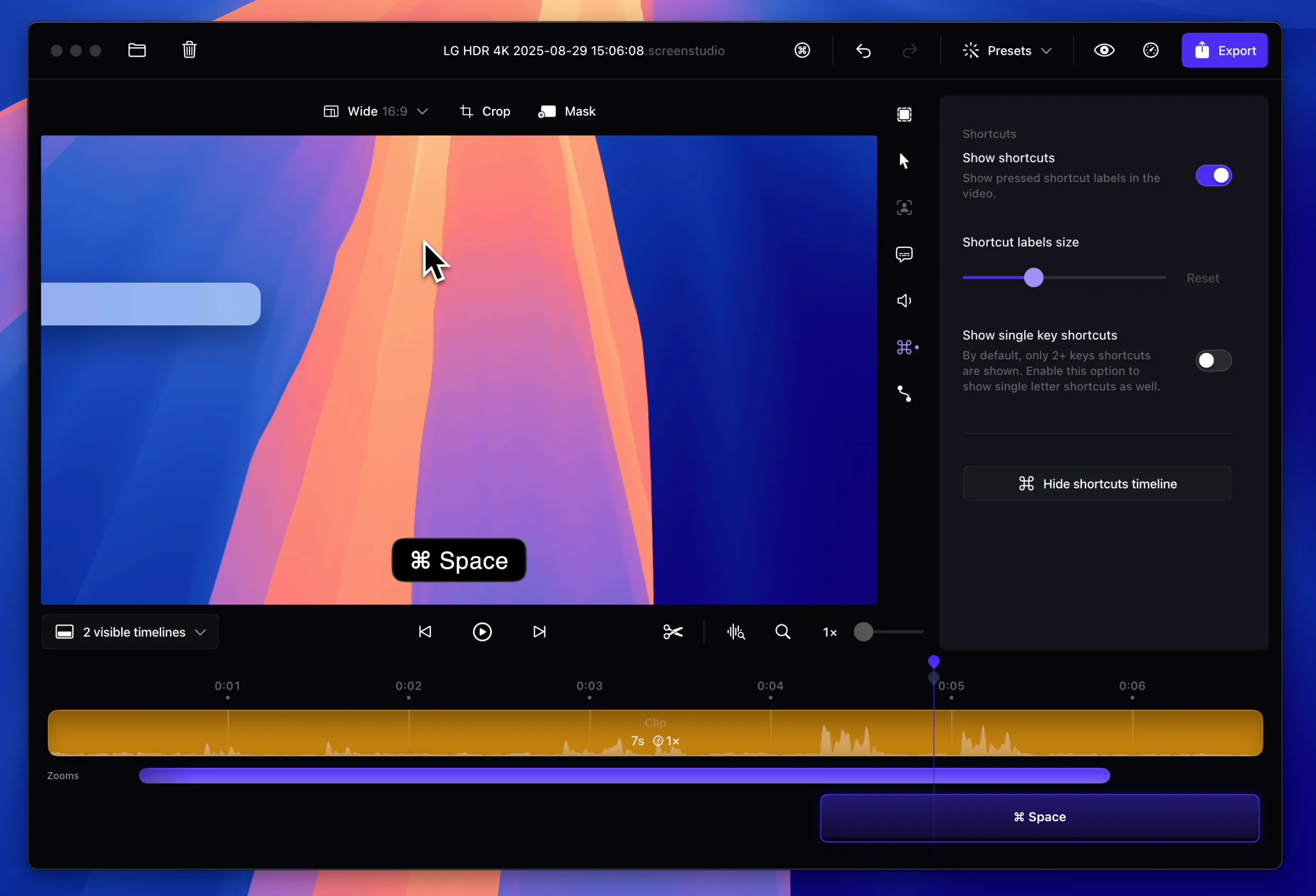
Why keyboard shortcuts don’t register
Screen Studio has built-in filtering that prevents rapid keystrokes from being detected. This is intentional, the software filters out quick typing sequences to avoid showing unwanted keyboard activity during recordings. When you’re typing fast, Screen Studio assumes you don’t want those keystrokes to appear in your video, so it ignores them.
This filtering system can sometimes be too aggressive, causing legitimate keyboard shortcuts to be missed even when you want them to be captured.
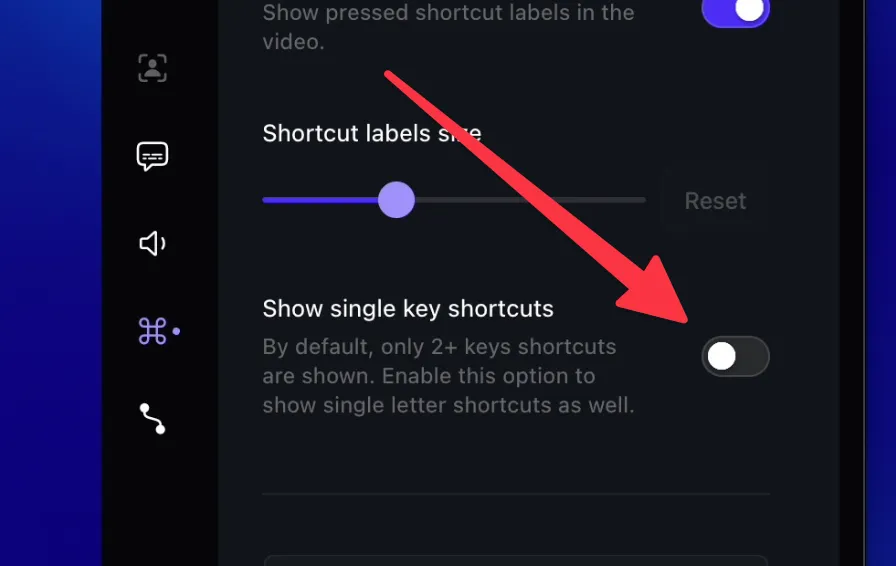
Enable single-key shortcuts
One first thing to try is to enable single-key shortcuts. This is a setting that allows you to display keyboard shortcuts with a single key.
Check accessibility permissions
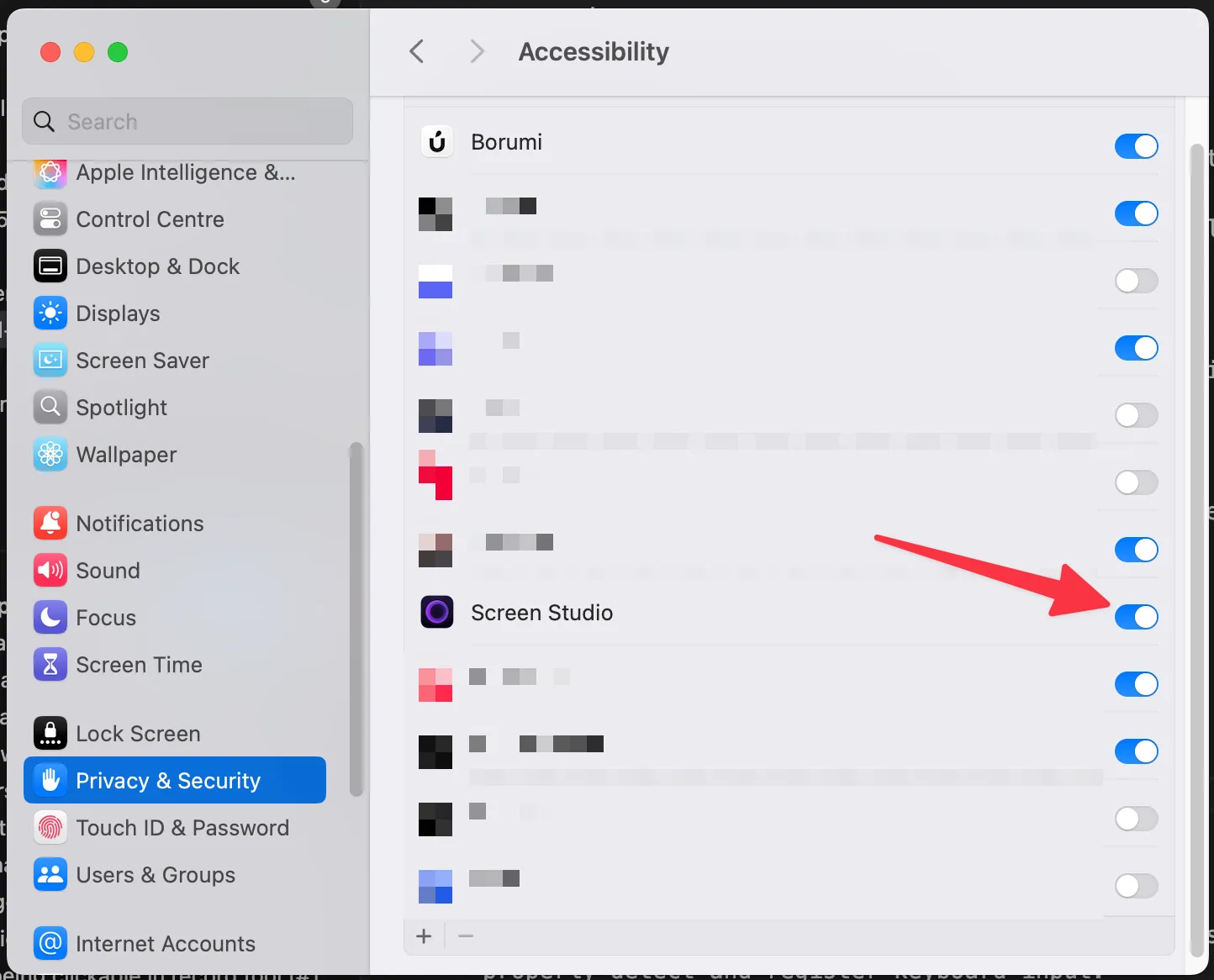
Another possible cause of keyboard shortcut issues is missing accessibility permissions on macOS. Screen Studio needs these permissions to properly detect and register keyboard input.
Here’s how to fix accessibility permissions:
- Open System Preferences (or System Settings on newer macOS versions)
- Navigate to “Privacy & Security”
- Click on “Accessibility” in the left sidebar
- Find Screen Studio in the list of apps
- Uncheck the box next to Screen Studio to disable it
- Check the box again to re-enable it
- Restart Screen Studio completely
Alternative solution: Borumi
If you continue experiencing keyboard shortcut issues with Screen Studio, consider switching to Borumi. This professional video creation tool offers:
- Smooth zoom effects and cursor movements
- One-time purchase with no subscription fees
- More affordable pricing than Screen Studio
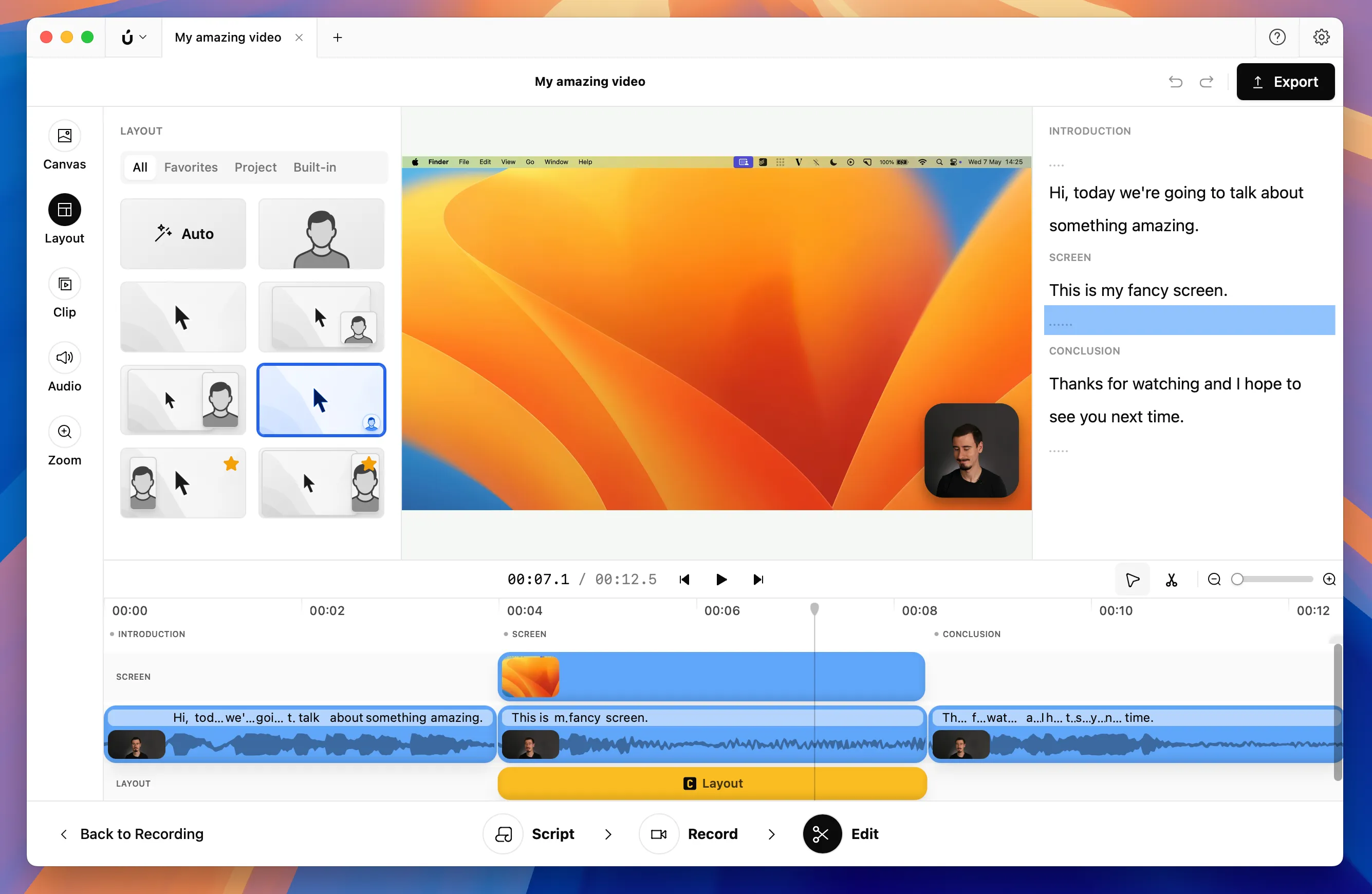
Borumi is specifically designed for creating professional educational content like tutorials, courses and product demos.