


How do you remove audio from a video?
- Choose your video. Click Choose File, or drag a video into the upload area.
- Wait for processing. Borumi removes the audio track locally in your browser and shows progress while it works.
- Download the muted video. Press Download Video to save a copy without sound.
How to remove sound from a video on Mac
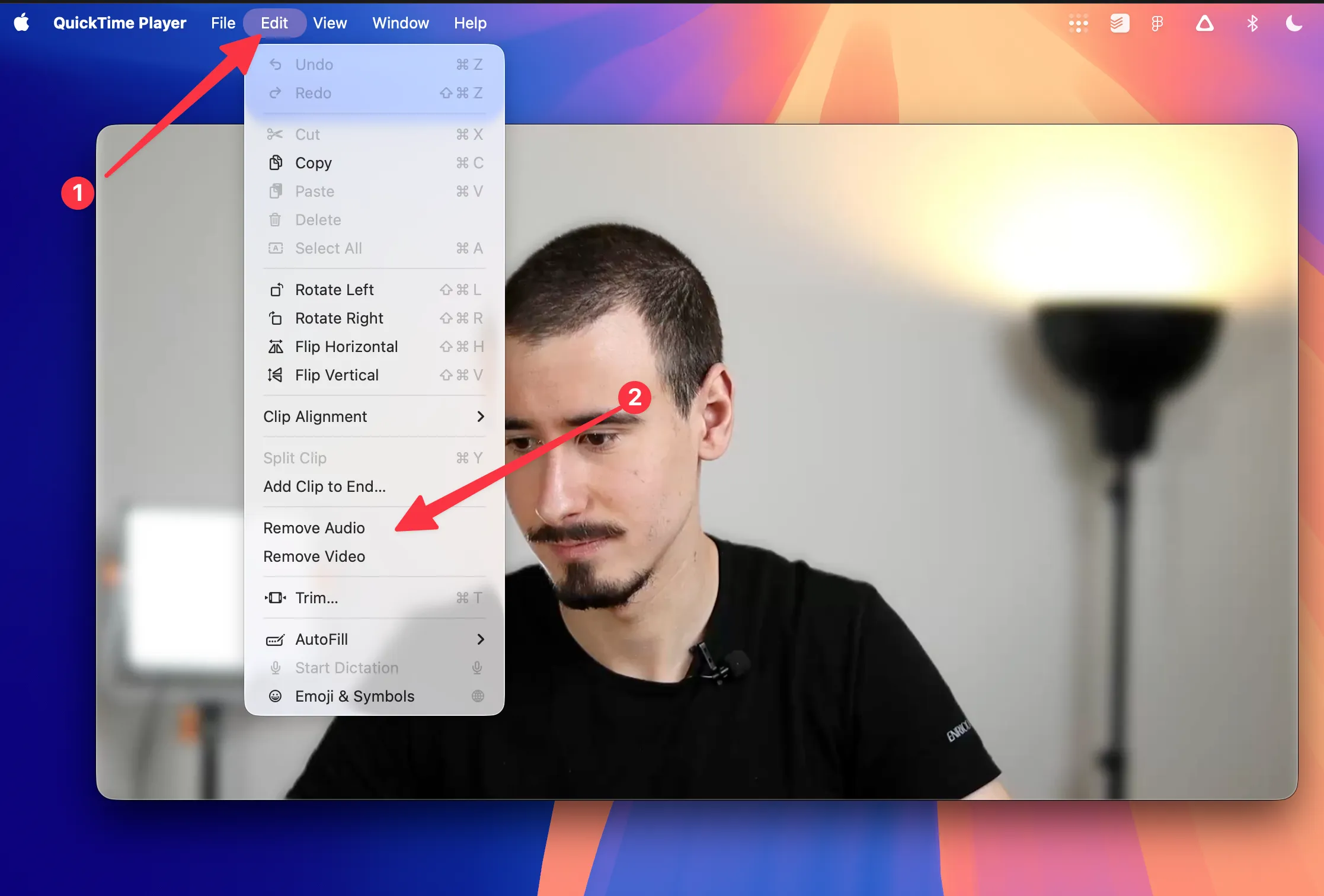
You can also remove audio from a video on Mac with QuickTime Player. This works well for simple MOV or MP4 files when you want to use the built-in macOS app.
- Open the video in QuickTime Player. Open the QuickTime Player app on your Mac, then open the video file you want to mute.
- Remove the audio. Go to the Edit menu and choose Remove Audio.
- Save the muted video. Go to File, choose Save, and confirm the new version without sound.
Why remove sound from a video?
A muted video is useful when you want to share screen recordings without background noise, prepare clips for social posts, remove private conversations, or add fresh music and voiceover in another editor.
This tool removes the audio track while keeping the video local to your device. It is a simple option when you do not need a full editor and only want a clean video-only file.
Need to check your video first?
Check the resolution and frame rate of any video file with our other free, privacy-first tools.