How to Change Camera Background in Screen Studio
Learn how to set up virtual backgrounds for your camera in Screen Studio using macOS system controls and discover professional alternatives.

Federico Terzi
Published 1 min read
If you want to change your virtual background while recording with Screen Studio, similar to what you can do in Zoom or Google Meet, you’ll be happy to know there’s a simple solution using your macOS system features.
Using macOS System Controls
For recent versions of macOS, you can set up virtual backgrounds that will work with Screen Studio and any other camera-using applications:
- Click on the green camera icon in your Mac’s status bar (top of your screen)
- Select “Background” from the dropdown menu
- Choose from the pre-built background options, or select “Custom Image” to upload your own background
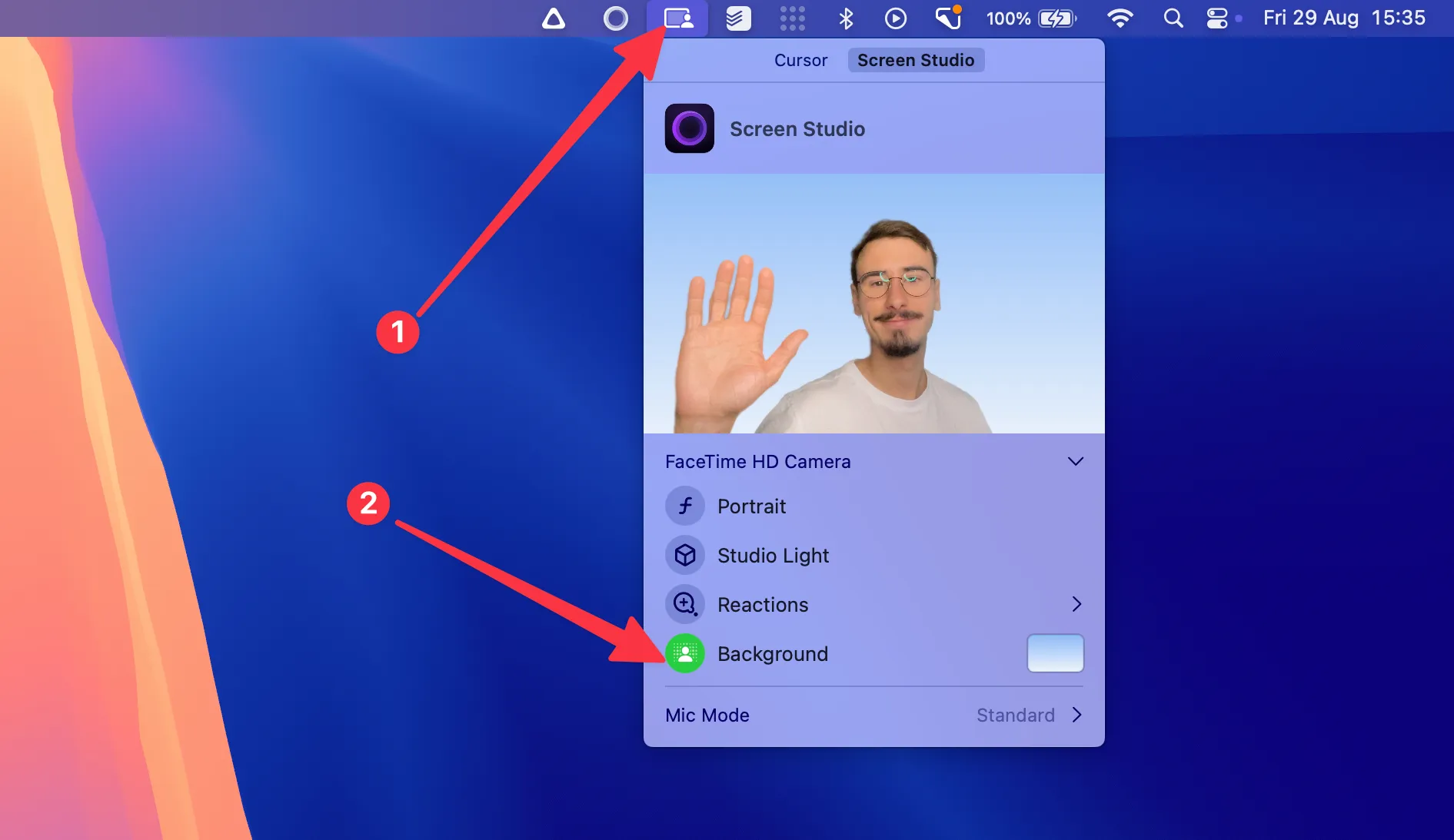
Once you’ve set this up, all your videos recorded with Screen Studio will use this virtual background automatically. The system-level background setting applies to your camera feed globally, so you don’t need to configure anything else within Screen Studio itself.
Alternative Solution: Borumi
If you’re looking for more advanced virtual background features and professional video creation capabilities, Borumi offers an excellent alternative. Borumi comes as an affordable one-time purchase and includes:
- Multiple layout options for camera positioning
- Smooth zooming effects
- Professional cursor movement animations
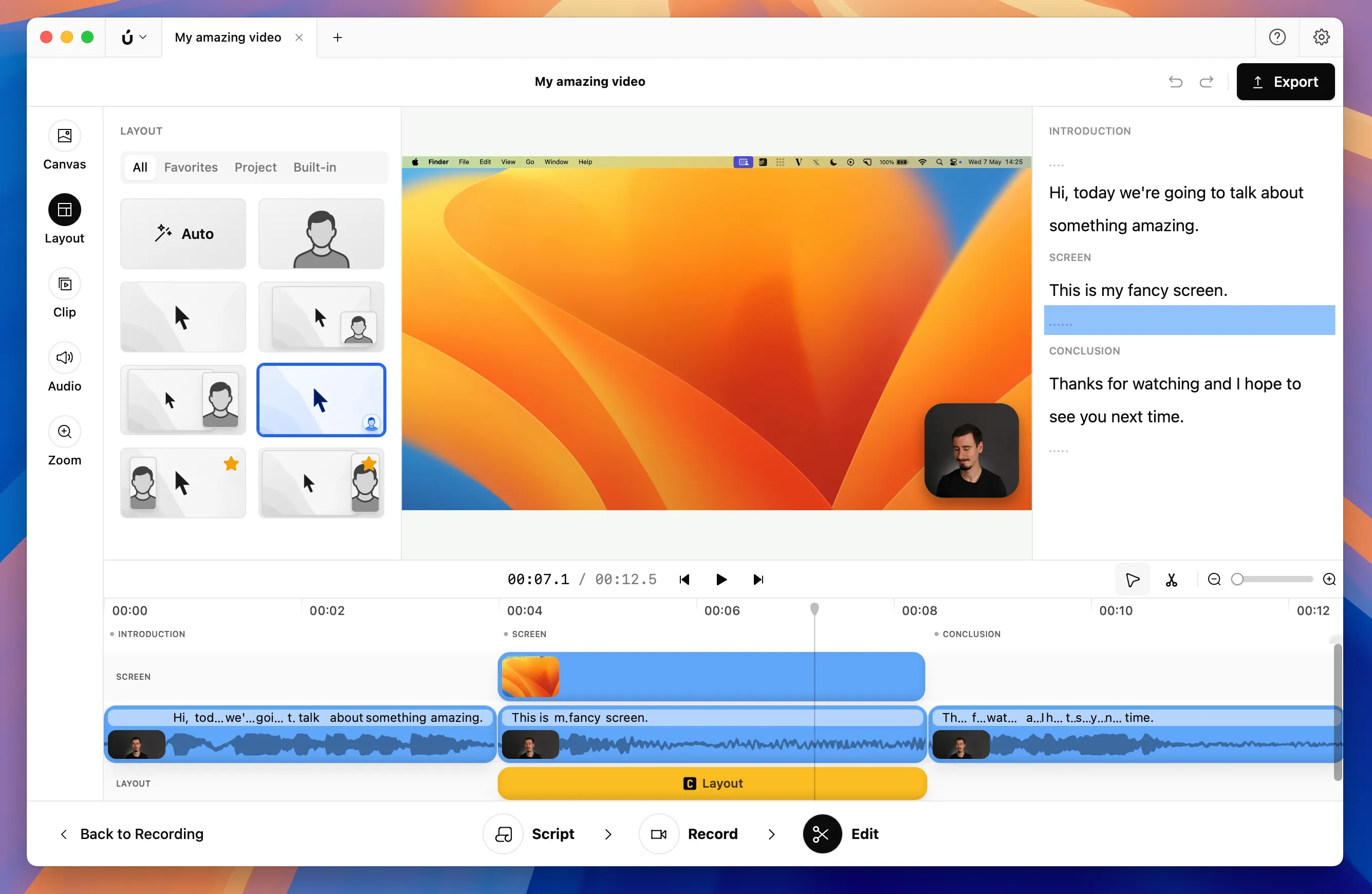
These features can help you create more polished, professional video content.