How to Add Background Music in Screen Studio
Add music to Screen Studio videos. Improve your videos and learn about current tools and limits.

Federico Terzi
Published 2 min read
If you want to add background music to your Screen Studio recordings, you might notice there’s no direct option to do this in the editor. Don’t worry - there are several ways to enhance your videos with music, even though Screen Studio doesn’t support this feature yet.
Background music can transform your screen recordings from basic captures to engaging content. It helps maintain viewer interest and creates a more professional feel. Think of popular YouTube tutorials or product demos - most use subtle background tracks to keep viewers engaged without distracting from the main content.
Good background music can:
- Set the right mood for your content
- Keep viewers engaged longer
- Make technical content feel less dry
- Create a more professional impression
Problem
Screen Studio focuses on creating high-quality screen recordings but doesn’t include audio track editing features. You can’t add background music directly in the Screen Studio editor. This limitation exists because Screen Studio prioritizes screen capture quality and basic editing features.
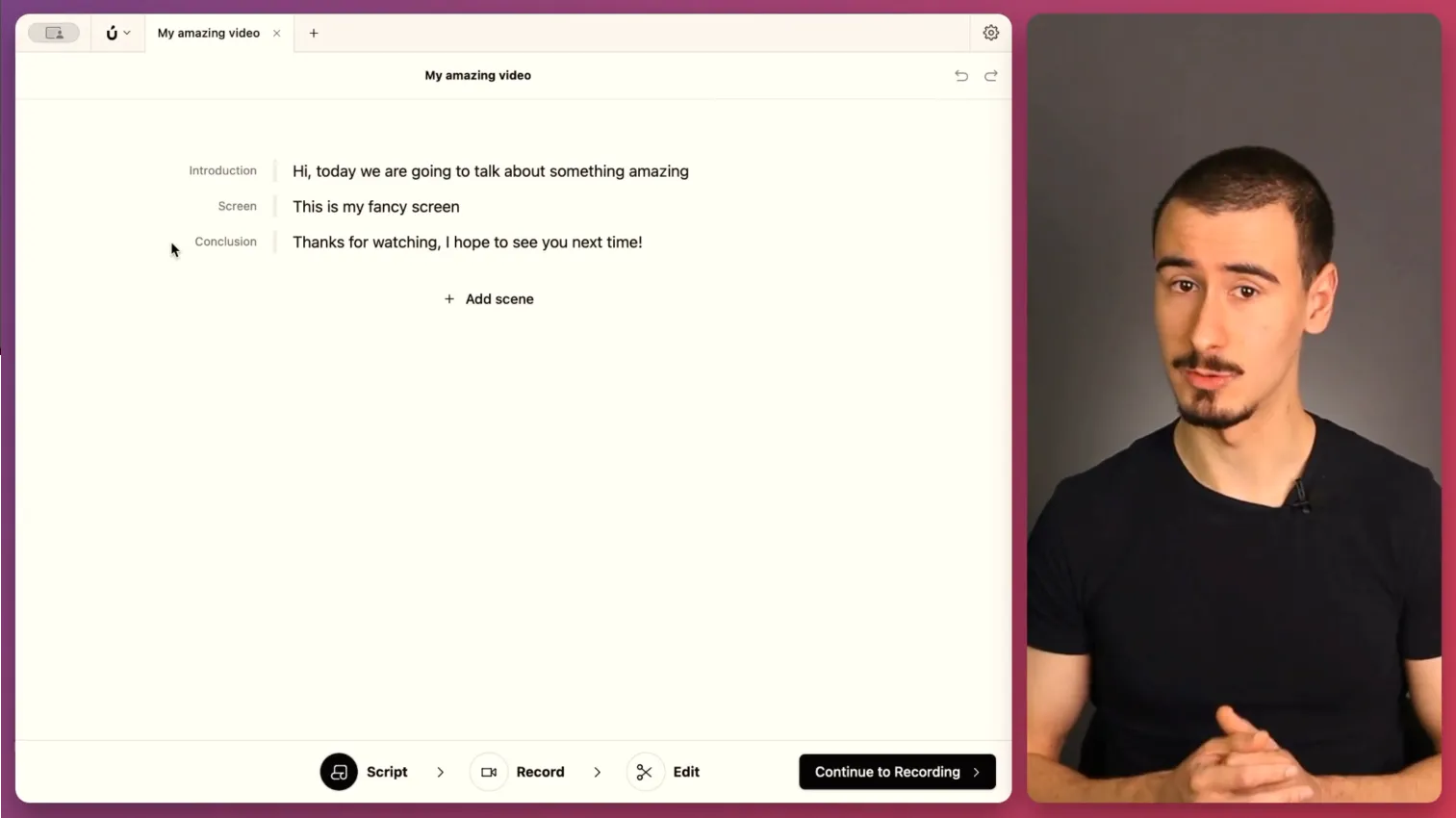
Alternative 1: Using Borumi
Borumi is a powerful screen recorder and video editor that allow you to create professional videos, in a fraction of the time.
Alternative Tools and Methods
If Borumi doesn’t meet your needs, you have other options. Popular video editors like DaVinci Resolve (free) or Adobe Premiere Pro let you add background music to your videos. Here’s a simple workflow:
- Export your video from Screen Studio
- Import it into your chosen video editor
- Add and adjust your background music
- Export the final version
The key is to first create your screen recording in Screen Studio, then export it for audio enhancement in another tool. This two-step process works, but can be time-consuming.