How to Fix Recording Stopped Because No Space Left in Screen Studio
Fix Screen Studio recording stopped due to insufficient storage space: solutions for low disk space and storage requirements

Federico Terzi
Published 2 min read
If you’ve encountered the frustrating message that your Screen Studio recording was stopped because there was no space left on your device, you’re not alone. This issue can interrupt recordings and disrupt your workflow, but there are several effective solutions to solve it.
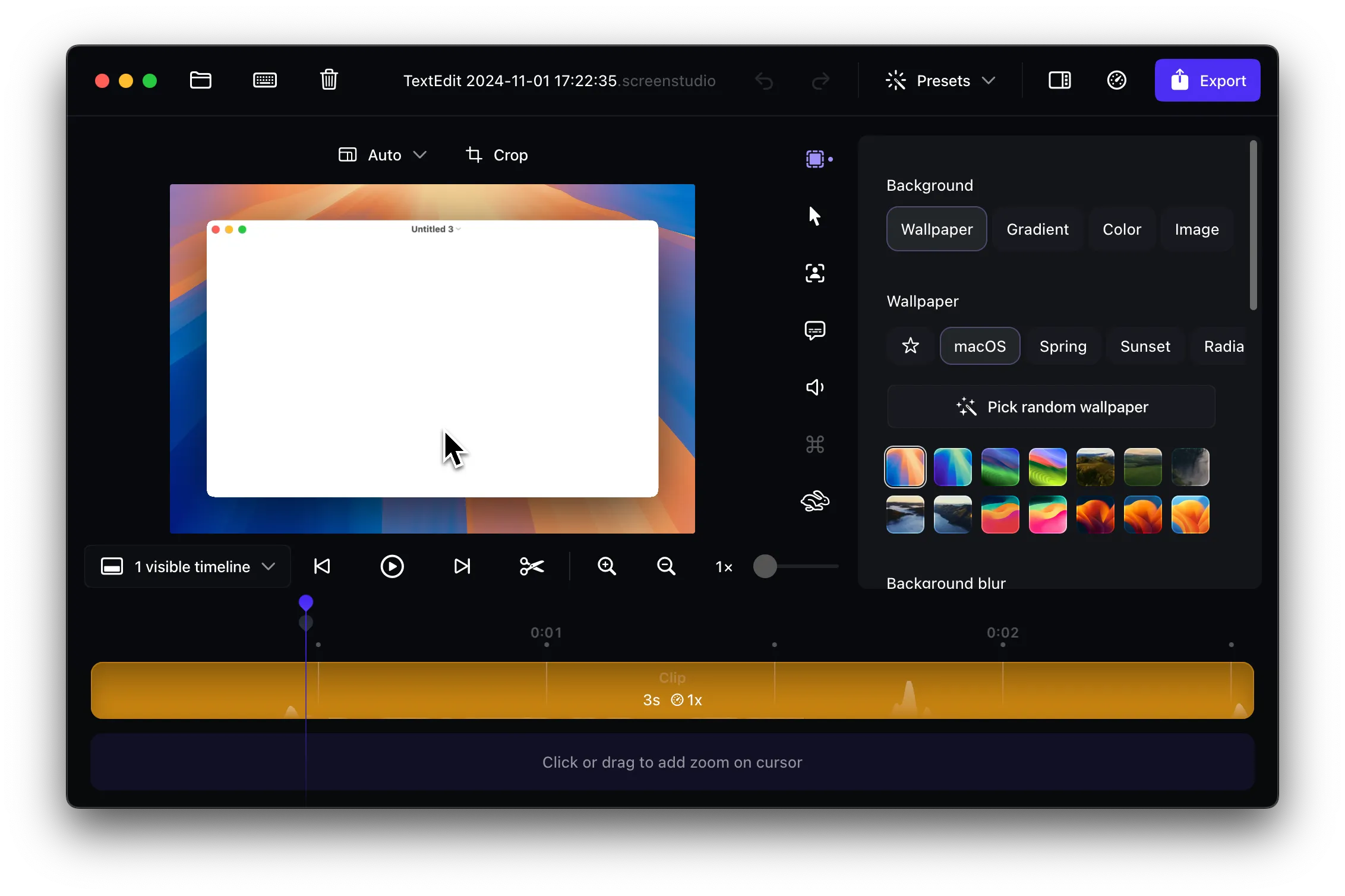
Screen Studio requires substantial free storage space to function properly during recording sessions. When your Mac runs low on available storage, the recording process becomes unstable and may terminate unexpectedly with storage-related error messages.
Storage Requirements for Screen Studio
Screen Studio needs adequate free space on your Mac’s internal drive to operate smoothly. Here are the key storage requirements:
- Minimum free space: 40-50GB of available storage on your main drive
- Temporary files: Screen Studio saves media files temporarily to your internal drive during recording
- Processing overhead: Additional space is needed for video processing and encoding
Approach 1: Free Up Disk Space
The most direct solution is to clear storage space on your Mac:
- Delete unnecessary files - Remove old downloads, duplicates, and unused applications
- Empty the Trash - Make sure to completely empty your Trash to reclaim space
- Clear browser caches - Remove cached files from web browsers
- Remove large video files - Archive or delete old screen recordings and video projects
- Use Storage Management - Go to Apple menu > About This Mac > Storage > Manage to identify space-consuming files
After freeing up storage space, restart your Mac. Restarting is crucial because it allows macOS to clear system caches and become more responsive, which can resolve storage-related recording issues.
External Drive Limitations
While you might consider using an external drive to save your videos, there’s an important limitation to understand:
- Screen Studio temporarily saves media files to your internal drive during recording
- Even with an external drive set as your save location, you still need 40-50GB free on your main drive
- The external drive won’t help if your internal storage is full
Alternative Solution: Borumi
If storage management doesn’t resolve your Screen Studio recording issues, consider switching to Borumi. This alternative screen recording tool offers:
- More efficient storage usage during recording
- Stable performance with lower storage requirements
- Smooth zooming effects and cursor movements like Screen Studio
- Better handling of storage limitations
- Professional-quality video output