Quick Start
Borumi is designed to guide you through the whole video creation process, from planning your idea to recording and editing the final video. The main tools are Script, Record, and Edit. This guide covers two common workflows, but you can always switch between tools as your project evolves.
Choose how to start
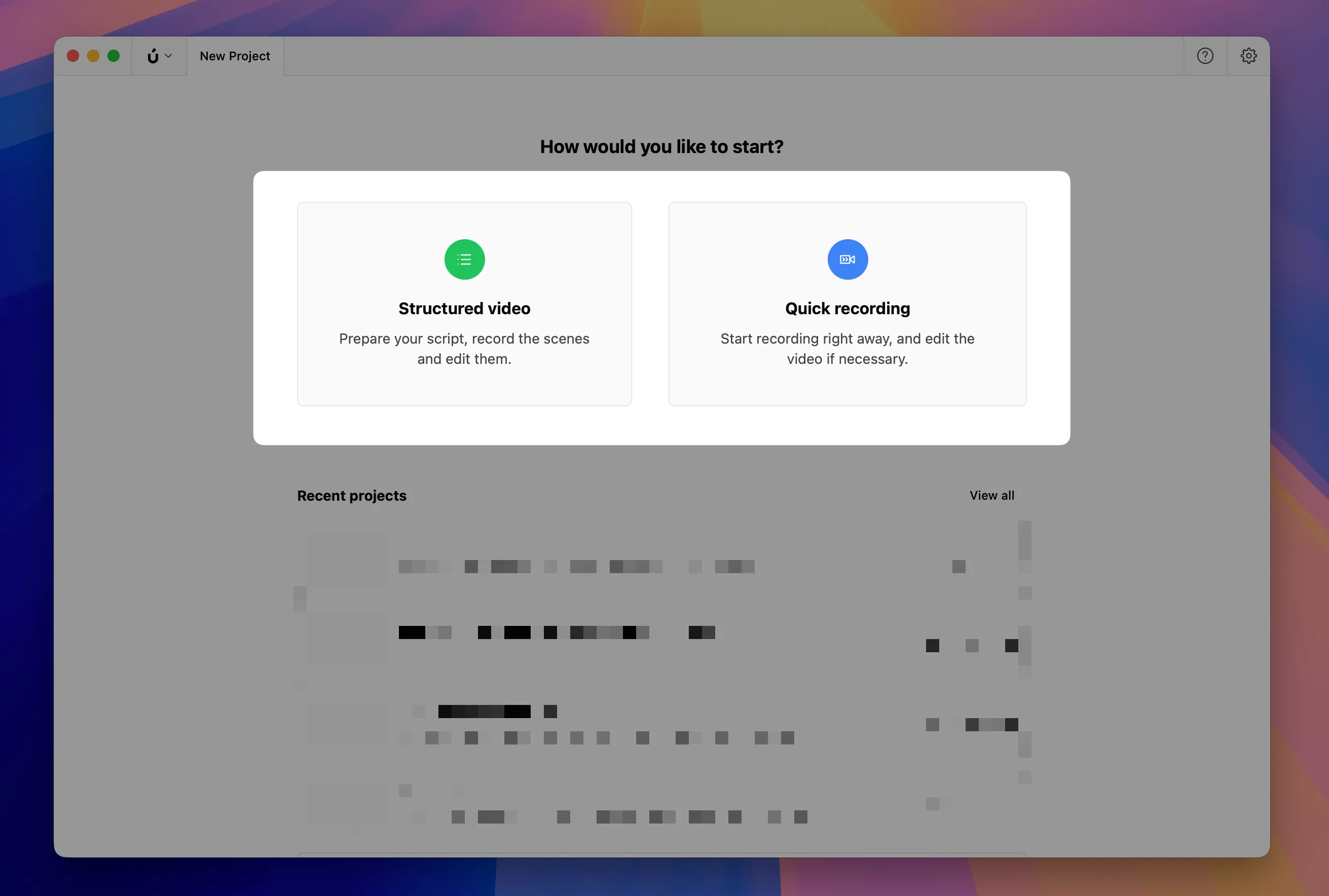
Section titled “Choose how to start”When you open Borumi, choose between Structured video and Quick recording.
- Structured video is best when you want to plan the shape of your video before recording. Your script can be a simple bullet point list, a word-by-word script, or anything in between. You can split the script into scenes, then record each scene separately when you are ready.
- Quick recording is best when the video does not need much planning. You can select your camera, microphone, and screen, start recording, and then move straight into editing.
Plan with a script
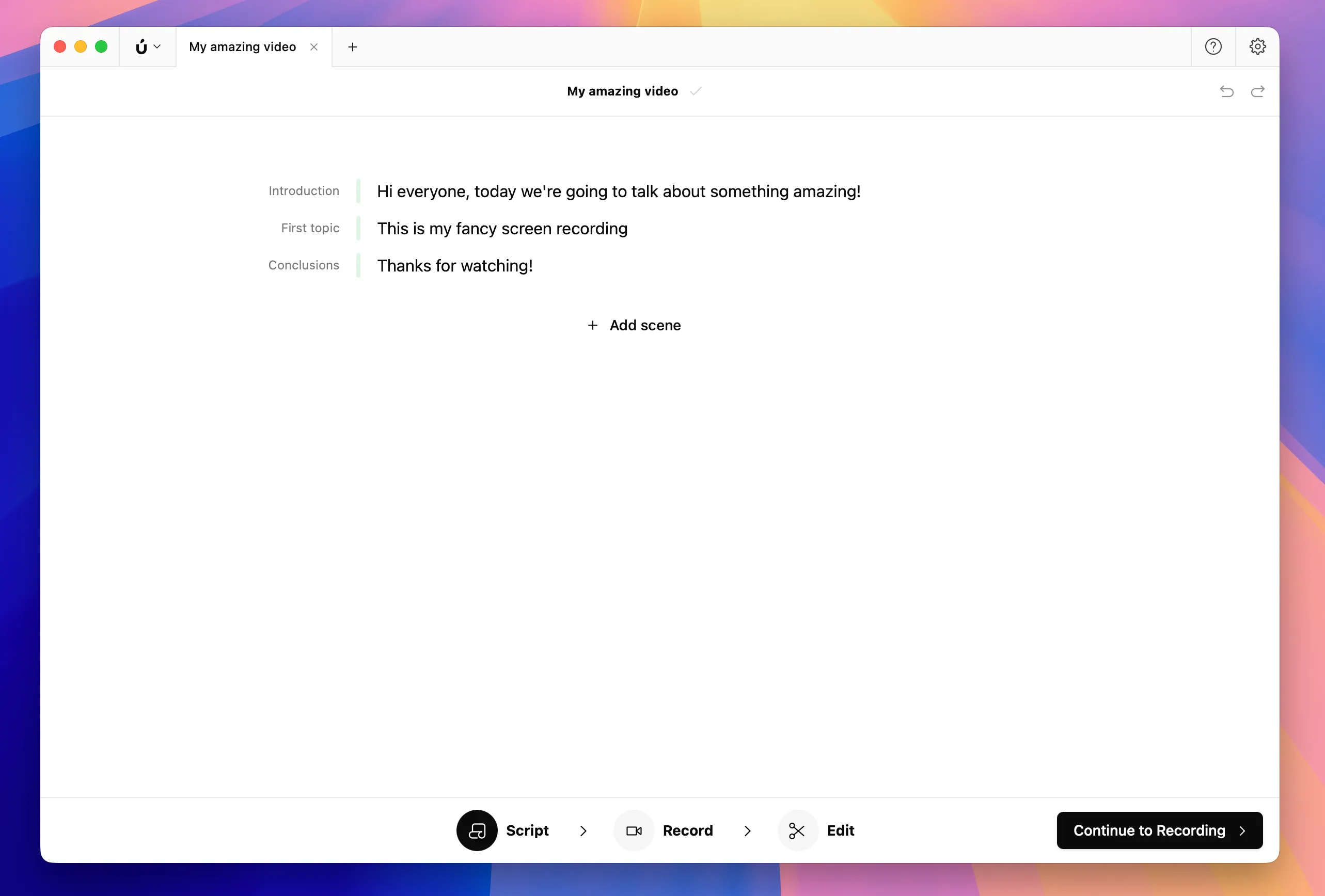
Section titled “Plan with a script”The Script tool is where you shape the video before recording. Start with a rough outline, write detailed talking points, or draft the exact words you want to say. You can organize the script into scenes to make the recording process more manageable.
Record your video
Section titled “Record your video”When you are ready to record, open the Record tool from the bottom navigation.
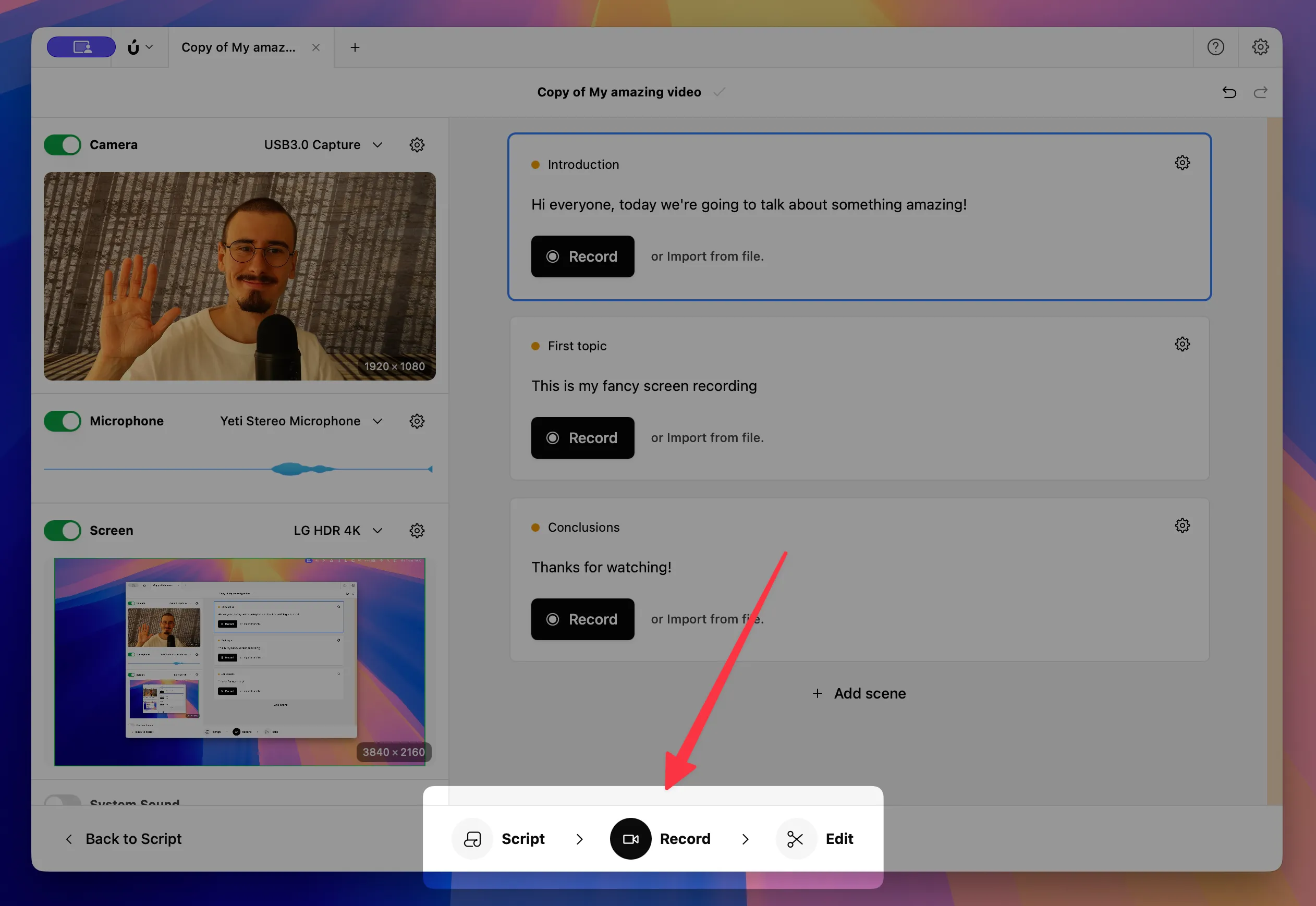
Here you can select your camera, microphone, and screen. You can turn each source on or off depending on what you want to capture.
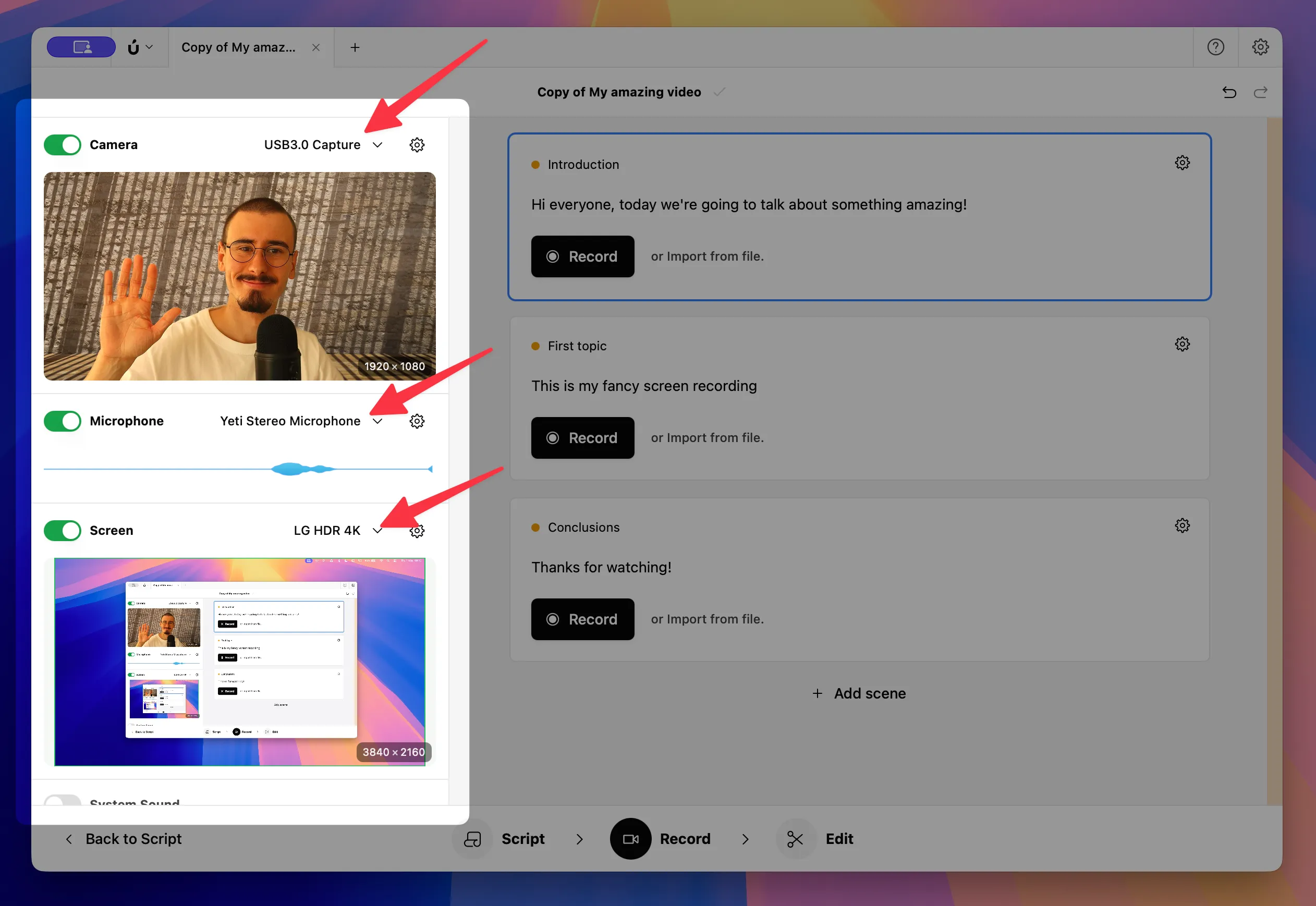
You are now ready to start recording. If you started with a script, your scenes will appear on the right, and you can record each one individually by clicking its Record button. If you started without a script, click the main Record button to begin.

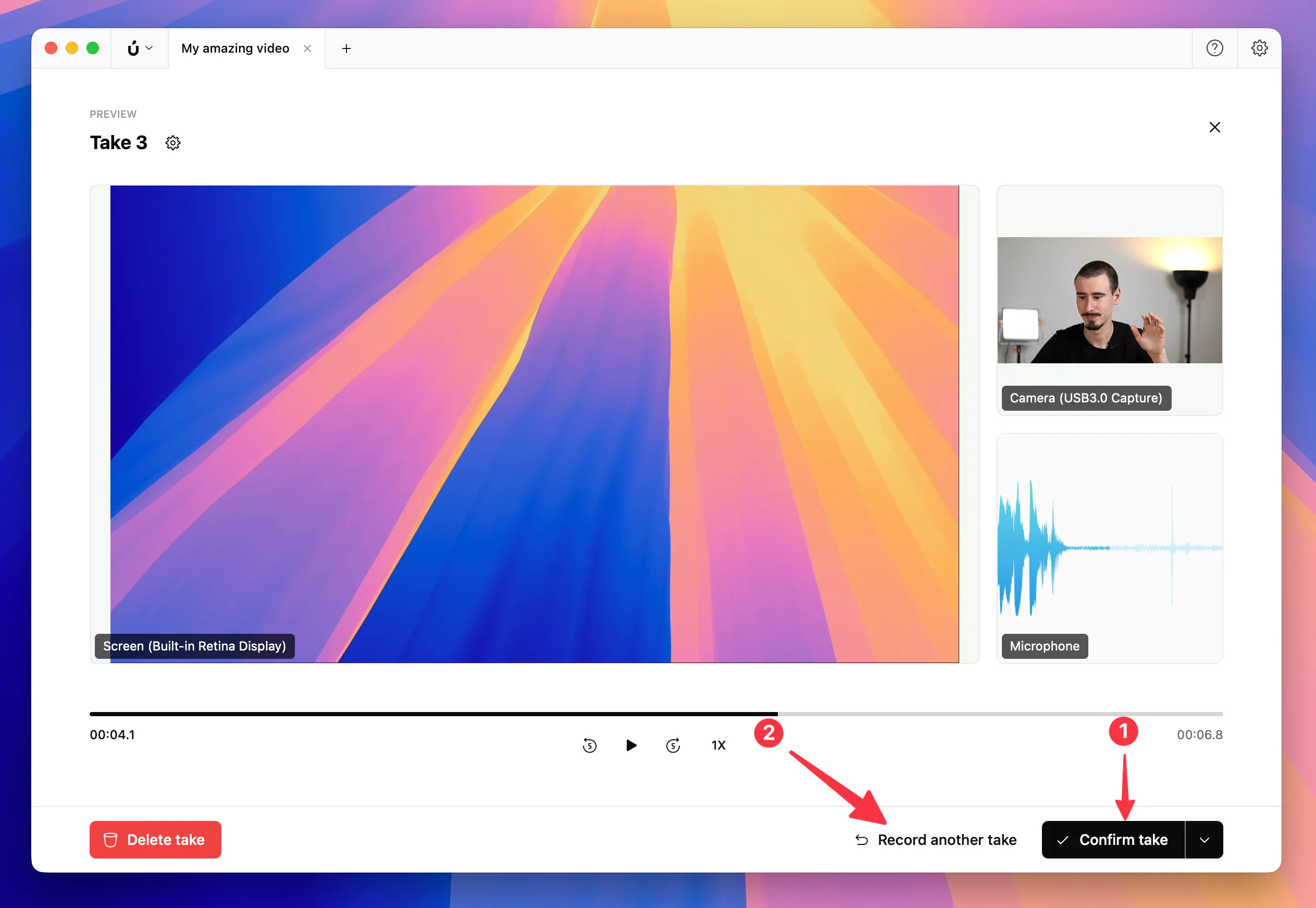
After each recording, Borumi shows a preview. If the take looks good, Confirm it (1). If not, try again (2). Borumi keeps all your previous takes, so nothing gets lost and you can choose the best one later.
Edit your video
Section titled “Edit your video”Once your recordings are ready, open the Edit tool from the bottom navigation to start refining your video.
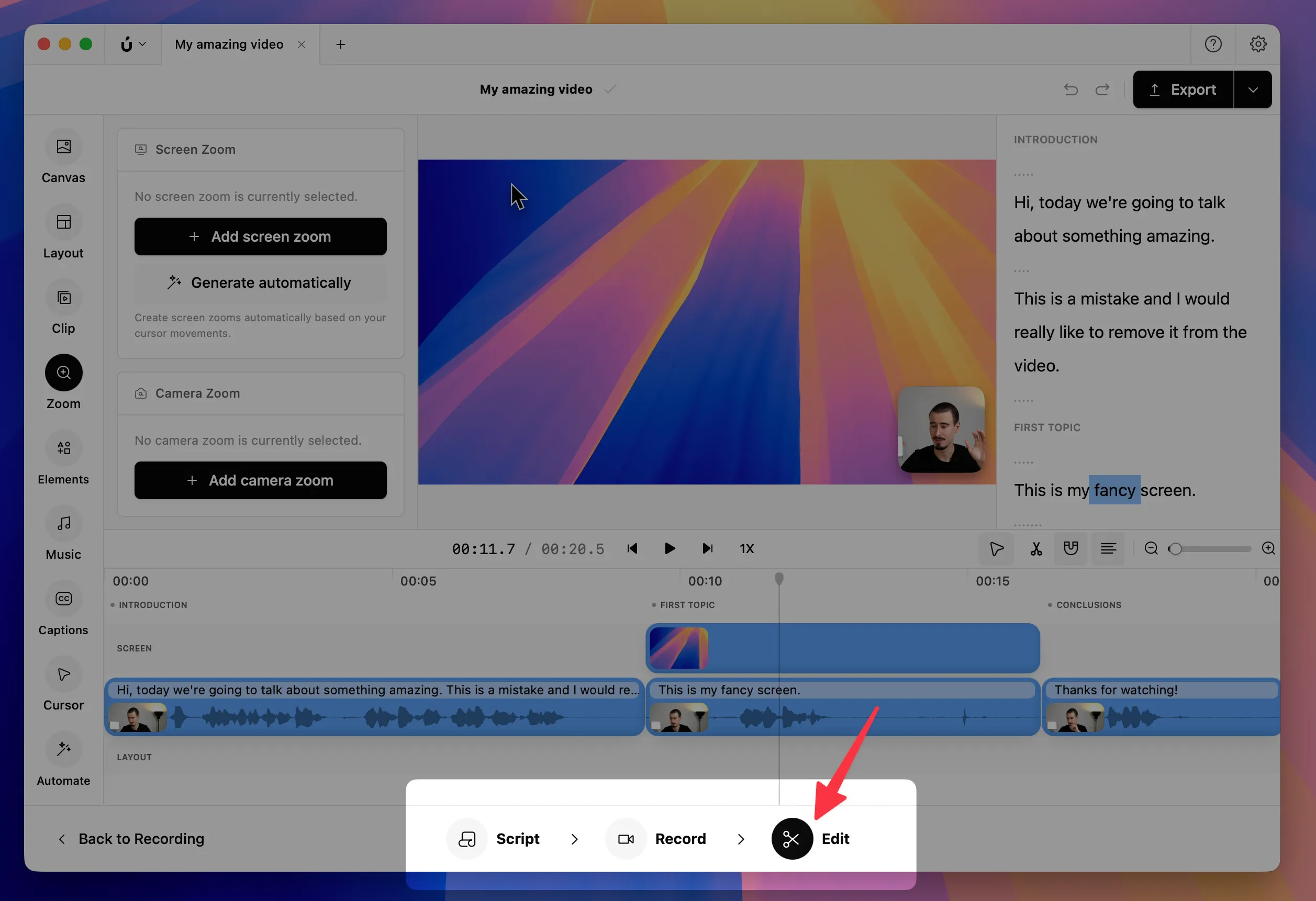
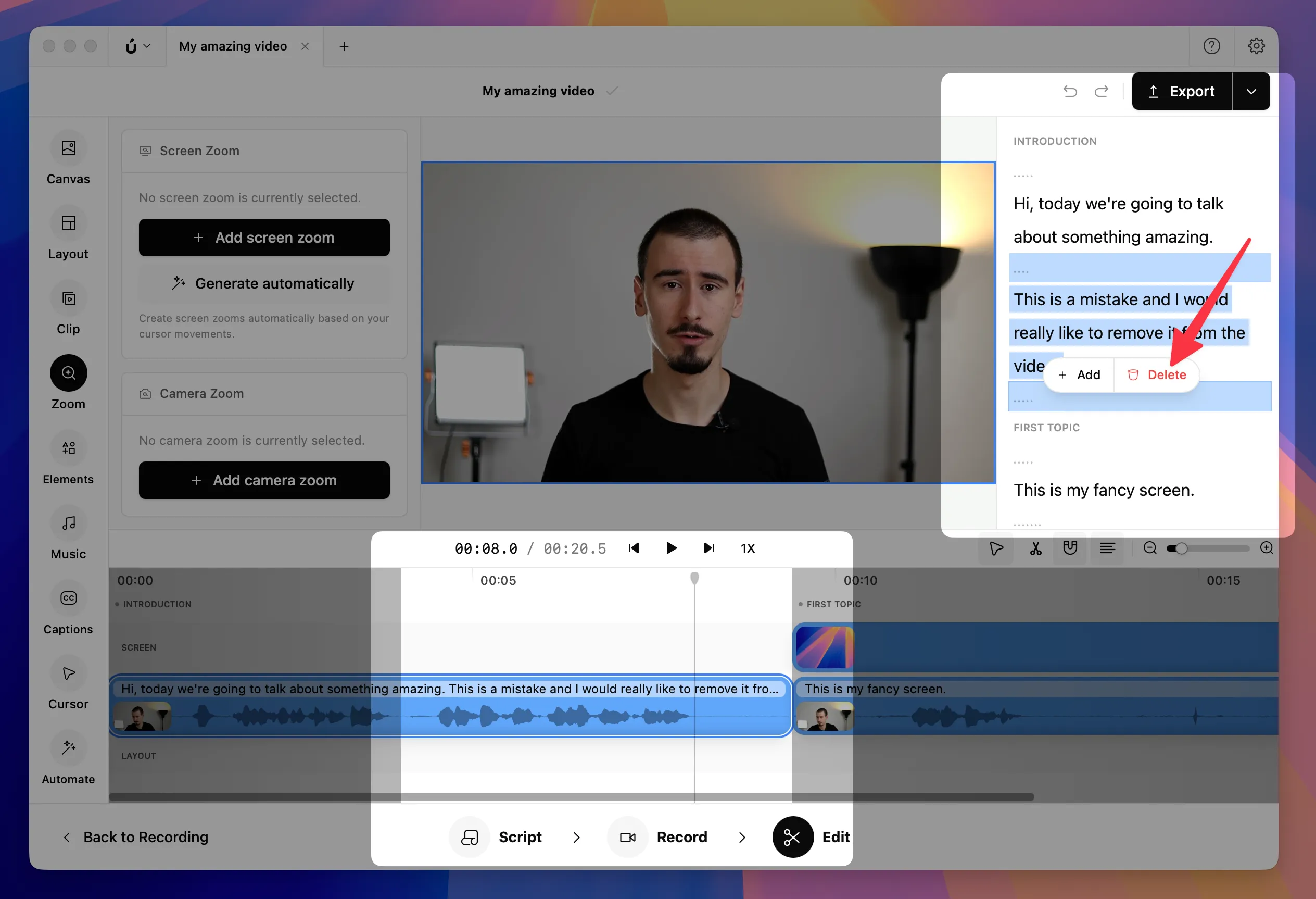
Borumi automatically creates a timeline for your video by combining your scenes. You can trim clips directly in the timeline or use the transcript on the right to edit by text.
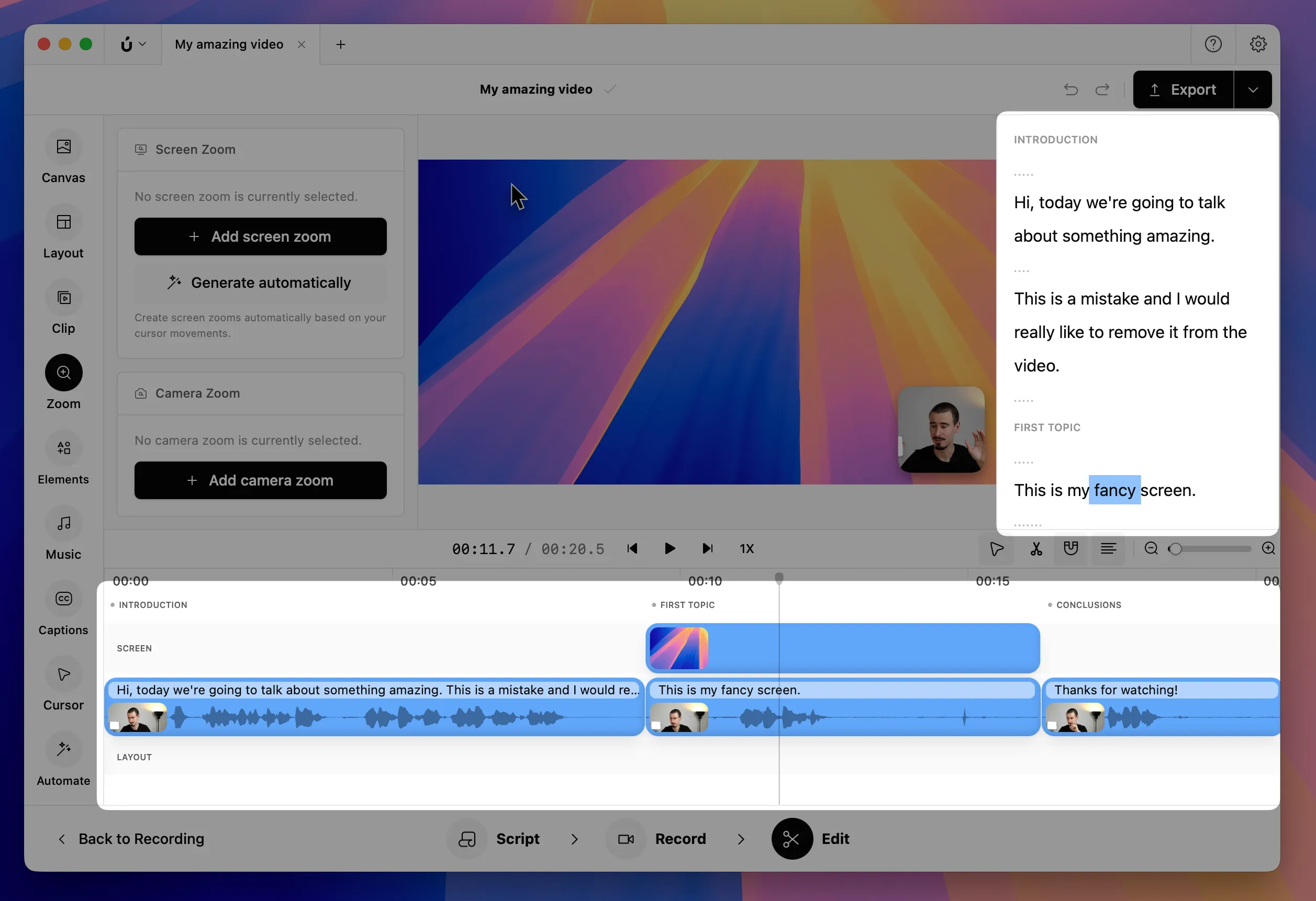
Transcript-based editing lets you edit your video like text. Select the words you want to remove, delete them, and Borumi updates the timeline for you. This can save a lot of time when editing longer videos.
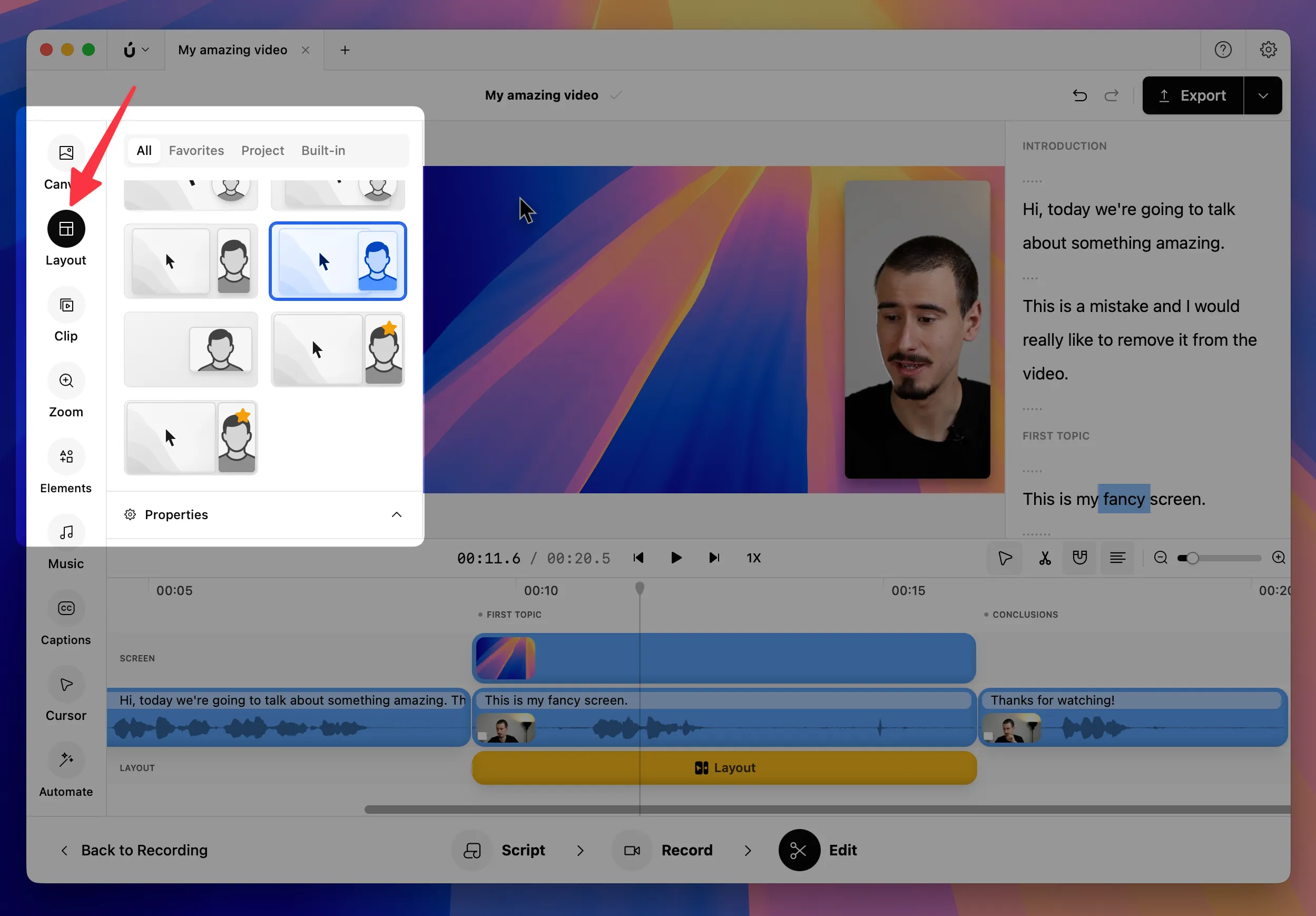
To change how your video looks, use the Layout tab or resize clips directly on the canvas.
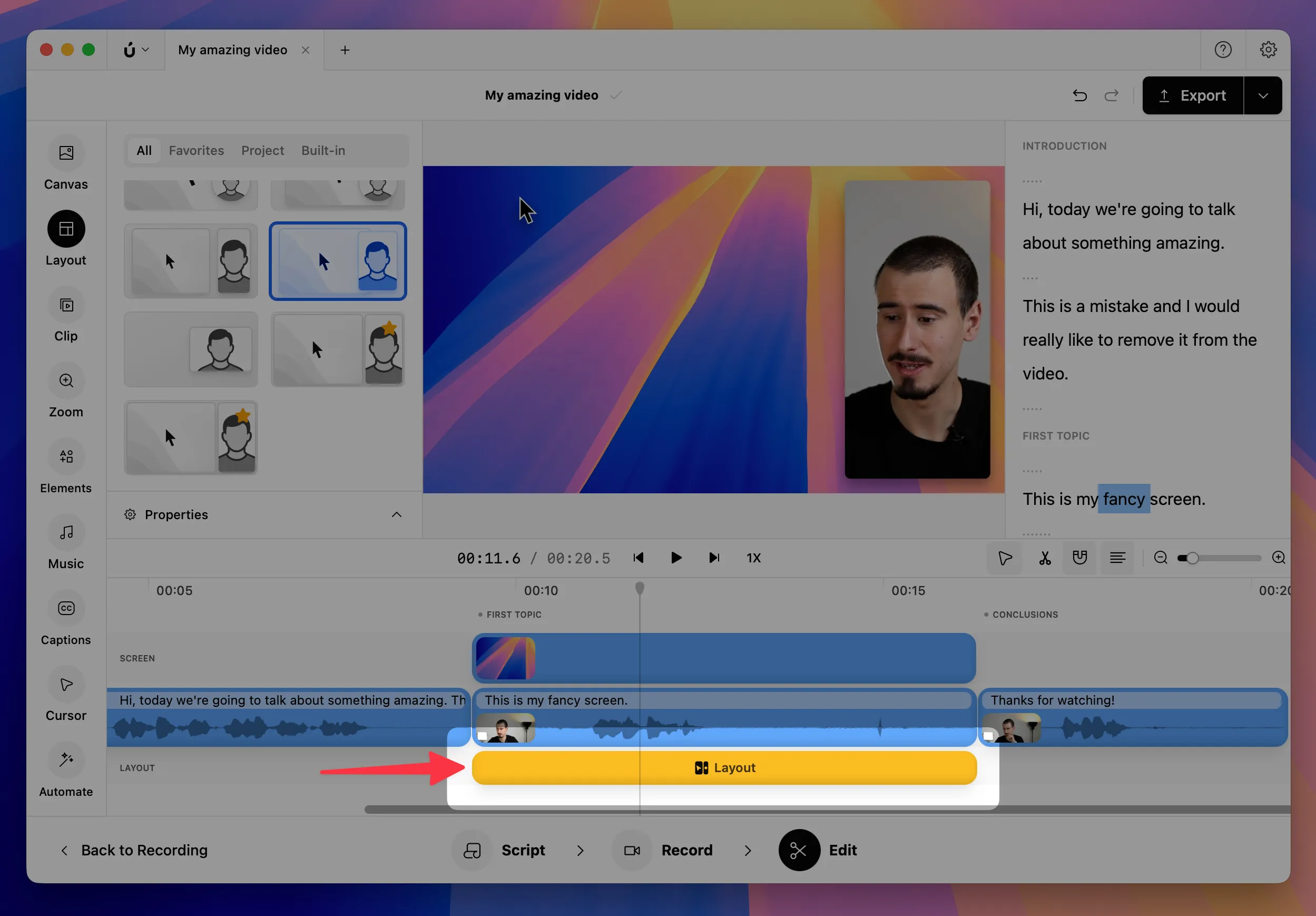
After changing a layout, you may notice a new layout clip in the timeline. This clip controls when the layout is applied. Move or extend that clip to decide which part of the video uses that layout.
This section covers the basics of editing, but you can also add zoom effects, text, images, videos, and more.
Export your video
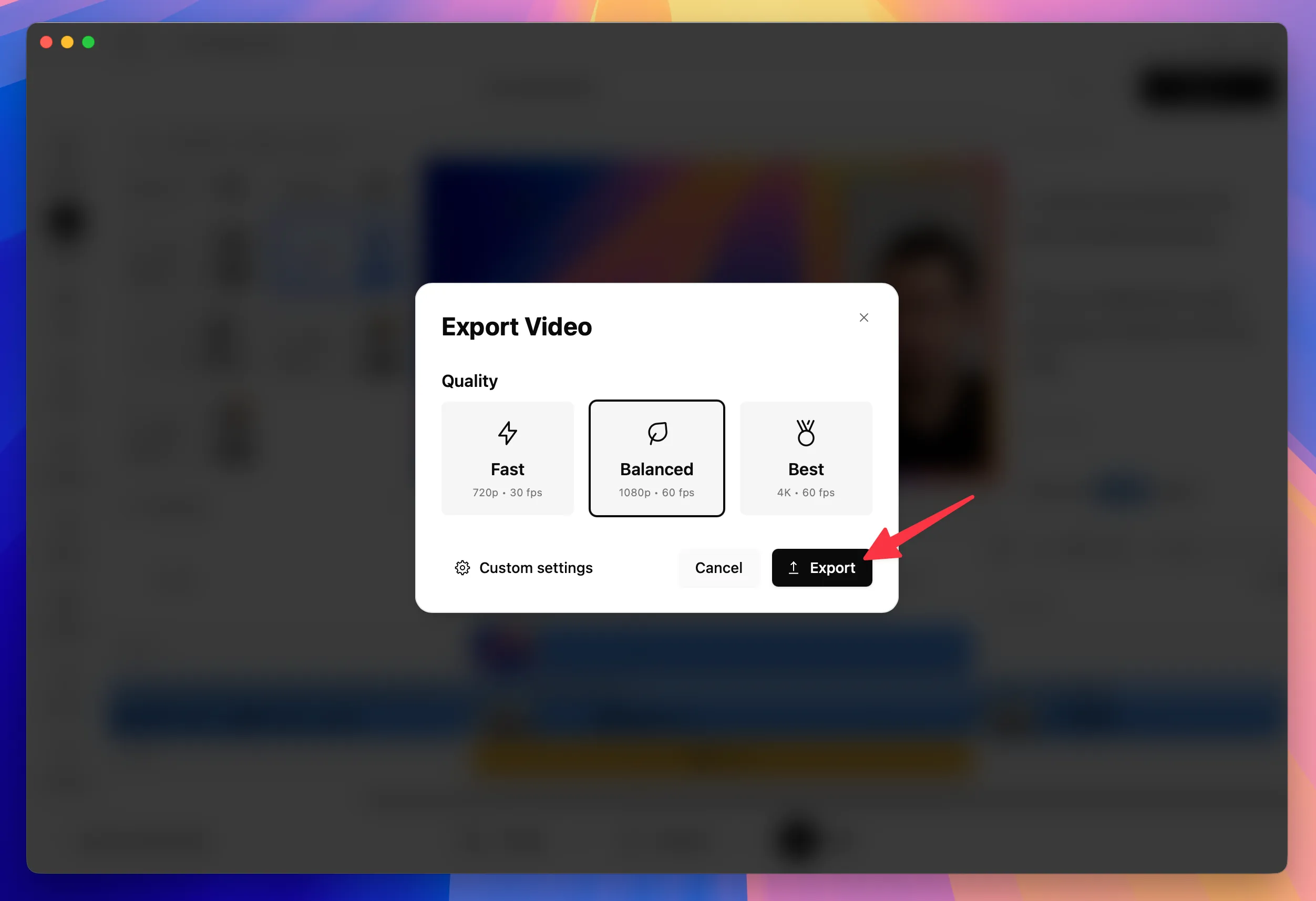
Section titled “Export your video”When you are satisfied with your video, you can export it by pressing the Export button.
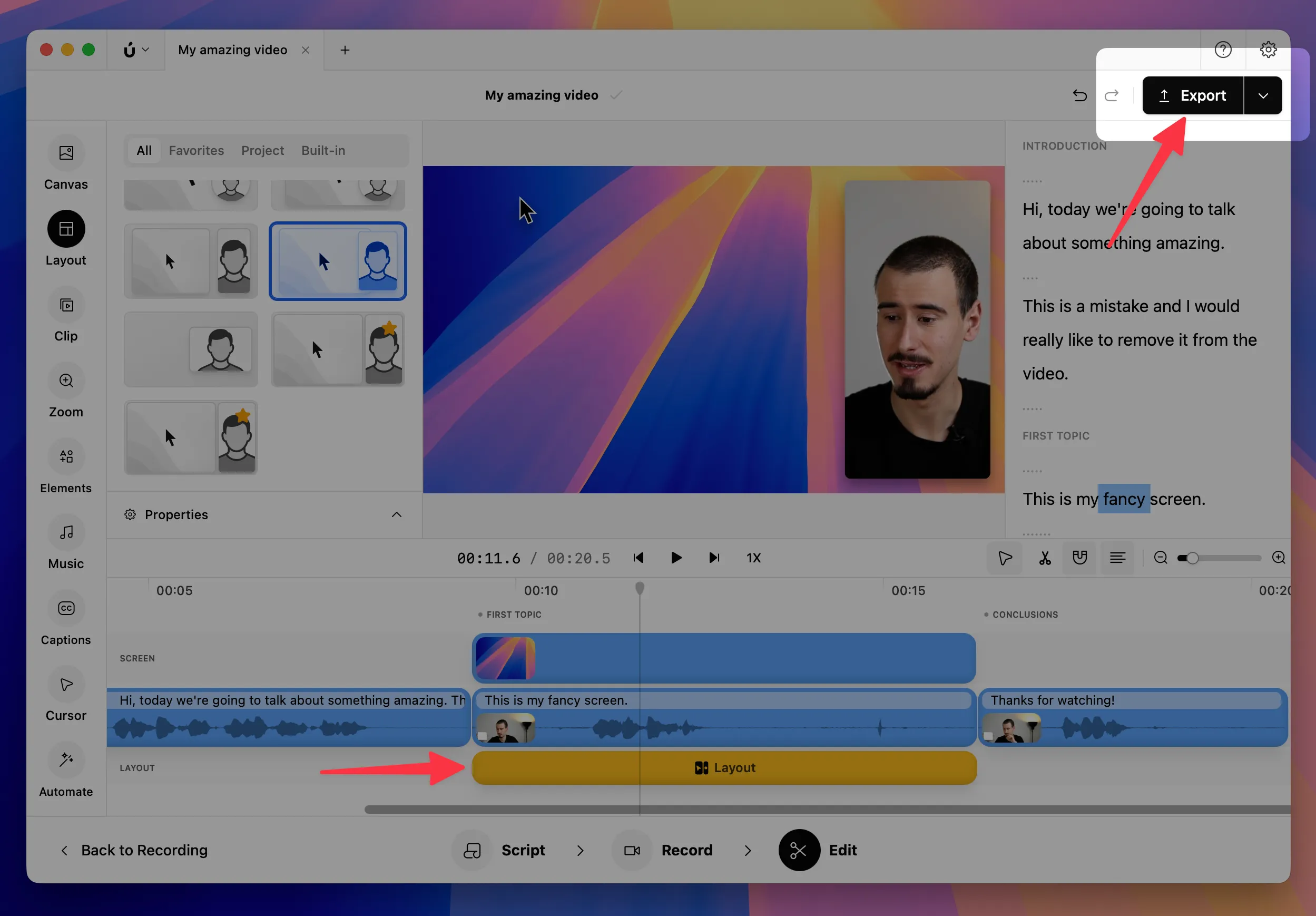
Here you can select the quality of your video, then press Export to export your video.