
Add animated slides with AI
A video of you talking is much easier to follow when visuals explain what you say. Your AI can create animated slides for you and show each one at the right moment. This guide shows you how to do that.
Ask for slides
Section titled “Ask for slides”- Open your project in Borumi.
- Ask your AI, for example:
- “Can you add animated slides to the video to illustrate my points? Make them good looking, and make the explanation easier to understand.”
- “Add a slide for each of the three clip types when I start talking about them. Keep the text short.”
- Wait while the AI works. It can take a few minutes, depending on how long your video is.
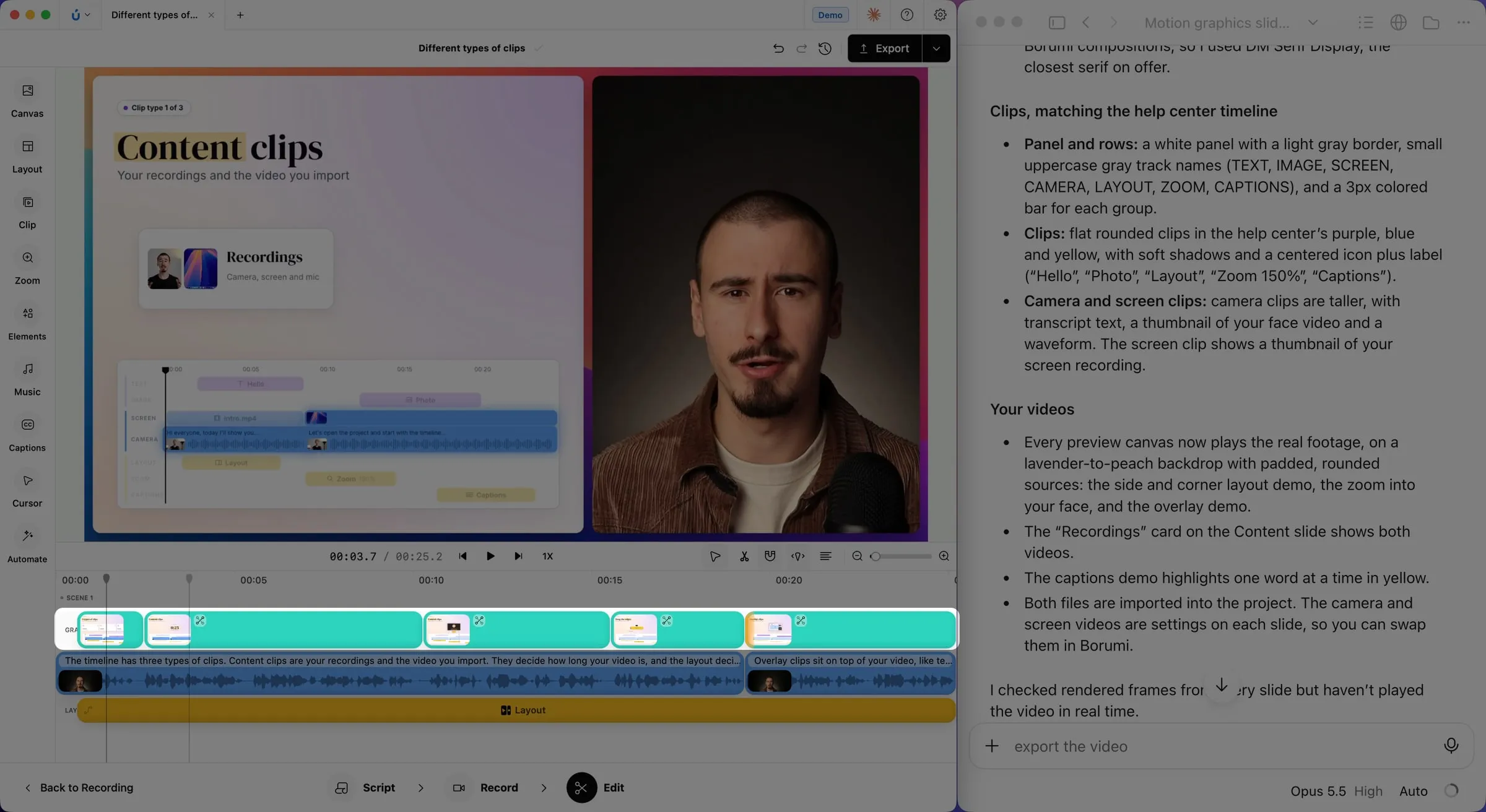
When it’s done, the slides are on the Graphics track of the timeline, timed to what you say. Play the video to check them.
Give your AI references
Section titled “Give your AI references”The AI makes much better slides when it knows more about your topic and your style. Add any of these to your request:
- A page about your topic, so the facts are right. For example, a link to your documentation or an article.
- Your brand, so the slides look like the rest of your content. For example, a link to your website.
- Your existing slides, if you have them. They’re extremely helpful: the AI can replicate their style, colors, and fonts. Attach them to your message, or tell the AI which folder they’re in.
- Your own recordings and images, so the AI uses them instead of generic illustrations. Attach them to your message, or tell the AI which folder they’re in.
For example:
Can you match the slides to the Borumi brand? See how it looks on borumi.com. Also, use the attached camera and screen recordings in the slides, instead of the illustrations.
Show the slides next to you
Section titled “Show the slides next to you”Slides behave like a screen recording, so every layout works with them. For example, you can show a slide full screen, or side by side with your camera. Choose the layout as usual. See Choose a layout.
Refine the slides
Section titled “Refine the slides”The first try is a great start, but you’ll probably want a few changes. Ask for them in the same chat, for example:
- “Show the slide about overlay clips a bit later, when I start talking about them.”
- “The second slide has too much text. Can you make it shorter?”
To change the text or the colors yourself, see Customize motion graphics. If you don’t like a change, you can always go back. See Undo the AI’s changes.