
Add overlays
Images and videos are a great way to show a logo, a screenshot, or a product on top of your video. In Borumi, they’re called overlays, and this guide walks you through adding them.
Add an image or a video
Section titled “Add an image or a video”- Click Elements in the left sidebar.
- Under Overlays, click New overlay and choose a file. The overlay appears at the playhead.
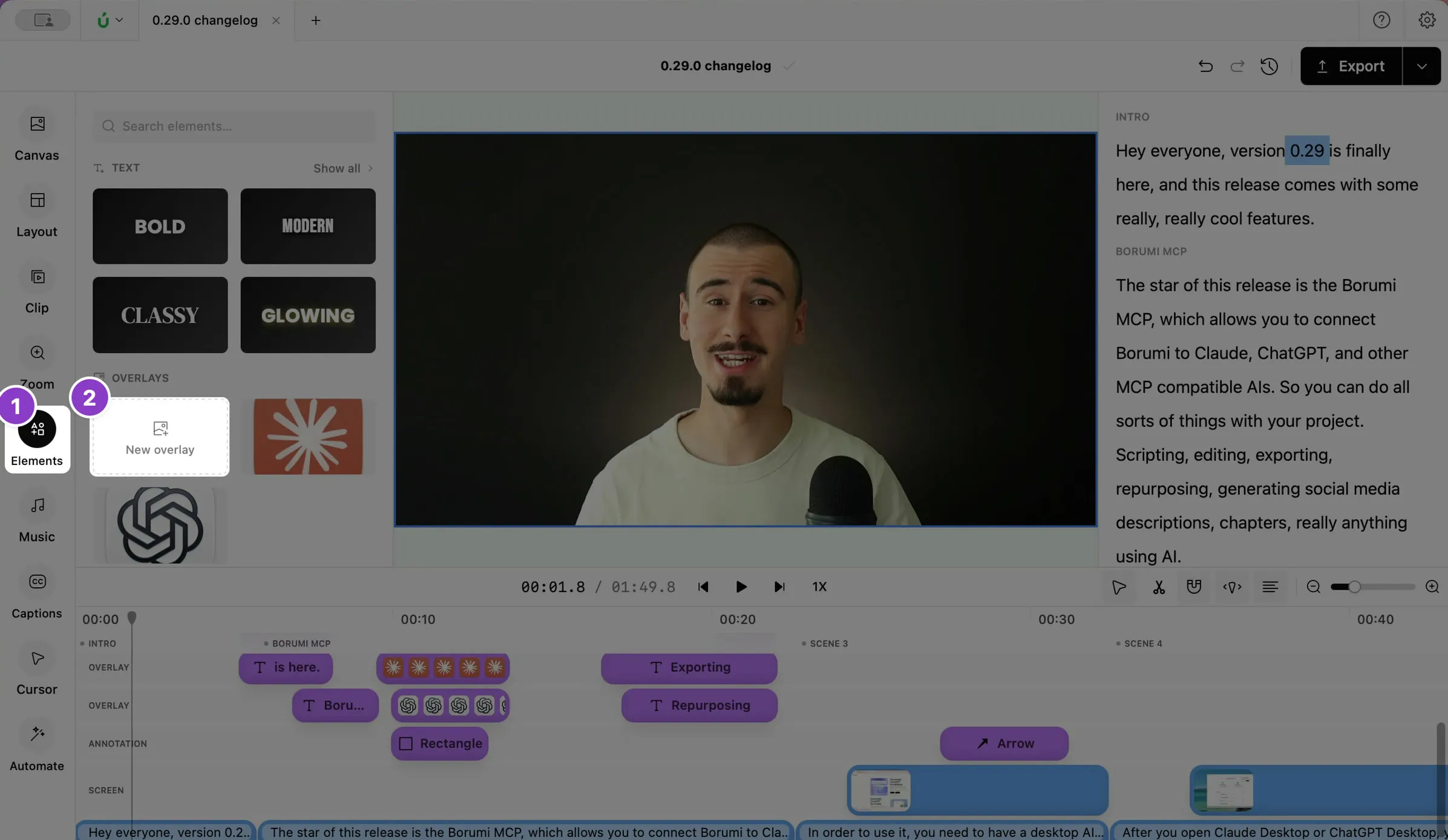
You can add PNG, JPG, and GIF images, and MP4 and MOV videos. You can also paste an image with , or drag a file onto the video.
Change how it looks
Section titled “Change how it looks”When you click the overlay, its Element properties open on the left:
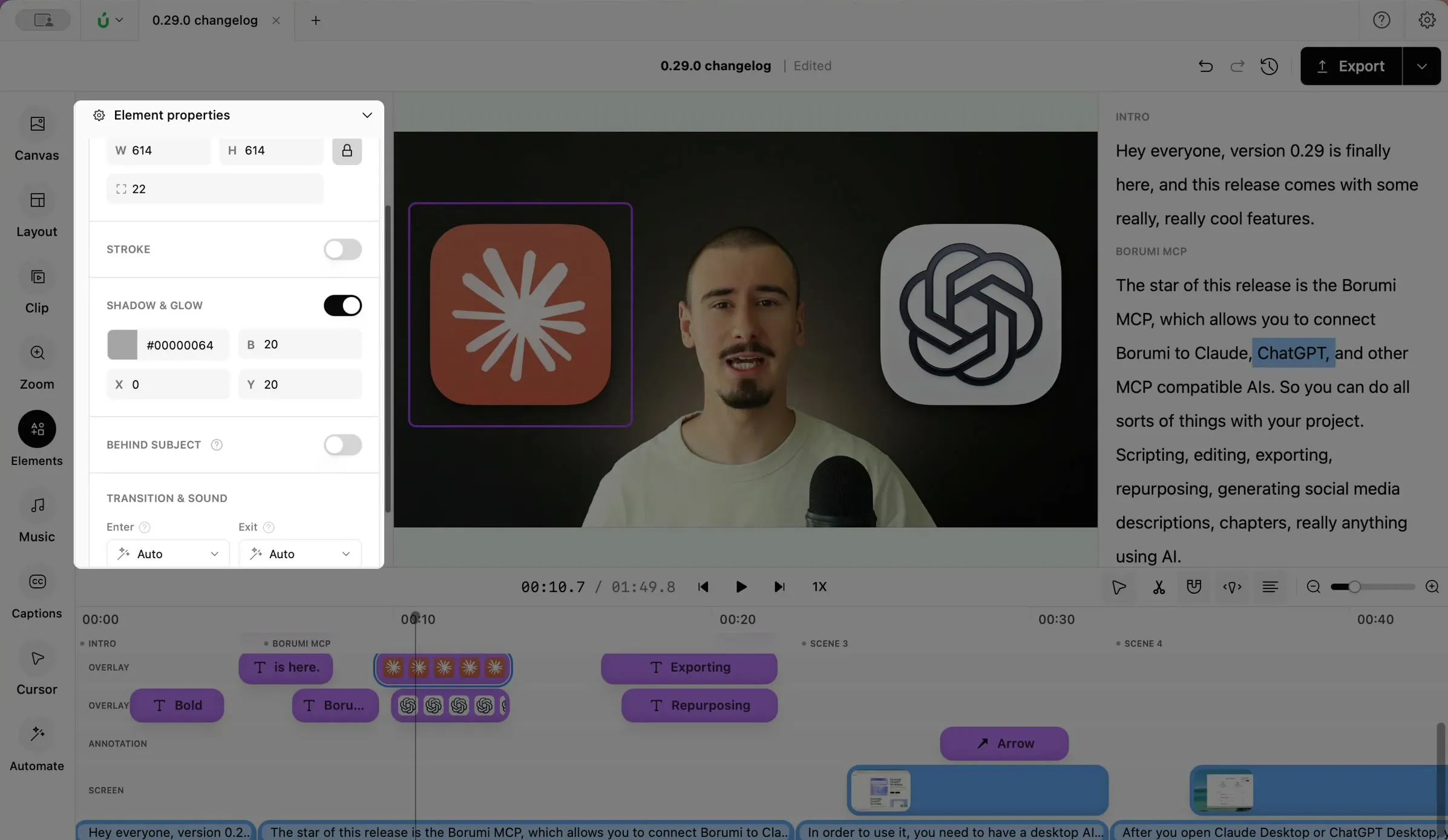
- Size & Position: the exact position and size, and the corner radius. You can also drag the overlay in the video to move it, and drag a corner to resize it.
- Stroke: a border around the overlay.
- Shadow & Glow: overlays have a soft shadow by default. Turn it off, or change its color and size.
- Behind subject: puts the overlay behind you. See Put text behind yourself.
- Transition & sound: how the overlay appears and disappears. See Customize transitions.
Change when it shows
Section titled “Change when it shows”You can change when the overlay shows, and for how long, by dragging its clip on the timeline as usual.
When two overlays show at the same time, drag one of their clips up or down on the timeline to choose which one is on top.
Turn a clip into an overlay
Section titled “Turn a clip into an overlay”Right-click a video clip on the timeline and choose Video Type → Overlay.