Add a camera zoom
A camera zoom punches in on your camera, for example to add emphasis to what you’re saying.
Add a camera zoom
Section titled “Add a camera zoom”-
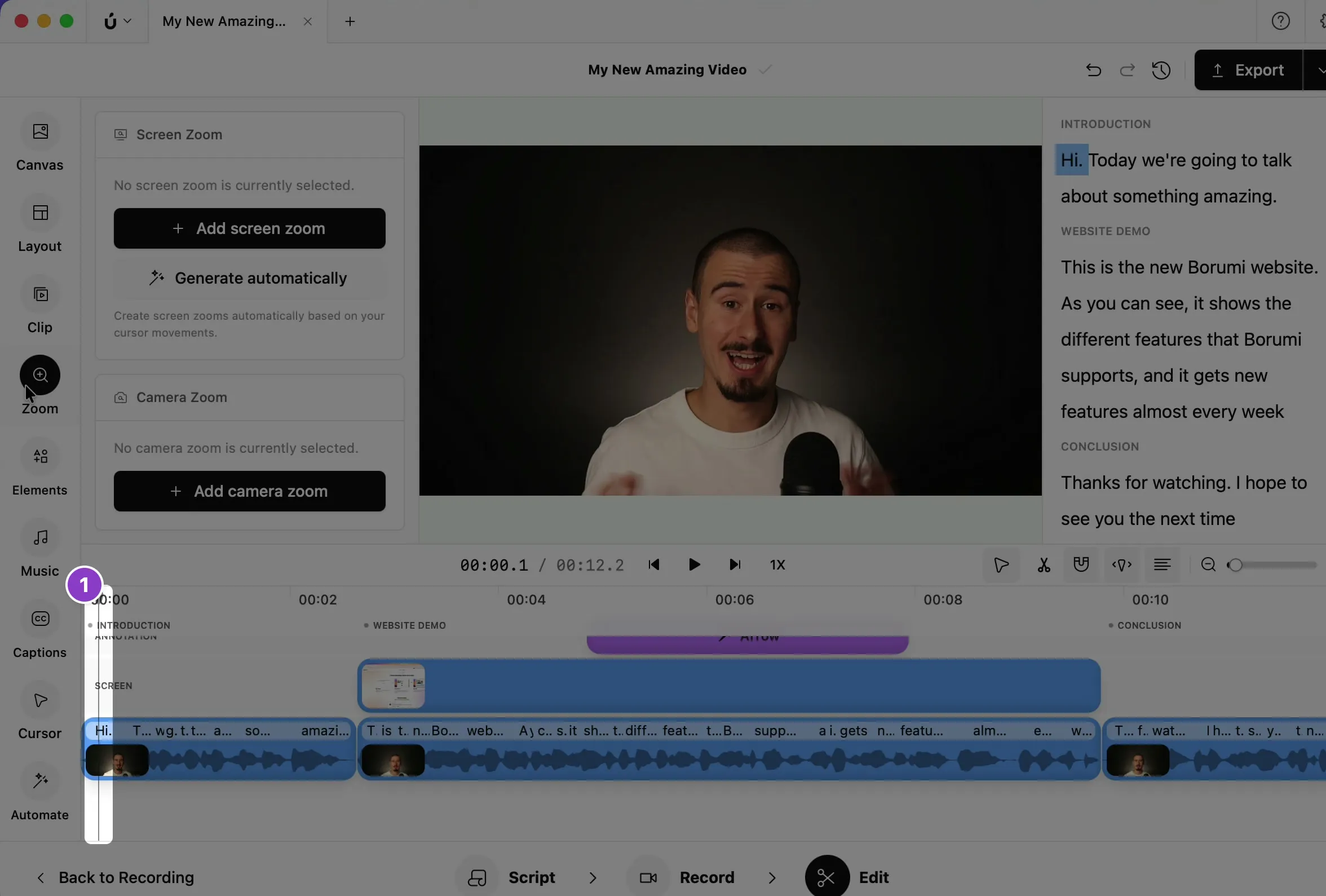
Move the playhead to where the zoom should start.
-
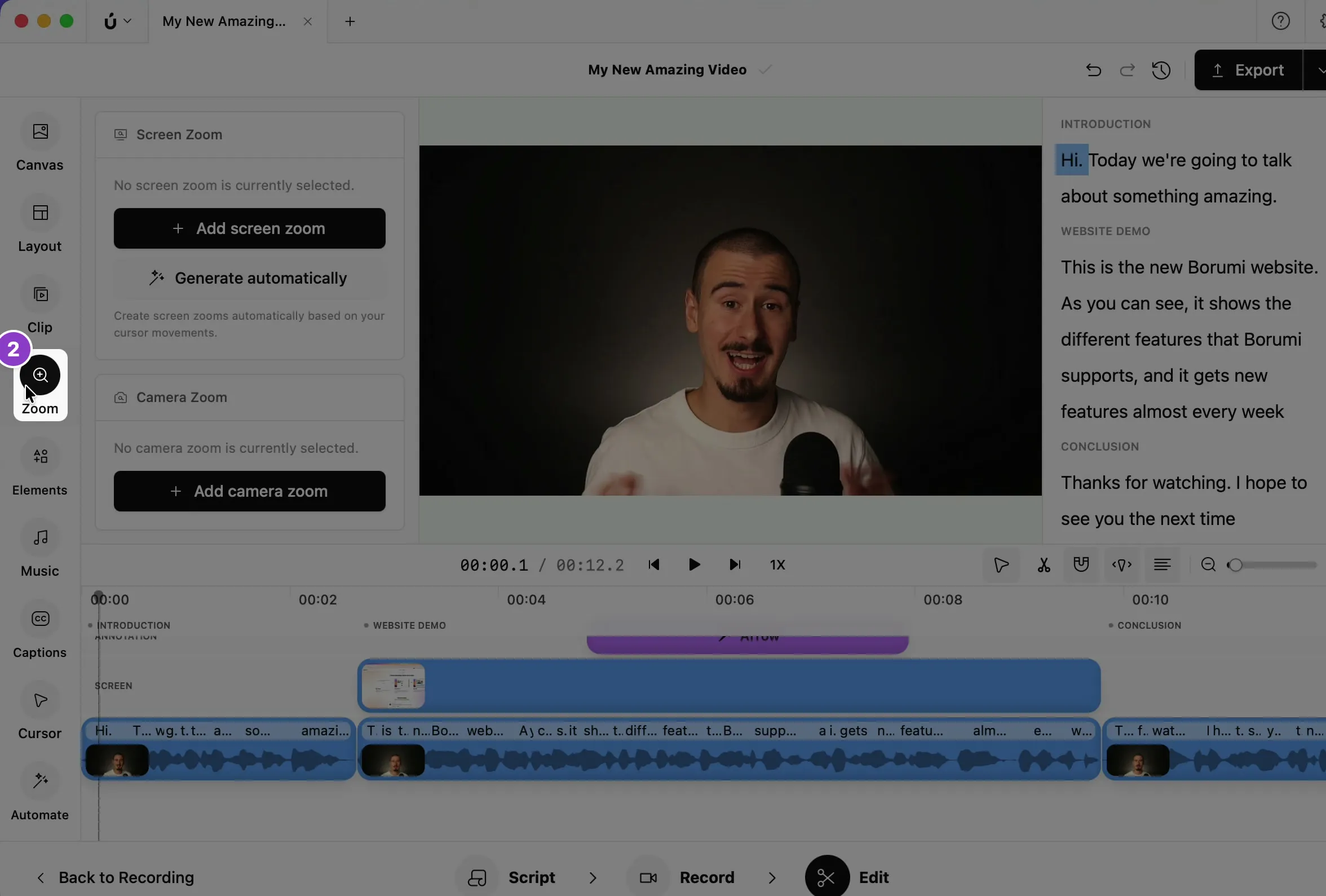
Click Zoom in the left sidebar.
-
Under Camera Zoom, click Add camera zoom.
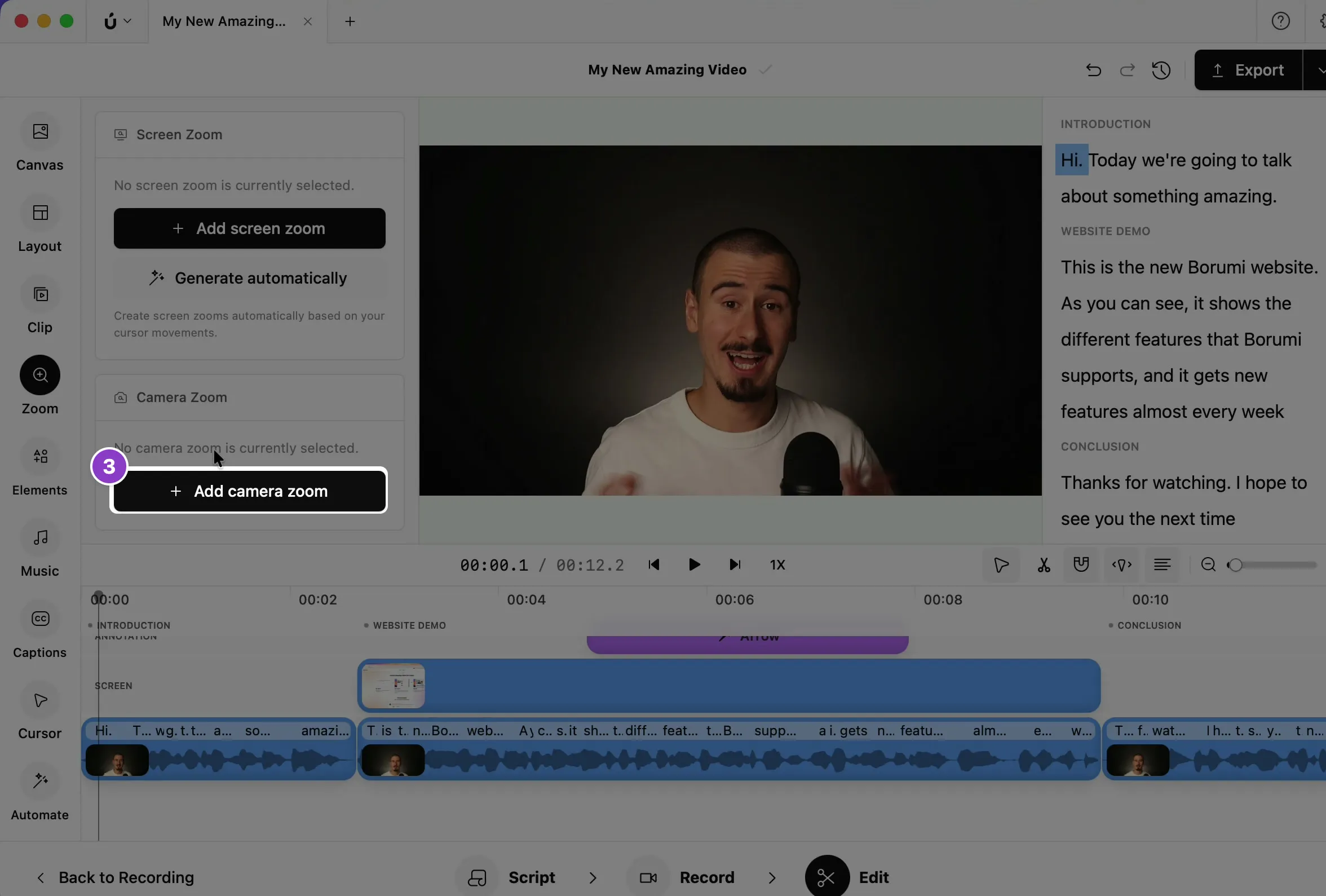
The zoom appears on the Camera Zoom layer of the timeline. Borumi zooms in when the clip starts and zooms back out when it ends. Drag its edges to make it longer or shorter, or drag the clip to move it.
Change the zoom focus
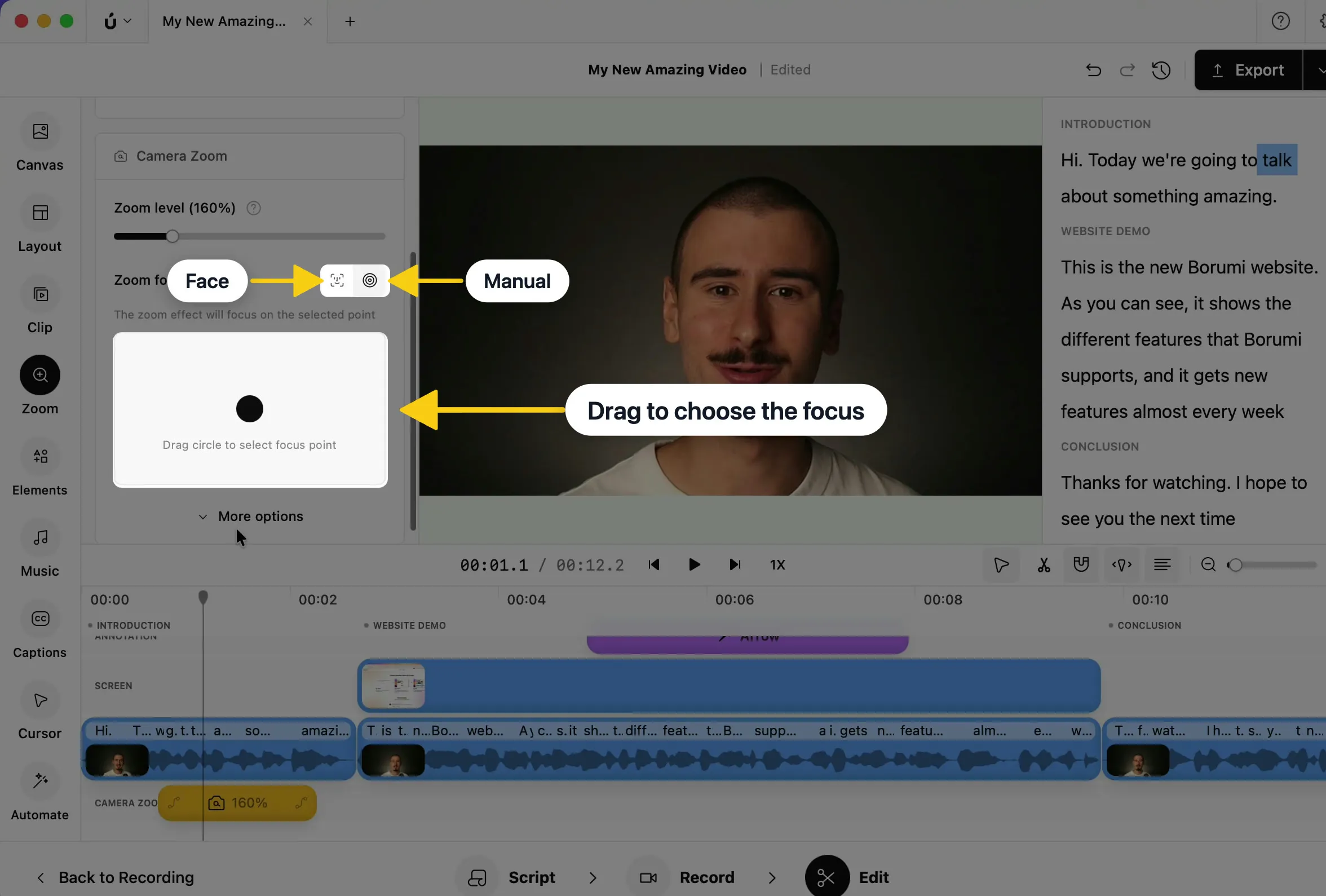
Section titled “Change the zoom focus”Borumi zooms in on your face automatically. To zoom in on another part of your camera instead, click the zoom on the timeline and change Zoom focus in the Zoom panel:
- Face: the zoom stays on your face, wherever it is in the frame.
- Manual: the zoom stays on one spot. Drag the circle in the box below to the area you want to show.
Change the zoom level
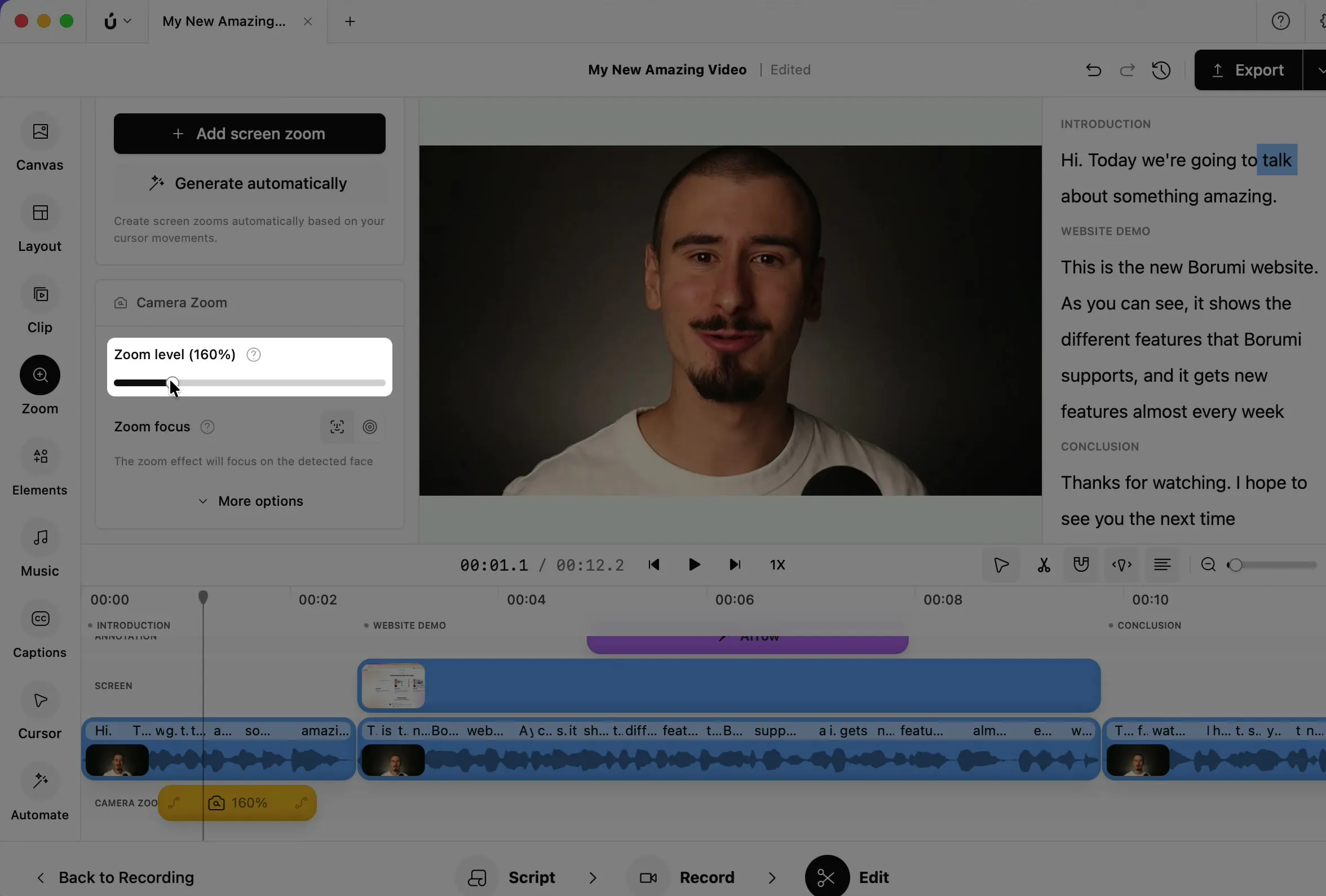
Section titled “Change the zoom level”Select a zoom and drag the Zoom level slider to choose how close your camera appears, from 100% to 400%.
Change how the zoom starts and ends
Section titled “Change how the zoom starts and ends”-
Select the zoom on the timeline.
-
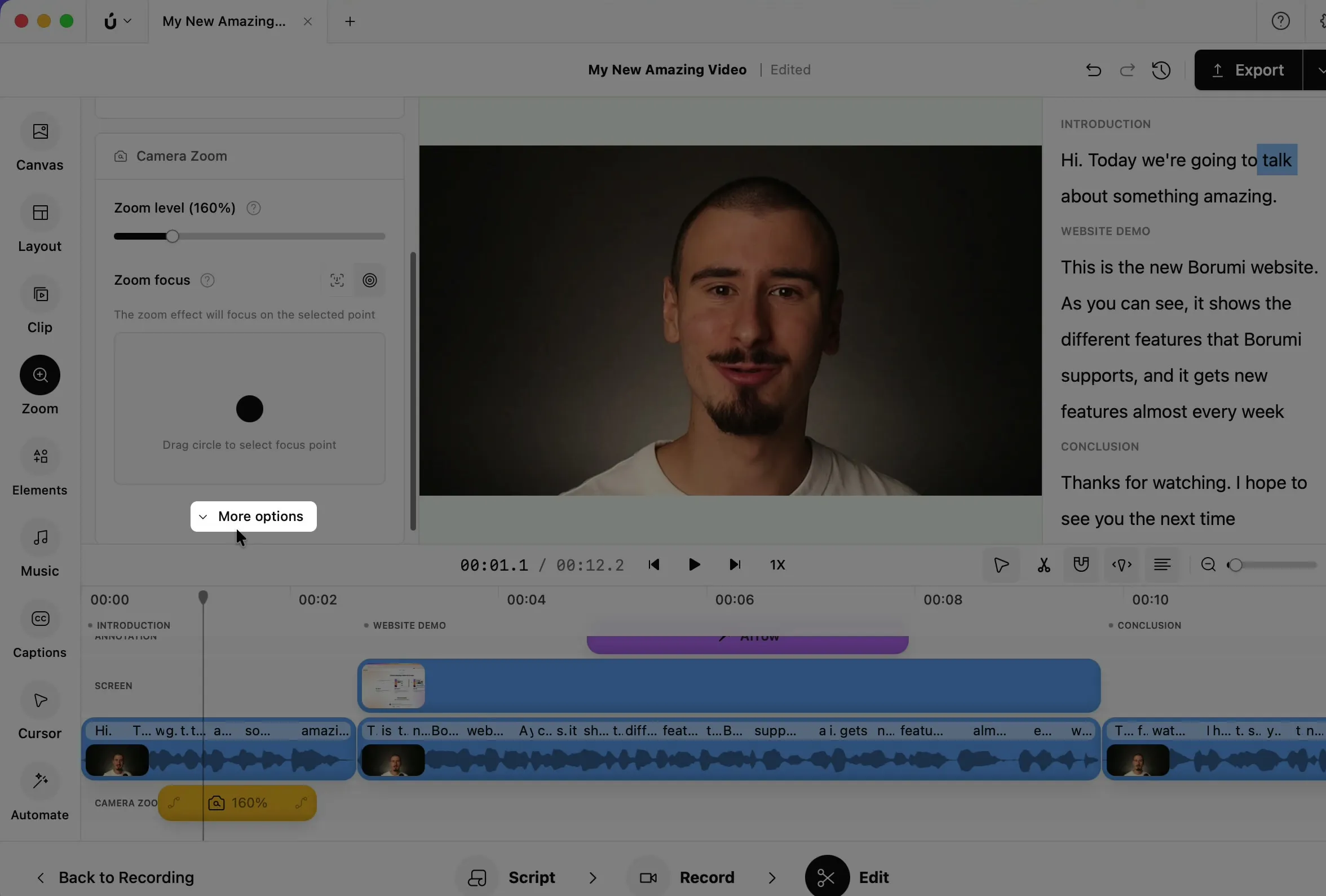
In the Zoom panel, click More options.
-
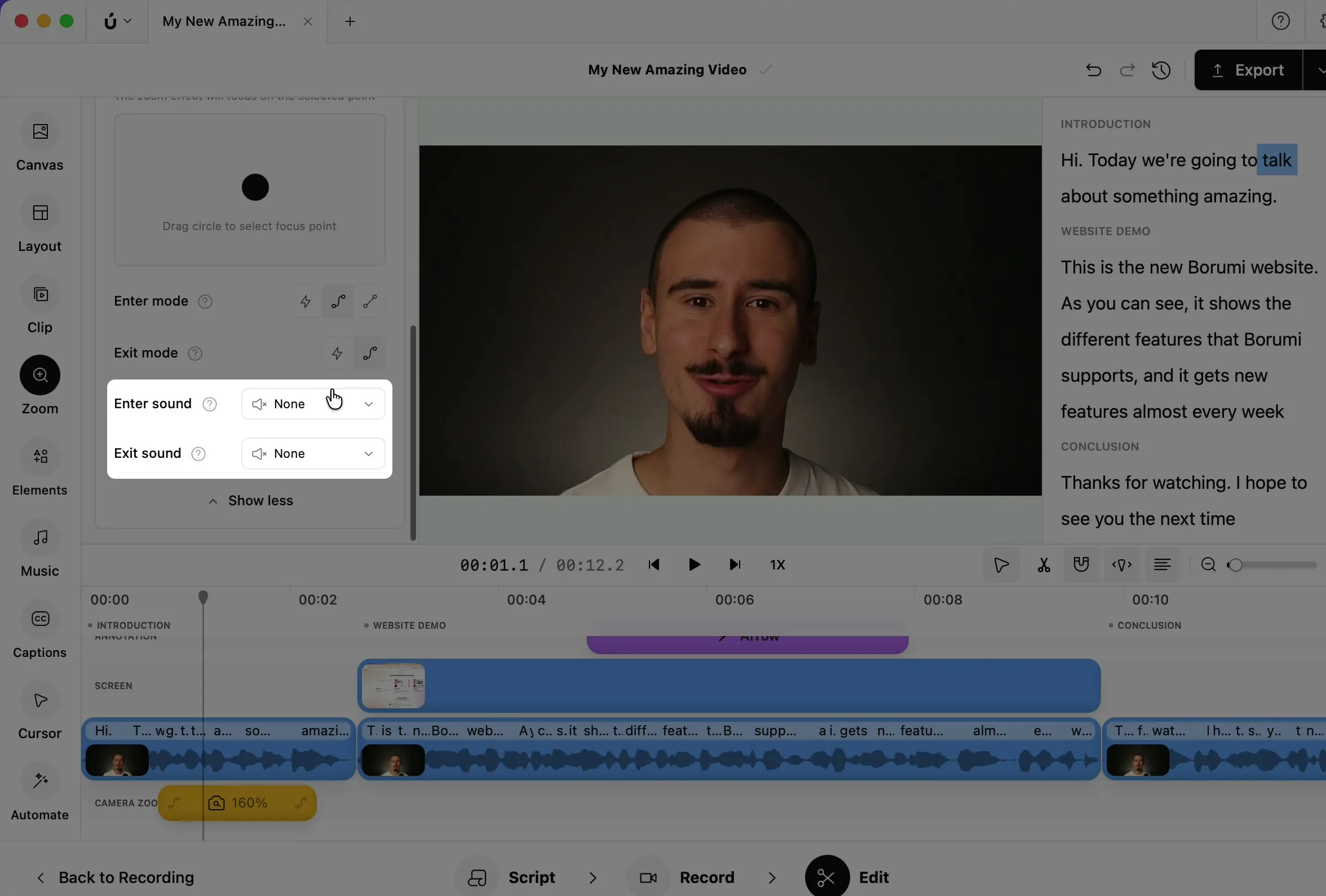
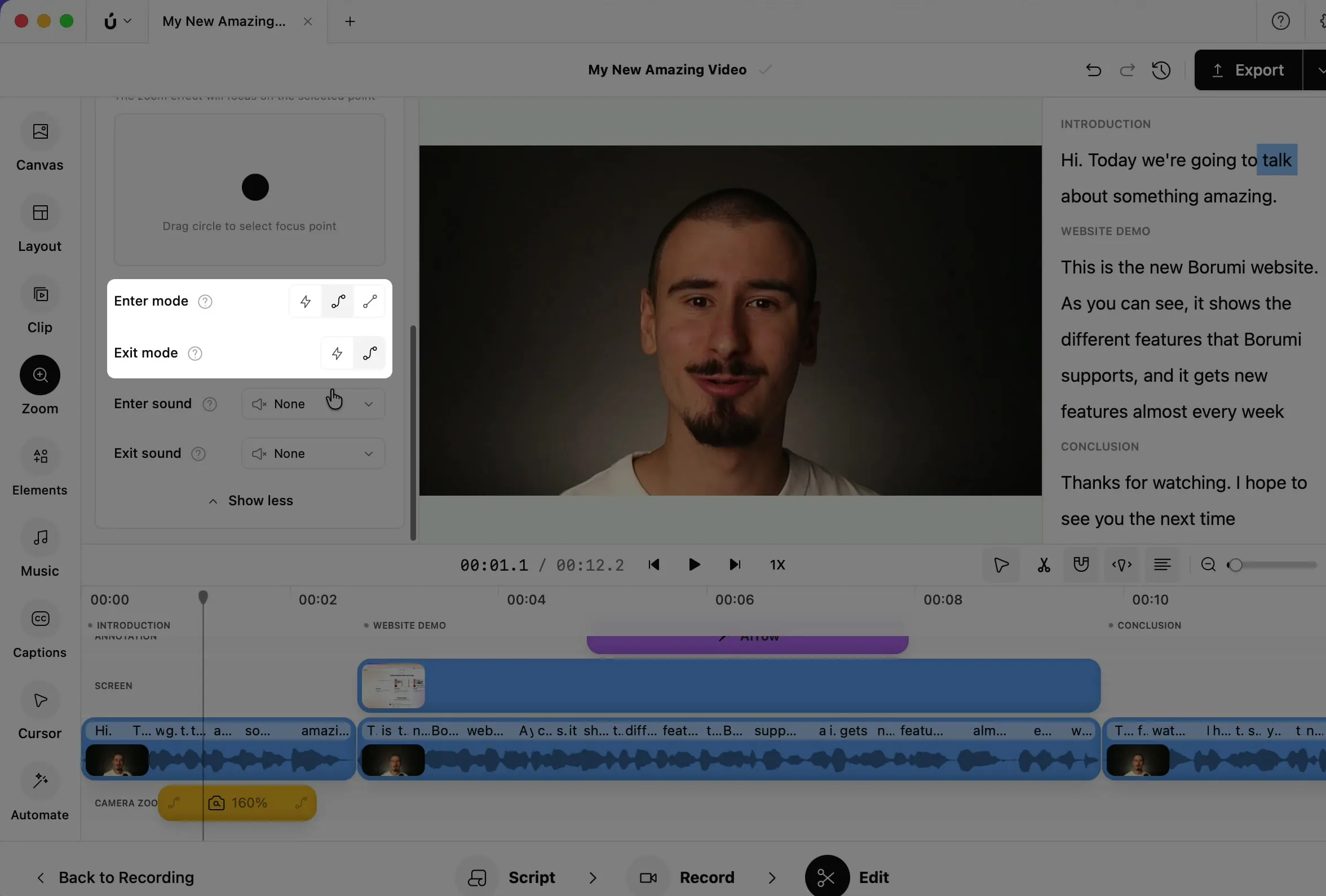
Next to Enter mode, choose how the zoom starts: Instant, Fast, or Gradual, which zooms in slowly for the whole length of the clip. Next to Exit mode, choose how it ends: Instant or Fast.
Add sound effects
Section titled “Add sound effects”To make your video more engaging, you can play a sound, like a whoosh, when the camera zooms in and out.
- Select the zoom on the timeline.
- In the Zoom panel, click More options.
- Choose an Enter sound and an Exit sound.