
Import existing videos
Borumi lets you easily import videos you recorded somewhere else, like on your phone or with another screen recorder. How you import a video depends on how you want to use it:
- As the main content of your video, like a recording of you talking or of your screen: import it as a content clip, as this guide shows. You can then edit it just like your own recordings.
- On top of your video, like a short clip in a corner: add it as an overlay instead. See Add overlays.
Import a video in the editor
Section titled “Import a video in the editor”In the Edit tool, drag the video from Finder or File Explorer onto the timeline. Borumi adds it at the playhead.


This video can't be played right now. Please try again later.
Import a video in the Record tool
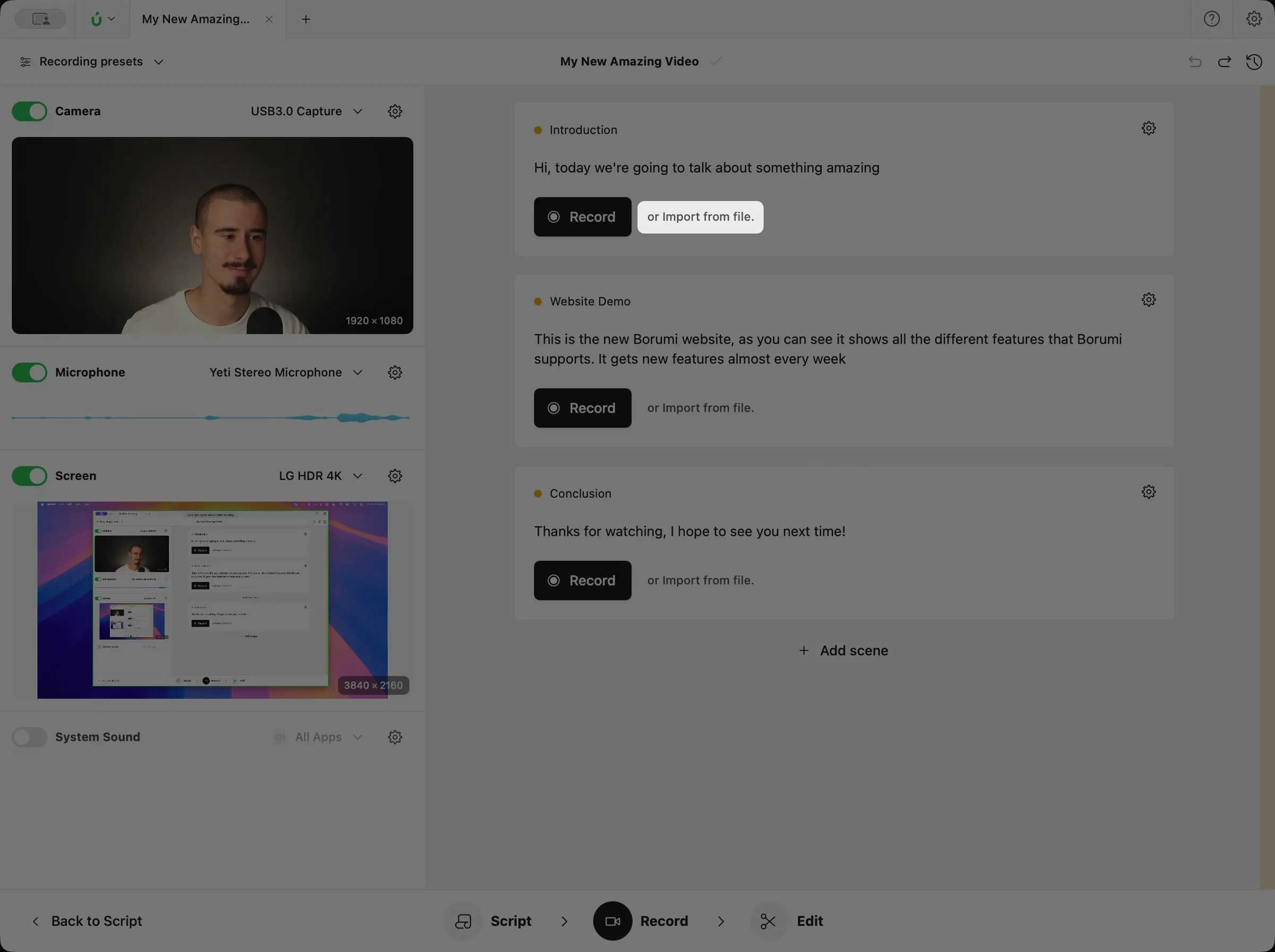
Section titled “Import a video in the Record tool”In the Record tool, click Import from file under a scene that has no takes yet, and choose your video.
Choose how Borumi uses the video
Section titled “Choose how Borumi uses the video”Borumi tries to understand what kind of video you’re importing, and uses that to set things up for you, like the layout. If unsure, it will ask you to choose among these:
- Camera: a video of you talking. Layouts, face centering, and camera background effects work with it.
- Screen: a screen recording.
- B-roll: any other footage, like a product shot. It takes the main spot in the layout, like a screen recording.
- Overlay: a clip that shows on top of your video. See Add overlays.