
Choose a layout
A layout decides how your camera and your screen are arranged in your video. Borumi picks one automatically, but you can change it at any time: choose one of the built-in layouts, or arrange things freely in the preview. This guide shows you how.


This video can't be played right now. Please try again later.
Change the layout
Section titled “Change the layout”- Move the playhead to the part of the video you want to change.
- Click Layout on the left.
- Click a layout.
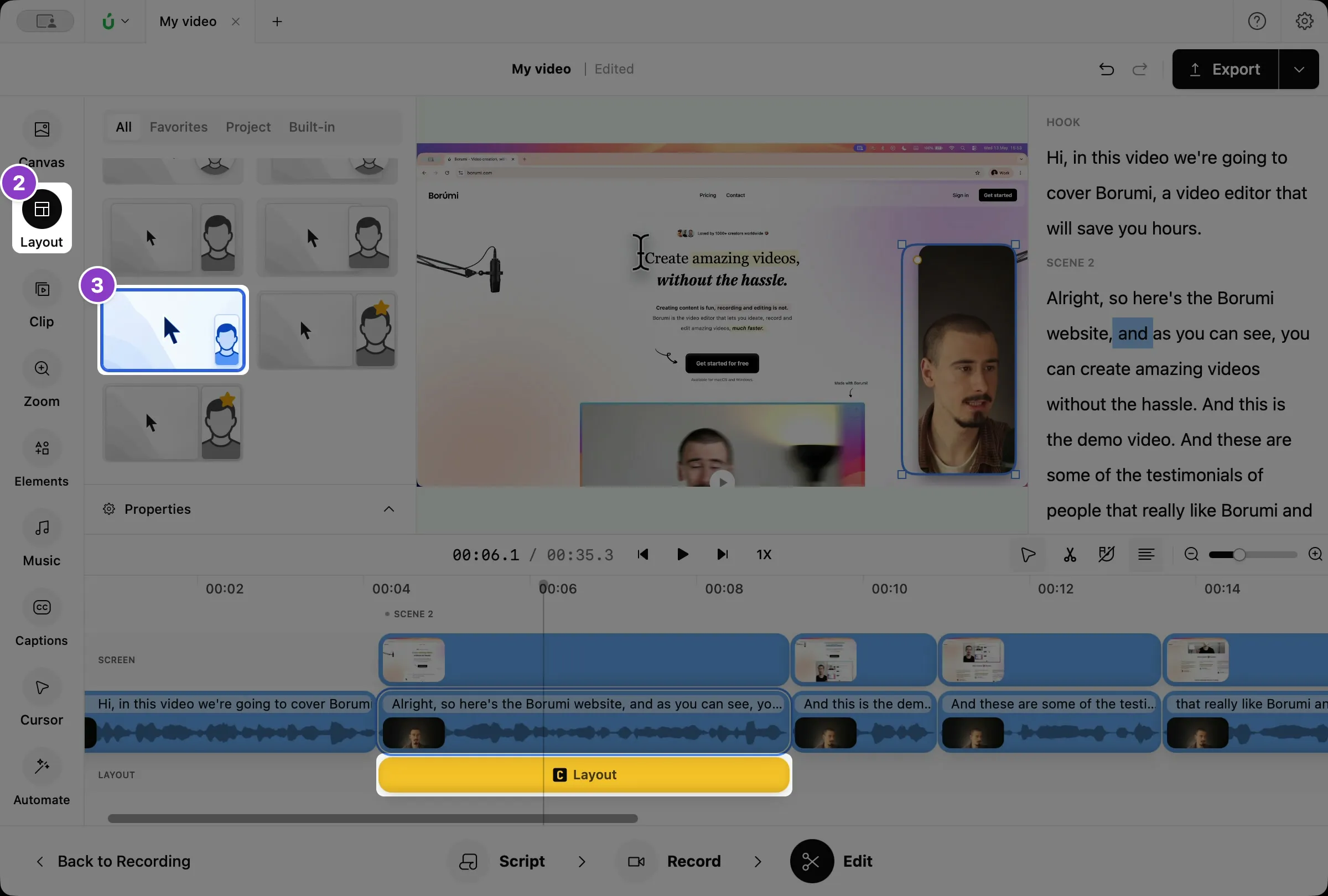
A yellow Layout clip appears on the timeline. From the start to the end of that clip, your video uses the layout you chose.
Change when a layout starts and ends
Section titled “Change when a layout starts and ends”A layout clip is a control clip: it applies its layout for as long as it lasts. To make a layout last longer or shorter, drag the edges of its clip.
- To switch to a different layout, select the clip and click another layout in the panel.
- To remove a layout, select its clip and press , or click Auto.
Create your own layout
Section titled “Create your own layout”You can always customize a layout freely by moving and resizing your camera and your screen in the preview. Click one of them, then drag it to move it, or drag its corners to resize it.
Advanced layout customization
Section titled “Advanced layout customization”Borumi gives you a lot of control over how a layout looks. Select a layout clip, then click Properties at the bottom of the Layout panel.
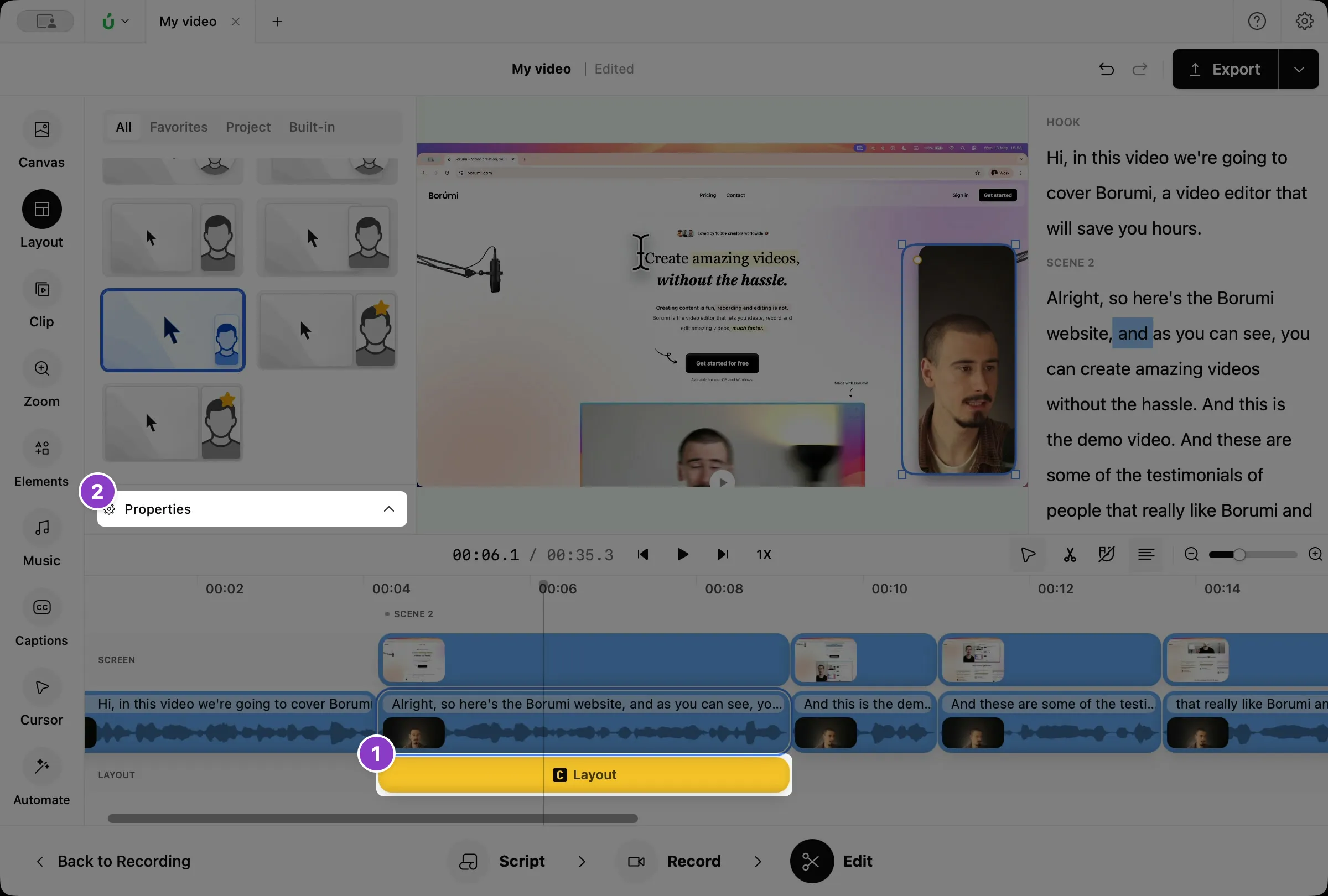
Each part of the layout, like Camera and Screen, has its own settings:
- Size & Position: position, width, height, and corner radius. Lock the aspect ratio, or make the corners smoother.
- Stroke: a border, with its color and width.
- Shadow & Glow: a shadow or a glow, with its color, blur, and offset.
- Overflow (screen only): lets the screen grow past its frame when you zoom in.
- Remove background and Face centering (camera only): see Remove your camera background and Center your face automatically.
- Transition & sound: how the layout animates in, and an optional sound. See Customize transitions.
Save a layout to your favorites
Section titled “Save a layout to your favorites”If you created a layout you really like and want to reuse it across projects, save it to your favorites: hover over it in the Layout panel and click the star.
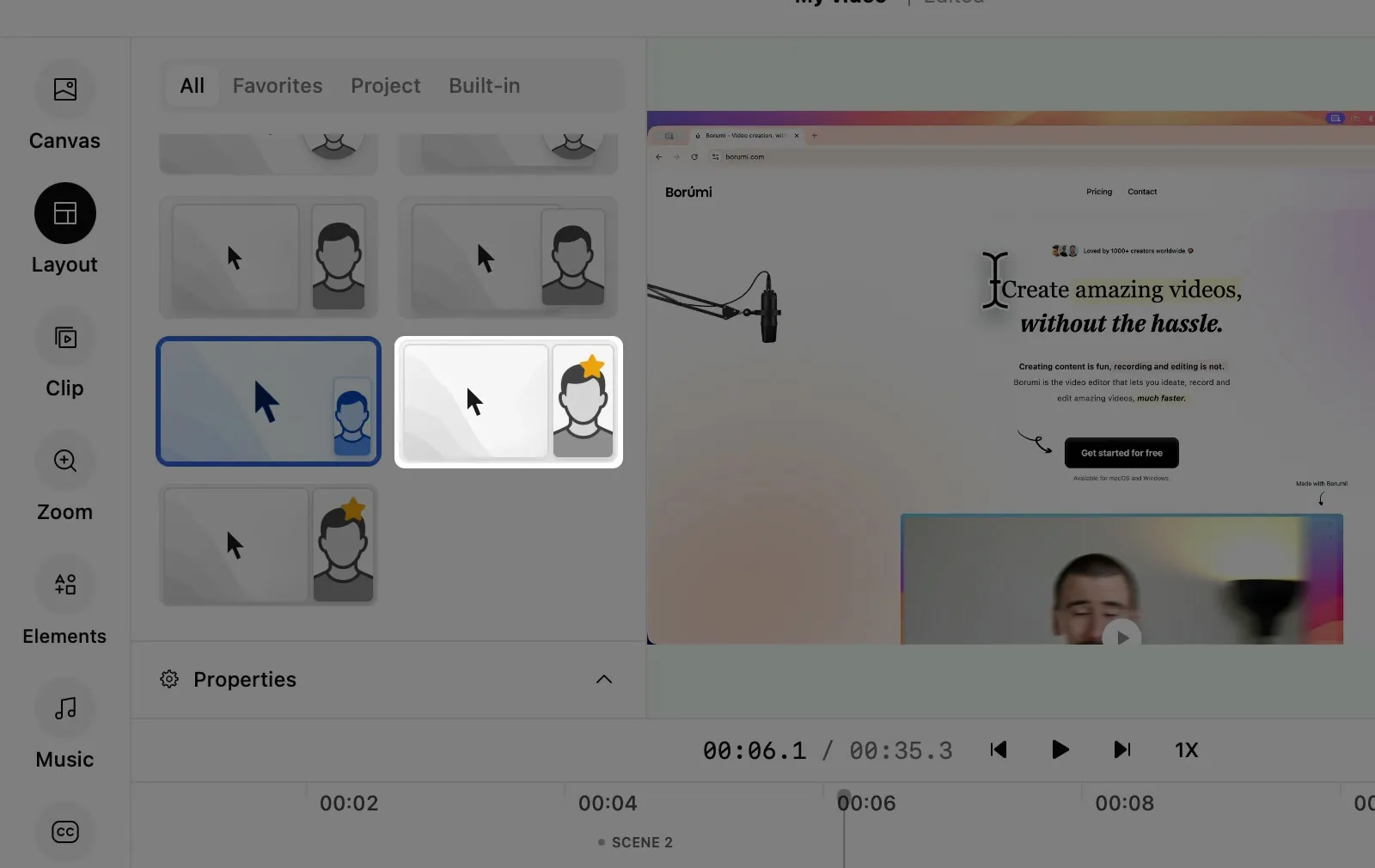
To remove a layout from your favorites, click its star again.
Tips & tricks
Section titled “Tips & tricks”Copy a layout to another part of the video
Section titled “Copy a layout to another part of the video”To reuse a layout somewhere else in your video, select its clip and press . Then move the playhead and press .