
Add captions
Borumi lets you easily add captions to your videos, which is especially valuable if you publish on social media platforms like Instagram and TikTok. This guide walks you through the steps.


This video can't be played right now. Please try again later.
Add captions
Section titled “Add captions”-
Click Captions in the left sidebar.
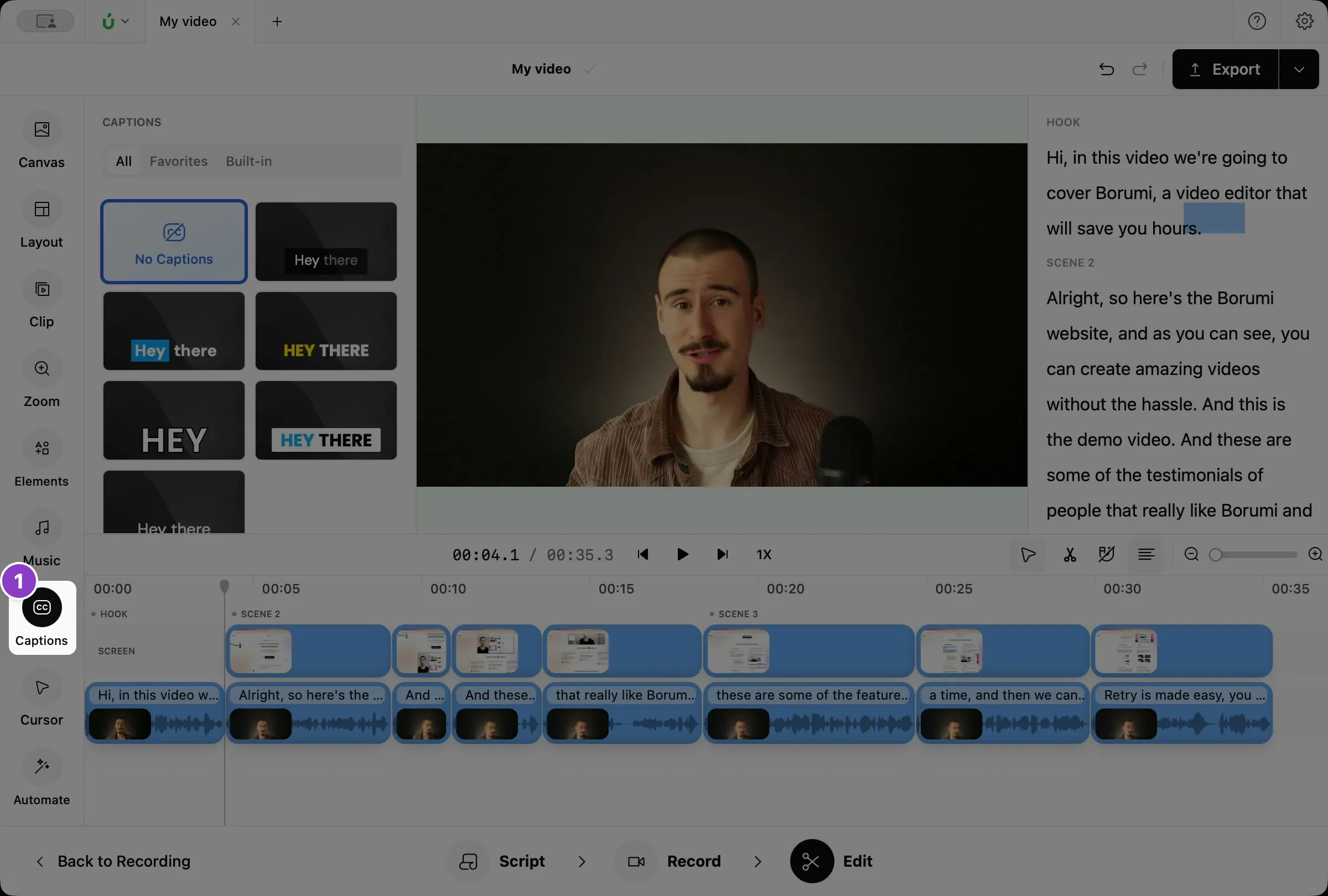
-
Click a style. The captions appear on the video.
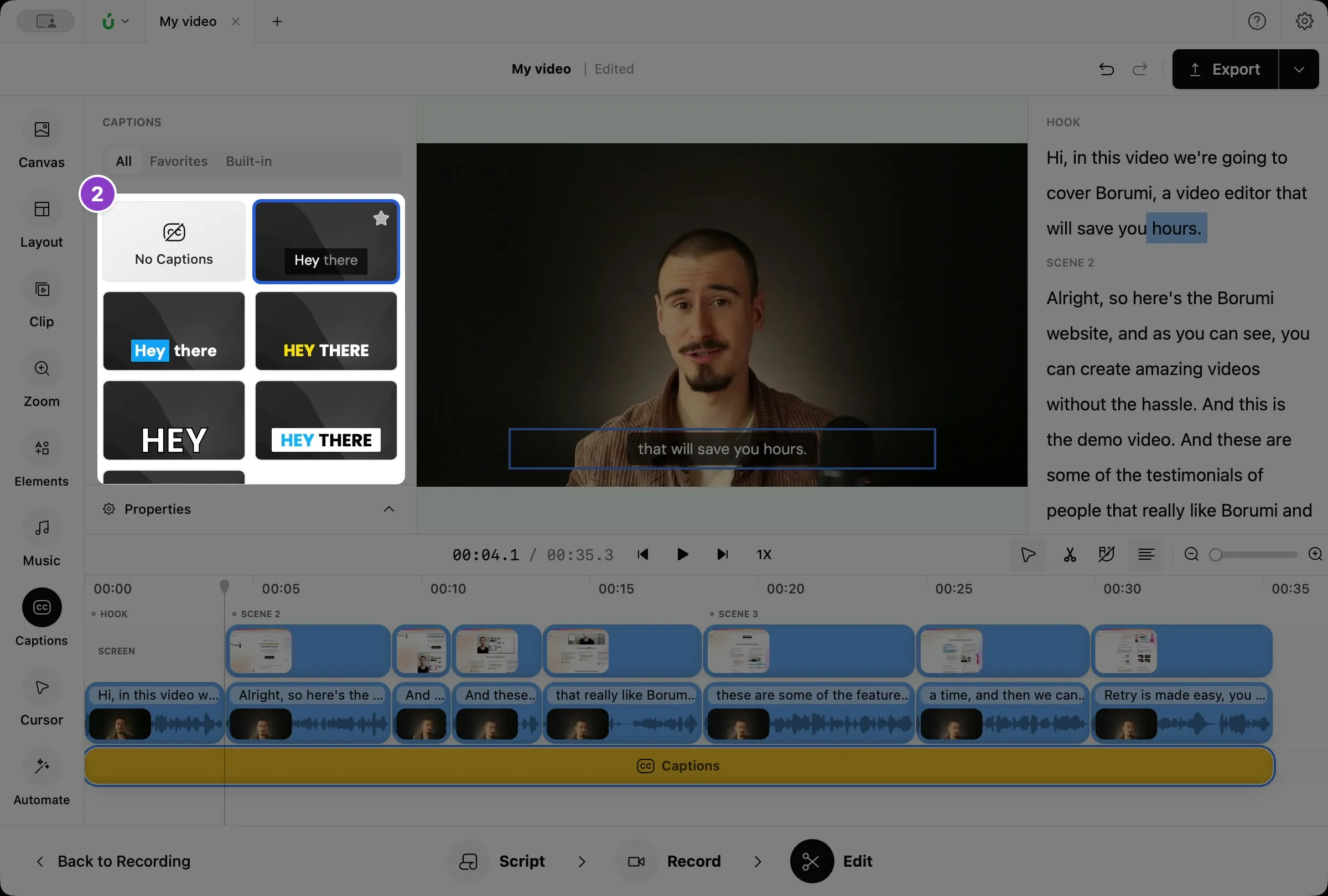
Change how captions look
Section titled “Change how captions look”You can adjust every aspect of your captions by clicking Properties at the bottom of the Captions panel.
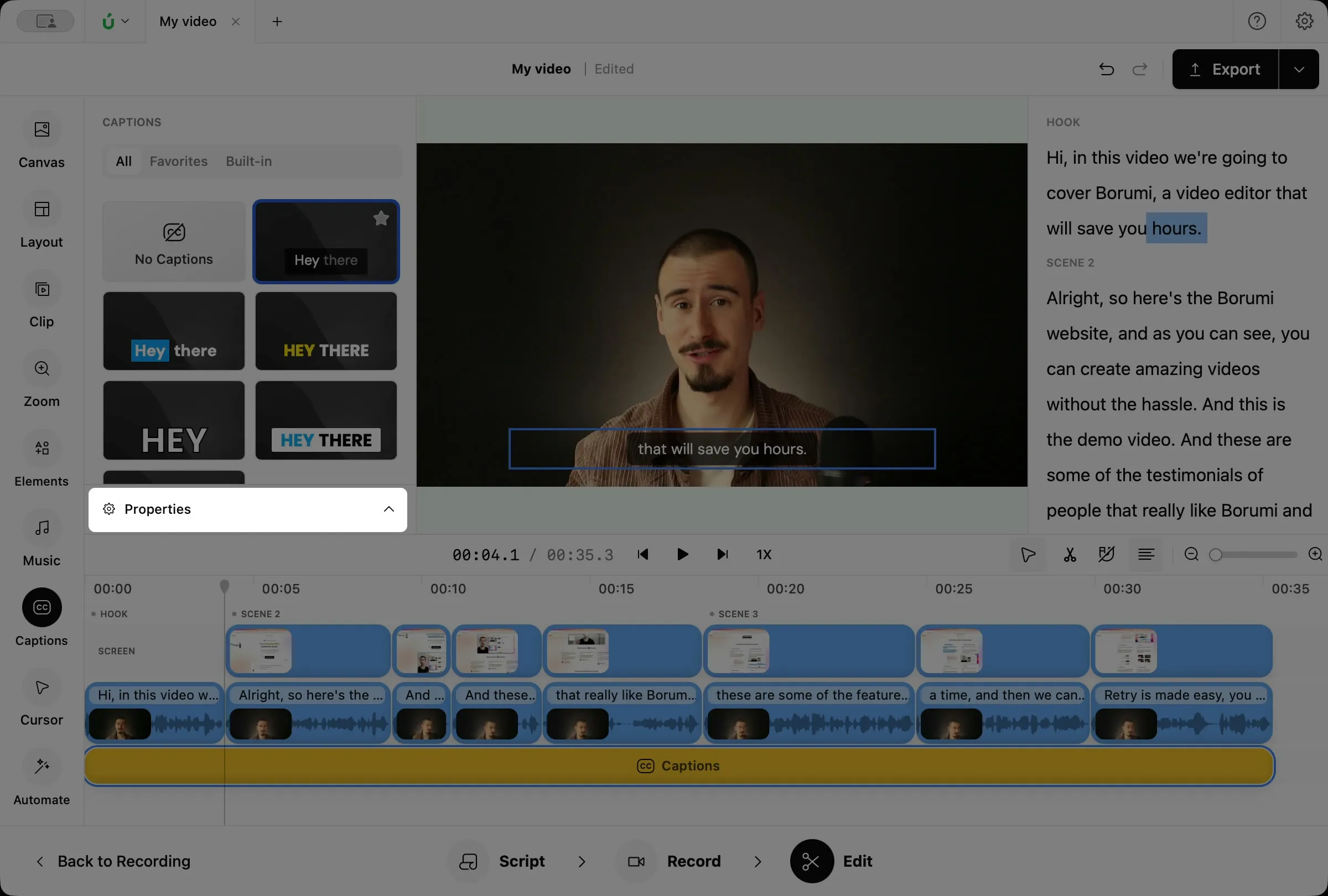
- Typography: the font, text color and size, uppercase text, and whether to show a few words at a time or a single word.
- Background: a box behind the captions.
- Highlight: a colored box behind the word you’re saying.
- Outline: an outline around the letters.
- Accent: the color of the word you’re saying.
- Future: the color of the words you haven’t said yet.
Hide or change captions for part of the video
Section titled “Hide or change captions for part of the video”Captions cover your whole video by default. If they get in the way somewhere, like over something important on screen, you can hide them or give that part a different style.
- Click Captions in the left sidebar. The Captions layer shows up at the bottom of the timeline.
- Split the captions clip where the part starts and ends: move the playhead there, click the clip, and press .
- Click the part you want to change.
- Click No Captions to hide them, or pick another style.
Fix mistakes in the captions
Section titled “Fix mistakes in the captions”Captions are based on your transcript, so a mistake in the transcript shows up in the captions too. To fix it, correct the transcript, and the captions update on their own. See Fix transcription mistakes for how to do that.
Export captions
Section titled “Export captions”You can also export your captions as a separate SRT subtitle file, for example to upload it to YouTube next to your video. See Export subtitles.