
Remove silences
One of the most common edits is removing the silences from your video. In Borumi, you can do it with a single click.


This video can't be played right now. Please try again later.
Remove silences from your video
Section titled “Remove silences from your video”-
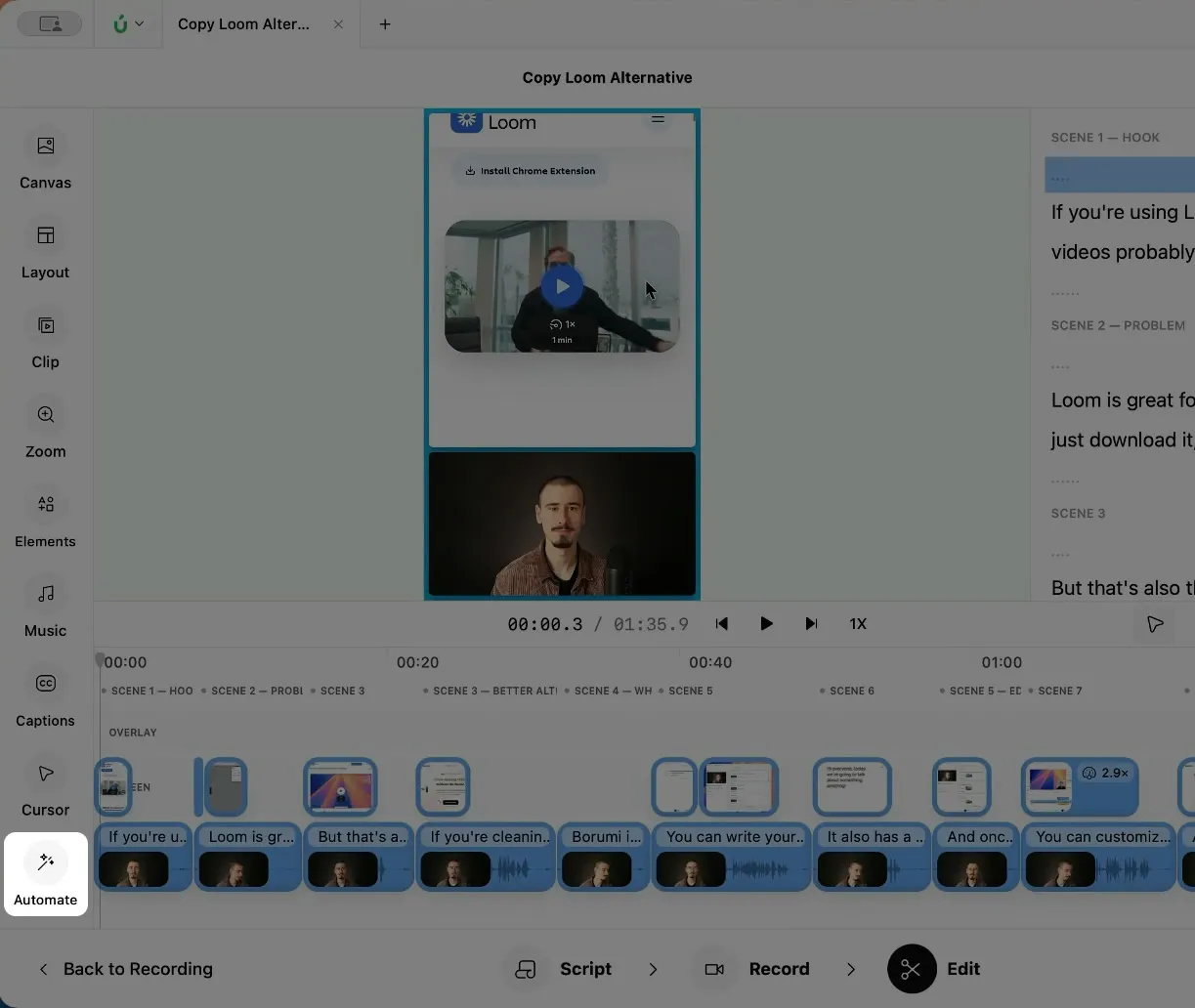
In the Edit tool, click Automate in the sidebar.
-
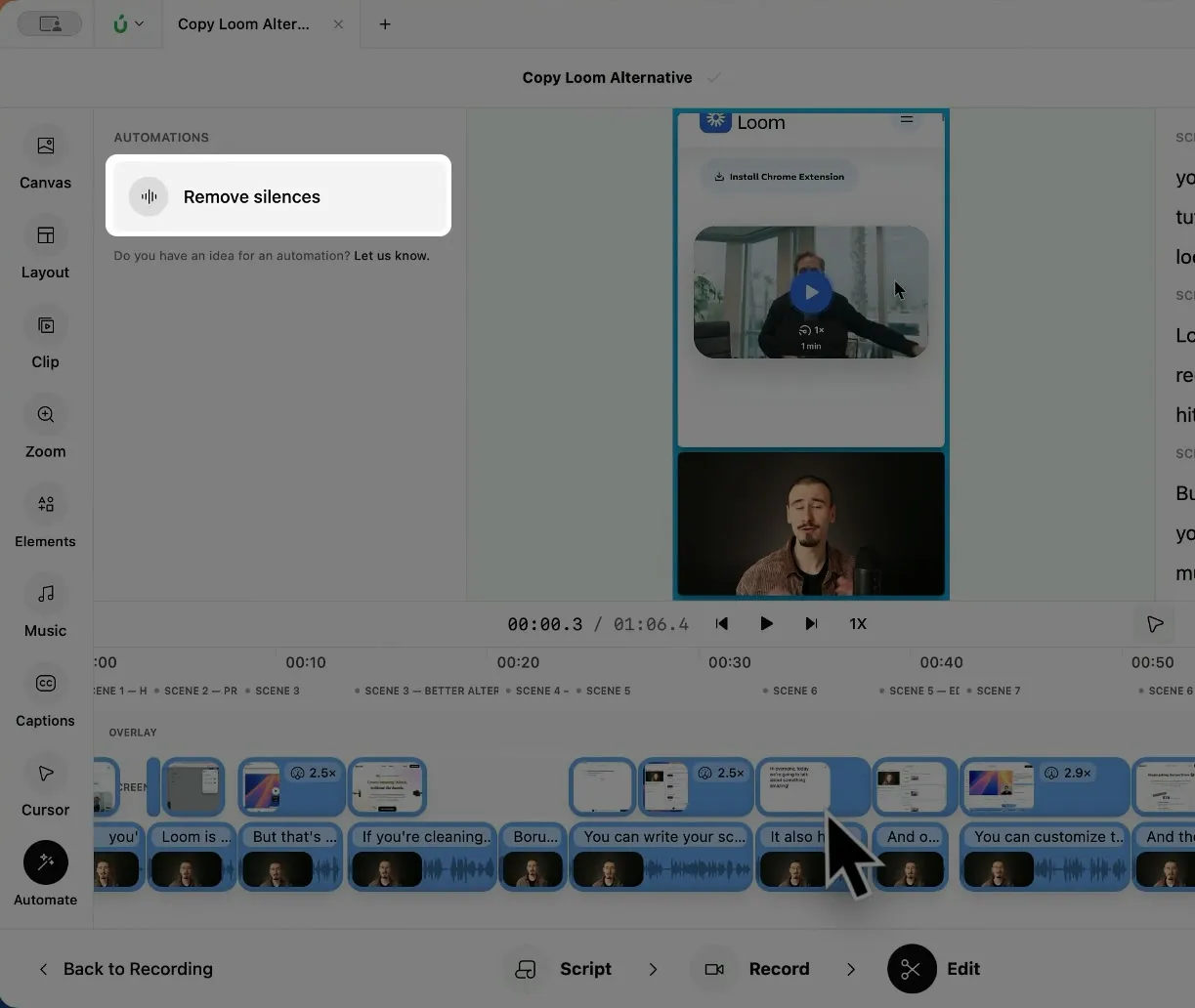
Click Remove silences.
-
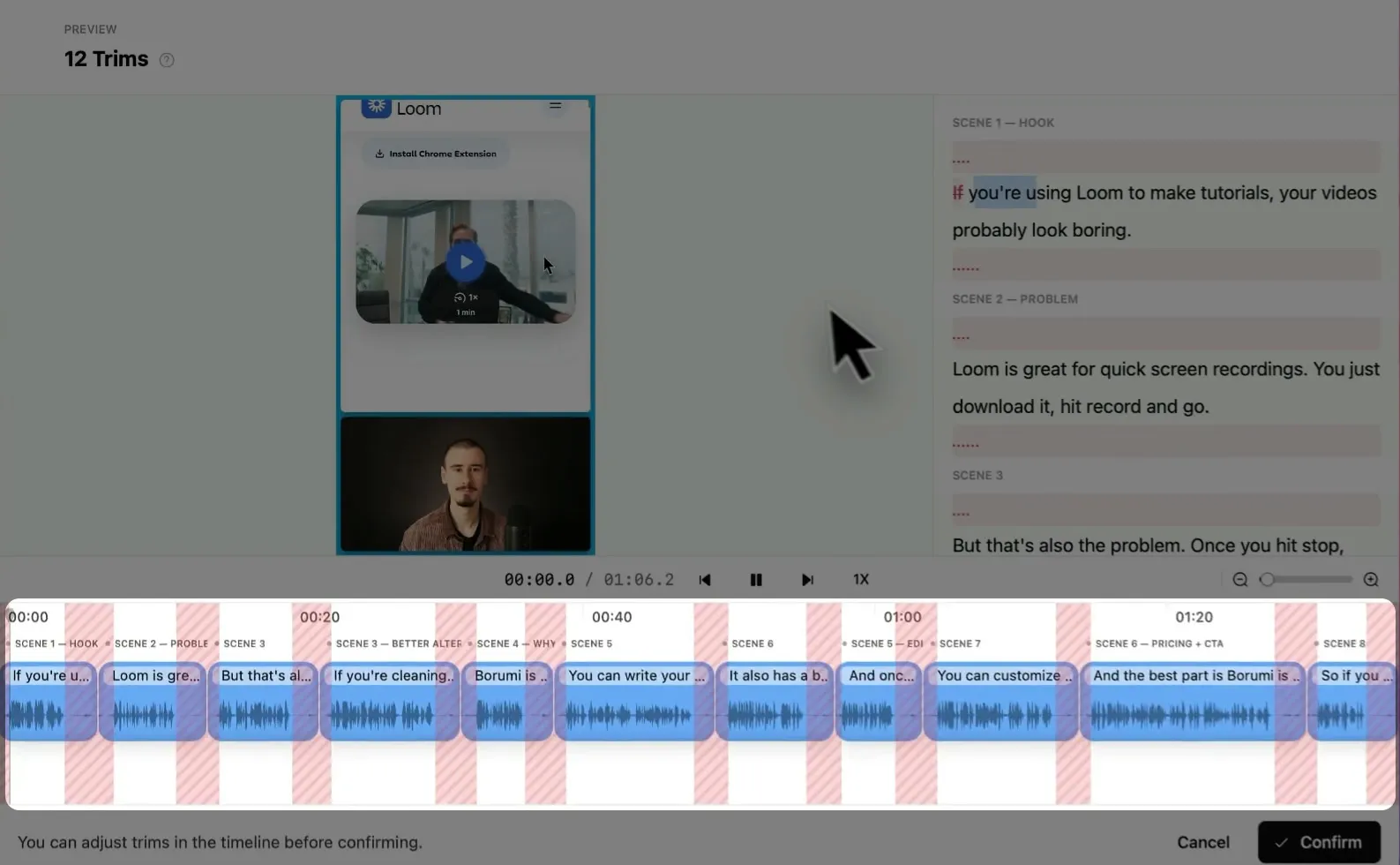
Borumi shows a preview of the cuts it suggests. The parts it will remove are red on the timeline and in the transcript. Play the video to check how the cuts feel, and adjust them if needed.
-
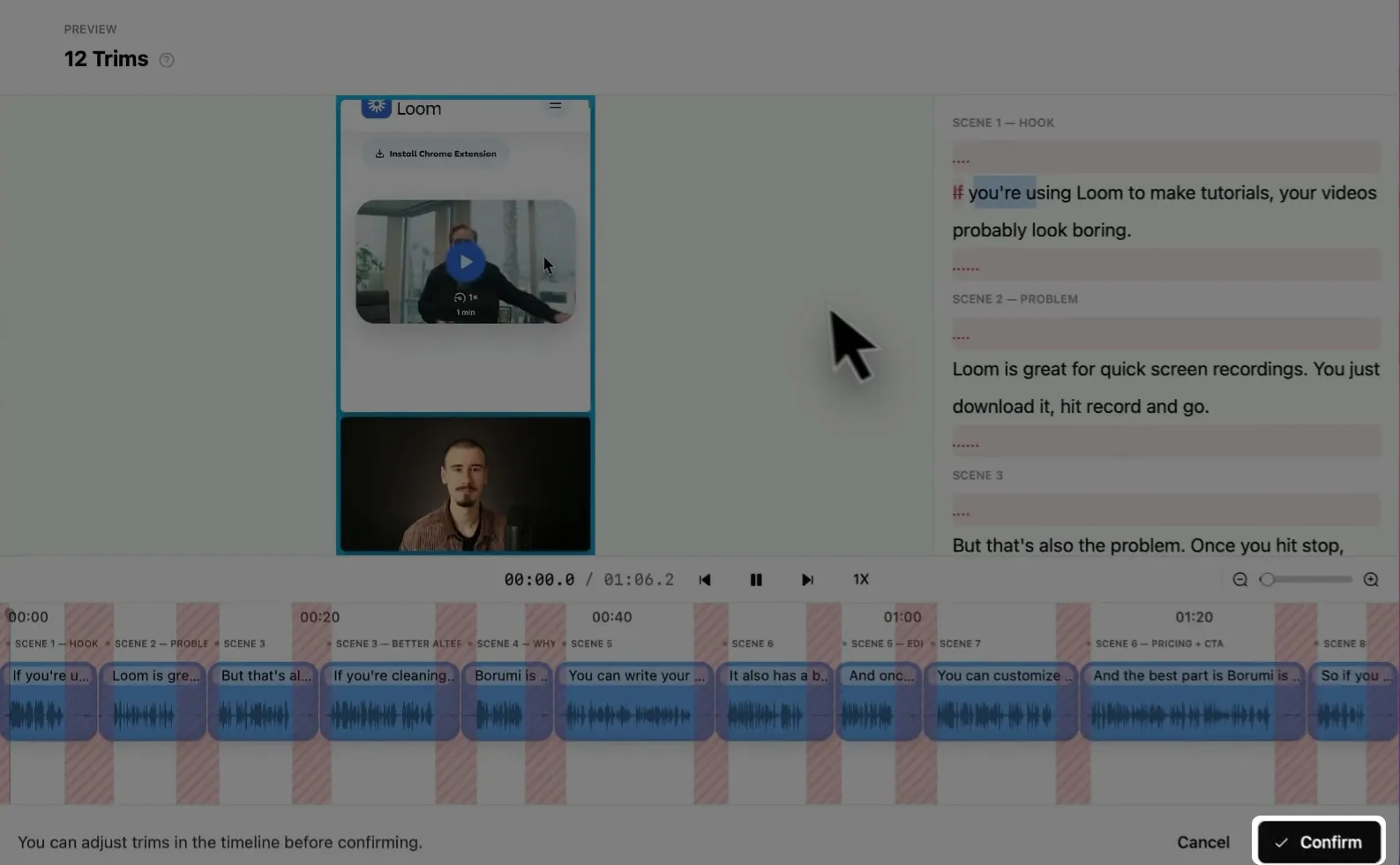
Click Confirm to apply the cuts, or Cancel to leave your video as it was.
Adjust the cuts before you confirm
Section titled “Adjust the cuts before you confirm”In the timeline:
- Drag the edges of a red area to make that cut shorter or longer. Use this when a cut feels too abrupt.
- To keep a pause, click its red area to select it and press to remove that cut.
After you confirm, you can still fine-tune each cut on the timeline. See Trim and arrange clips.
Adjust how tight the cuts are
Section titled “Adjust how tight the cuts are”By default, Borumi removes silences in a balanced way. Depending on the style of your video, you might want tighter cuts, or looser ones that keep more of the natural pauses. You can adjust how the automatic silence removal works:
This video can't be played right now. Please try again later.
-
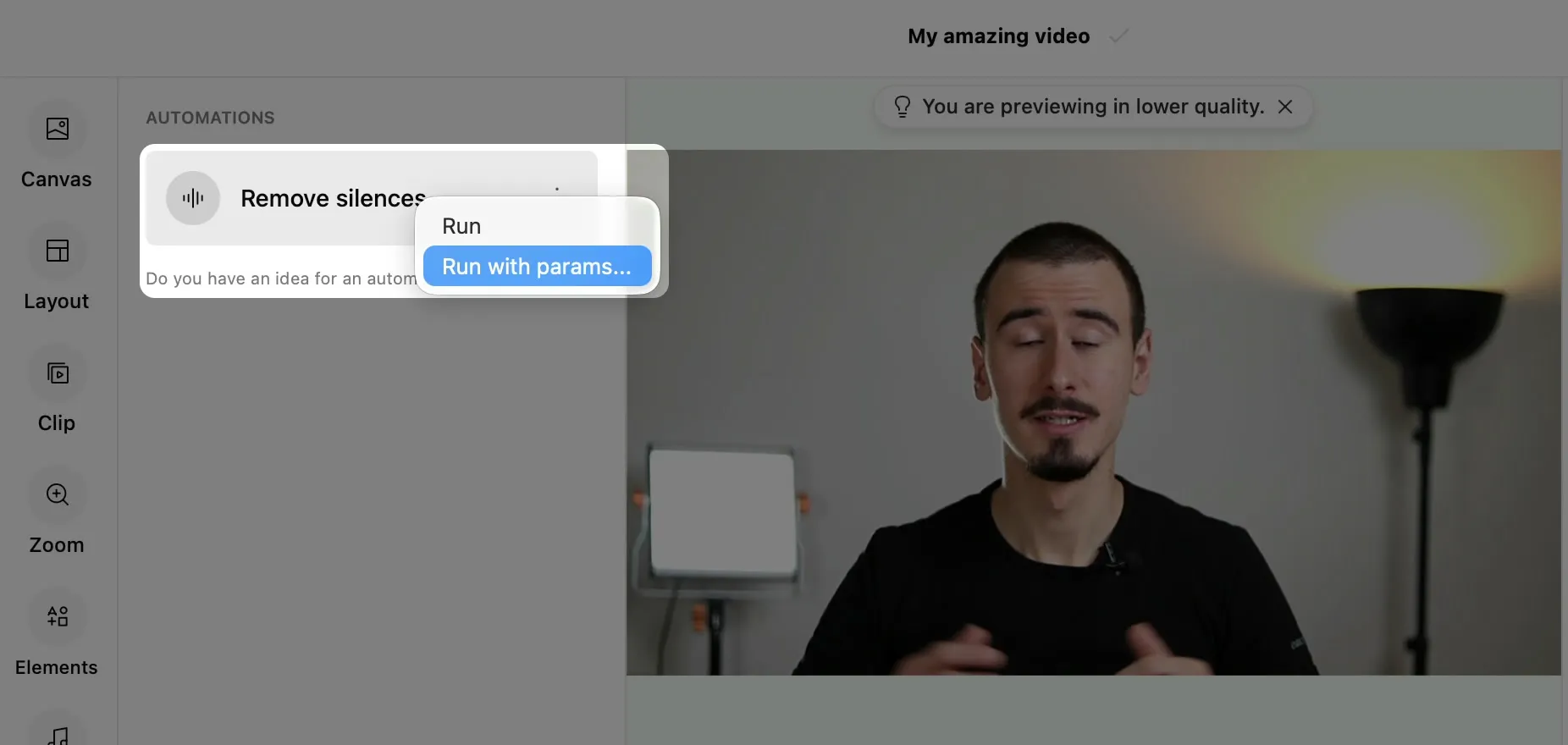
In the Automate panel, right-click Remove silences (or click its More options button) and choose Run with params….
-
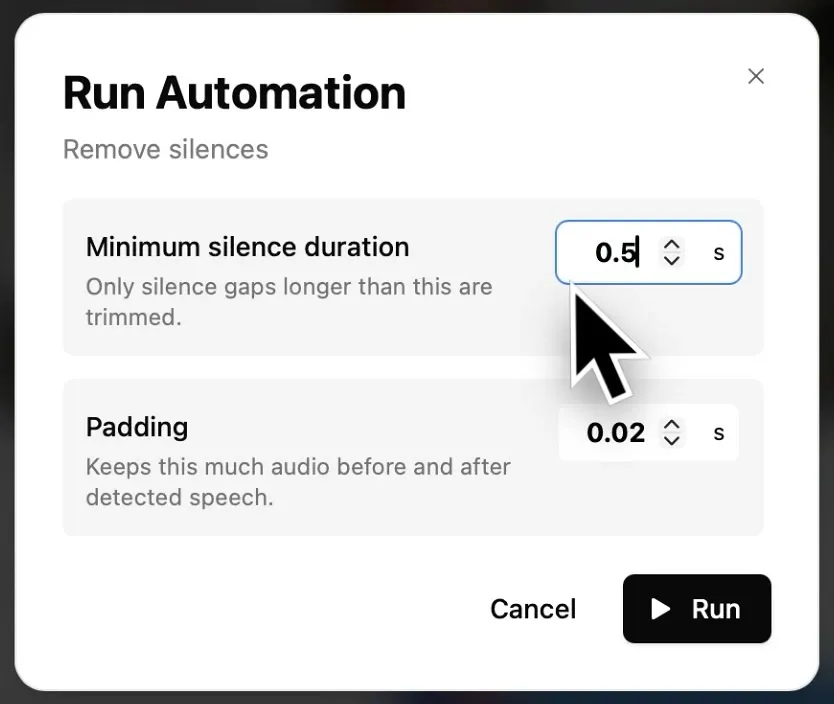
Set the options:
- Minimum silence duration: only pauses longer than this are removed. Choose between 0.05 and 10 seconds. The default is 0.5.
- Padding: how much audio Borumi keeps before and after your speech, so words don’t sound cut off. Choose between 0 and 1 second. The default is 0.02.
-
Click Run. Then review and confirm the cuts as above.
Here are some suggestions:
- Calm tutorials: try a longer minimum, like 1 second, so only the long pauses go.
- Fast-paced short videos: try a shorter minimum, like 0.2 seconds, for tighter cuts.
- Cuts that sound too abrupt: raise the padding, so Borumi keeps a bit more audio around your words.