Blur sensitive information
Sometimes your screen recording captures something you don’t want to share, like an email address, a private link, or a customer’s name. Borumi makes it easy to hide it, and this guide shows you how.


This video can't be played right now. Please try again later.
Blur part of your screen
Section titled “Blur part of your screen”-
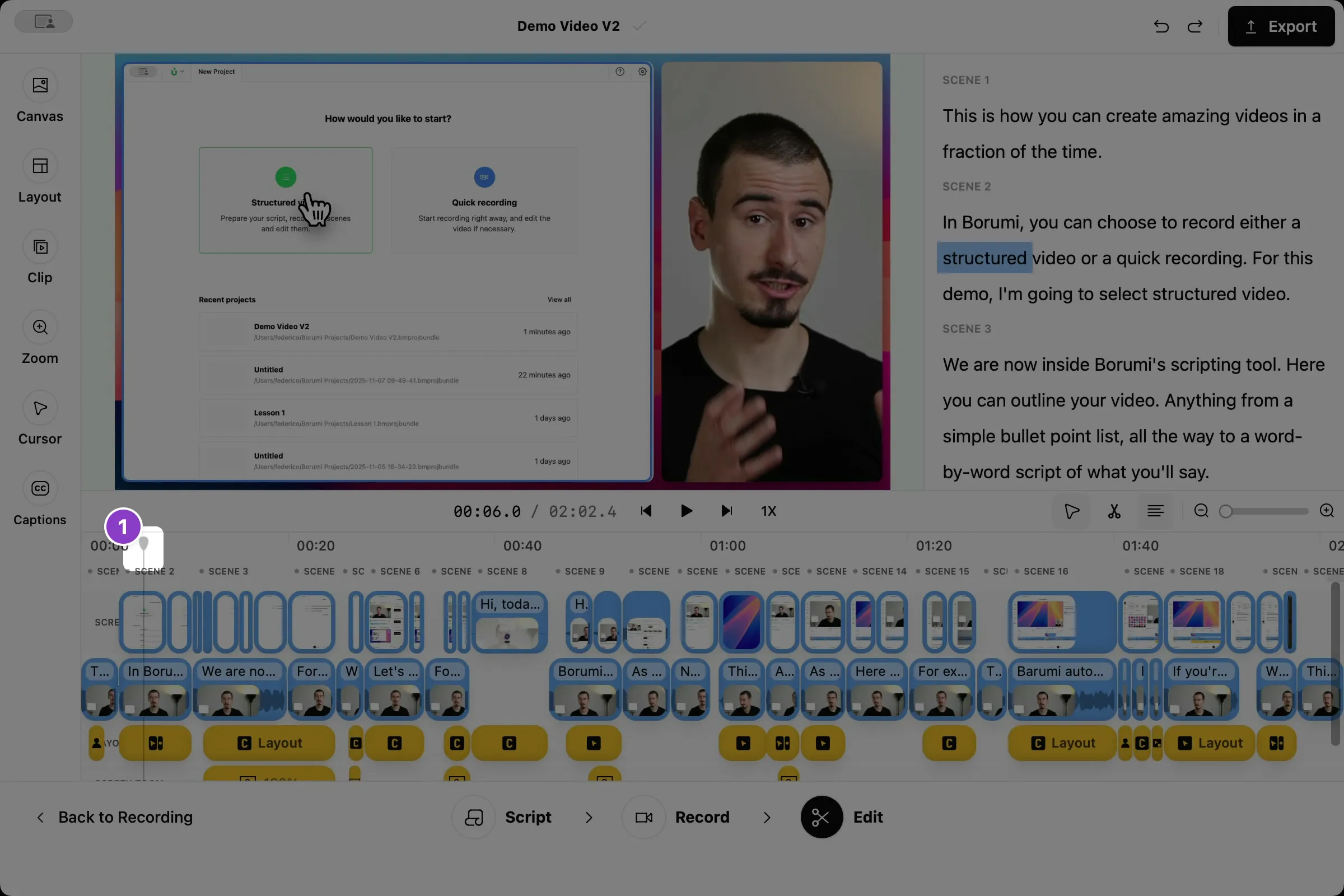
Move the playhead to where the sensitive information appears.
-
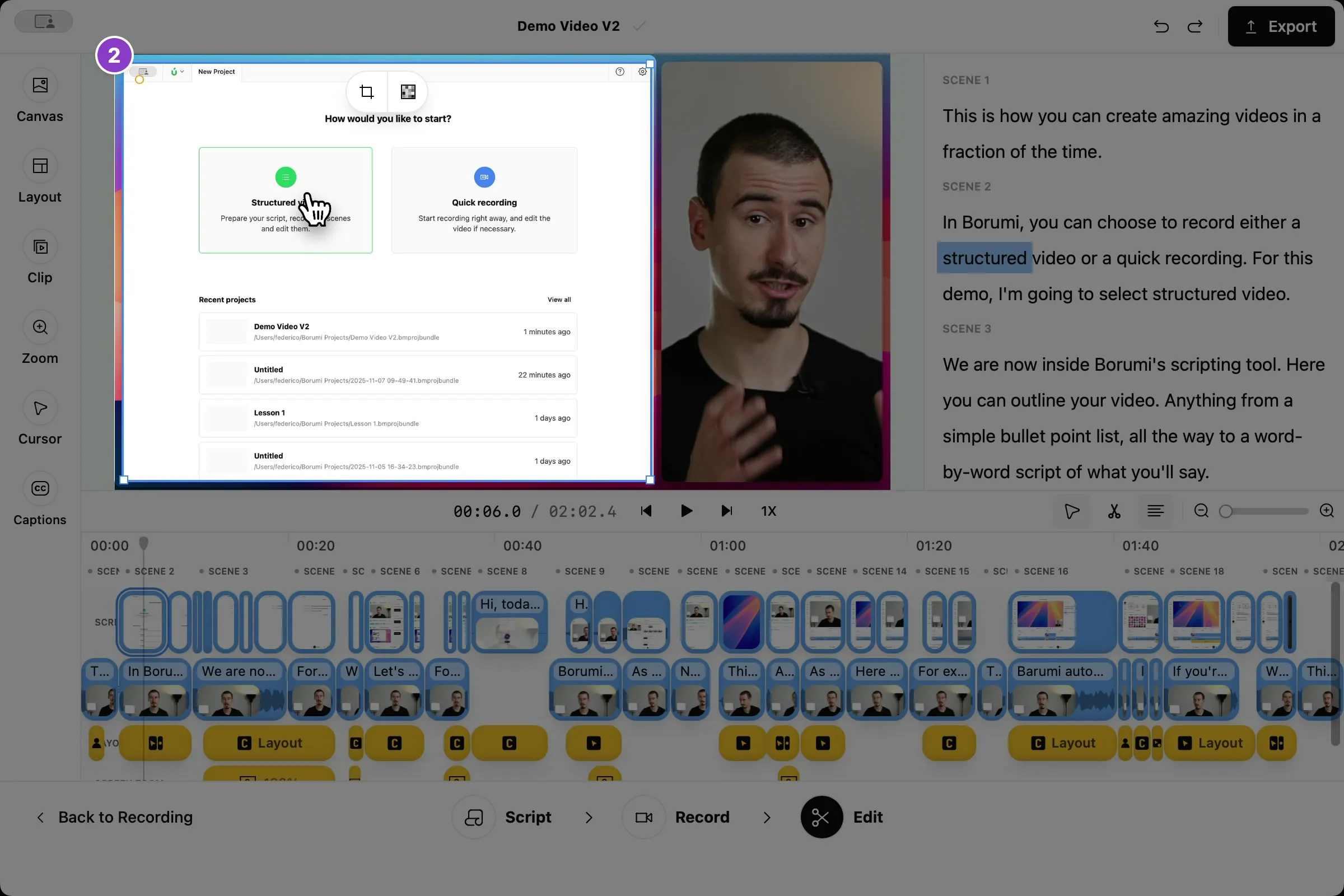
In the preview, click your screen recording. A small toolbar appears above it.
-
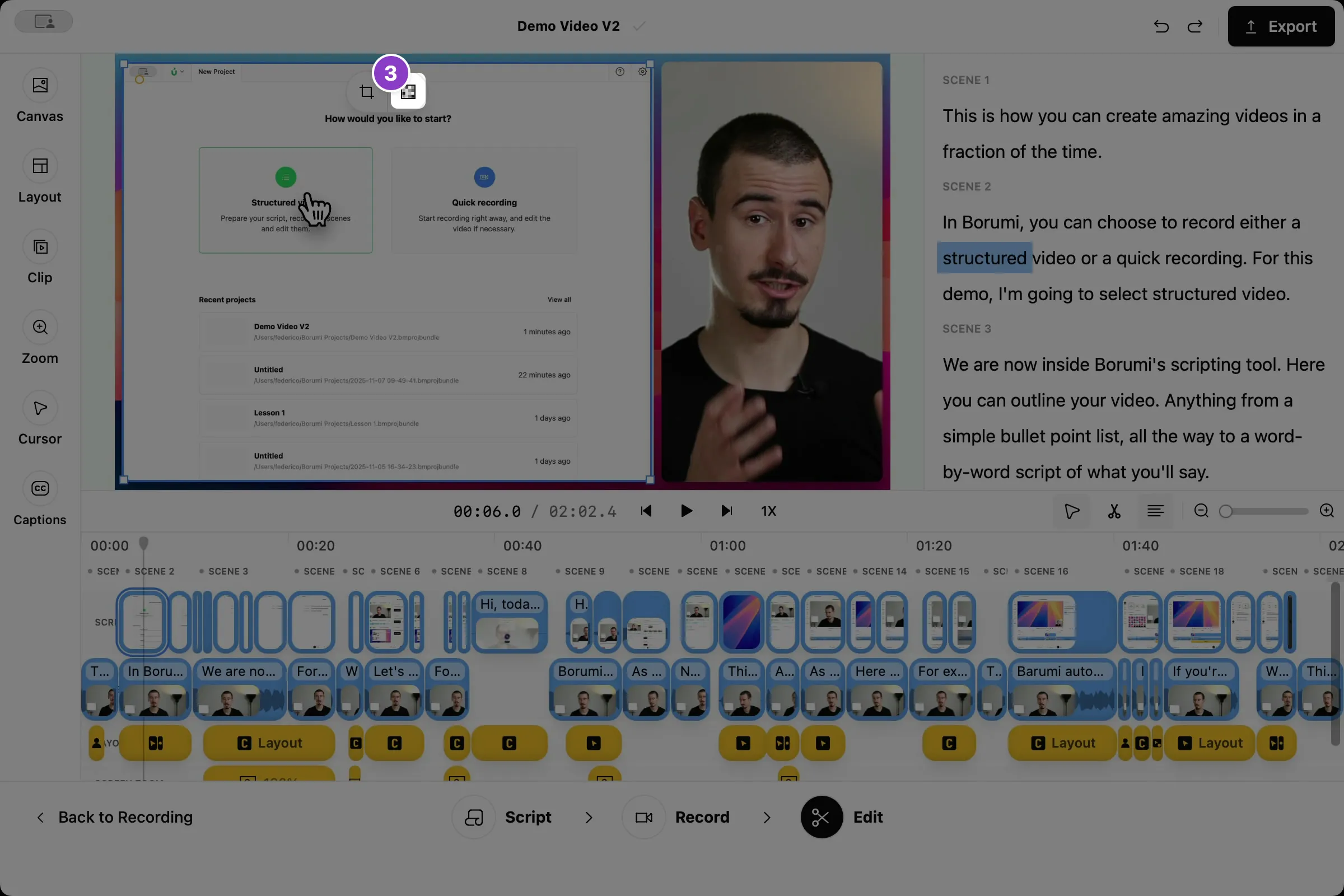
Click the blur button .
-
Drag the blur box over the area you want to hide, and drag its corners or edges to resize it.
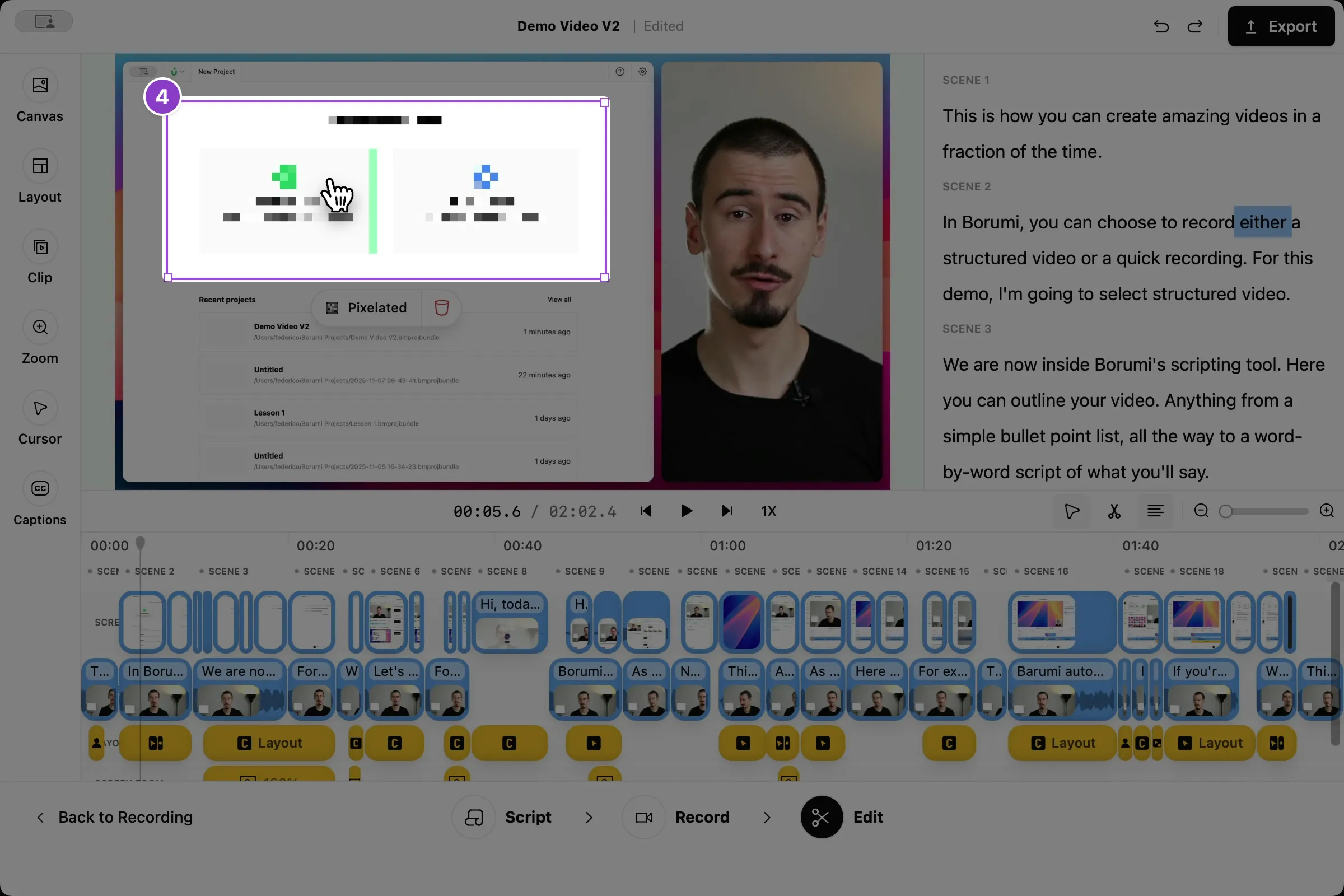
The blur appears as a clip on the Screen Blur layer of the timeline.
Choose when the blur appears
Section titled “Choose when the blur appears”The blur is a control clip: it hides the area only while the clip lasts. Drag the edges of the Blur clip on the timeline so it starts and ends with the sensitive information. For example, if an email address is visible for 5 seconds, make the clip last 5 seconds.
Change the blur style
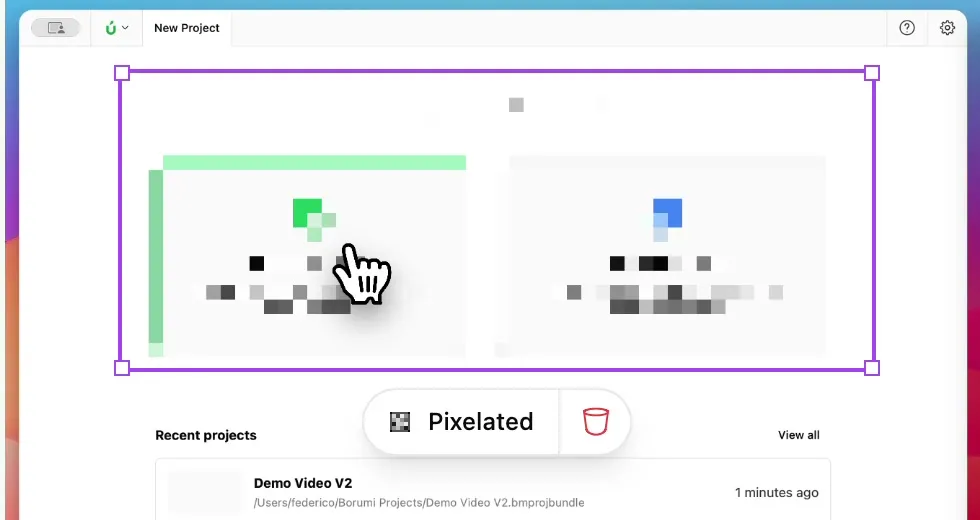
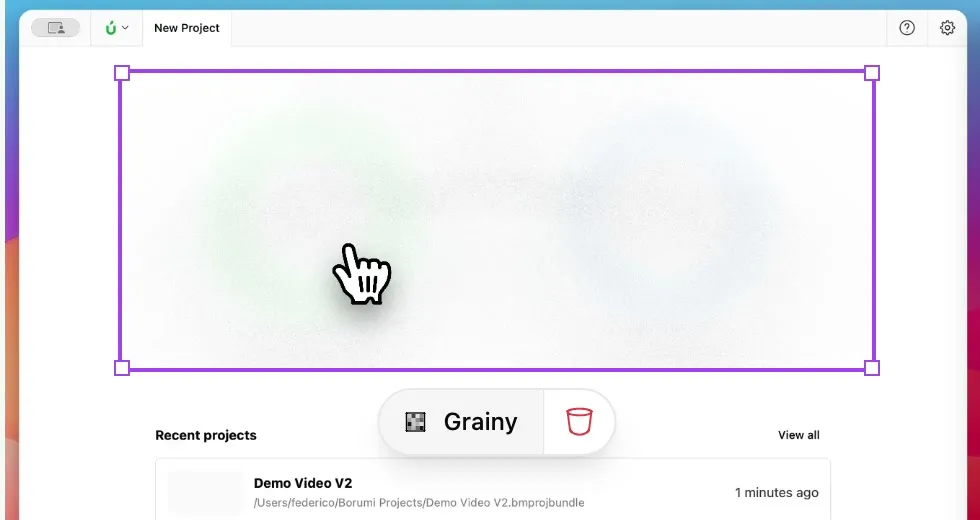
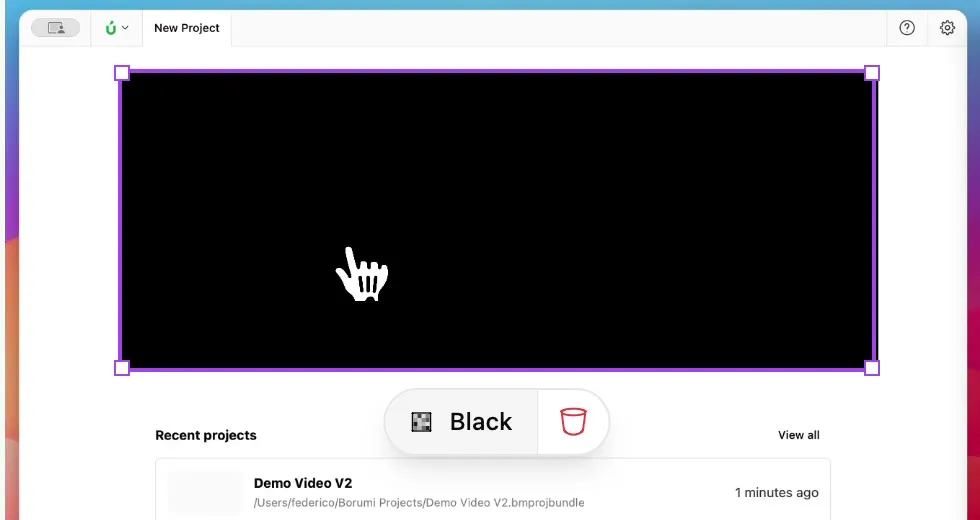
Section titled “Change the blur style”You can also change how Borumi blurs the content. Click the blur in the preview, then click the first button on its toolbar, which shows the current style. Each click switches to the next of three styles: