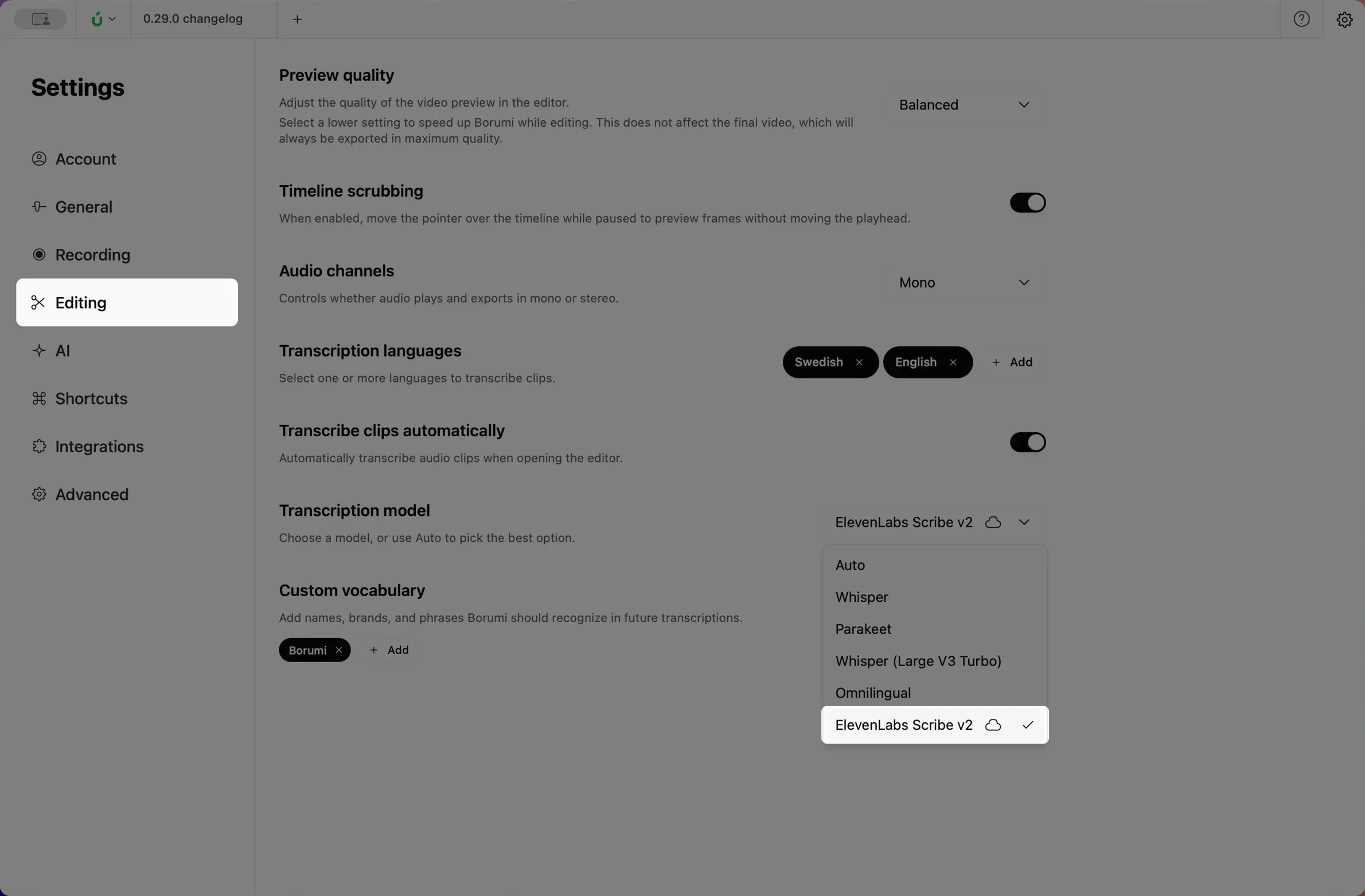
Choose a transcription model
By default, Borumi transcribes your recordings on your computer. For some languages, you might get better results with another model, and this guide walks you through the different options.
Which model should you choose?
Section titled “Which model should you choose?”When picking a model, keep a few things in mind:
- For the best accuracy, use a cloud transcription model. It processes your audio in the cloud, so you need an internet connection.
- To keep everything on your computer, use a local model.
In general, we recommend keeping Auto selected, because it already picks the best local model for your language. If you want to use another model, follow the steps below.
Change the model
Section titled “Change the model”-
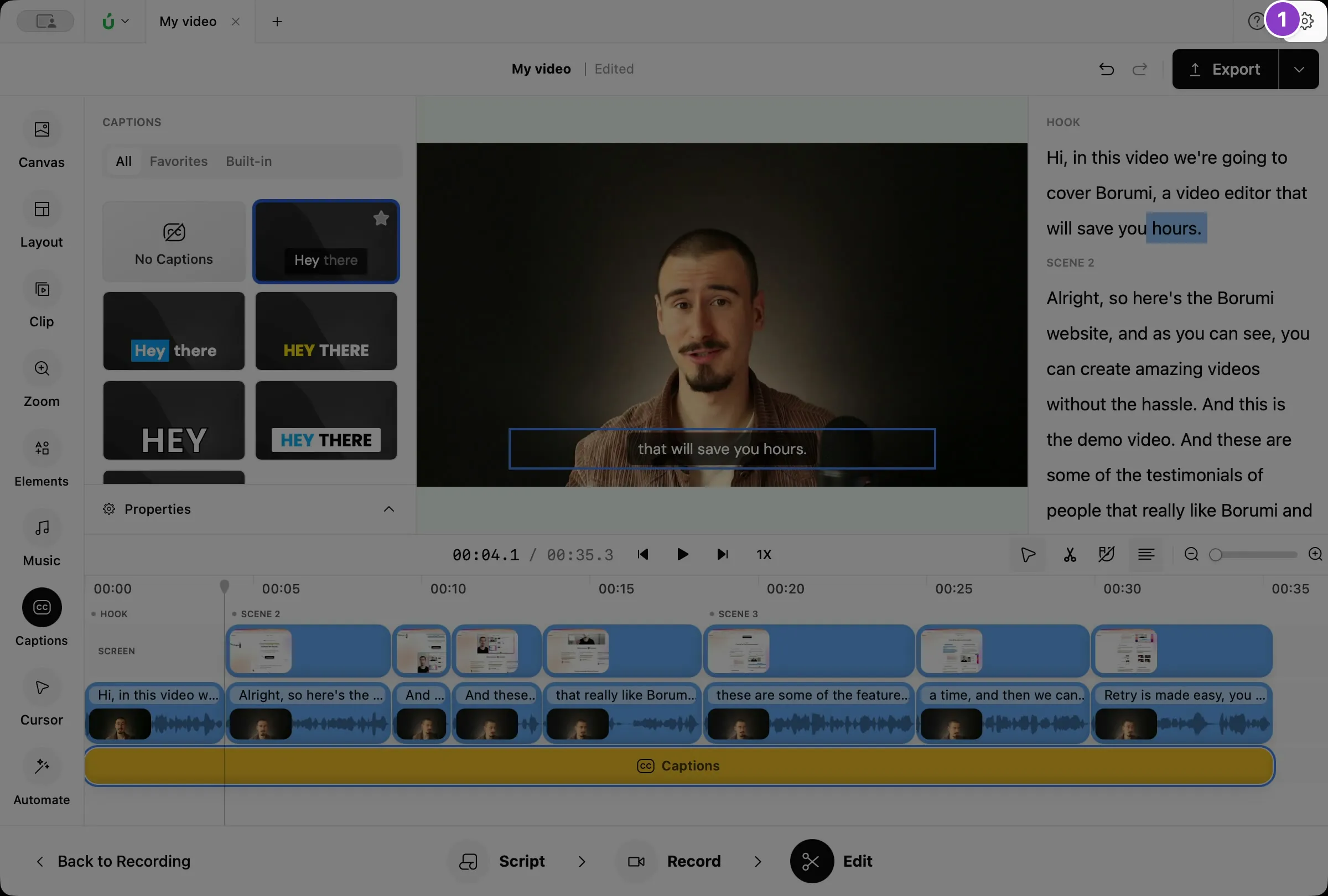
Click the gear icon at the top right to open Settings.
-
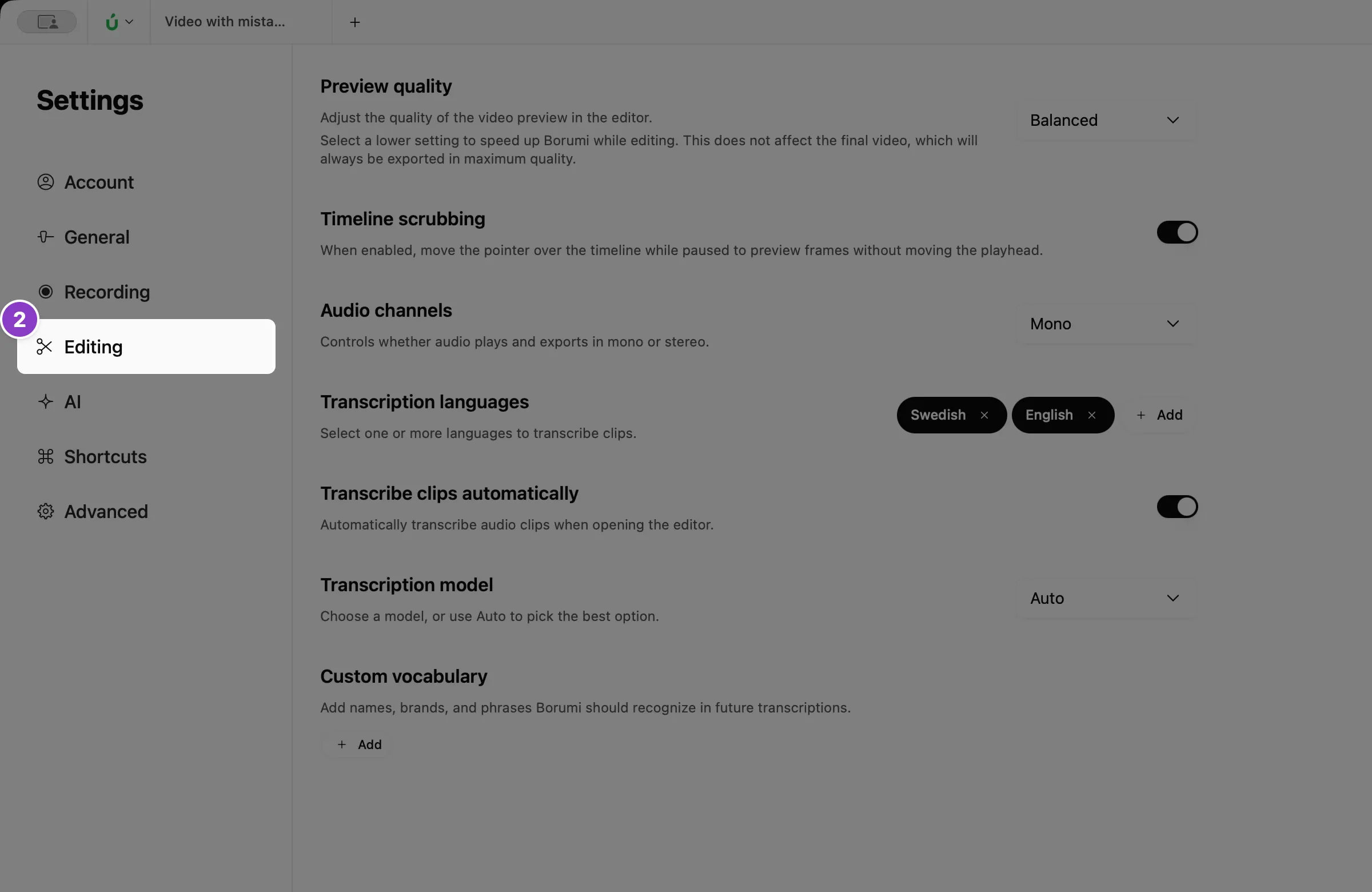
Click Editing.
-
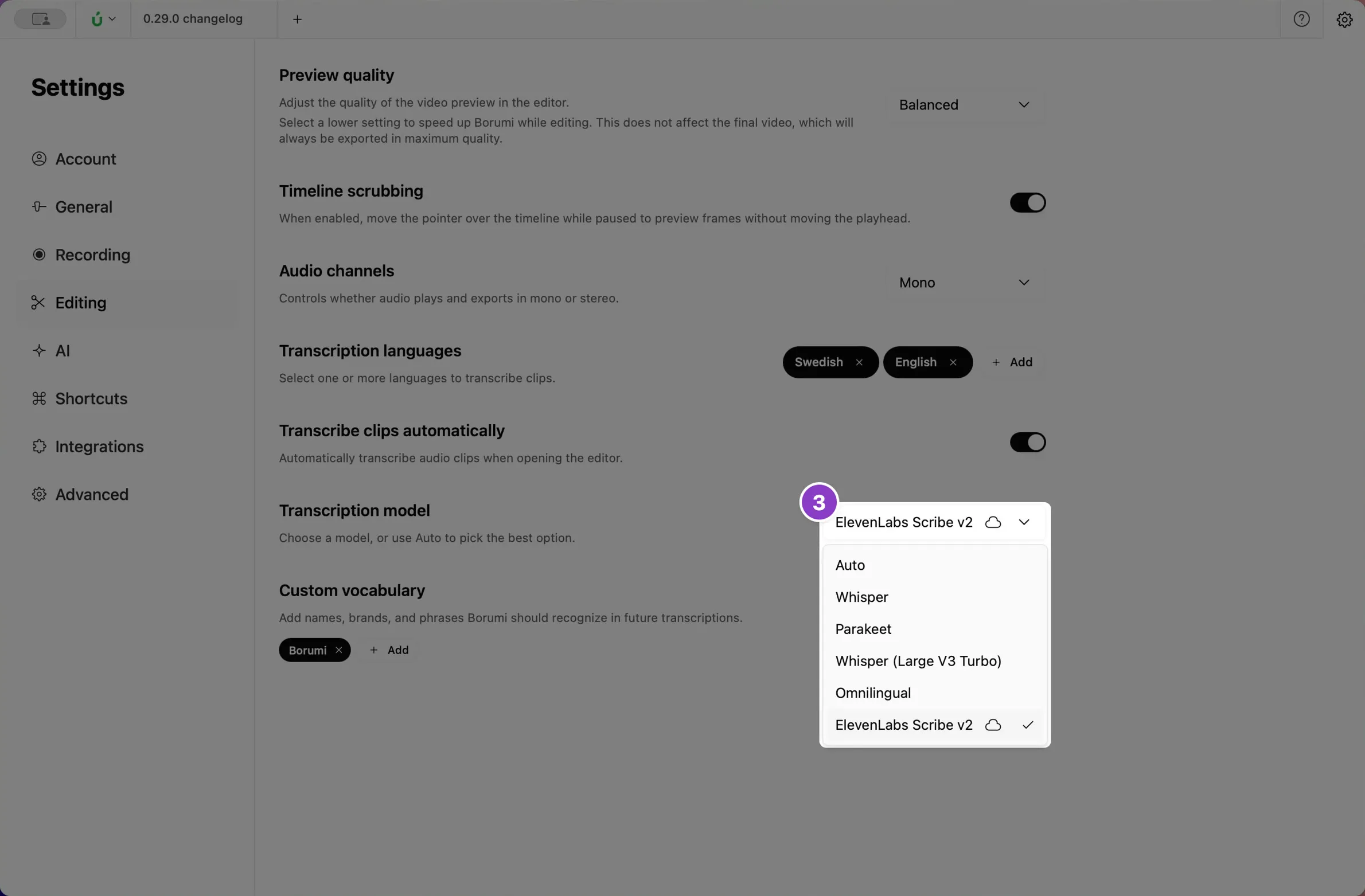
Under Transcription model, choose a model.
Local models
Section titled “Local models”These models run on your computer, so your recordings are never uploaded to the cloud. That’s great for privacy, but the transcript is usually less accurate than with a cloud model. Auto is the default and supports a wide range of languages. You can find the up-to-date list of models under Transcription model in the Editing settings.
Use a cloud transcription model
Section titled “Use a cloud transcription model”Borumi also lets you transcribe your videos in the cloud, which can give you a higher-quality transcript. These are the models available today.
ElevenLabs Scribe v2
Section titled “ElevenLabs Scribe v2”ElevenLabs Scribe v2 is a cloud model from ElevenLabs that supports more than 90 languages. It uses your own ElevenLabs account, so you need an ElevenLabs API key.


This video can't be played right now. Please try again later.
-
In your ElevenLabs account, create an API key with access to Speech to Text.
-
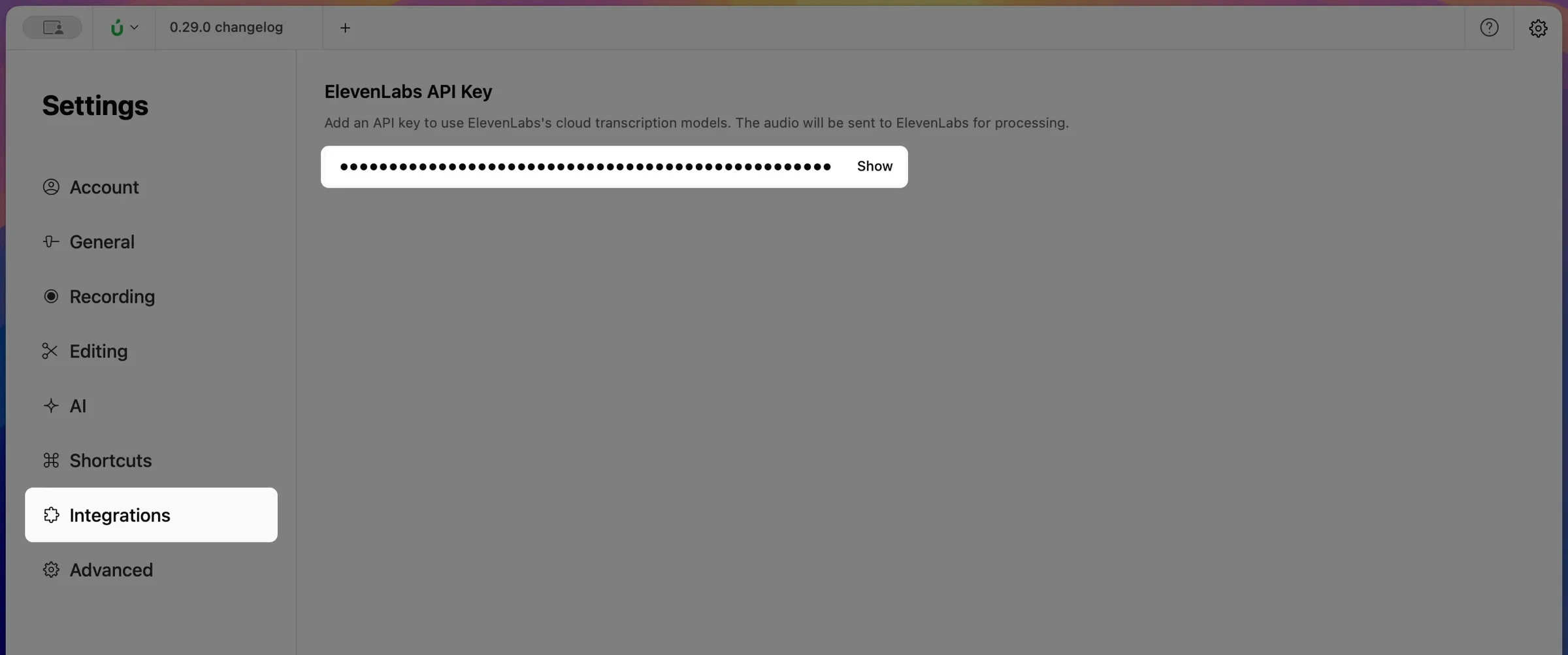
In Borumi, open Settings, click Integrations, and paste the key under ElevenLabs API Key.
-
Click Editing, then choose ElevenLabs Scribe v2 under Transcription model.