
Add a call to action
Borumi makes it easy to add call to actions, like Subscribe to my channel or Follow me on Instagram. This guide shows you how to add them.

Add a call to action
Section titled “Add a call to action”- Move the playhead to where you want the call to action to appear, for example when you ask viewers to subscribe.
- Click Elements in the left sidebar.
- Under Call to action, hover a call to action to see its animation, then click it to add it.
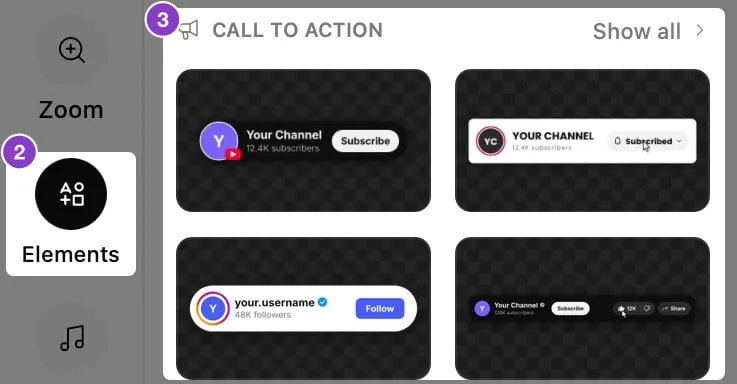
You’ll find:
- Subscribe buttons for YouTube, with your channel name, picture, and subscriber count.
- Follow buttons for Instagram, TikTok, X, Facebook, LinkedIn, Threads, Twitch, and Bluesky.
- Profile cards, and a card with all your social handles.
- Reminders to like, comment, share, save, or turn on notifications.
Fill in your channel details
Section titled “Fill in your channel details”You don’t need to type your channel details. The first time you add a call to action for a platform, Borumi offers to fill it in for you. For example, for YouTube:
- In the Fill this in for you? message, click Use my channel.
- Paste the link to your channel, or your @handle, and click Find channel.
- Check that it’s your channel, and click Use this channel.
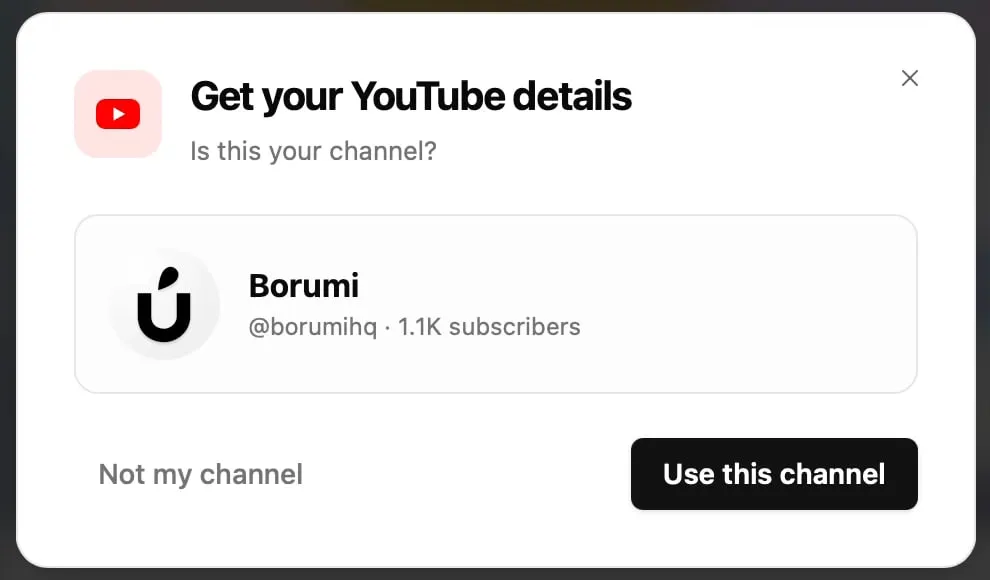
Borumi adds your name, picture, and subscriber count, and remembers them, so the calls to action you add next are filled in for you. Other platforms work the same way.
To do it again later:
- Click the call to action in the video.
- In Element properties, click Use my channel.
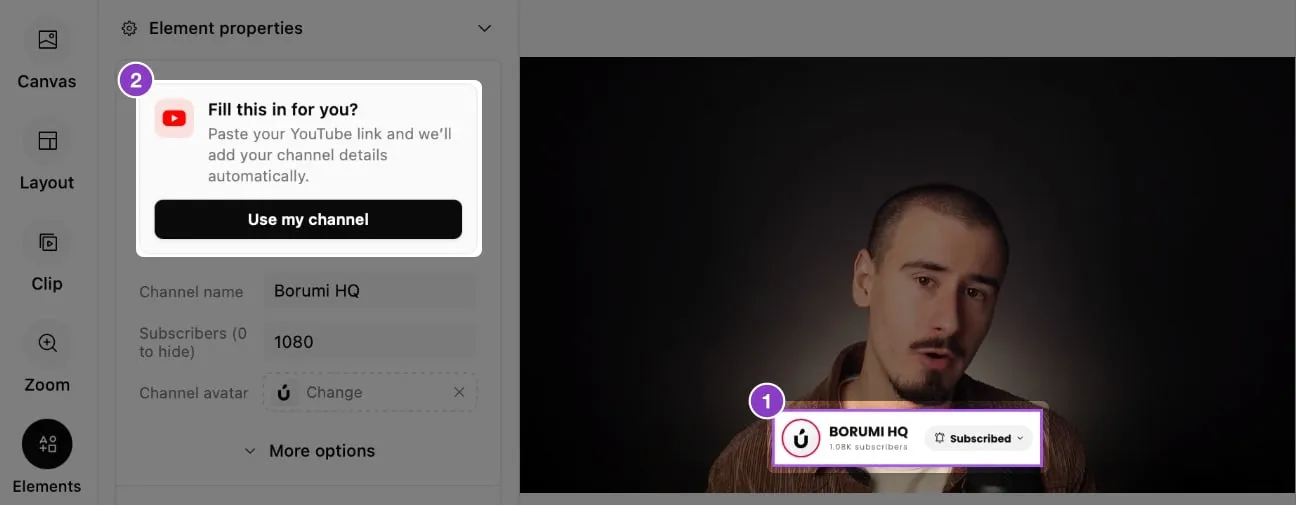
You can also type your details there yourself.
Change how it looks
Section titled “Change how it looks”When you click the call to action, its Element properties open on the left. Depending on the call to action, you can change:
- Its details: like your channel name, picture, and subscriber count.
- More options: more settings, like a light or dark theme and the text of the button.
- Sound effects: the sounds the animation plays, like the click on the button.
- Size & Position: the exact position and size. You can also drag the call to action in the video to move it, and drag a corner to resize it.
- Behind subject: puts the call to action behind you. See Put text behind yourself.
- Transition & sound: how the call to action appears and disappears. See Customize transitions.
Change when it shows
Section titled “Change when it shows”A call to action is an overlay, so you can change when it shows, and for how long, by dragging its clip on the timeline as usual.