
Highlight part of the screen
Sometimes you want to draw your viewers’ attention to a particular part of your screen. Borumi lets you easily add highlights to do that, and this guide shows you how.


This video can't be played right now. Please try again later.
Add a highlight
Section titled “Add a highlight”-
Move the playhead to where the highlight should start.
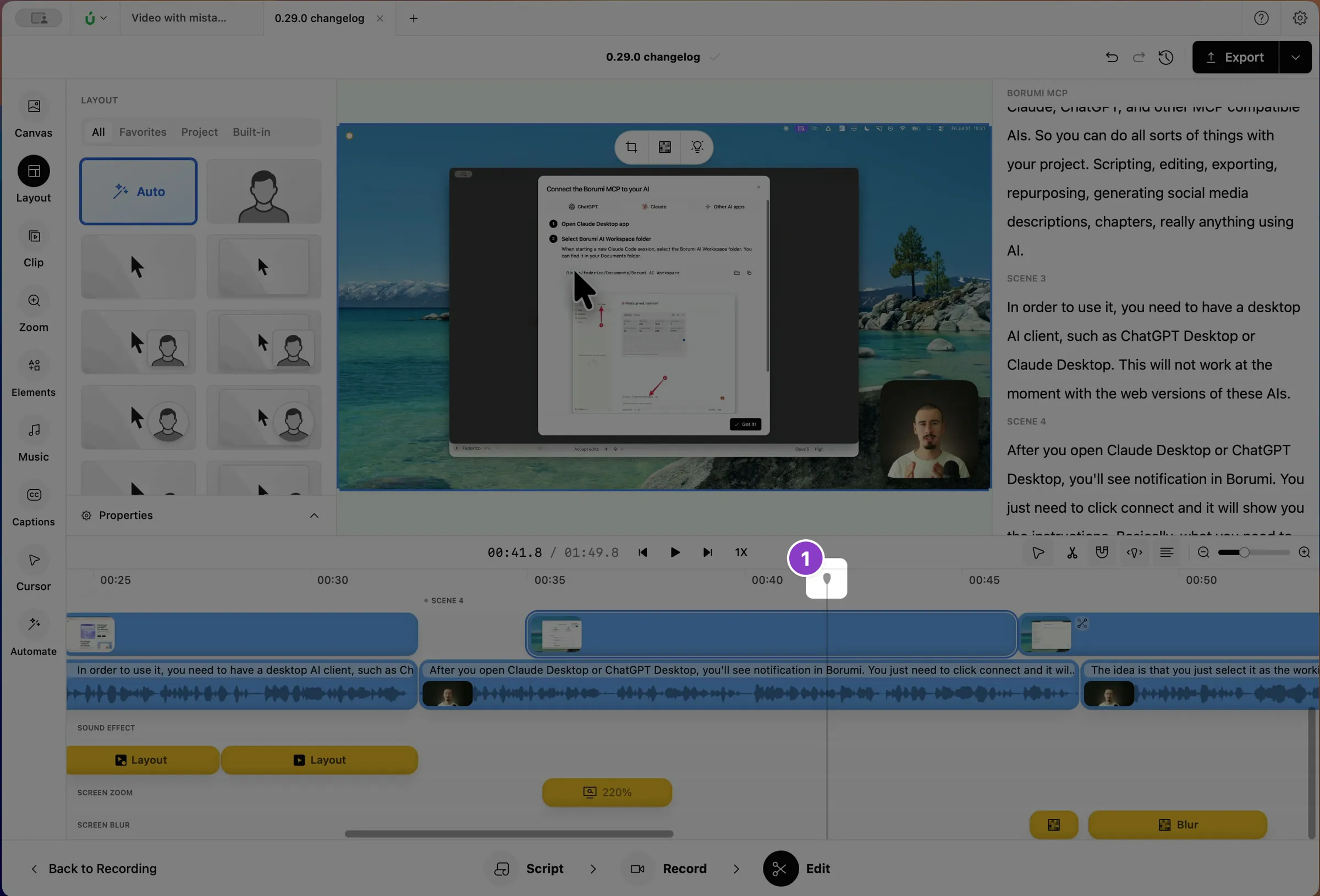
-
In the preview, click your screen recording. A small toolbar appears above it.
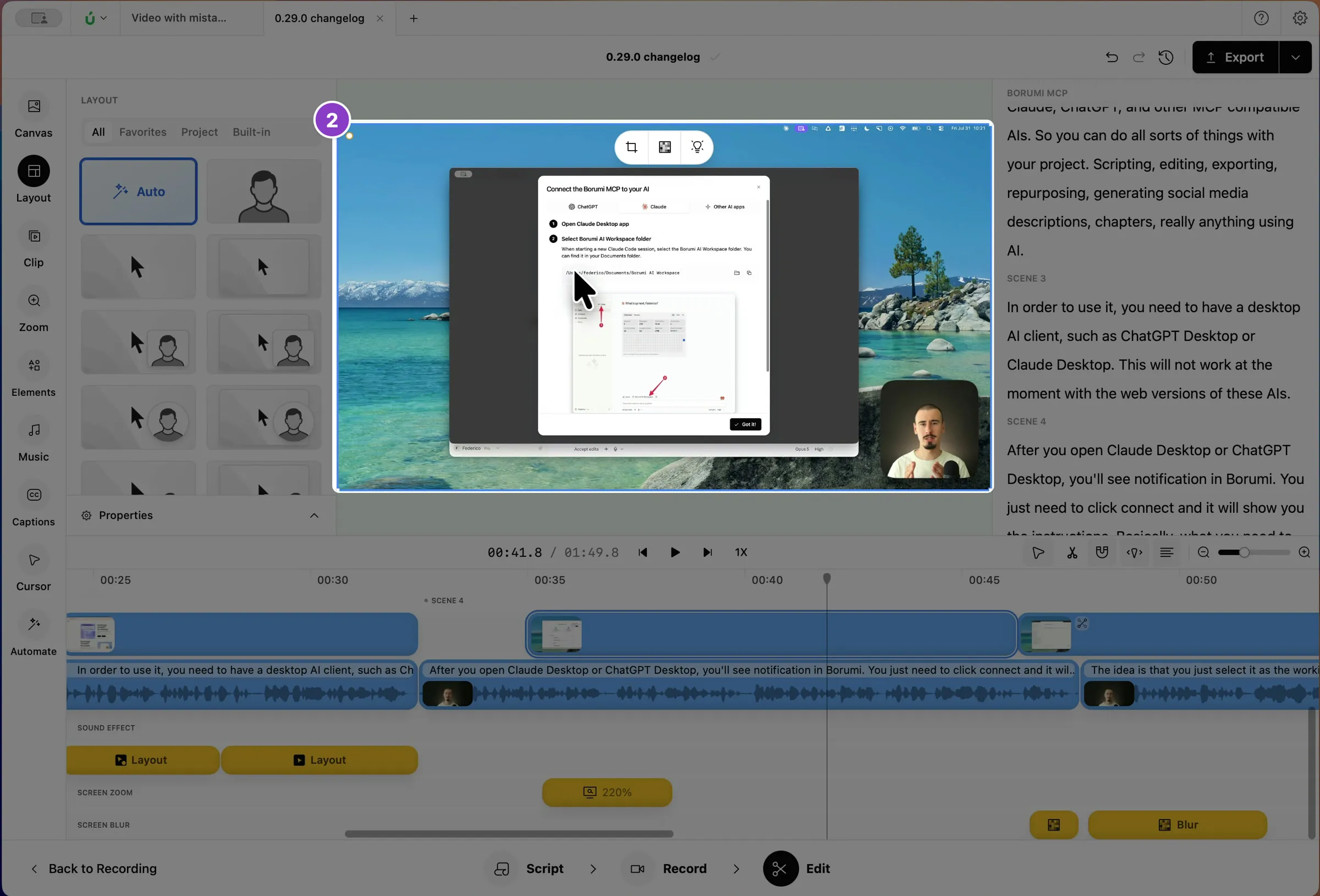
-
Click the highlight button .
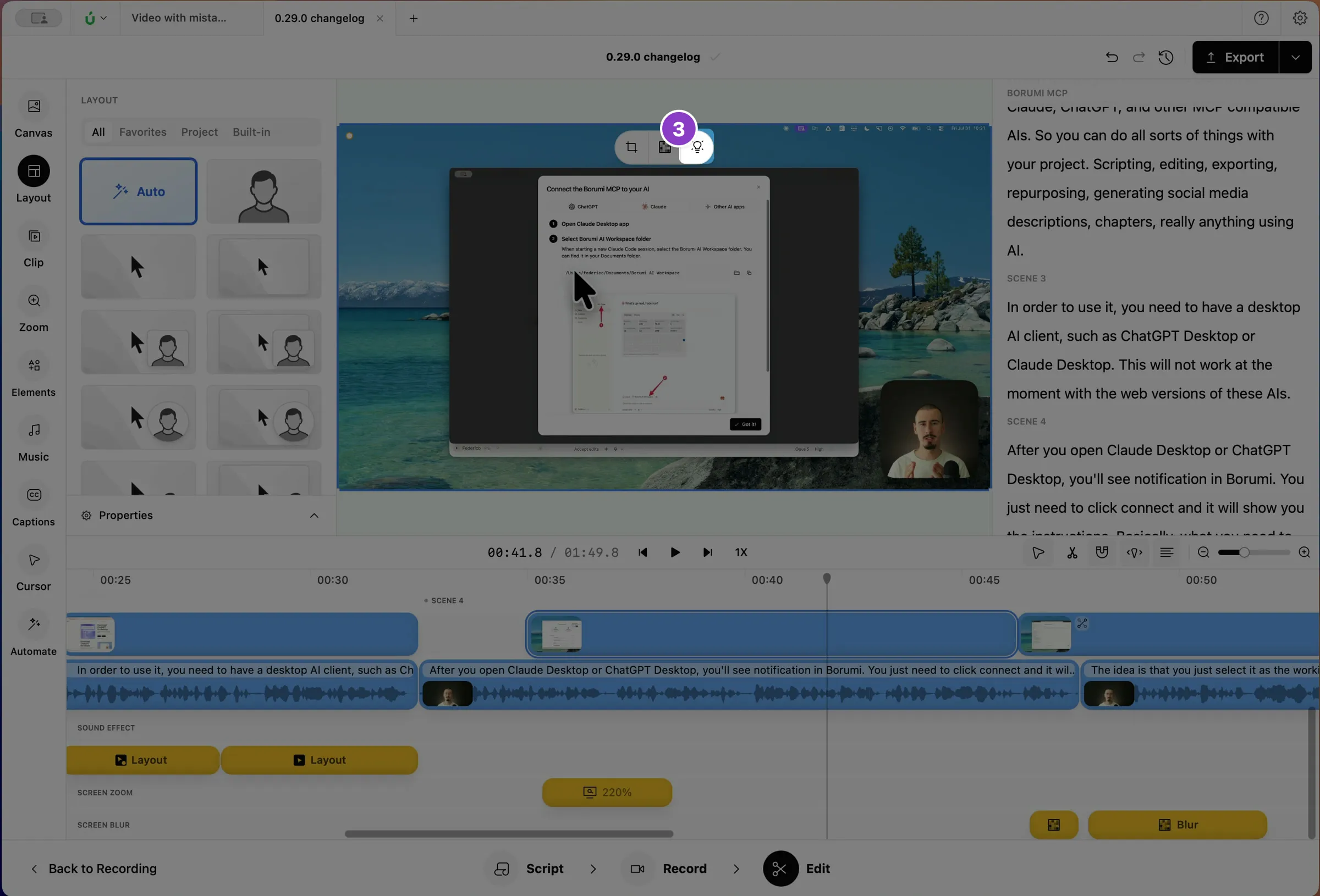
-
Drag the highlight box over the area you want to show, and drag its corners or edges to resize it.
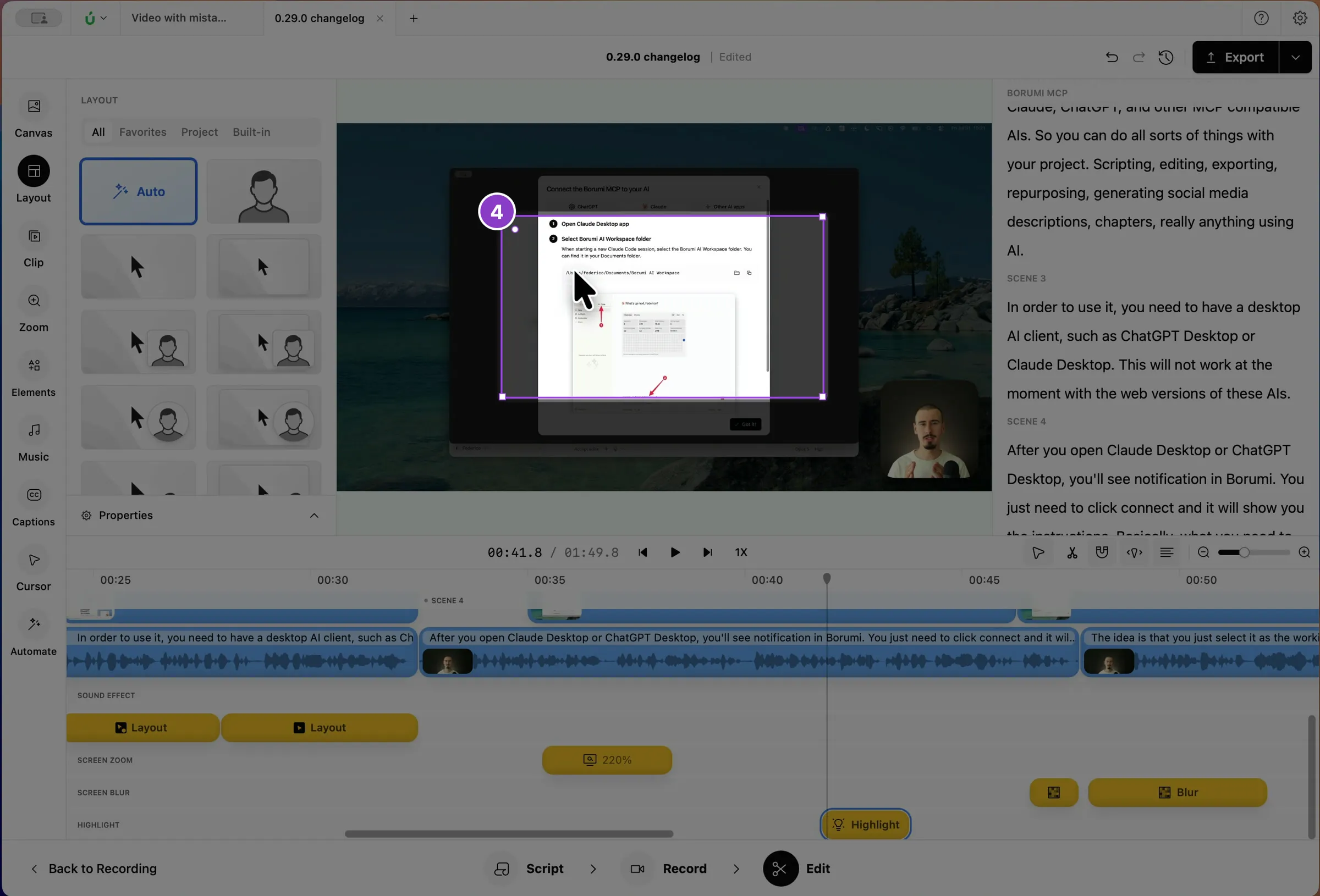
The highlight appears as a clip on the Highlight layer of the timeline. Drag its edges to make it last longer or shorter.
Transitions between highlights
Section titled “Transitions between highlights”To guide viewers through several areas, place highlights one right after the other on the timeline. Borumi animates the highlight from one area to the next, so it glides across the screen instead of jumping.