
Improve your audio
Good audio makes a big difference in how your video feels. Borumi gives you many controls to get the best result, and this guide walks you through them.
Open the audio settings
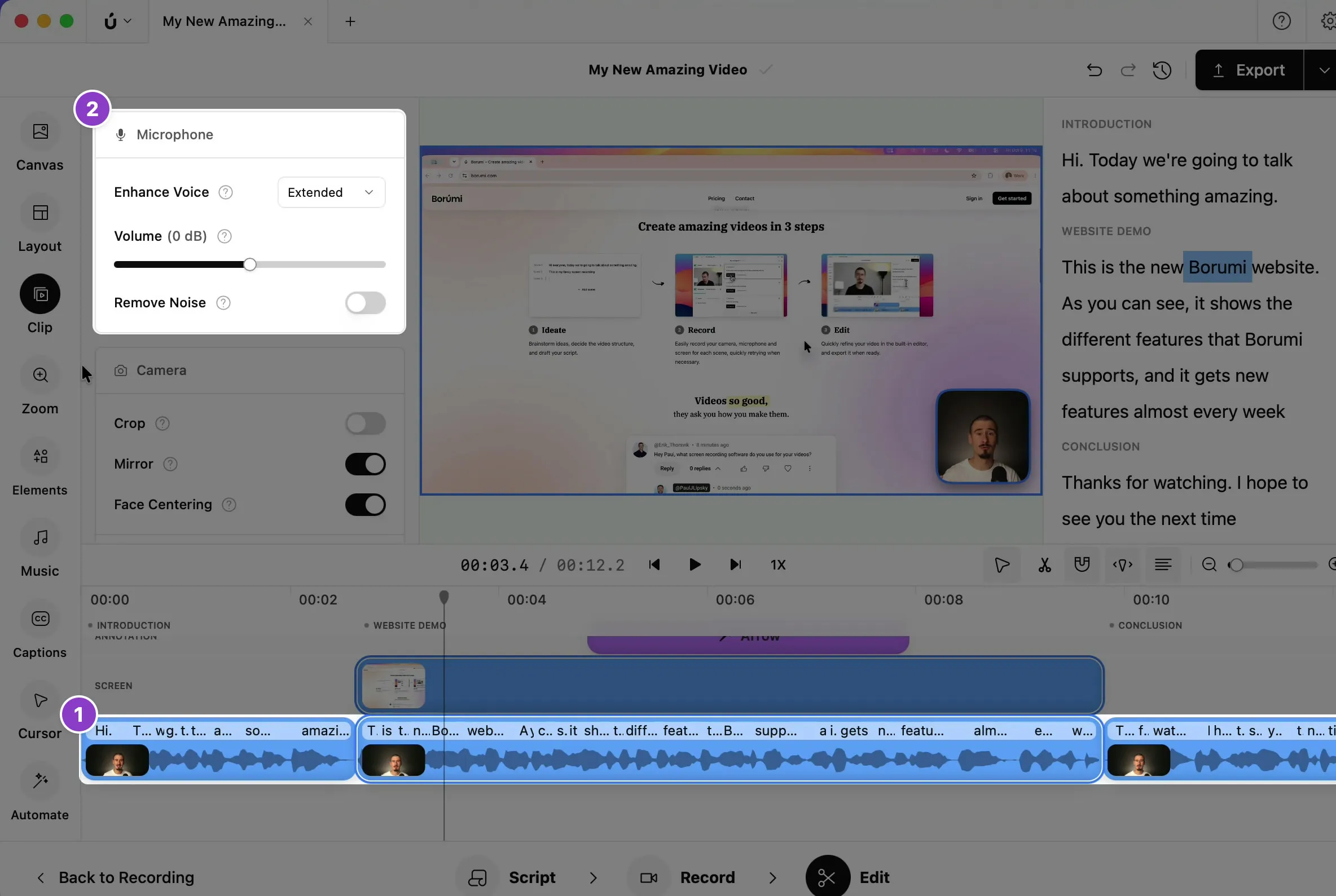
Section titled “Open the audio settings”Click your recording on the timeline. The Clip panel shows the settings of your microphone.
Enhance your voice
Section titled “Enhance your voice”The Enhance Voice filter automatically adjusts your audio levels and reduces noise, so your voice sounds good out of the box. Sometimes you might want the effect to be less strong, and you can do that by changing the mode:
- Disabled: keeps your voice as it was recorded.
- Minimal: balances the levels and normalizes the volume.
- Extended: adds EQ and noise reduction on top of Minimal. This is the default.
Remove background noise
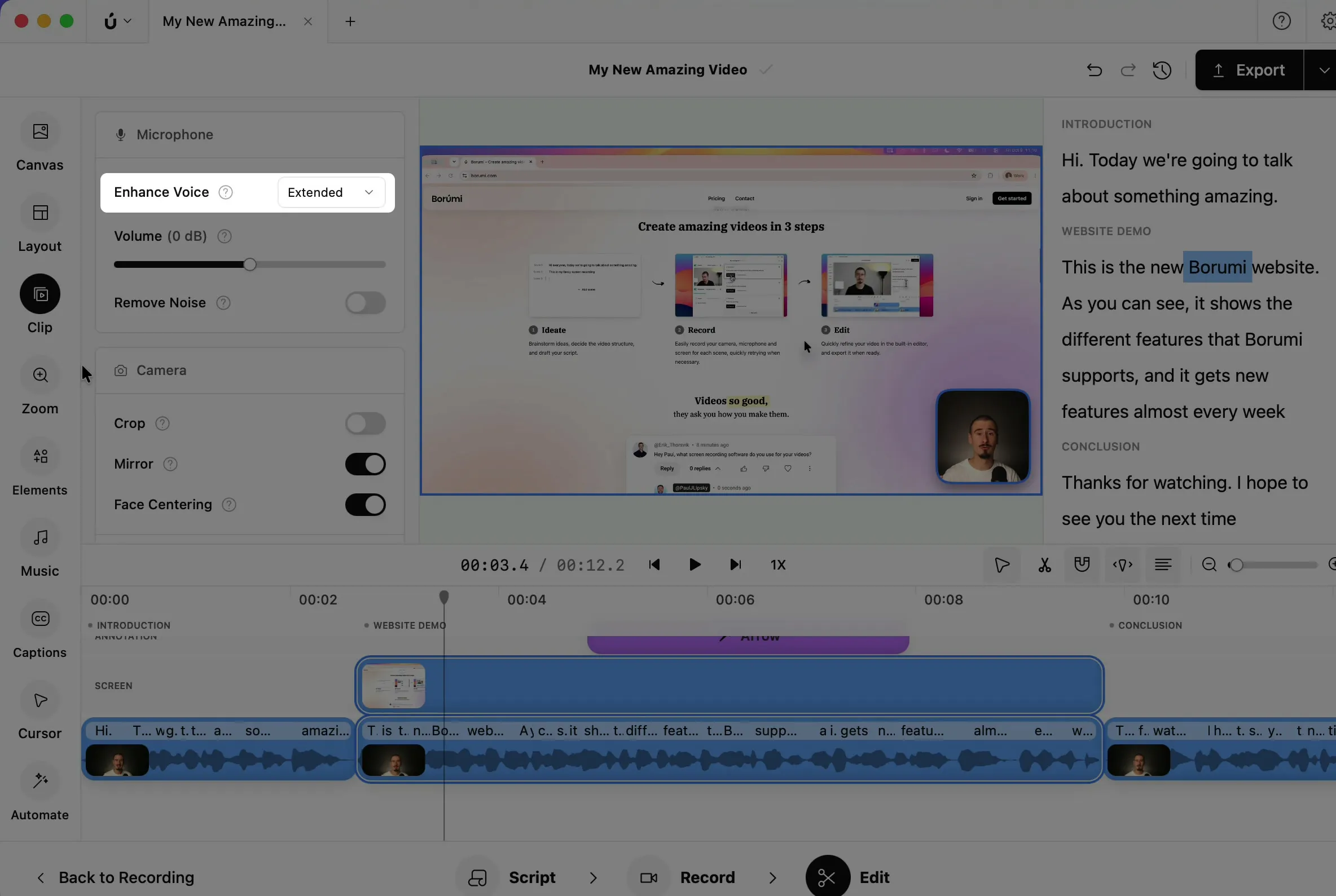
Section titled “Remove background noise”Turn on Remove Noise, then drag the slider. Higher values remove more noise, but can make your voice sound less natural.
Change the volume of a clip
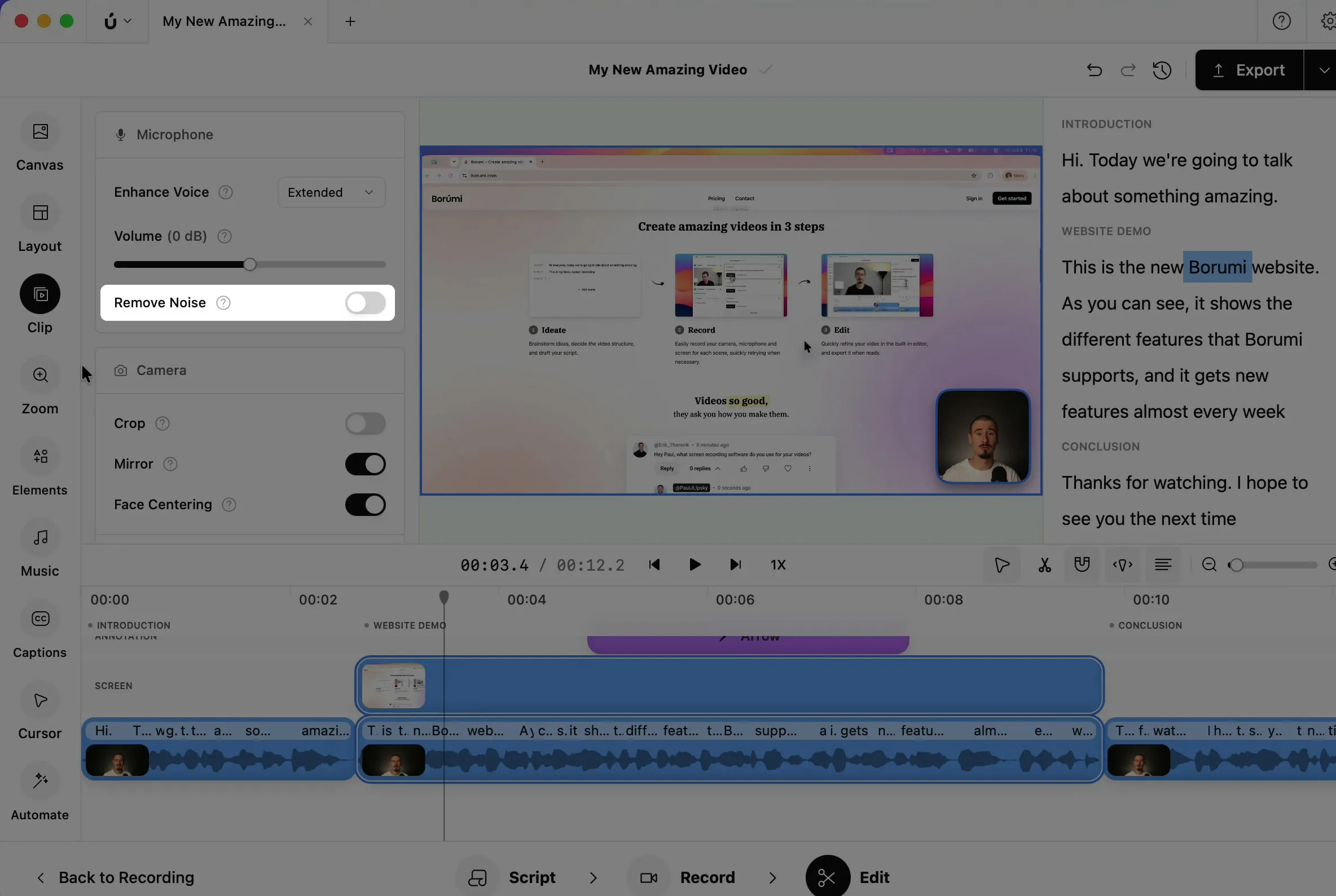
Section titled “Change the volume of a clip”Drag the Volume slider to make the clip quieter or louder. 0 dB keeps the clip as it was recorded.
Change the audio type
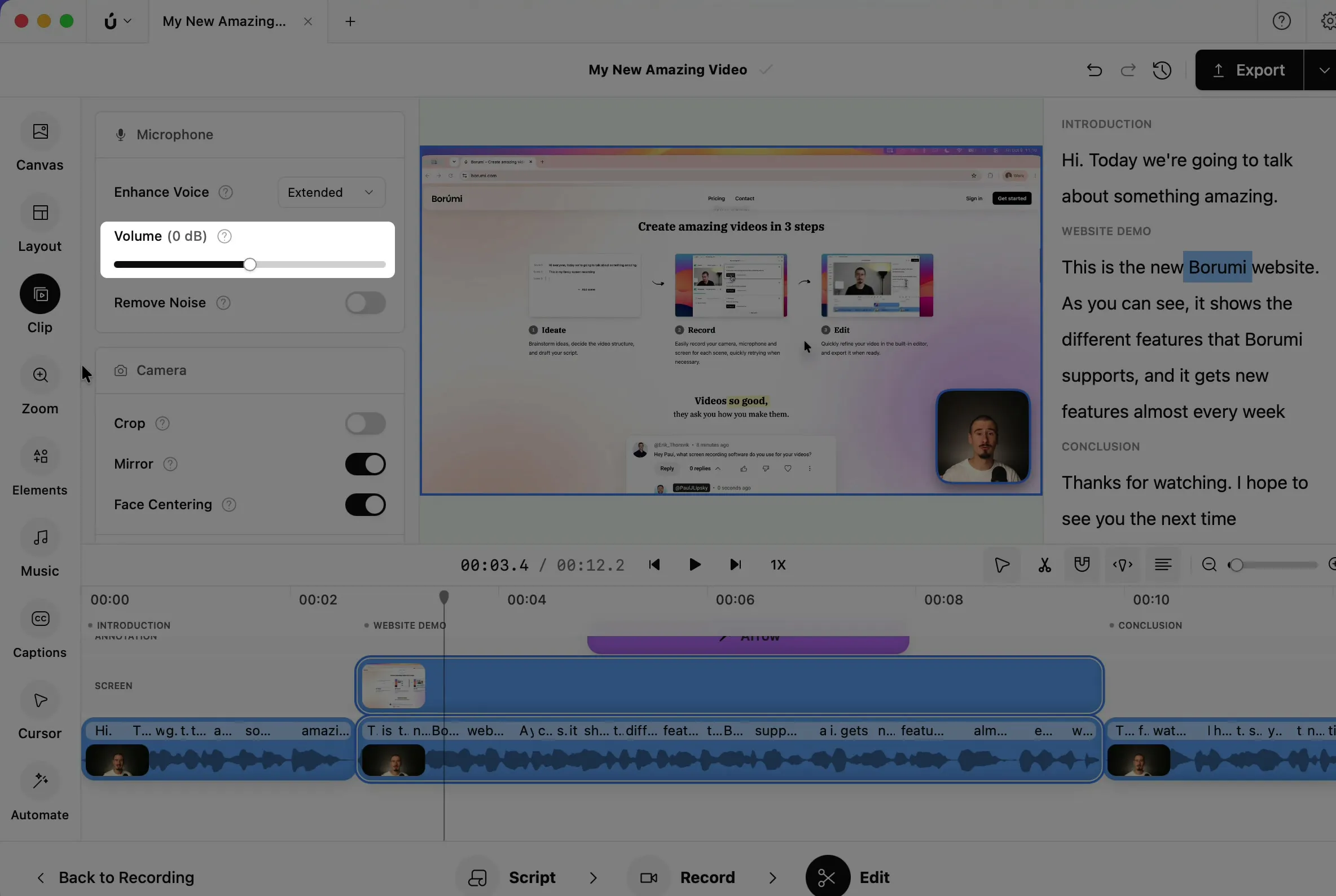
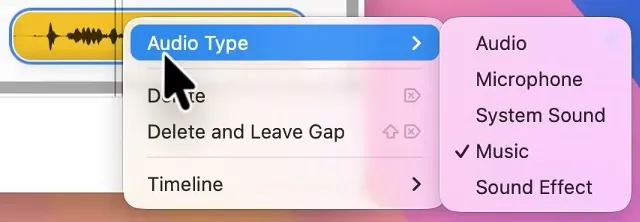
Section titled “Change the audio type”When you import audio, Borumi guesses what kind of audio it is, and it sometimes guesses wrong. To fix it, right-click the clip, choose Audio Type, and pick the right one. Choose Microphone for voice recordings, so you can use Enhance Voice and Remove Noise.


This video can't be played right now. Please try again later.
Use stereo audio
Section titled “Use stereo audio”Borumi records, plays, and exports audio in mono by default. To use stereo instead, see Record stereo audio.