Add callouts and overlays with AI
Not every graphic needs the whole screen. Callouts, lower thirds, and “Subscribe” buttons work best on top of your video, while you keep talking. In Borumi, these are overlays, and this guide shows you how to add them.
Ask for callouts
Section titled “Ask for callouts”Open your project in Borumi, then ask your AI, for example:
- “Can you add callouts with tips at the beginning of each section?”
- “Add a short animated callout where I explain the difference between content clips and overlay clips. Keep it away from my face.”
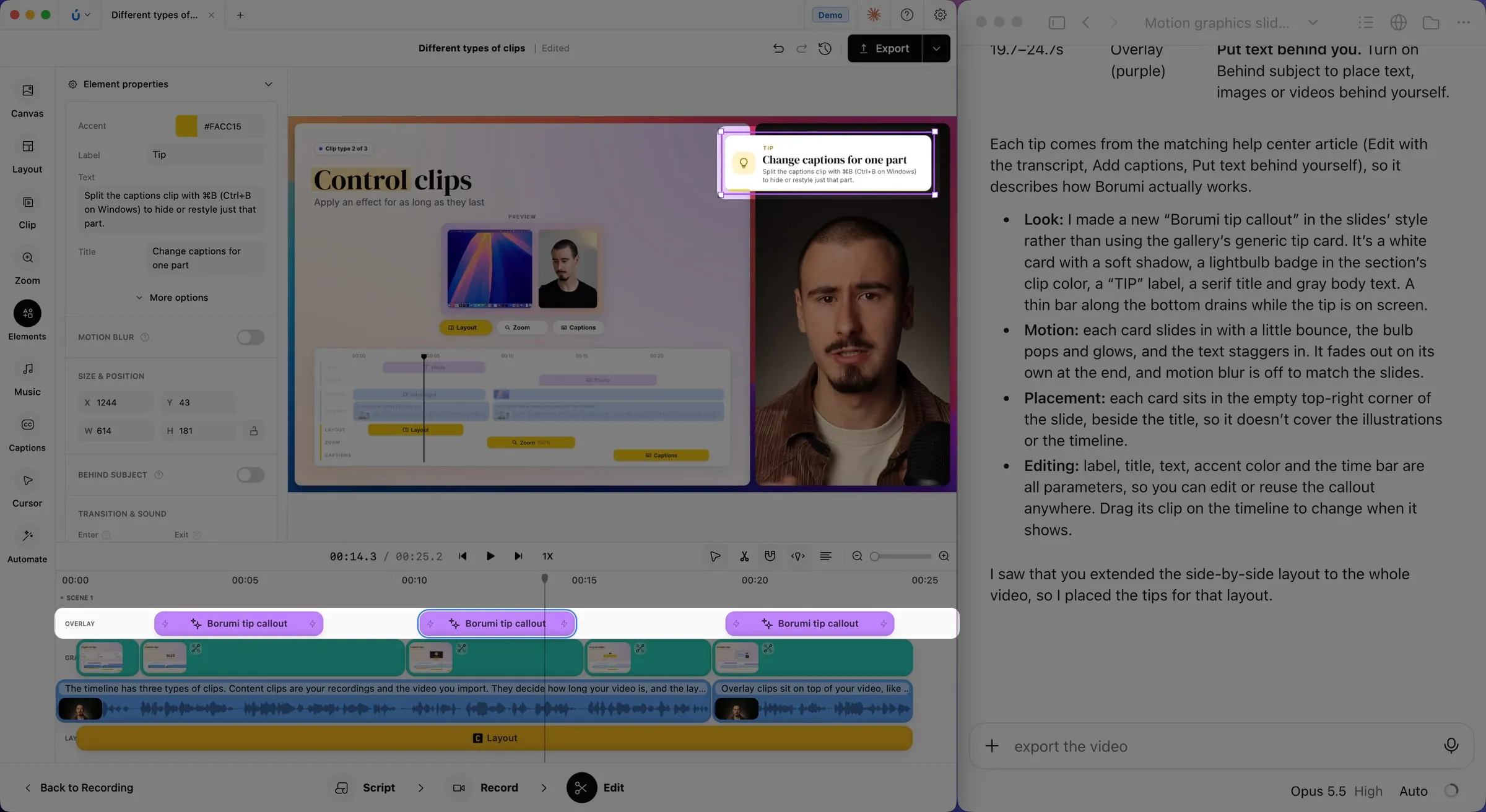
Callouts work like any other overlay: drag them in the preview to move or resize them, and drag the edges of their clips on the timeline to change when they show. See Add overlays.
Add ready-made motion graphics
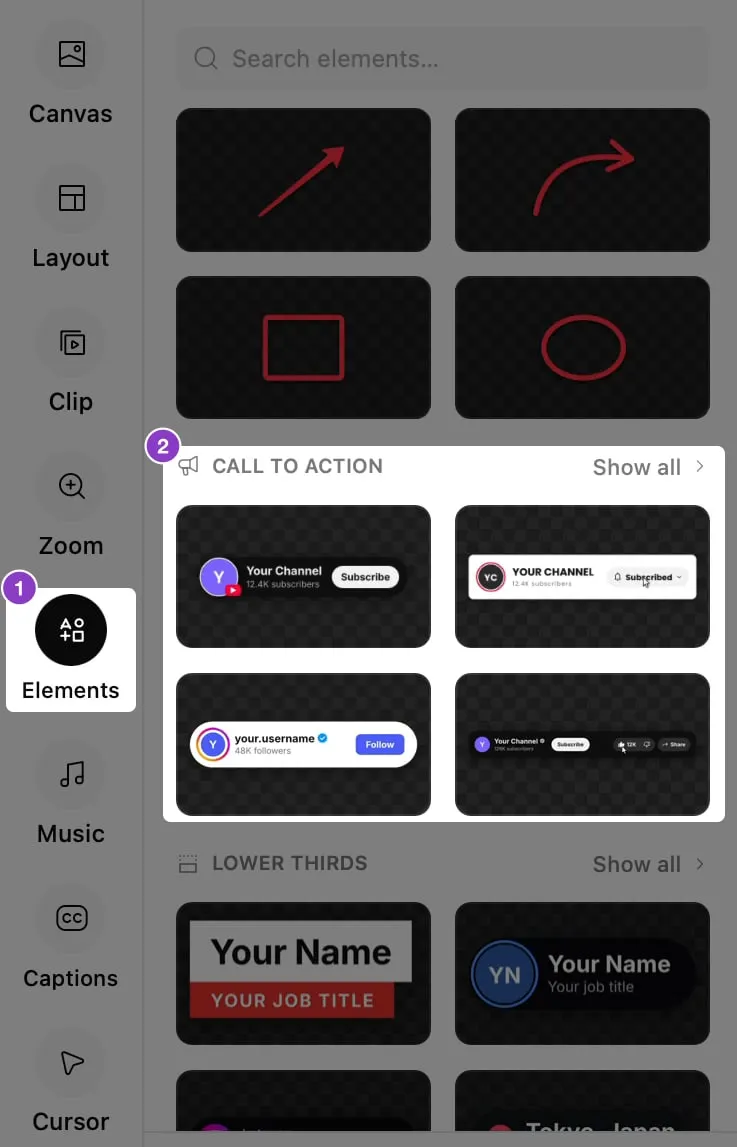
Section titled “Add ready-made motion graphics”Borumi comes with ready-made motion graphics you can add without AI:
- Click Elements in the left sidebar.
- Find a graphic you like, and hover it to see its animation.
- Click it to add it at the playhead.
- In Element properties, fill in its details, like your name.
| Section | Use it for |
|---|---|
| Call to action | Ask viewers to follow, subscribe, like, or buy. |
| Lower thirds | Names and titles at the bottom of the frame. |
| Callouts | Tips, key ideas, quotes, stats, and lists that explain a point. |
| Titles | Chapter openers and full-screen title cards. |
| Effects | Confetti, fireworks, light leaks, and more over your video. |
| Social | Notifications, comments, posts, and chats from social apps. |
Put a graphic behind you
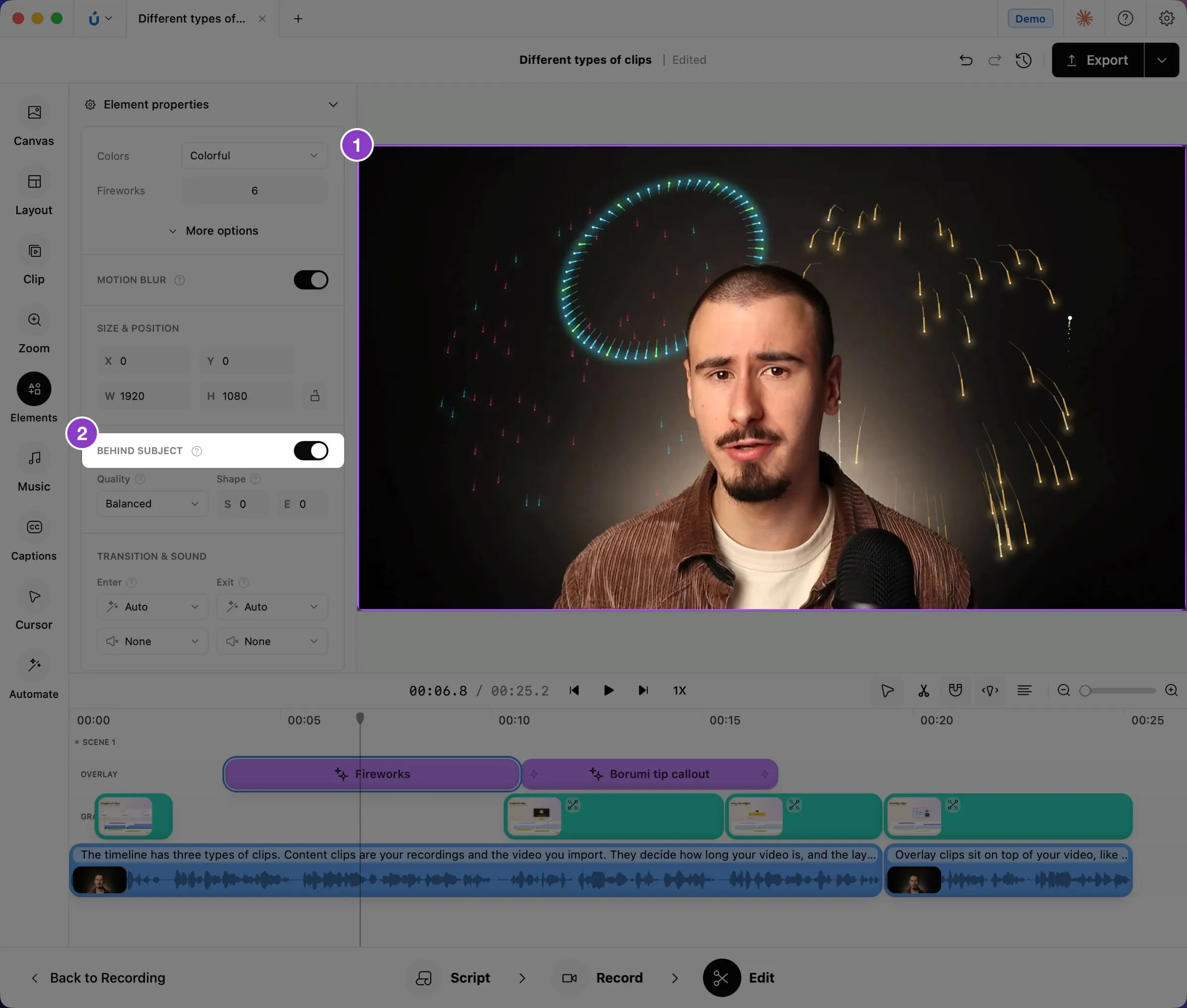
Section titled “Put a graphic behind you”Like other overlays, motion graphics can go behind you. For example, you can show fireworks behind your head:
- Click the graphic in the preview.
- In Element properties, turn on Behind subject.