
Customize transitions
Borumi animates your video automatically, but you can also choose how each part of it animates. This guide walks you through it.


This video can't be played right now. Please try again later.
Change the transition between two clips
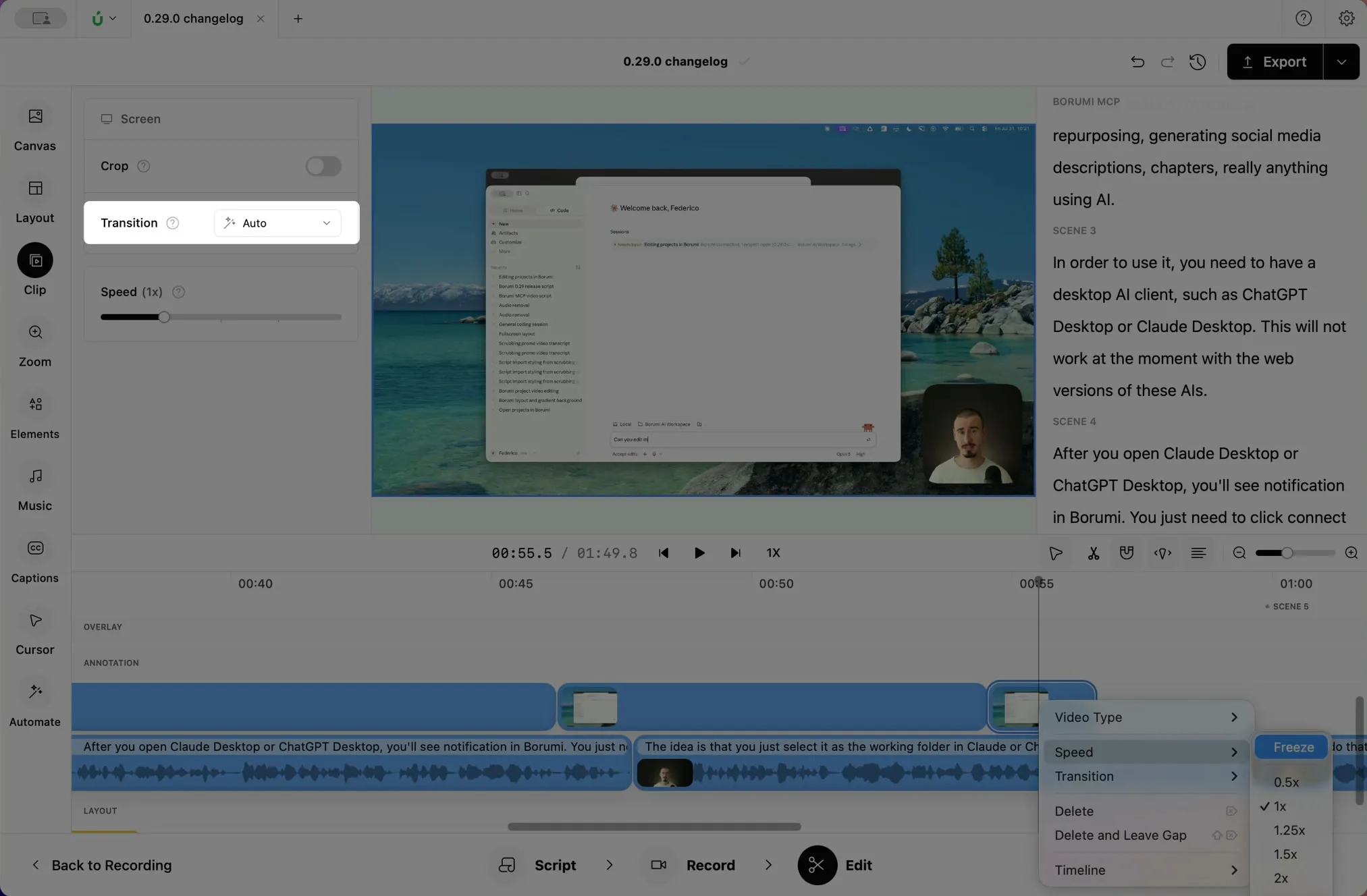
Section titled “Change the transition between two clips”By default, Borumi cuts instantly from one clip to the next. To make your video more dynamic, you can choose another transition, like a crossfade or a slide:
To change it, click the clip that comes after the cut, then choose a Transition in the Clip panel.
Change how a layout animates
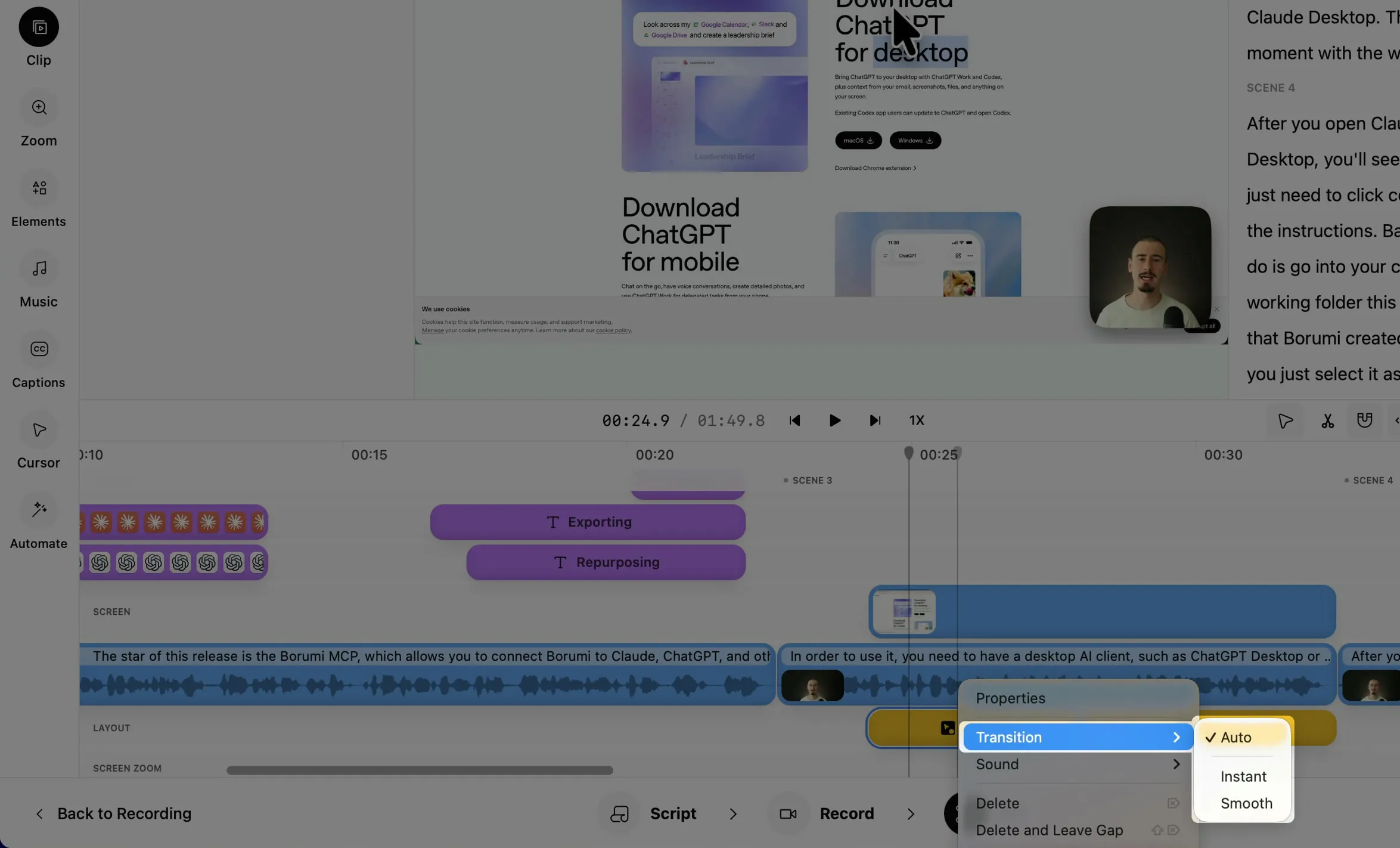
Section titled “Change how a layout animates”When the layout changes, Borumi moves your camera and screen into their new positions. To change how, right-click the layout clip, choose Transition, and pick Auto, Instant, or Smooth.
Change how elements appear and disappear
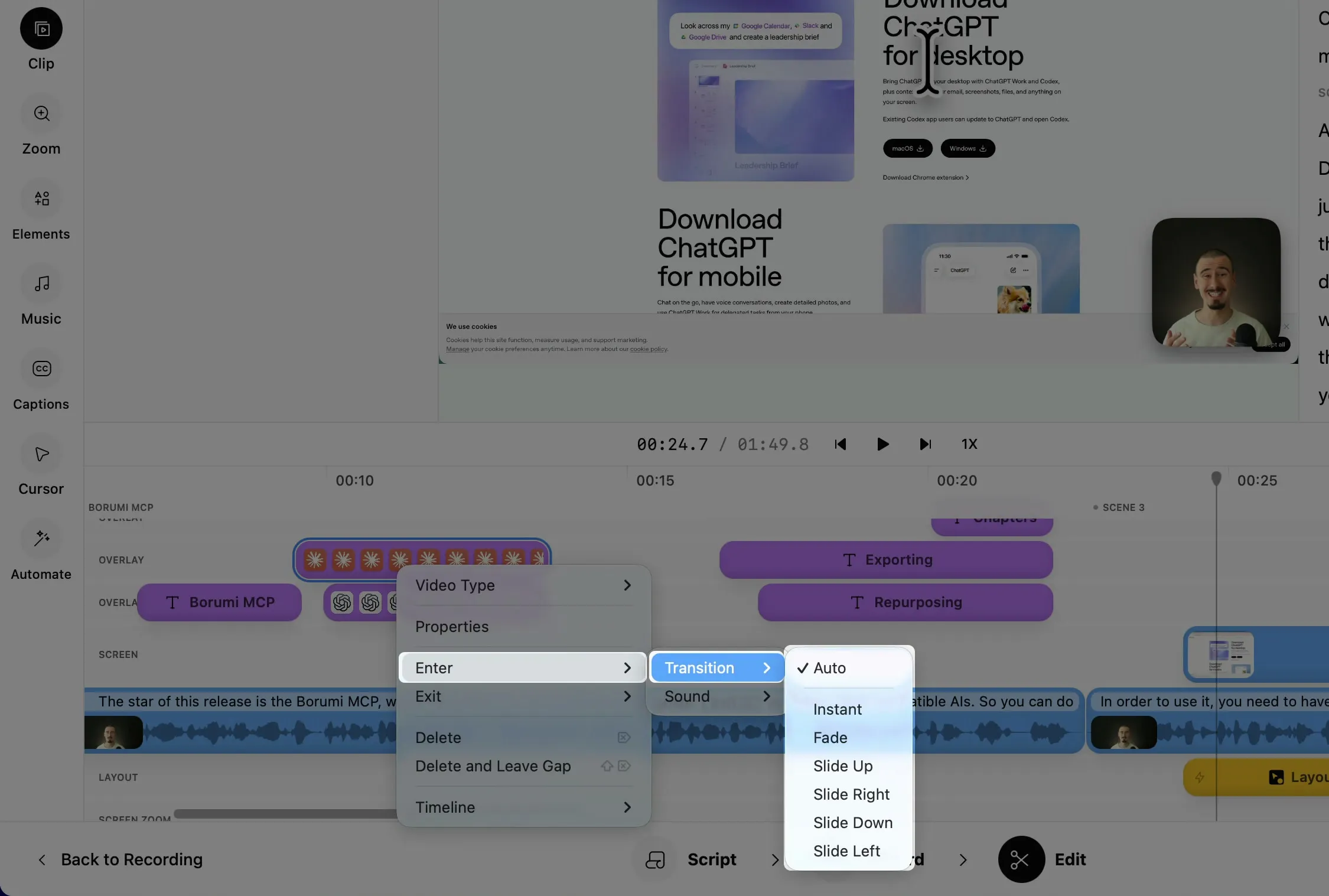
Section titled “Change how elements appear and disappear”Text, images, videos, and annotations have separate transitions for when they appear and when they disappear. Right-click the element on the timeline, choose Enter or Exit, then Transition, and pick one.
Change zoom and highlight transitions
Section titled “Change zoom and highlight transitions”- Camera zooms: click More options in the Zoom panel and choose an Enter mode and an Exit mode. See Add a camera zoom.
- Highlights: right-click the highlight and choose Transition. See Highlight part of the screen.