Adjust camera colors
Sometimes your camera recording might look too cold or too dark. Borumi lets you easily adjust its colors with built-in filters and color sliders, and you can even import your own LUT. This guide discusses how to do that.


This video can't be played right now. Please try again later.
Apply a filter
Section titled “Apply a filter”-
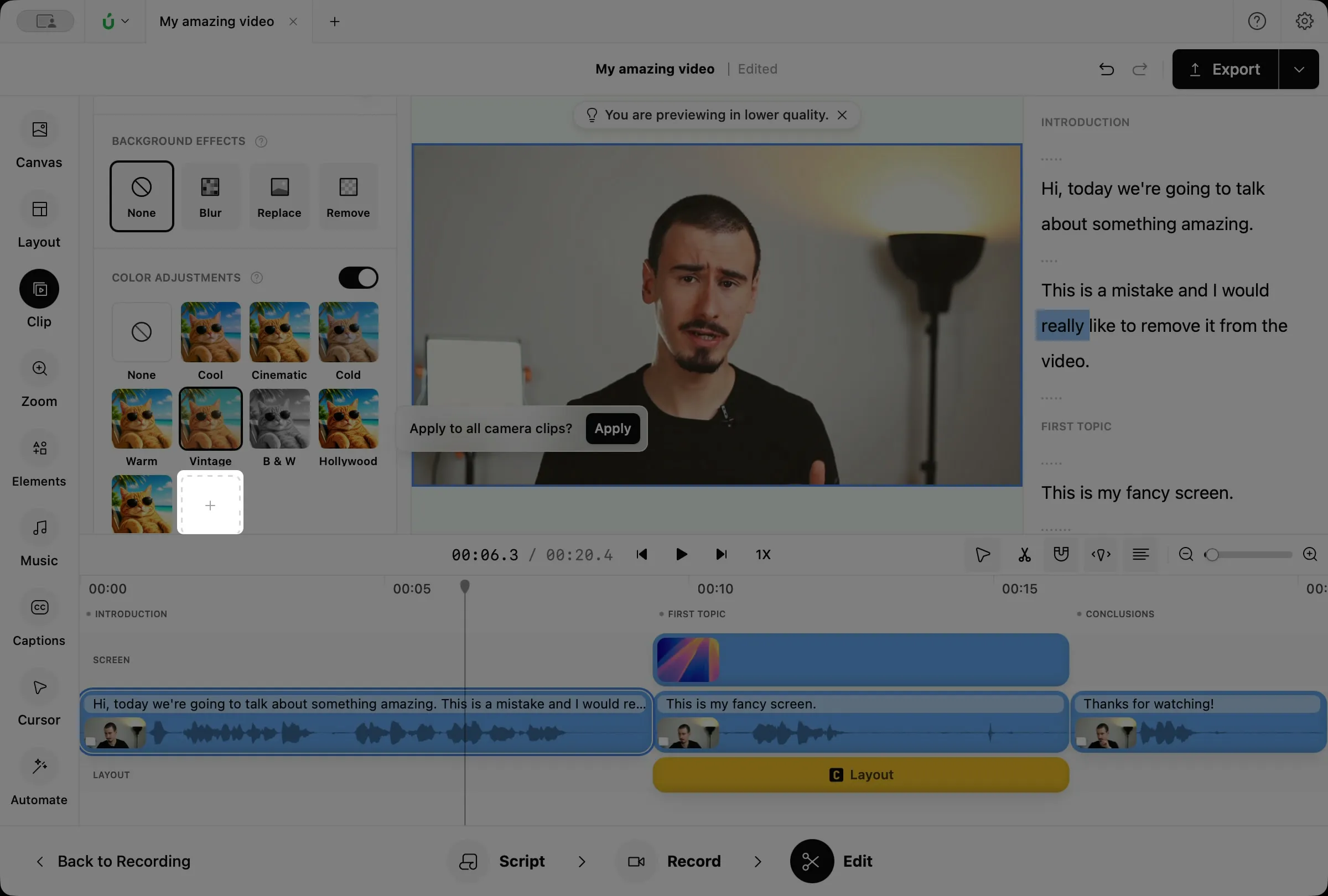
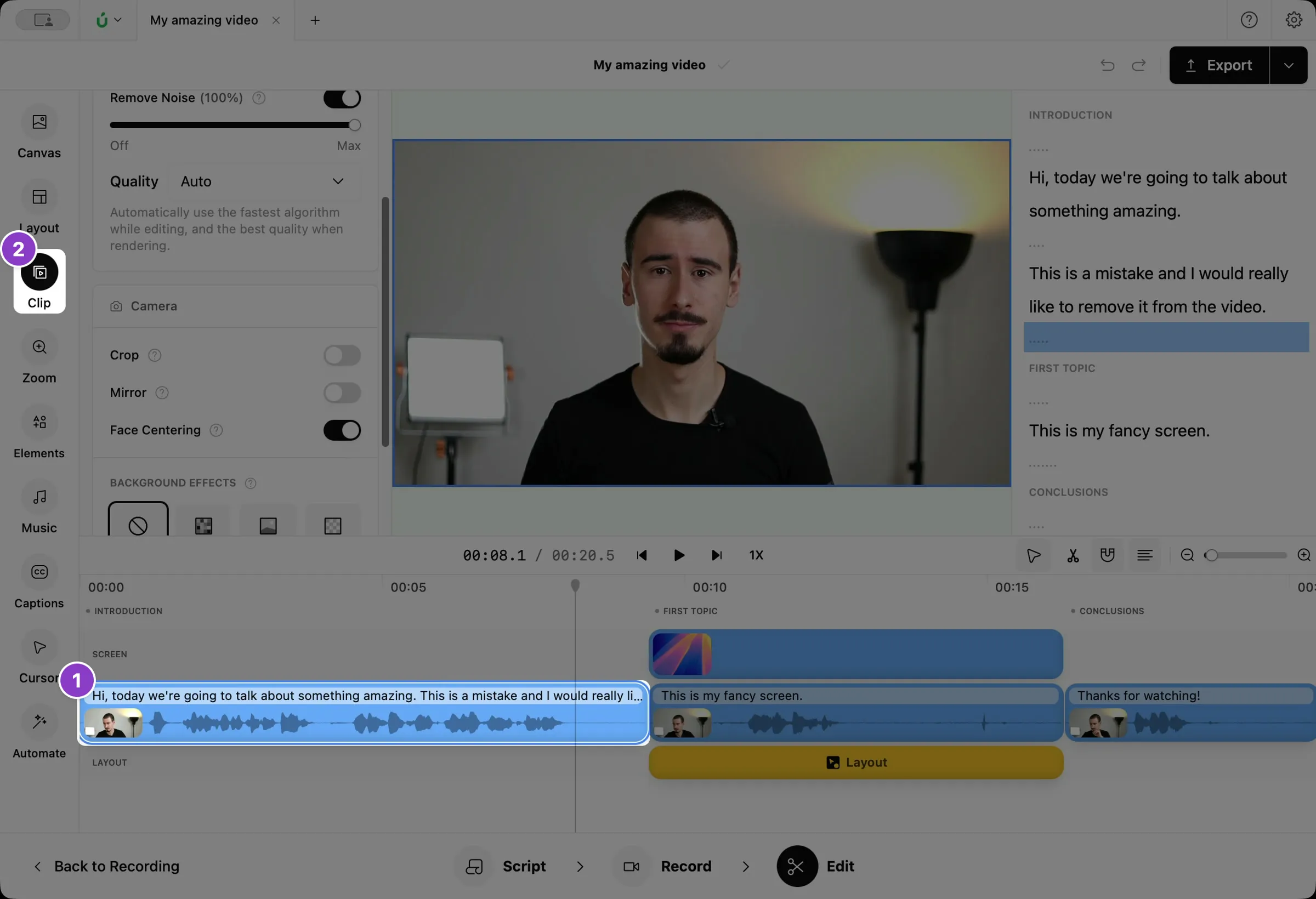
Click your camera clip on the timeline.
-
Click Clip in the left sidebar.
-
Scroll down and turn on Color adjustments.
-
Click a filter.
-
To use it in the whole video, click Apply in the message that appears.
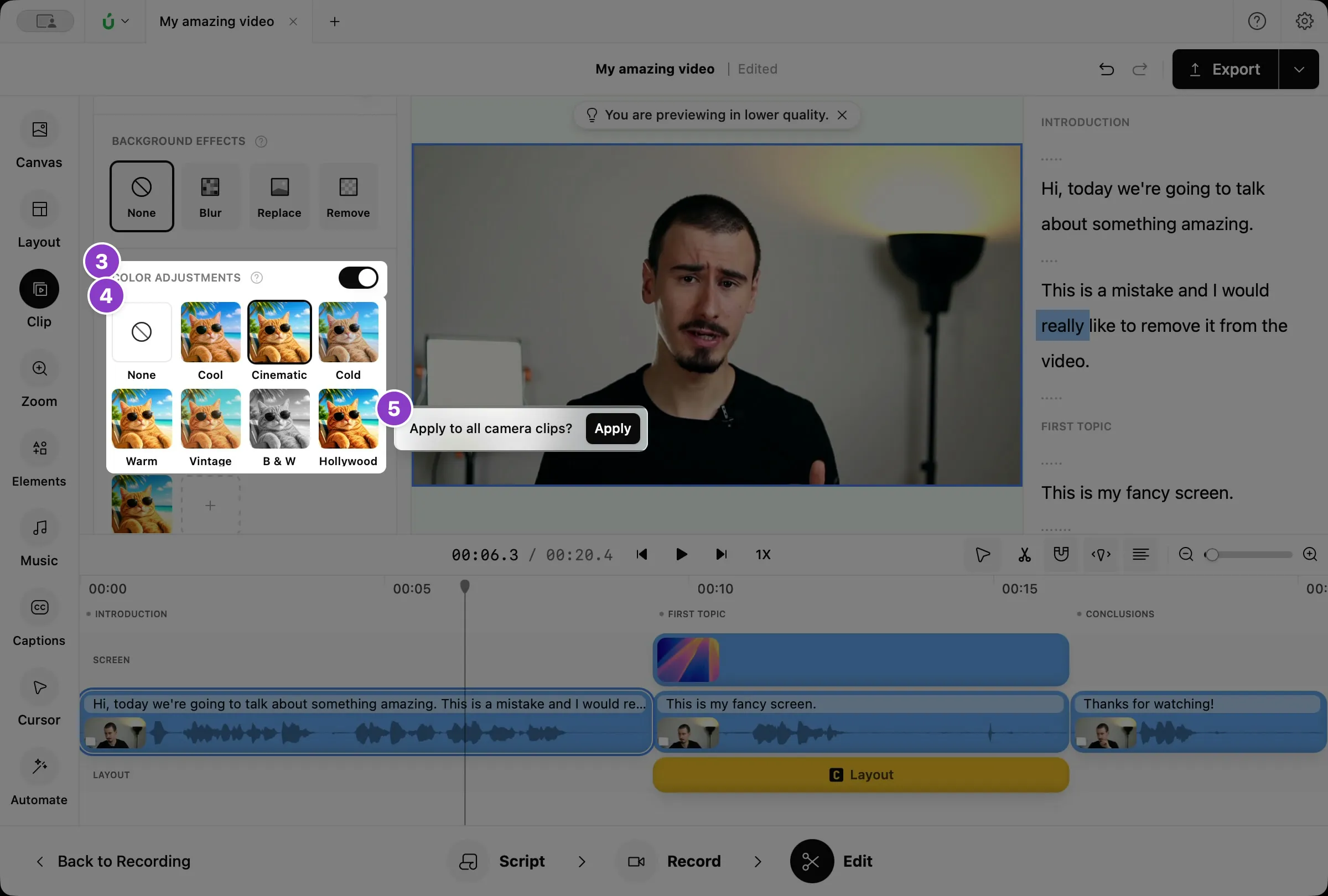
To make a filter lighter, click More options and lower Intensity.
Adjust the colors yourself
Section titled “Adjust the colors yourself”Click More options under the filters to show the color sliders. You can use them with or without a filter.
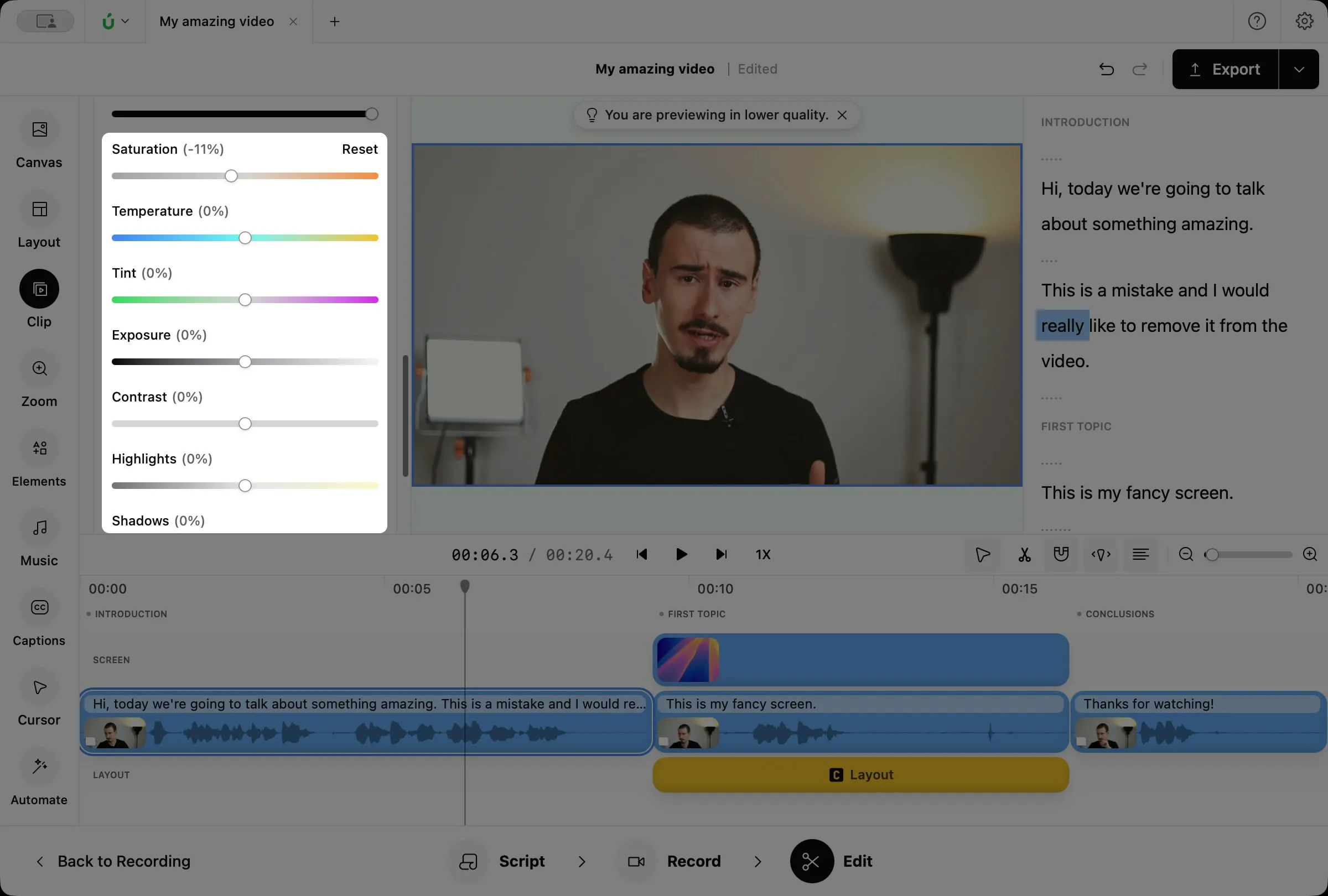
- Saturation: how strong the colors are.
- Temperature: makes the video cooler or warmer.
- Tint: shifts the colors toward green or magenta.
- Exposure: makes the video darker or brighter.
- Contrast: the difference between dark and bright areas.
- Highlights and Shadows: make only the bright or only the dark areas brighter or darker.
Use your own LUT
Section titled “Use your own LUT”Borumi lets you easily import your own LUT if you want even greater control over the colors. To add one, click the Add LUT button at the end of the filters. Borumi currently supports .cube, .3dl, .lut, and .ccube files.