Record camera and screen separately
Presenting to the camera while you also record your screen can be hard. With Record Over, you can record your camera and your screen separately. For example, you can record yourself first, then record your screen while you listen to what you said. Or you can record your screen first, then add your camera and voice afterwards, like a voiceover.


This video can't be played right now. Please try again later.
Record your camera first, then your screen
Section titled “Record your camera first, then your screen”-
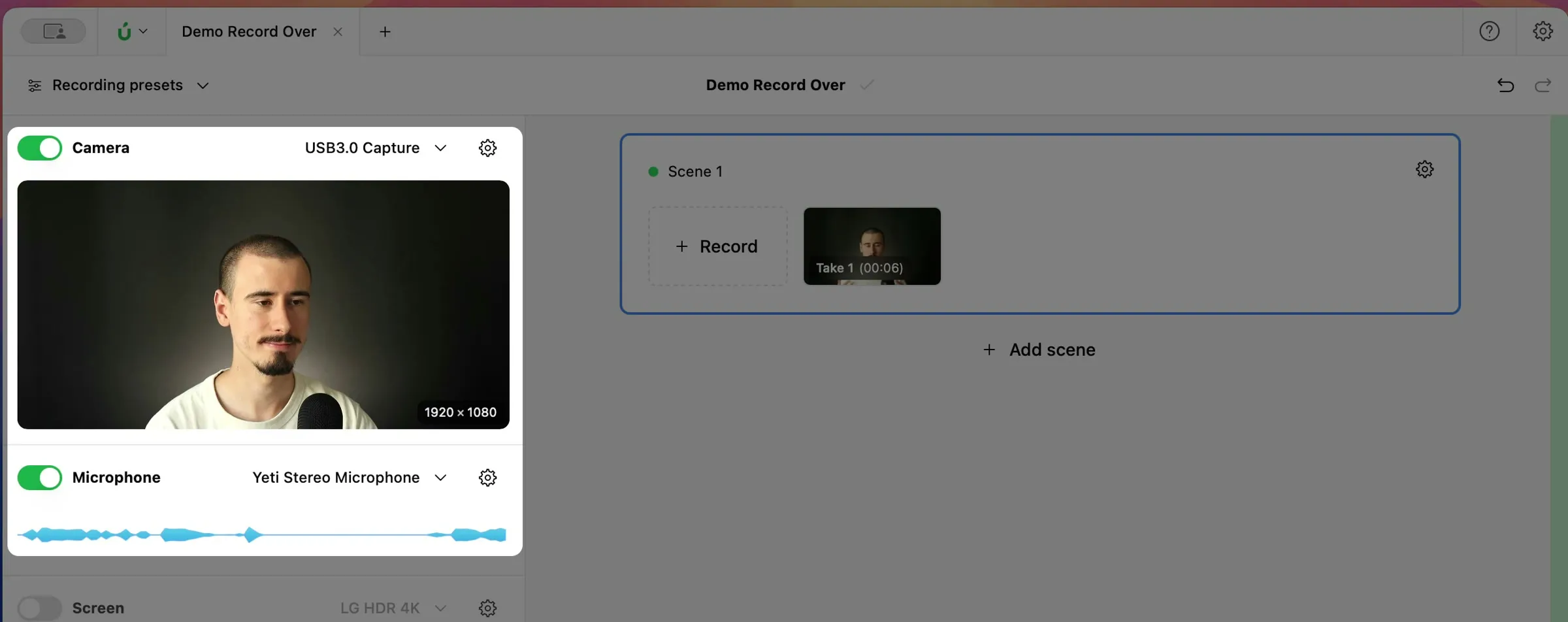
Turn on Camera and Microphone, then click Record on the scene and record yourself.
-
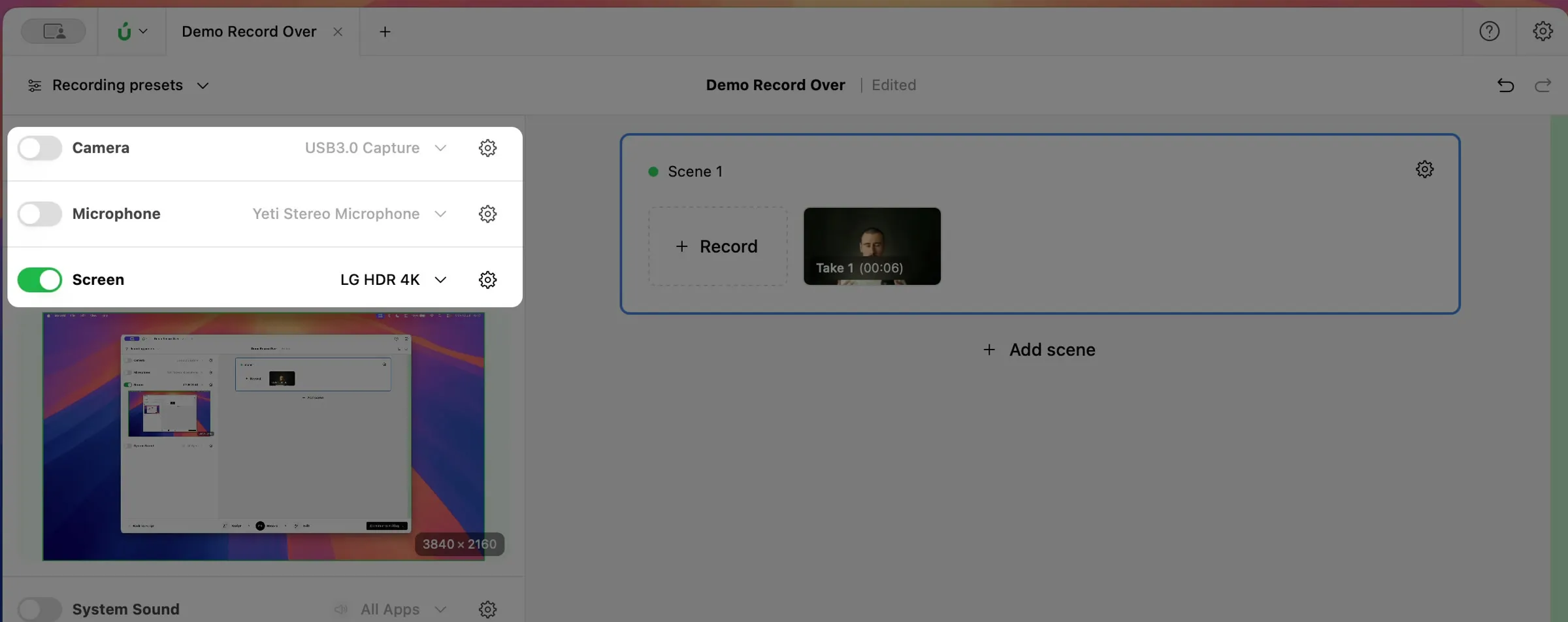
Turn off Camera and Microphone, and turn on Screen.
-
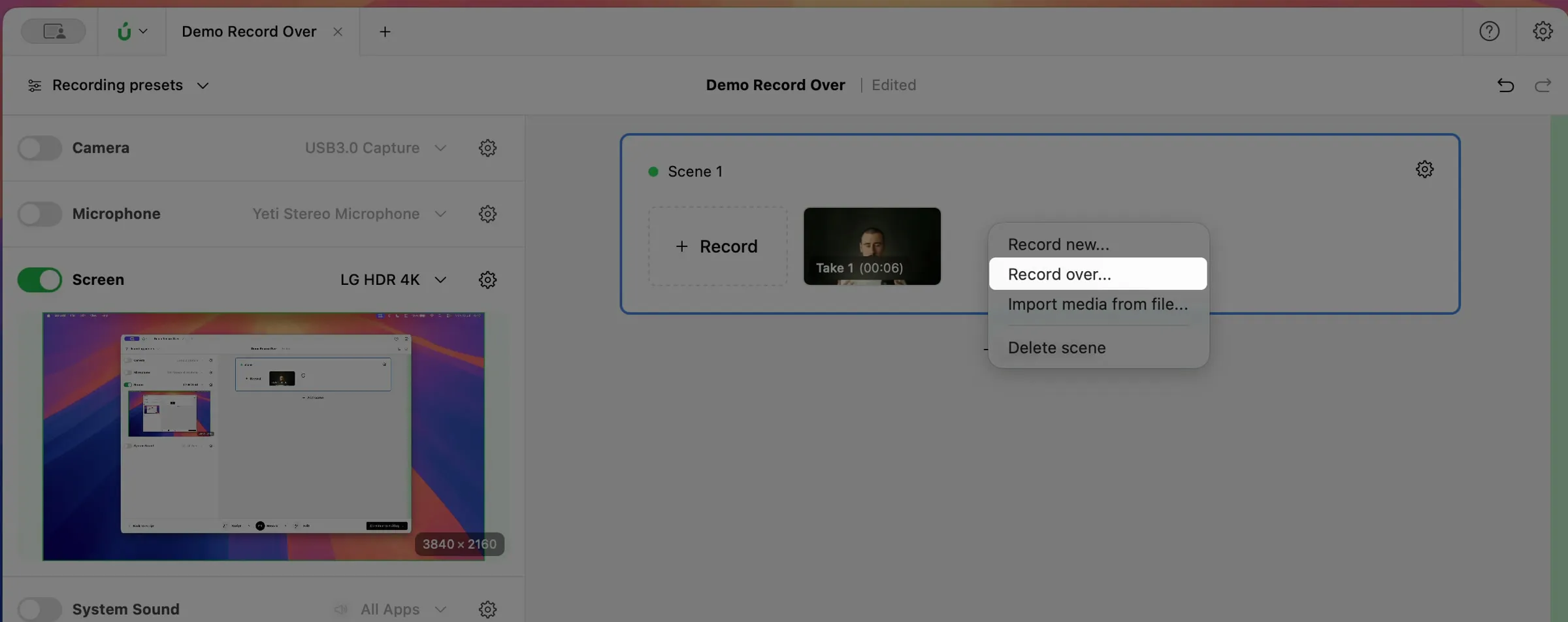
Right-click the scene and choose Record over….
-
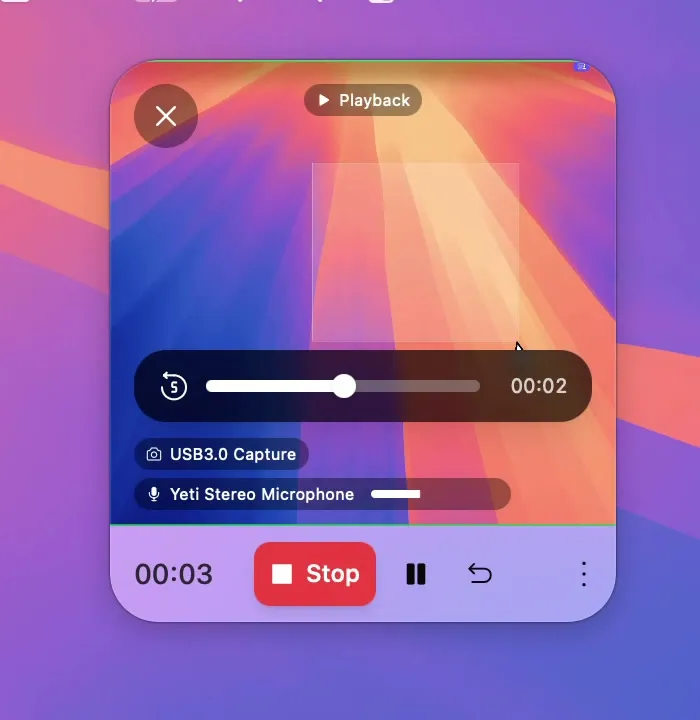
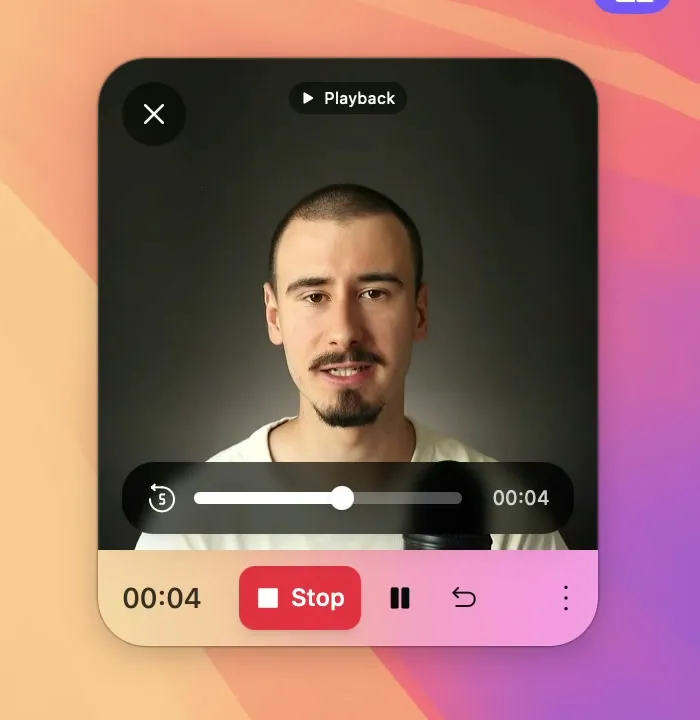
Record your screen while your first recording plays back in the recorder. When you’re done, click Stop, then Confirm take.
Record your screen first, then your camera (voiceover)
Section titled “Record your screen first, then your camera (voiceover)”-
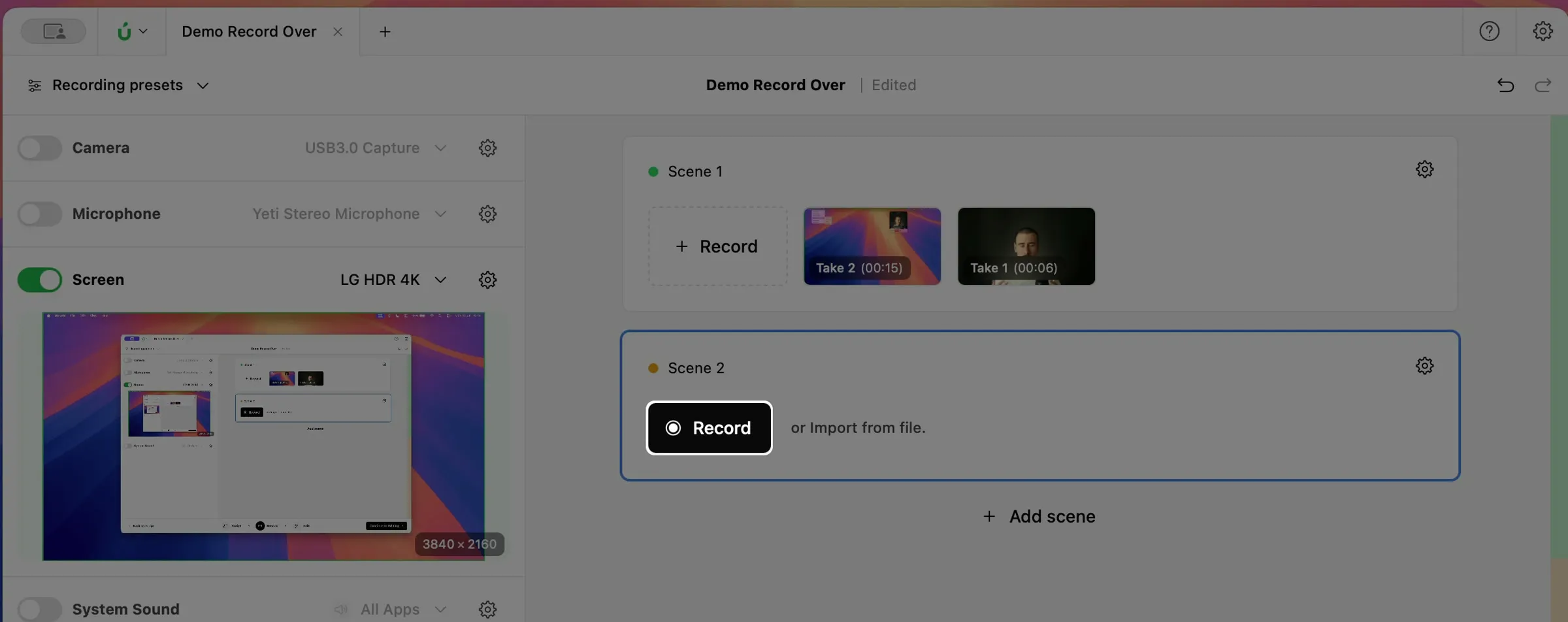
Turn on Screen only, then click Record on the scene and record your screen.
-
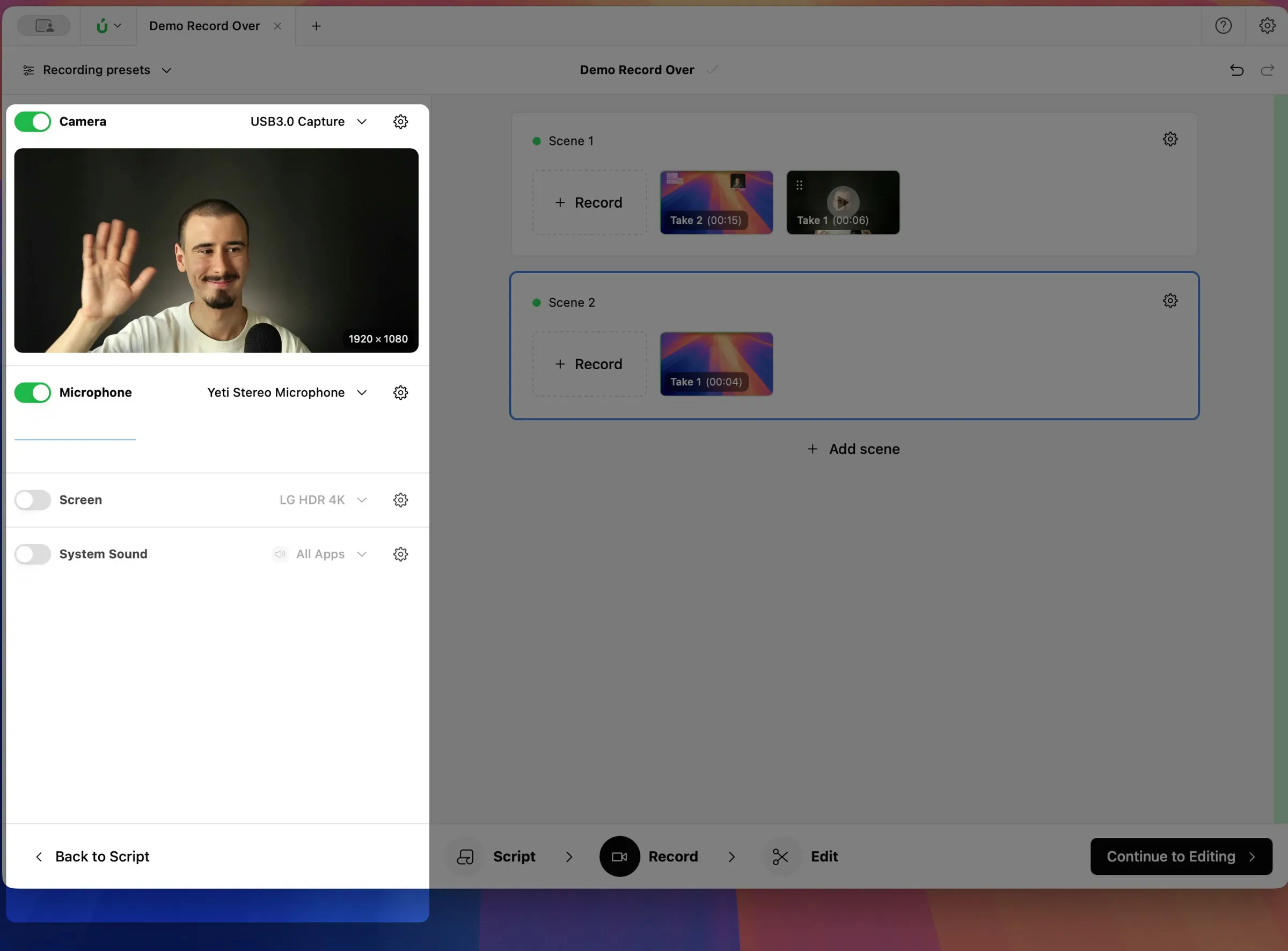
Turn on Camera and Microphone, and turn off Screen.
-
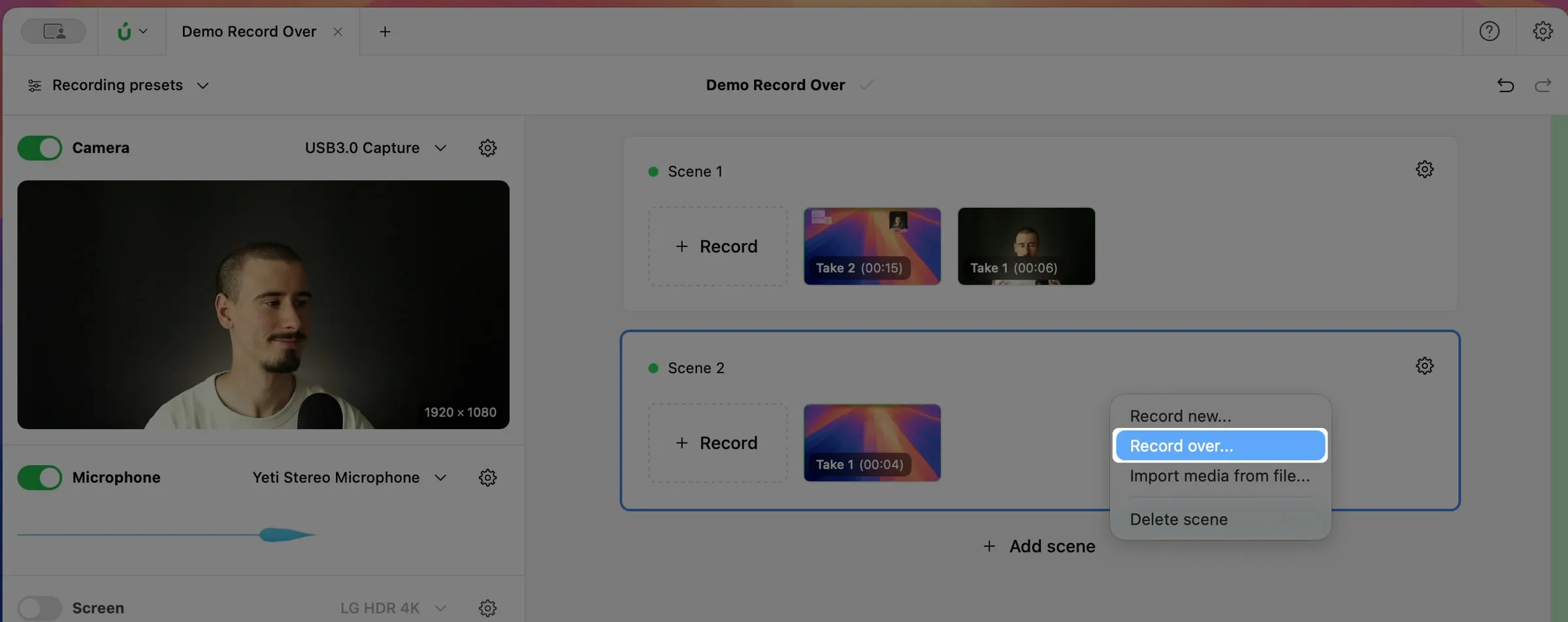
Right-click the scene and choose Record over….
-
Record yourself while your screen recording plays back in the recorder. When you’re done, click Stop, then Confirm take.