
Blur your camera background
Borumi lets you easily blur your camera background. This can help you hide a messy room and give your video a more professional look. This guide discusses how you can do that.


This video can't be played right now. Please try again later.
Blur your background
Section titled “Blur your background”-
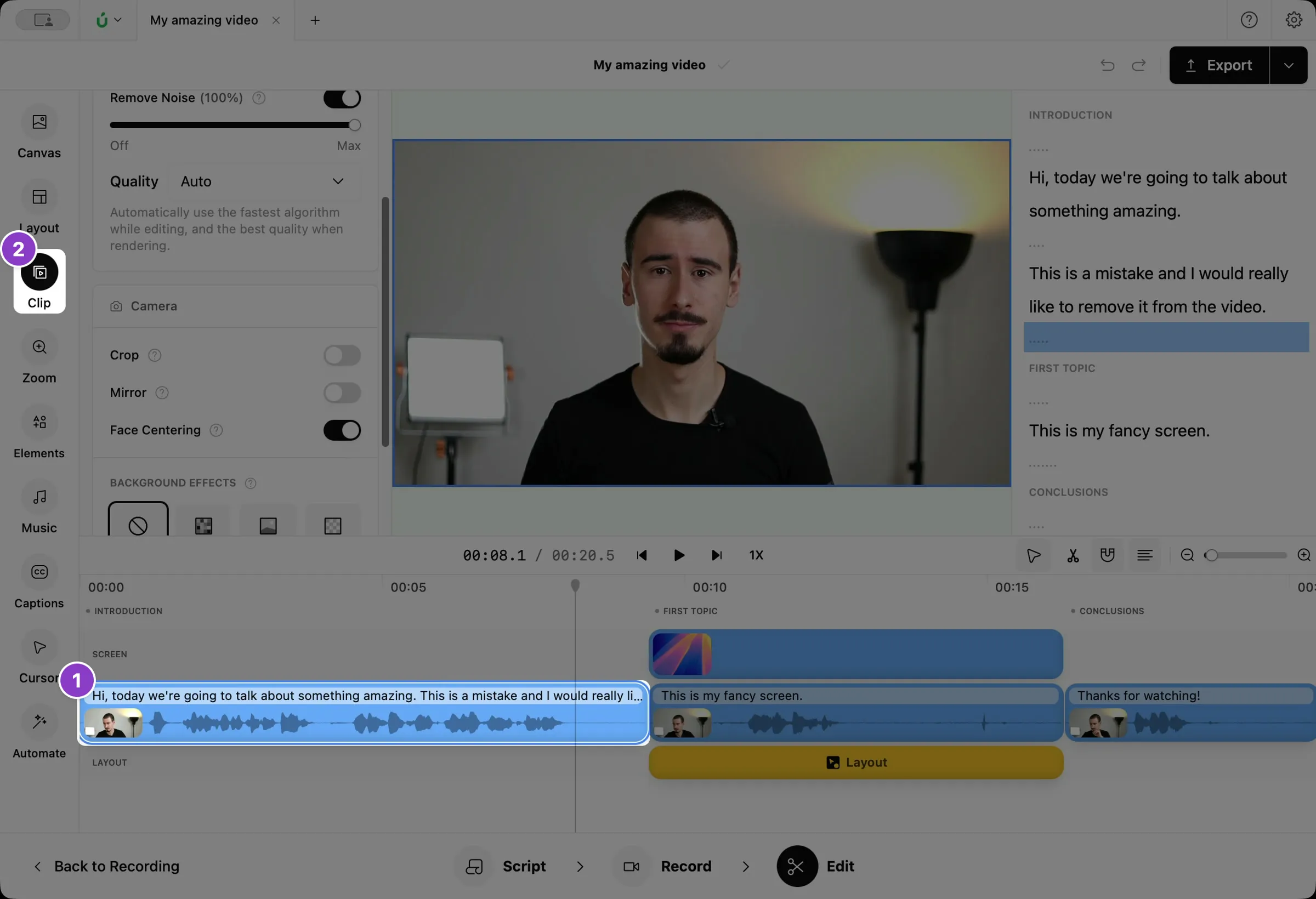
Click your camera clip on the timeline.
-
Click Clip in the left sidebar.
-
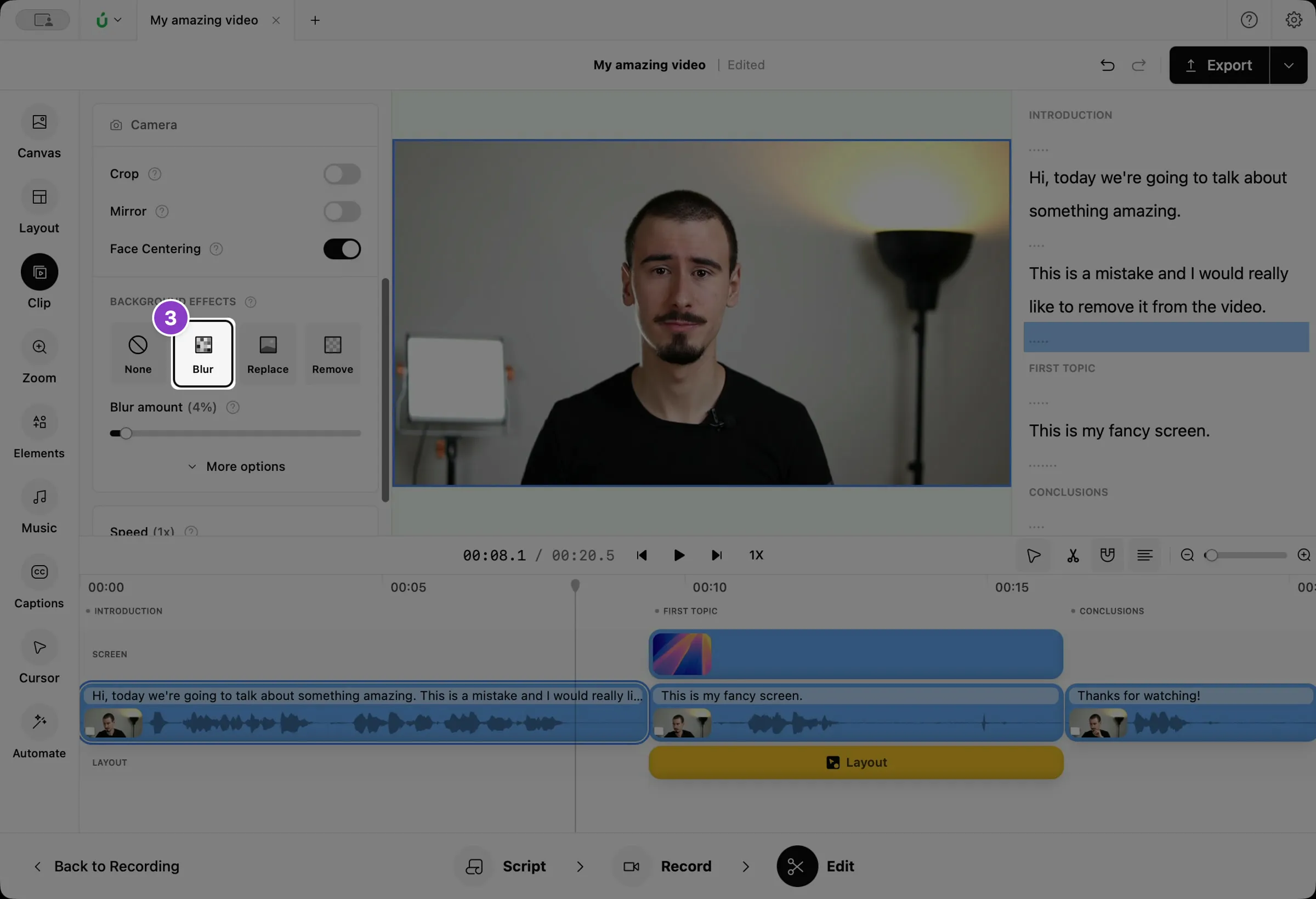
Under Background effects, click Blur.
-
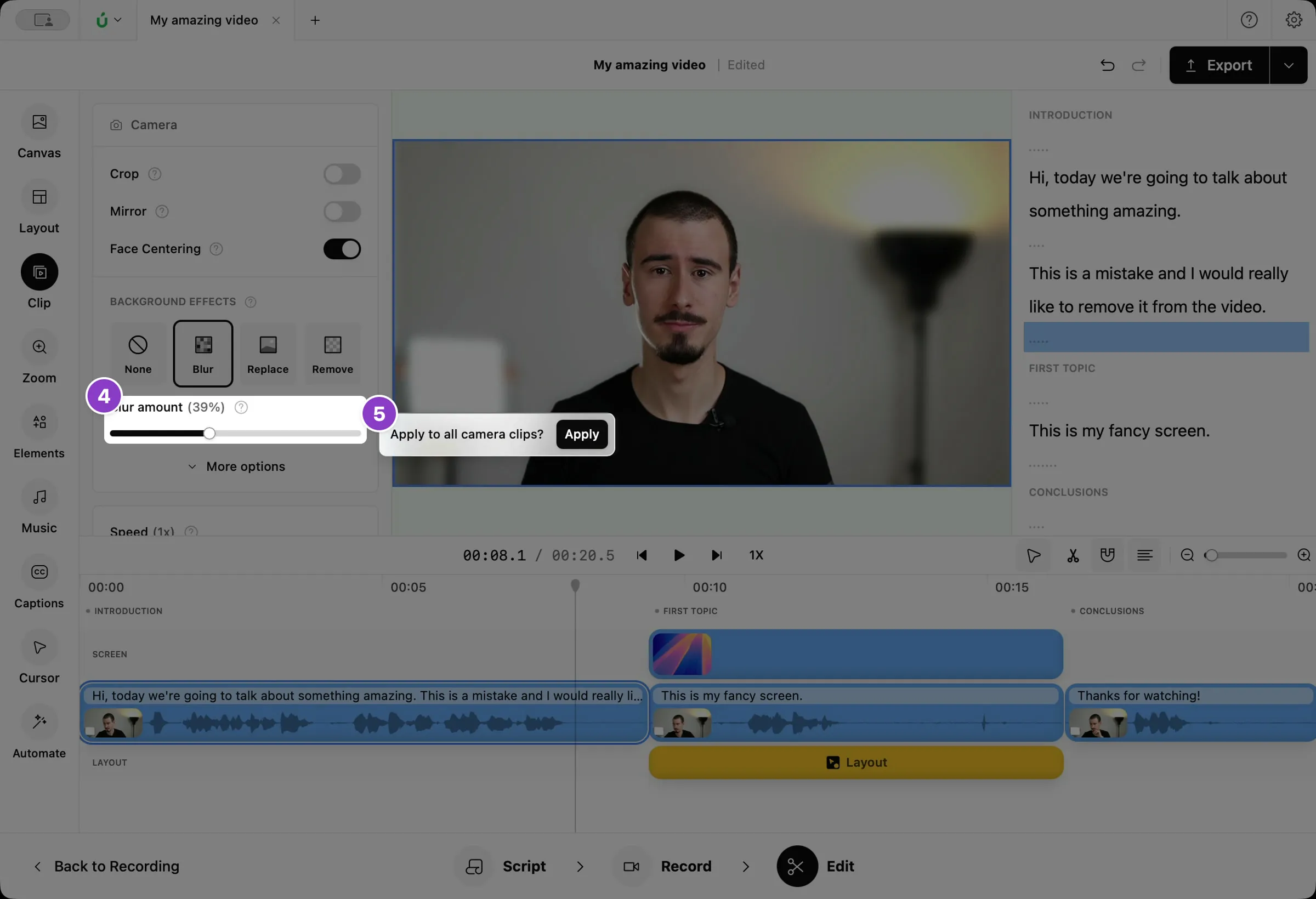
Drag Blur amount to make the blur lighter or stronger.
-
To blur the background in the whole video, click Apply in the message that appears.
To turn the blur off, click None .
Make the edge look better
Section titled “Make the edge look better”If the edge around you doesn’t look quite right, click More options under the blur amount.
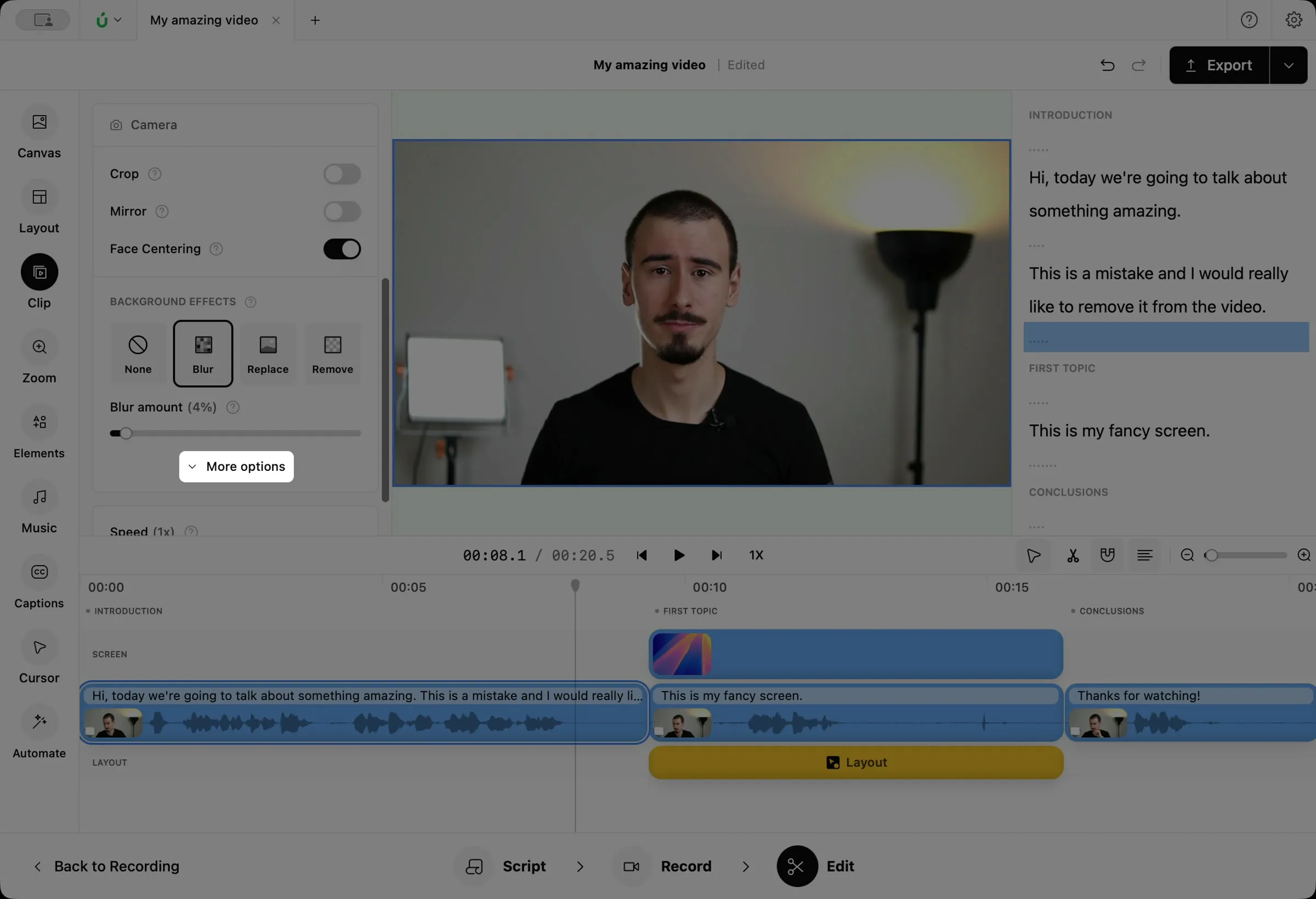
- Quality: higher quality keeps finer details sharp, like hair, but takes longer to process.
- Shape: S softens the edge between you and the blurred background, and E makes the sharp area around you larger or smaller. Change them in small steps.