Save recording presets
If you often switch between setups, for example a webcam for quick updates and a DSLR for tutorials, Borumi lets you save each one as a recording preset, so you can switch back to it in one click. A preset stores your camera, microphone, screen, and system sound choices.


This video can't be played right now. Please try again later.
Save a preset
Section titled “Save a preset”-
In the Record tool, set up your sources the way you want.
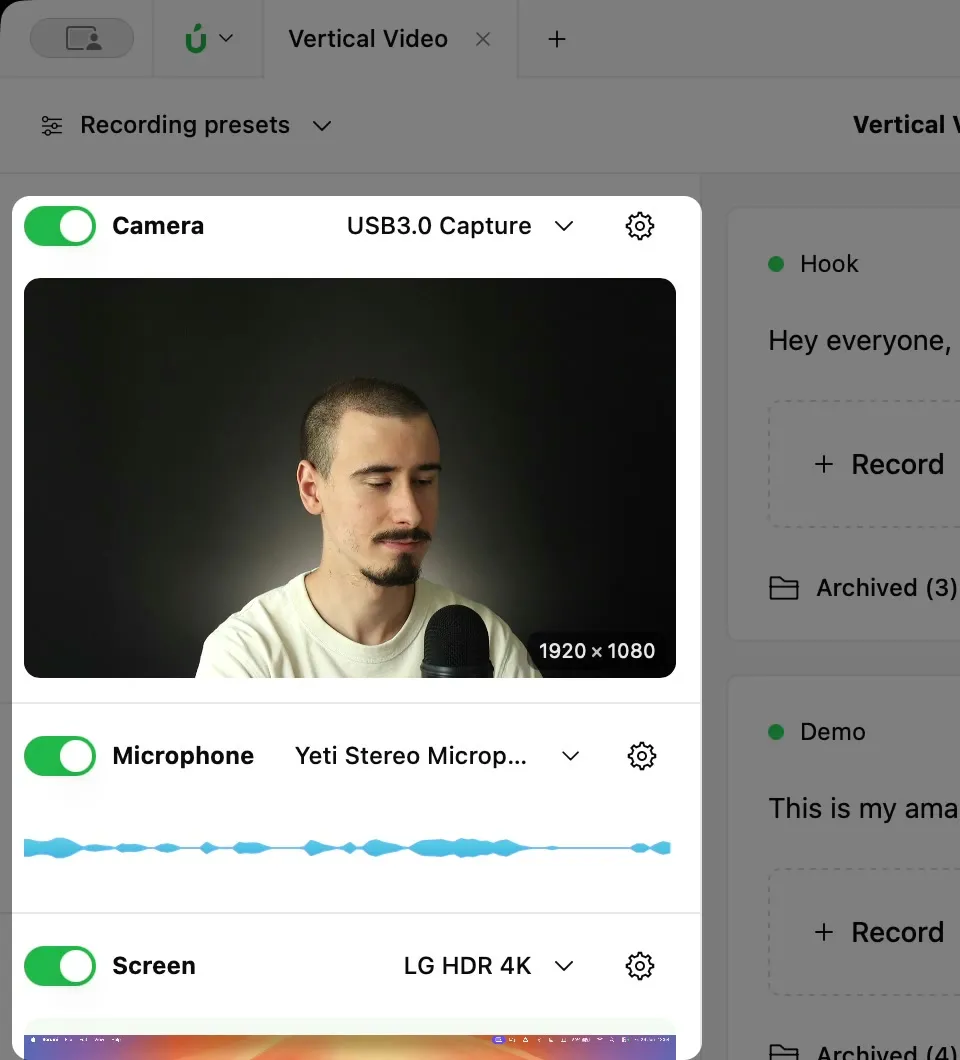
-
Click Recording presets at the top left of the window.
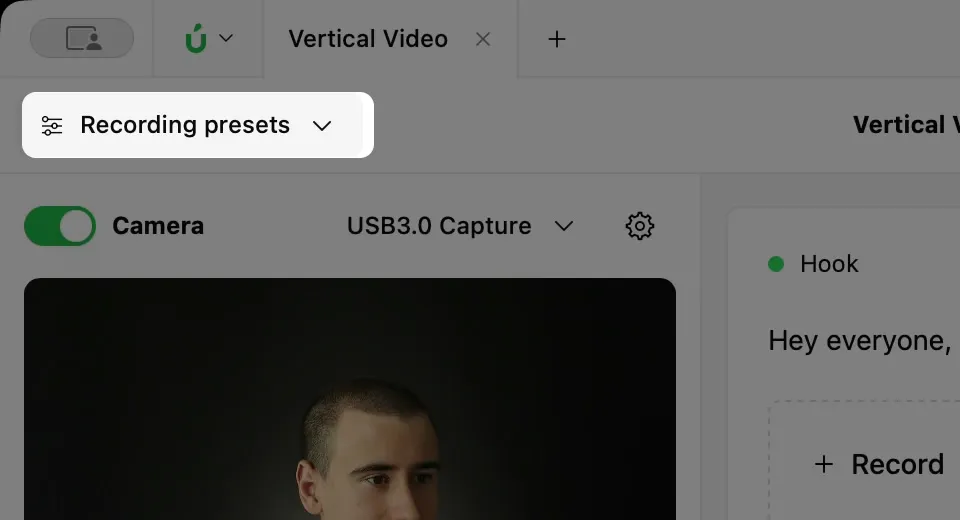
-
Under Current setup, click to save it as a preset.
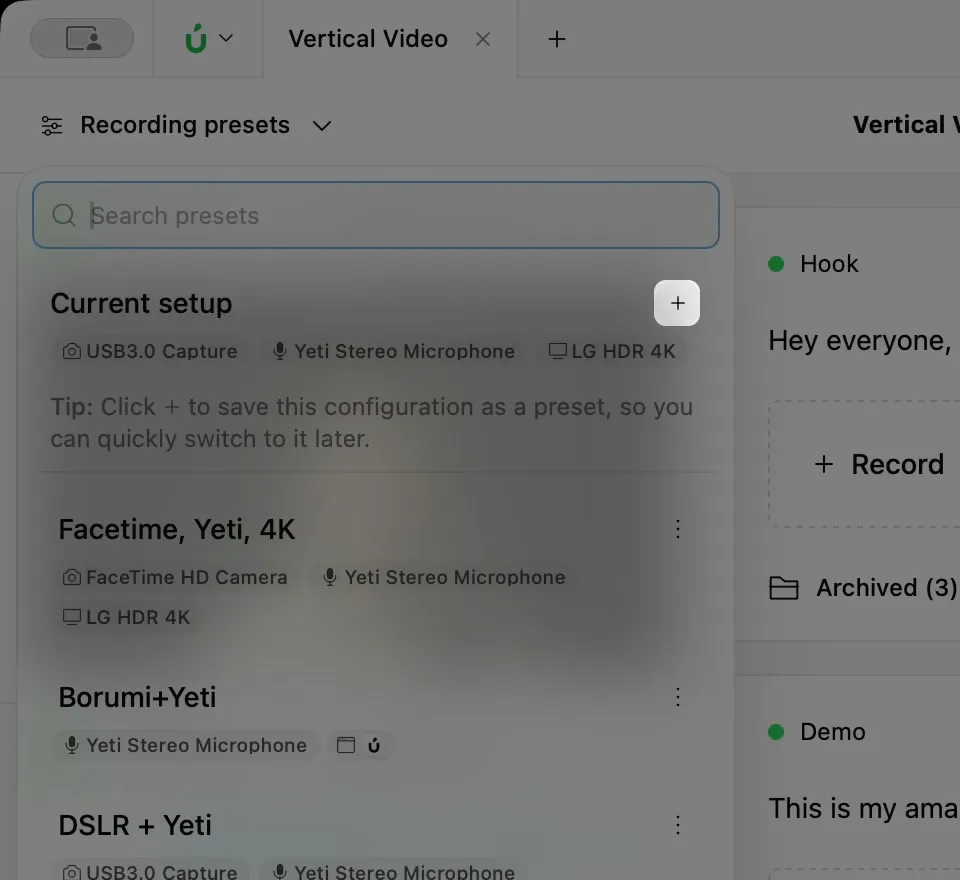
-
Click the new preset’s name to rename it.
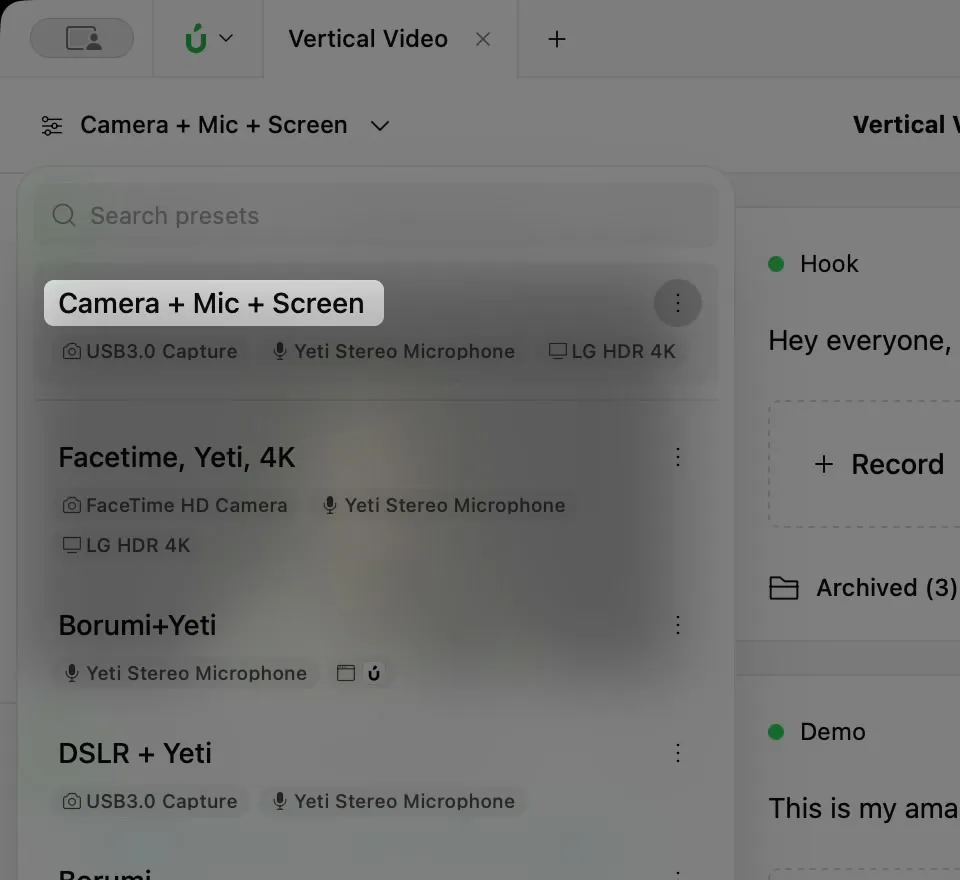
Switch presets
Section titled “Switch presets”Open Recording presets and click a preset. Borumi switches all your sources at once.
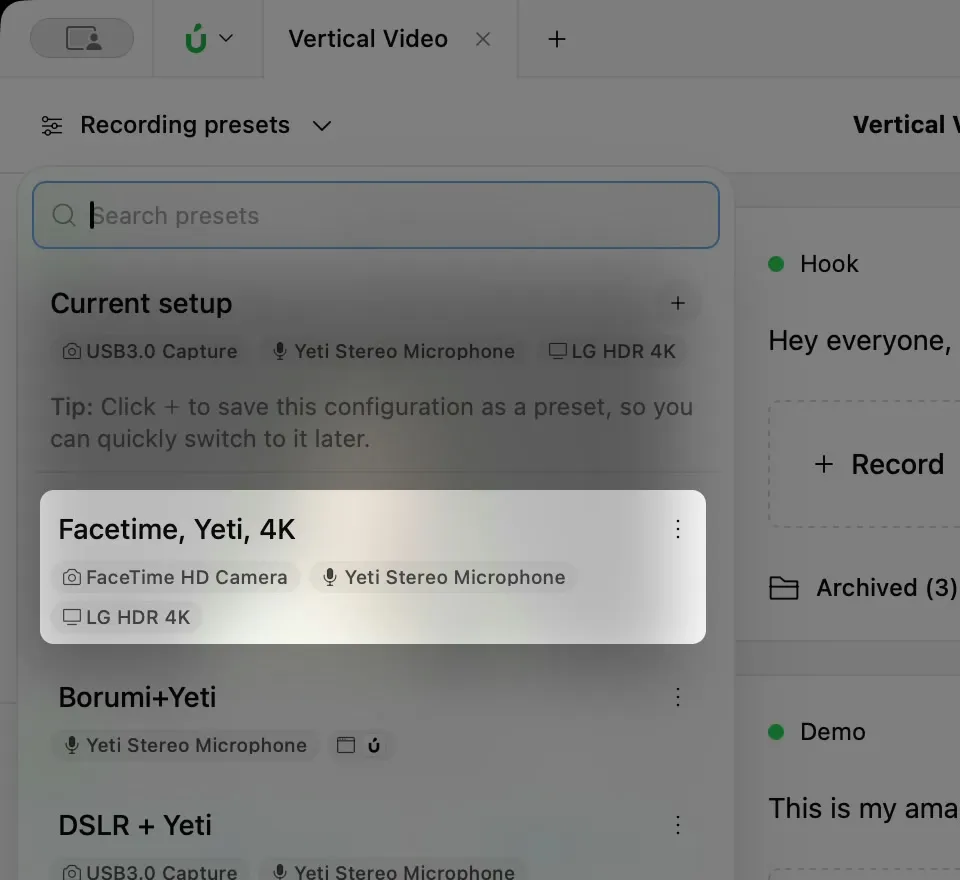
Update or delete a preset
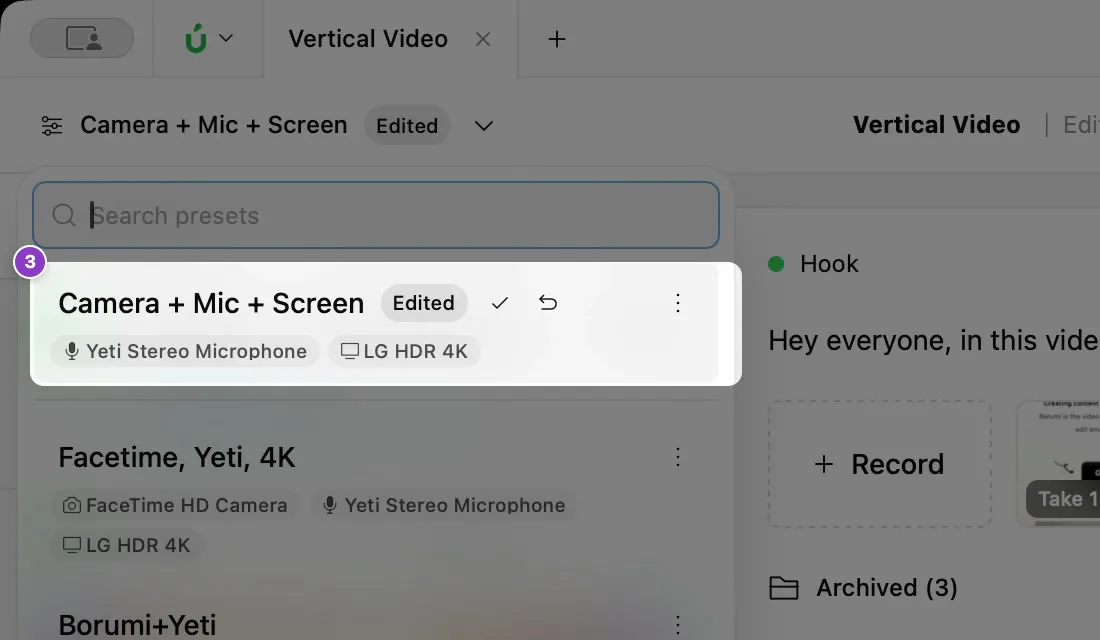
Section titled “Update or delete a preset”If you change a source after choosing a preset, the button shows Edited. Open Recording presets, and next to the preset:
- Update preset saves your changes to it.
- Reset preset goes back to how it was saved.
- More options lets you save your changes as a new preset, duplicate the preset, or delete it.