Export your video
When your video is ready, Borumi lets you export it and upload it to your platform of choice. This guide discusses the various options and how to use them.
Export your video
Section titled “Export your video”-
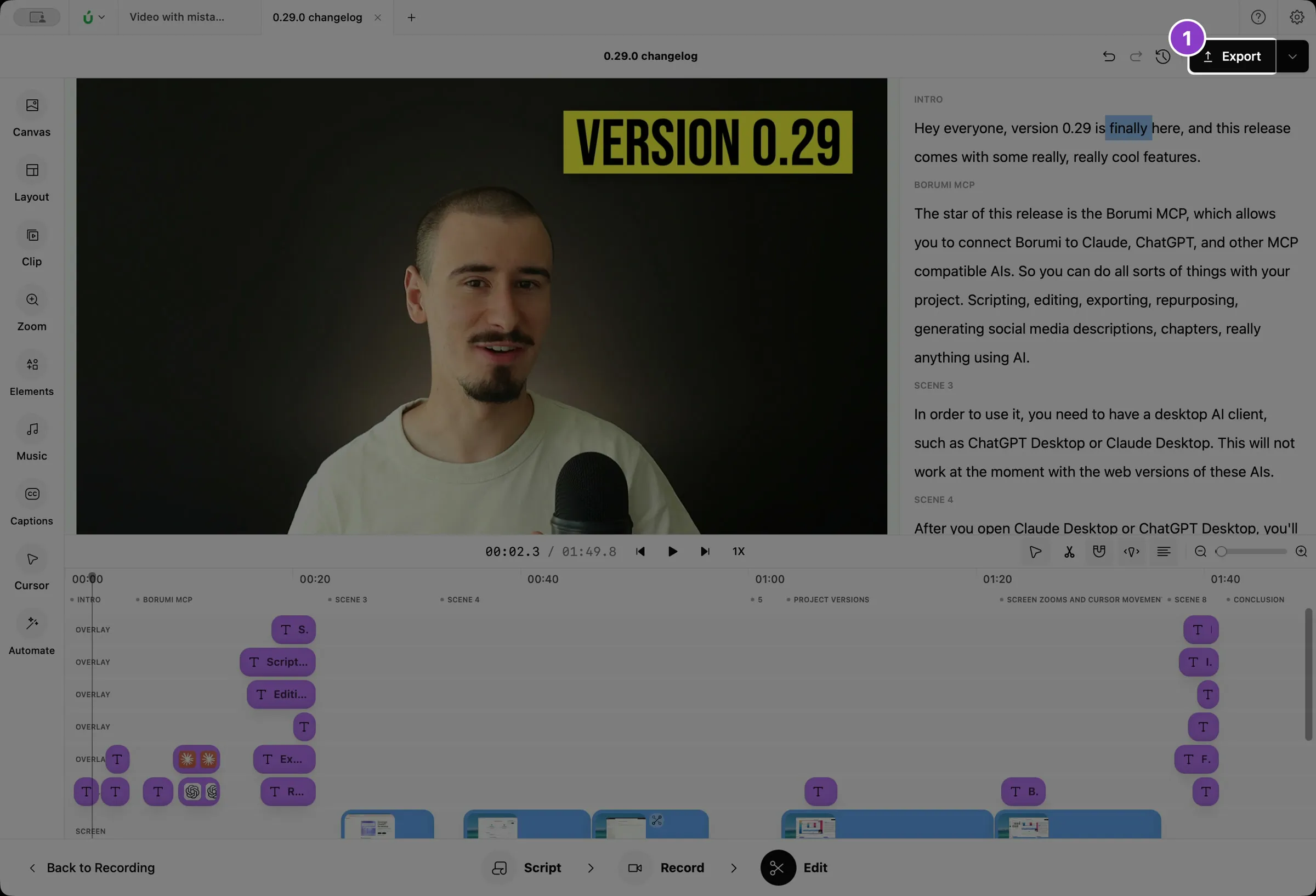
Click Export at the top right of the Edit tool.
-
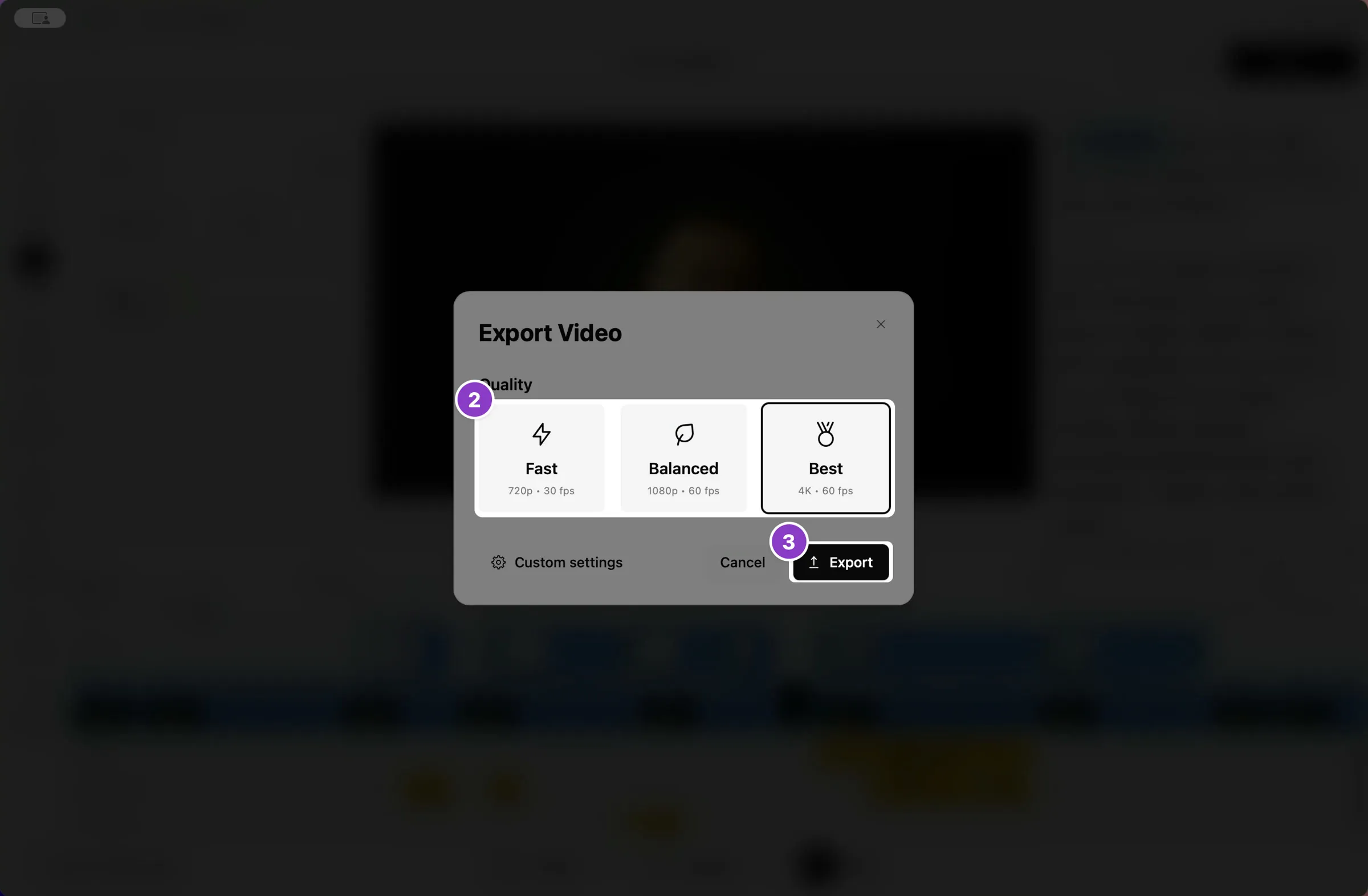
Pick a quality: Fast for the quickest export, Balanced for most videos, or Best for the sharpest result.
-
Click Export and choose where to save the file.
Choose your own settings
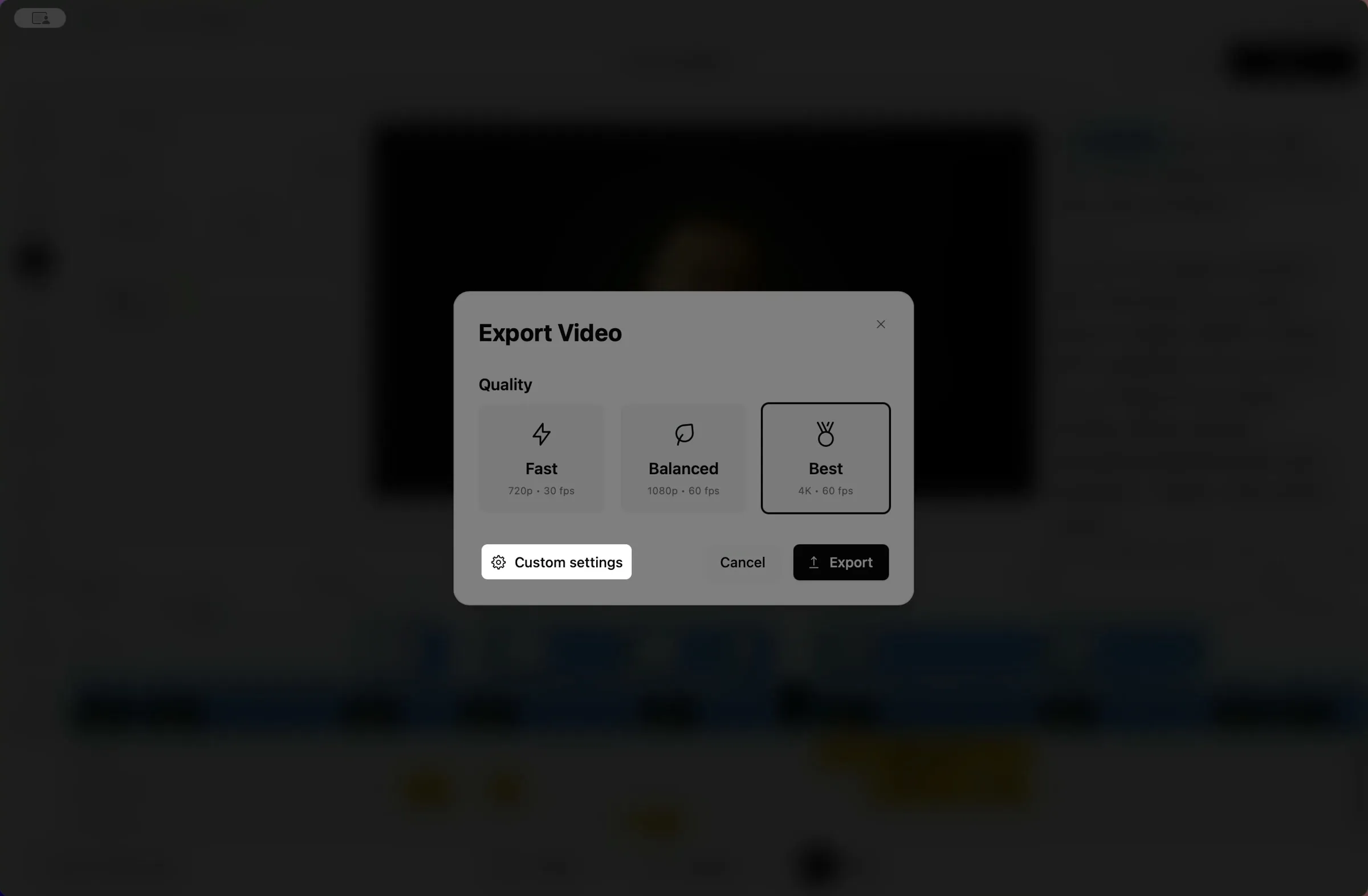
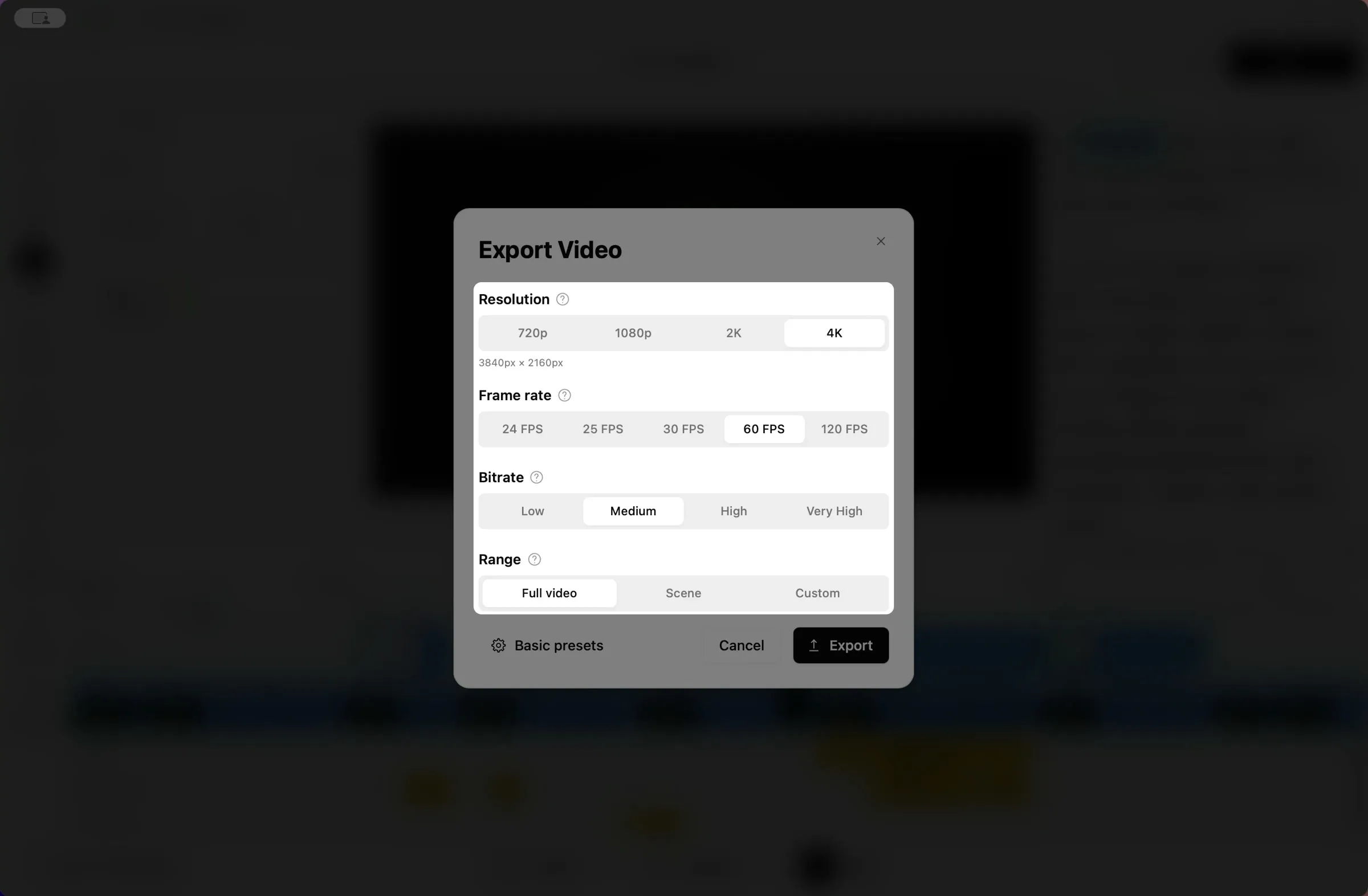
Section titled “Choose your own settings”For more control, click Custom settings in the Export Video window.
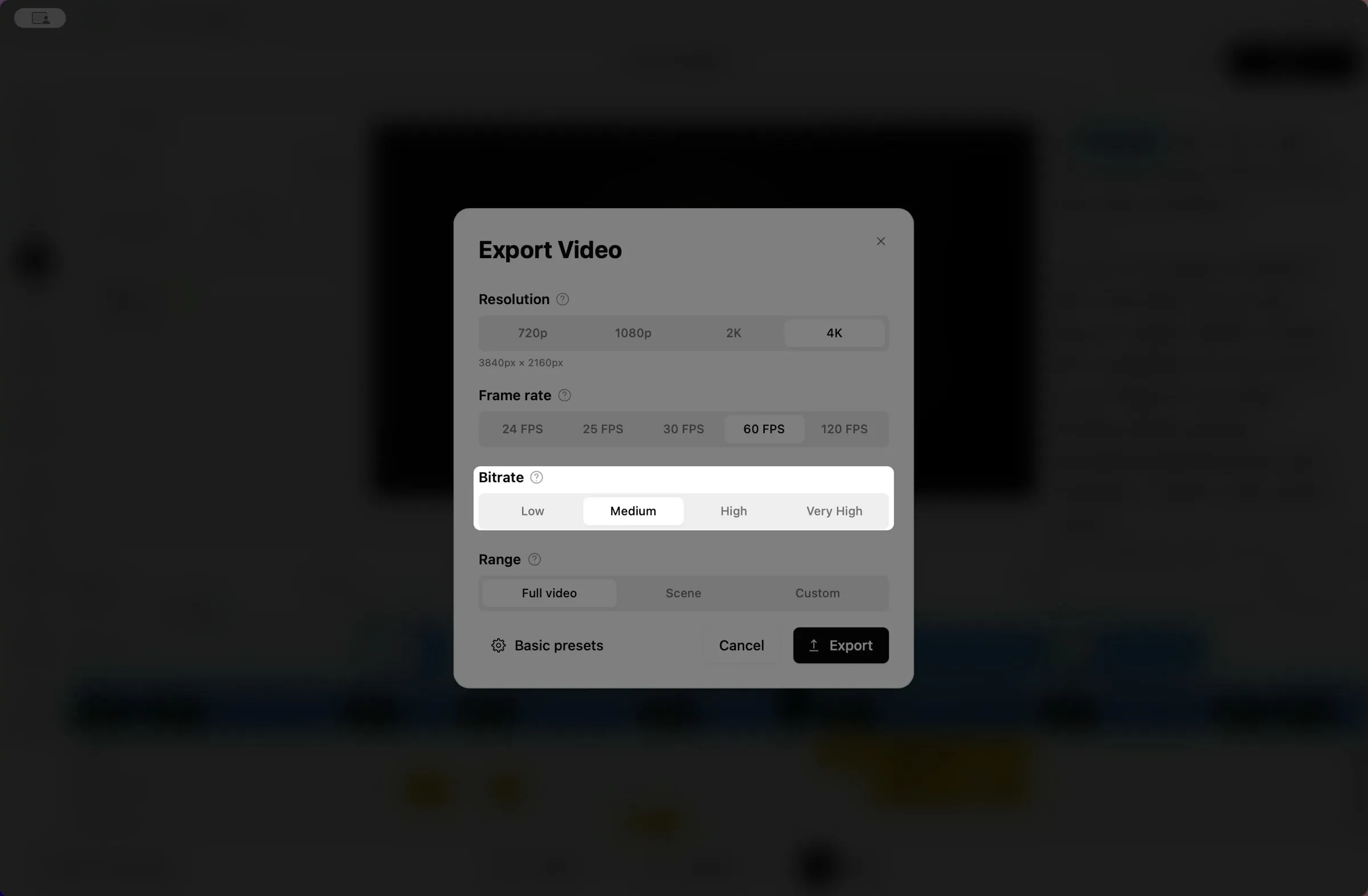
There you can choose the Resolution, the Frame rate, the Bitrate, and the Range.
Make the file smaller
Section titled “Make the file smaller”If the file is too big to upload or send, open Custom settings and lower the Bitrate, for example from High to Low. Keep in mind that some details might get lost.


This video can't be played right now. Please try again later.