
Use the teleprompter
Borumi comes with a powerful teleprompter. It shows your script while you record and follows your voice, so you never lose your place. This guide covers the basics, plus a few advanced options you might find useful.


This video can't be played right now. Please try again later.
Two ways to read your script
Section titled “Two ways to read your script”Borumi can show your script in two places:
- In the recorder: the script appears right below your camera in the recorder window. It can follow your voice and keeps everything in one place, but has only the basic options. Choose it when you want a compact setup.
- In the teleprompter window: a separate window you can move, resize, and customize, from the text size to the alignment. Choose it when you want more control over how your script looks.
- Follows your voice
- Compact, all in one window
- Basic options only
- Follows your voice
- Move and resize it anywhere
- Text size, alignment, theme, and more
Read your script in the recorder
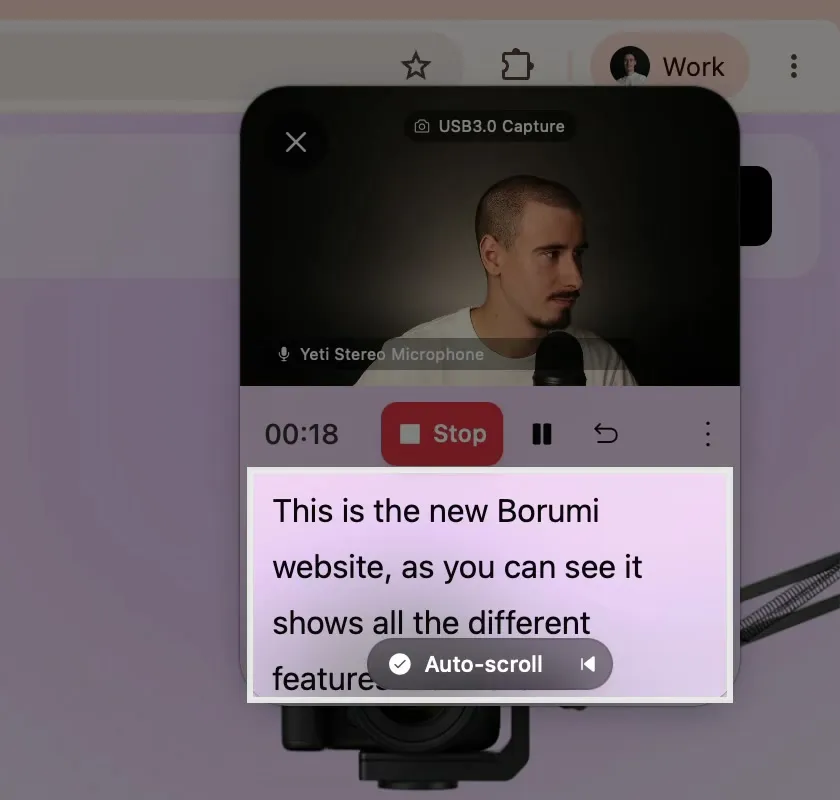
Section titled “Read your script in the recorder”When you record a scene that has a script, the recorder window shows the script by default, right below your camera.
Open the teleprompter window
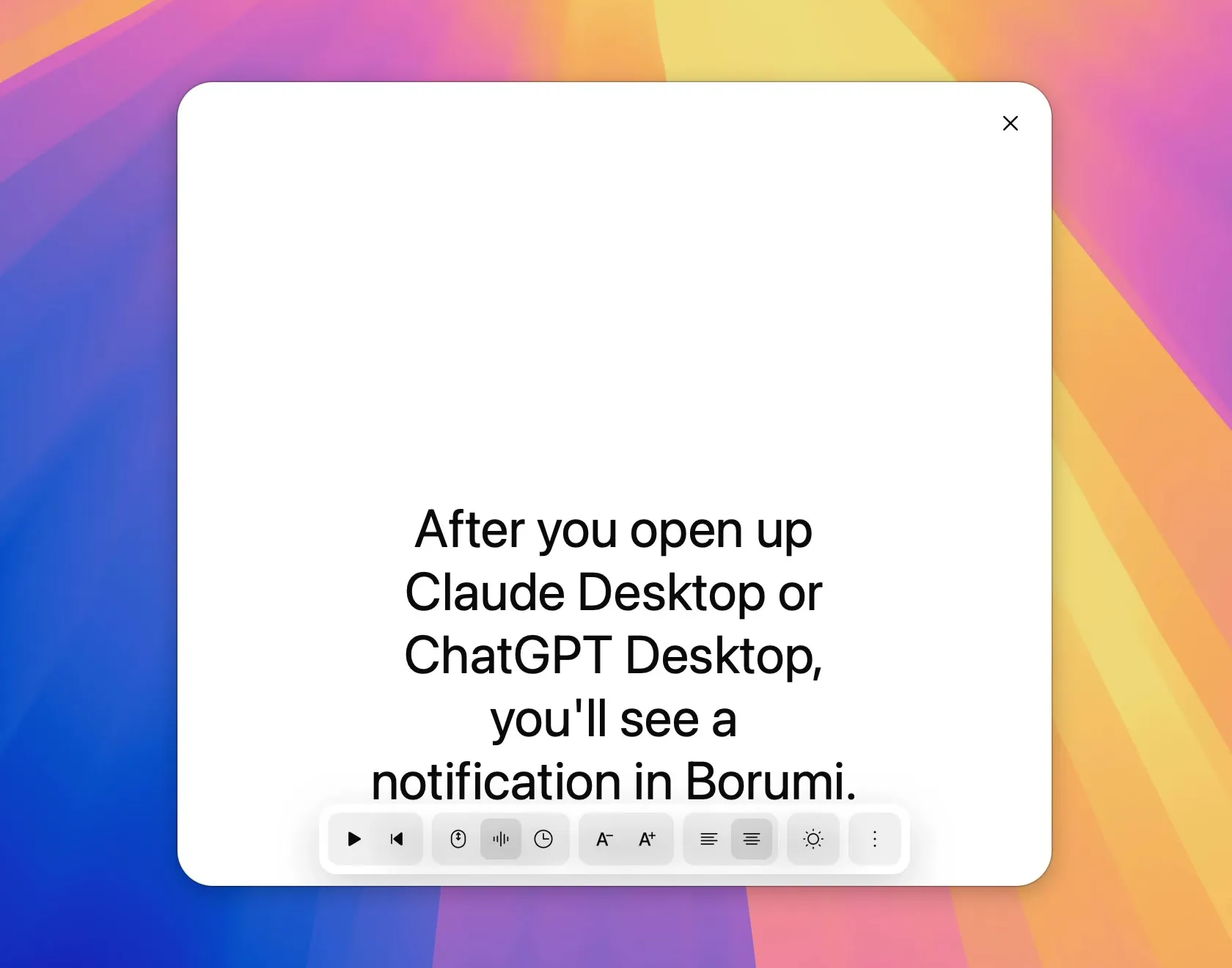
Section titled “Open the teleprompter window”If you want more control over how your script looks, open the teleprompter window. You can open it in two ways:
- In the menu bar, choose View → Open Teleprompter. On Windows, this menu is under the Borumi logo at the top left.
- In the recorder, click the three-dot menu and choose Open script as separate window.
Choose how the script scrolls
Section titled “Choose how the script scrolls”Borumi can scroll your script in different ways. Pick one from the toolbar at the bottom of the teleprompter:
- Voice Following: the script follows your voice as you speak, so you don’t need to keep pace with a fixed speed.
- Constant speed: the script scrolls at a steady speed. Set the speed from the button’s popover.
- Manual: you scroll the script yourself.
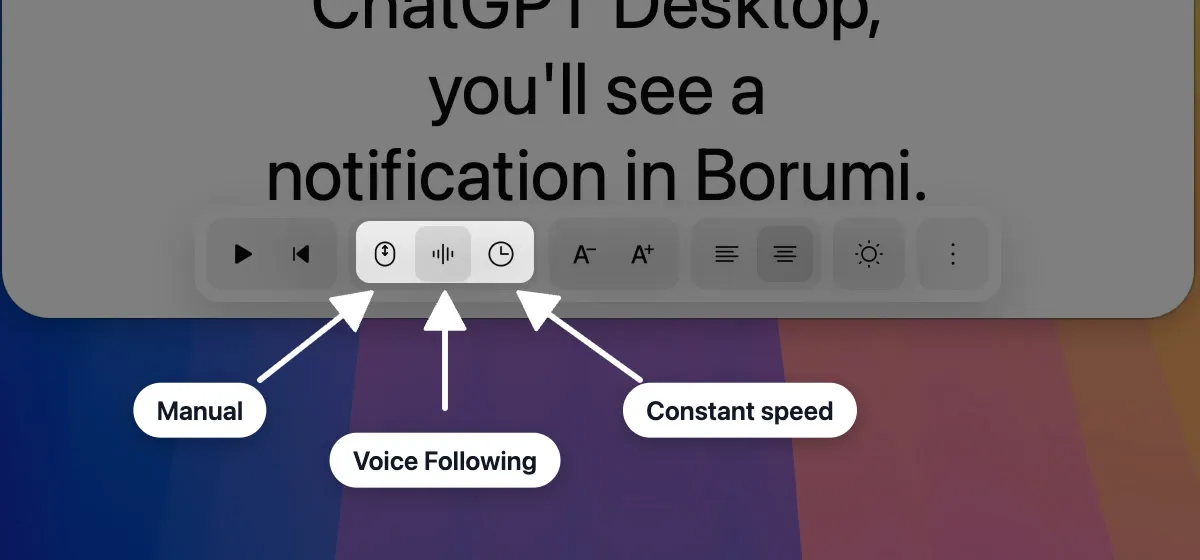
Click play to start scrolling and Rewind to start to go back to the beginning.
More customization options
Section titled “More customization options”The teleprompter lets you customize many options. To change them, click More options in the toolbar, or right-click the teleprompter. Here are some of the things you can customize:
- Text size, Text alignment, Text width, and Line height
- Mirror text, for teleprompters that reflect the screen through glass
- Theme: System default, Light, or Dark
- Transparency: makes the teleprompter window see-through, so you can still see what’s behind it, like the app you’re demoing
You can also drag the handles on the teleprompter to move the reading line and to change how wide the text is.
After you open up Claude Desktop, you'll see a notification in Borumi.
Control the teleprompter with keyboard shortcuts
Section titled “Control the teleprompter with keyboard shortcuts”You can also control the teleprompter with keyboard shortcuts, so you don’t need to use your mouse while you record.
This video can't be played right now. Please try again later.
These are the main shortcuts you might find useful. They work even when another app is in focus:
| Action | macOS | Windows |
|---|---|---|
| Next sentence | ⌃⇧⌘↓ | CtrlAltShift↓ |
| Previous sentence | ⌃⇧⌘↑ | CtrlAltShift↑ |
| Next word | ⌃⇧⌘→ | CtrlAltShift→ |
| Previous word | ⌃⇧⌘← | CtrlAltShift← |
To change them, open Settings → Shortcuts → Recorder / Teleprompter.
Use an Elgato Prompter
Section titled “Use an Elgato Prompter”Borumi supports the Elgato Prompter out of the box, so you can read your script directly on the Prompter while you record.
This video can't be played right now. Please try again later.
Borumi detects the Elgato Prompter automatically. Once you plug it in, you’ll see a notification: click Open Teleprompter, and you’re ready to go.
Get the best results
Section titled “Get the best results”Here are some tips to make the teleprompter follow your voice more accurately:
- On a Mac, use Apple Speech. Click More options → Voice follow engine → Apple Speech (Cloud). It’s the most accurate engine, so it often follows your voice more precisely. It needs an internet connection, and your audio is sent to Apple for processing.