
Add music
Music can help your video stand out and feel more professional. Borumi makes it easy to add music to your video, and this guide shows you how.


This video can't be played right now. Please try again later.
Add a song
Section titled “Add a song”-
Click Music in the left sidebar.
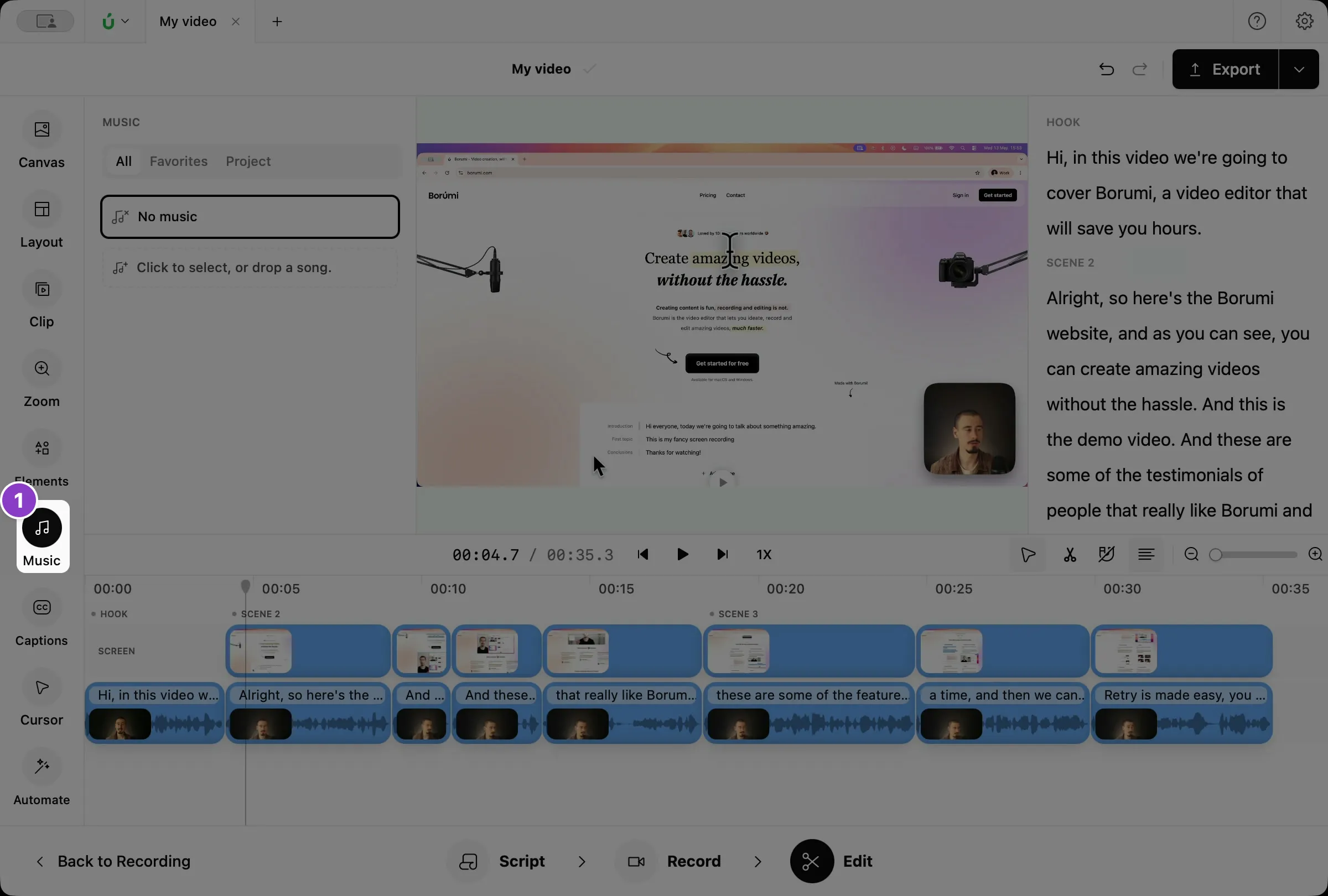
-
Click Click to select, or drop a song and choose a song from your computer.
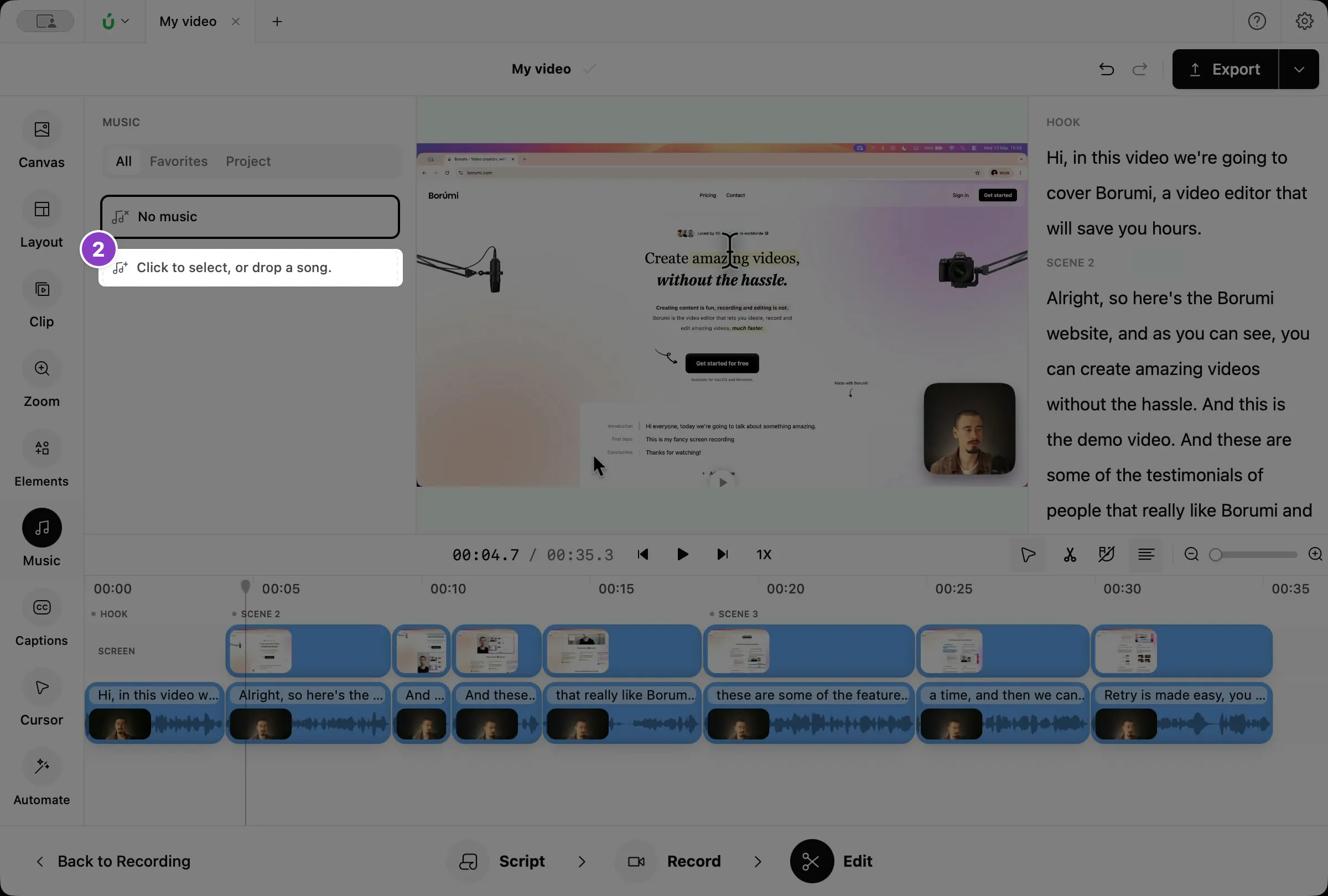
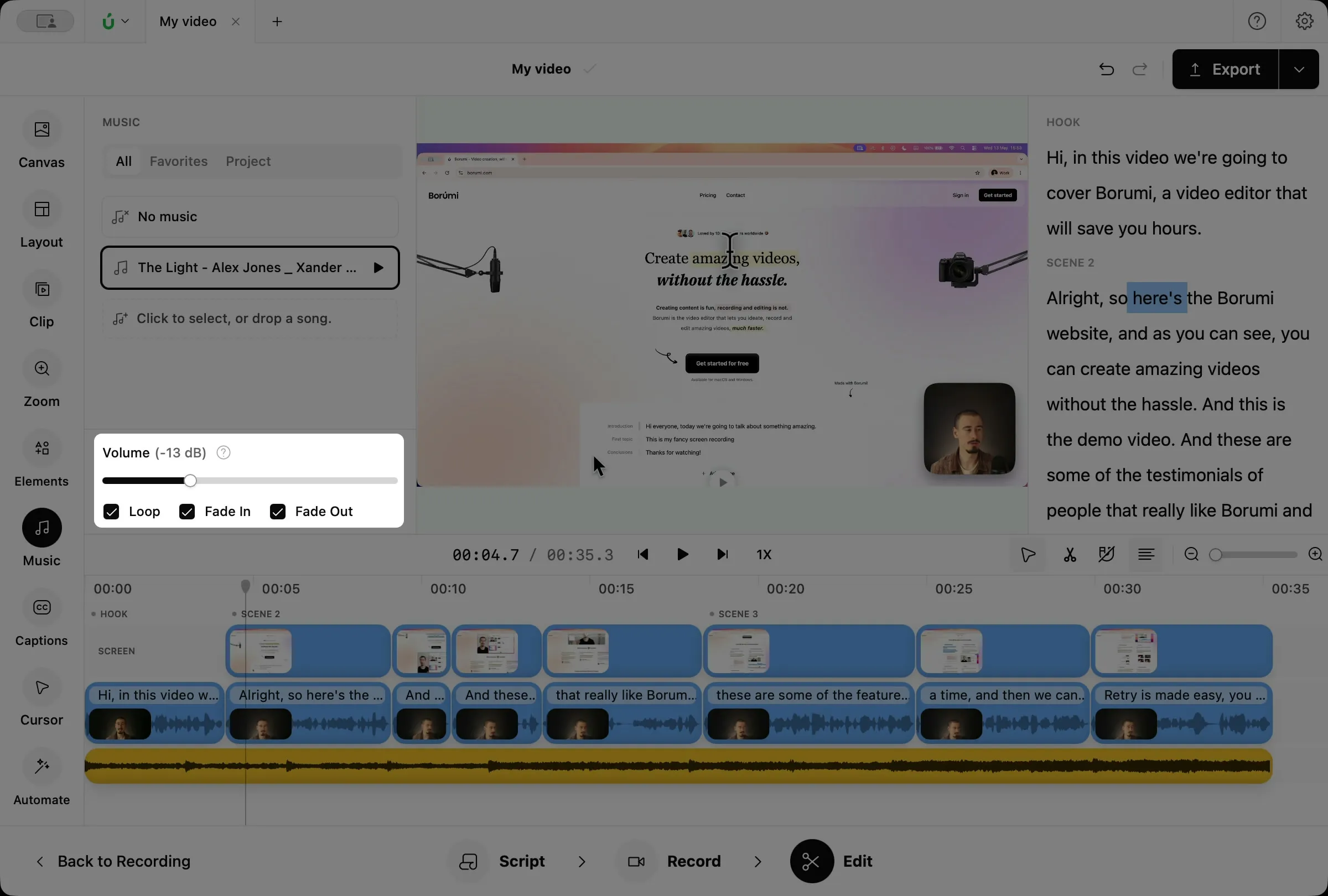
The song appears on the timeline as a music clip.
Set the volume and fades
Section titled “Set the volume and fades”Select the music clip, then use the controls at the bottom of the Music panel:
- Volume: drag the slider to make the music quieter or louder.
- Loop: when the song ends, it starts again from the beginning, so it can fill a long video.
- Fade In and Fade Out: the music starts quietly and ends smoothly, instead of starting or stopping abruptly.
Play music only in part of your video
Section titled “Play music only in part of your video”Drag the edges of the music clip to choose where the music plays. For example, keep it only under your intro.
You can also drag the clip to move it, or add more songs to use different music in different parts of the video. See Trim and arrange clips for more ways to edit clips.