Record your first scene
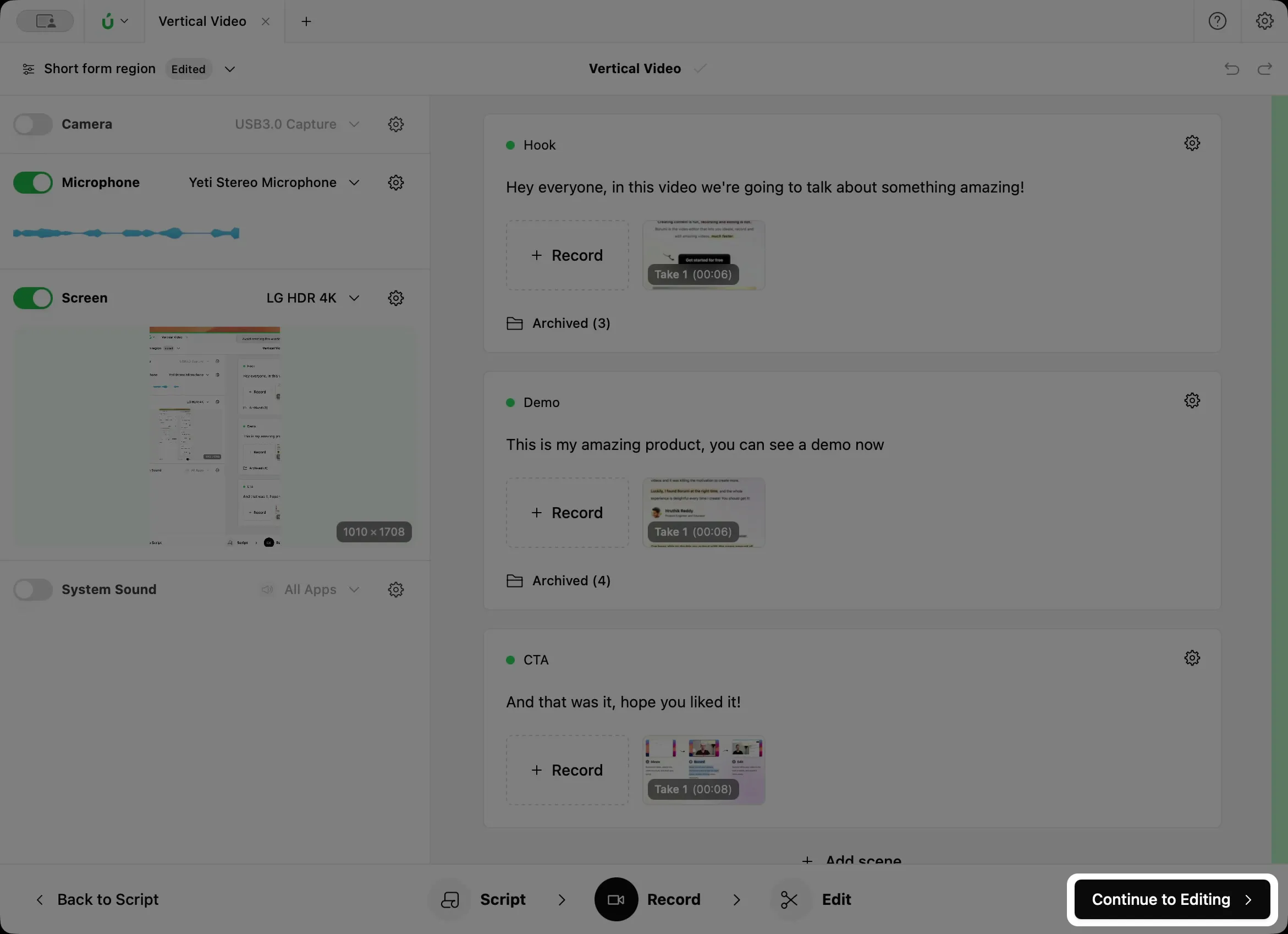
The Record tool is where you record your video. If you wrote a script, your scenes are already there, ready to be recorded one at a time. If you started with a quick recording, you can start recording right away.
Choose what to record
Section titled “Choose what to record”The first thing to decide is what you want to record: your camera, your microphone, your screen, or a mix of them. You’ll find these sources on the left.
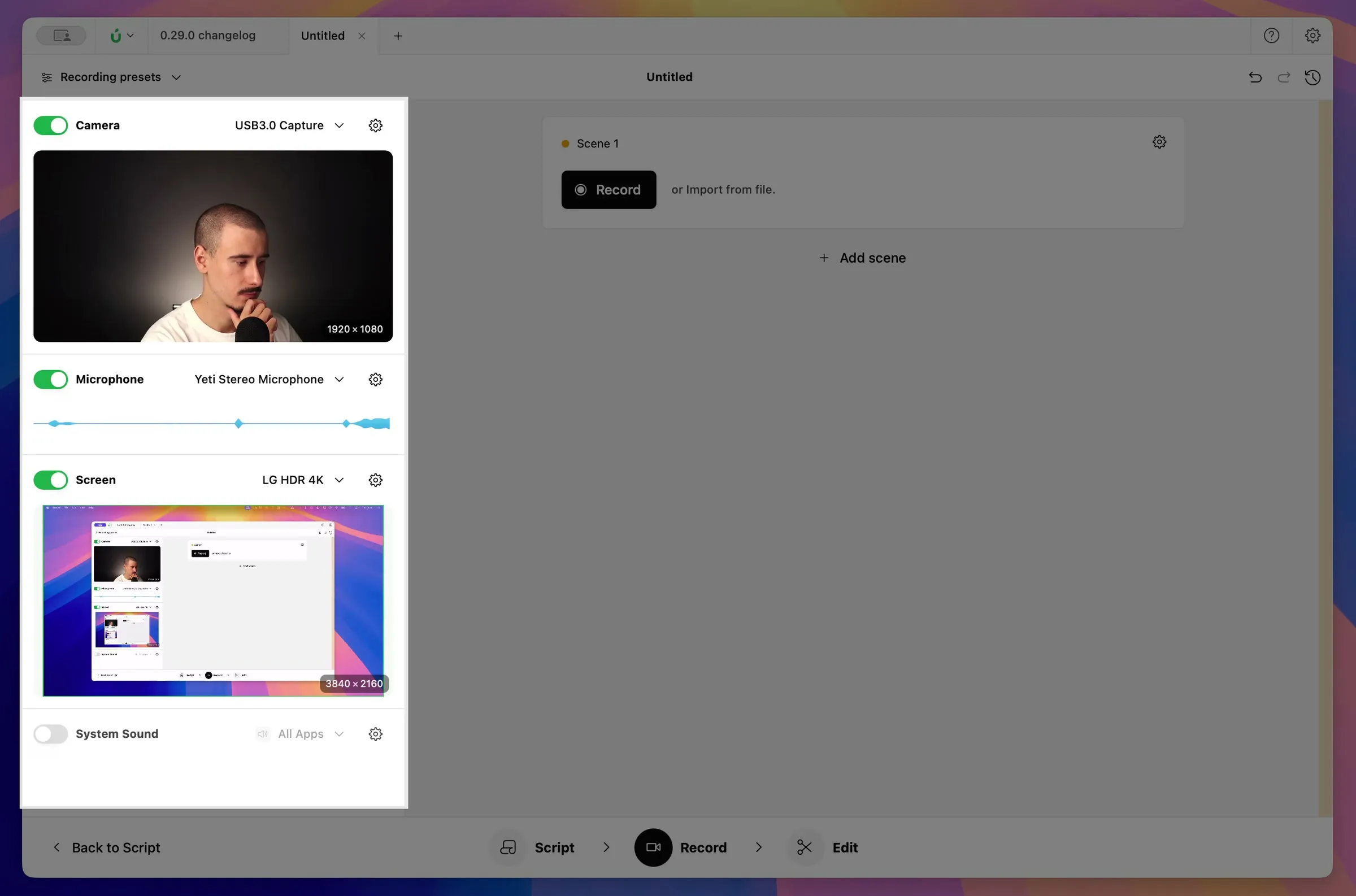
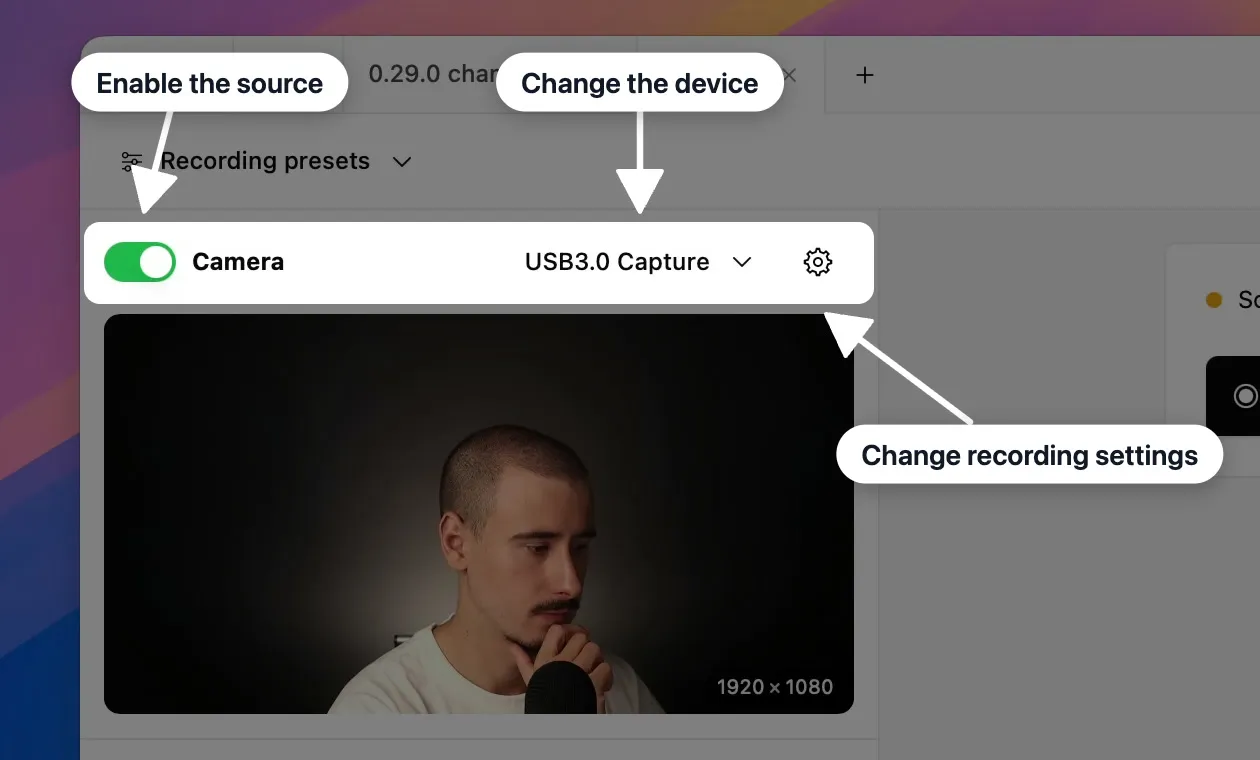
Turn on each source you want to record with its green switch, then choose the right device from its menu.
Record a scene
Section titled “Record a scene”-
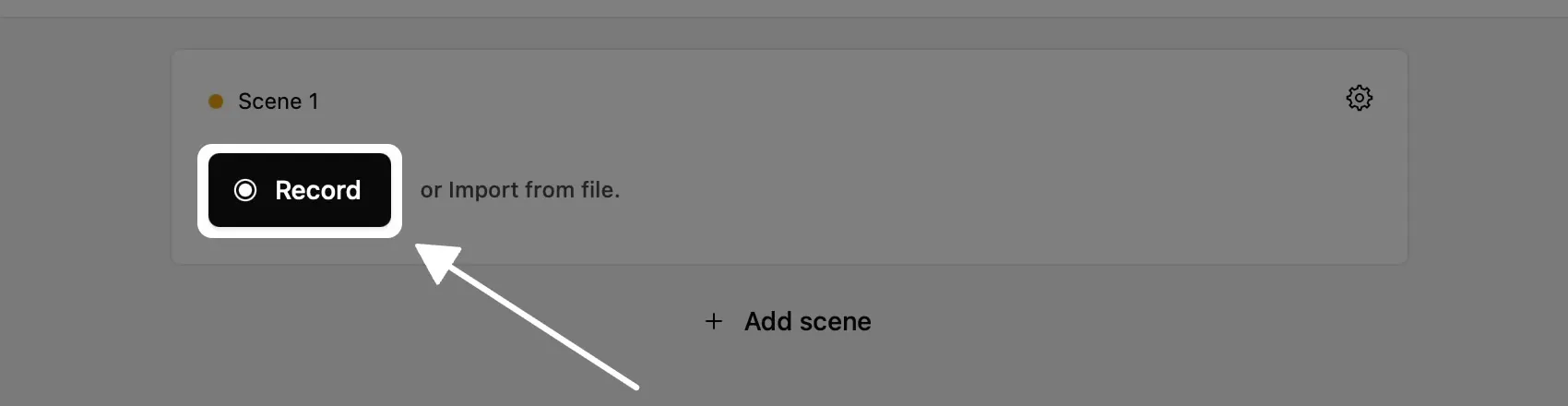
Click Record on the scene you want to record.
-
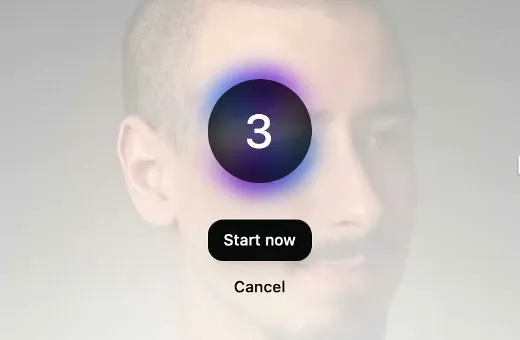
Wait for the short countdown, then start talking.
-
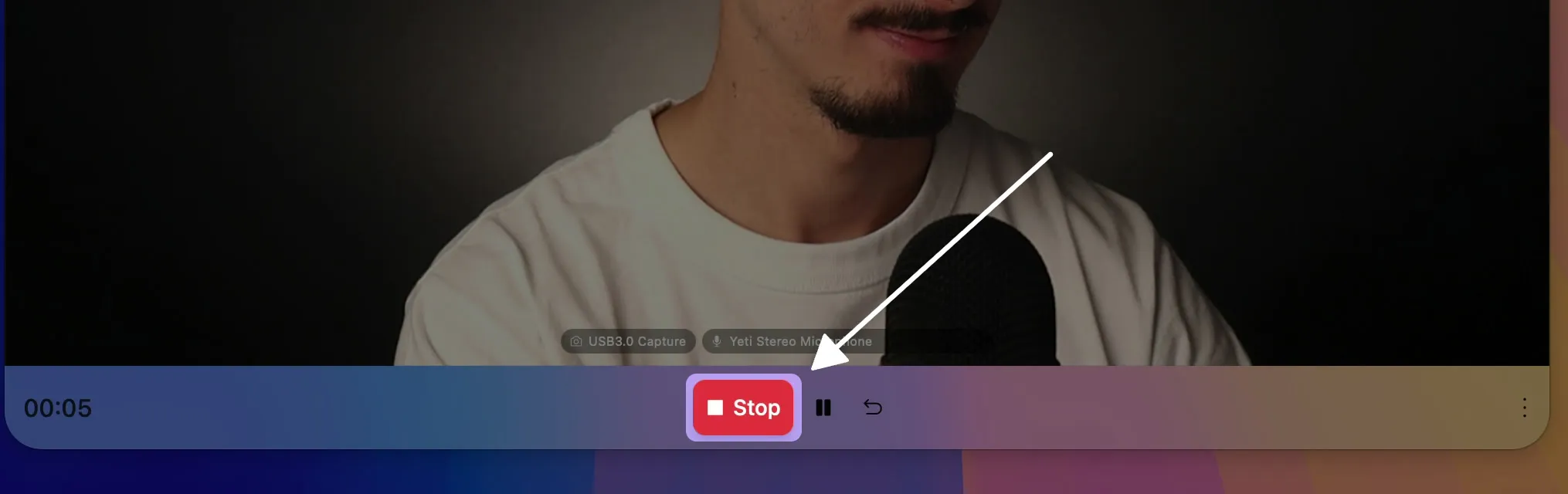
Click Stop when you’re done.
Keep or redo the take
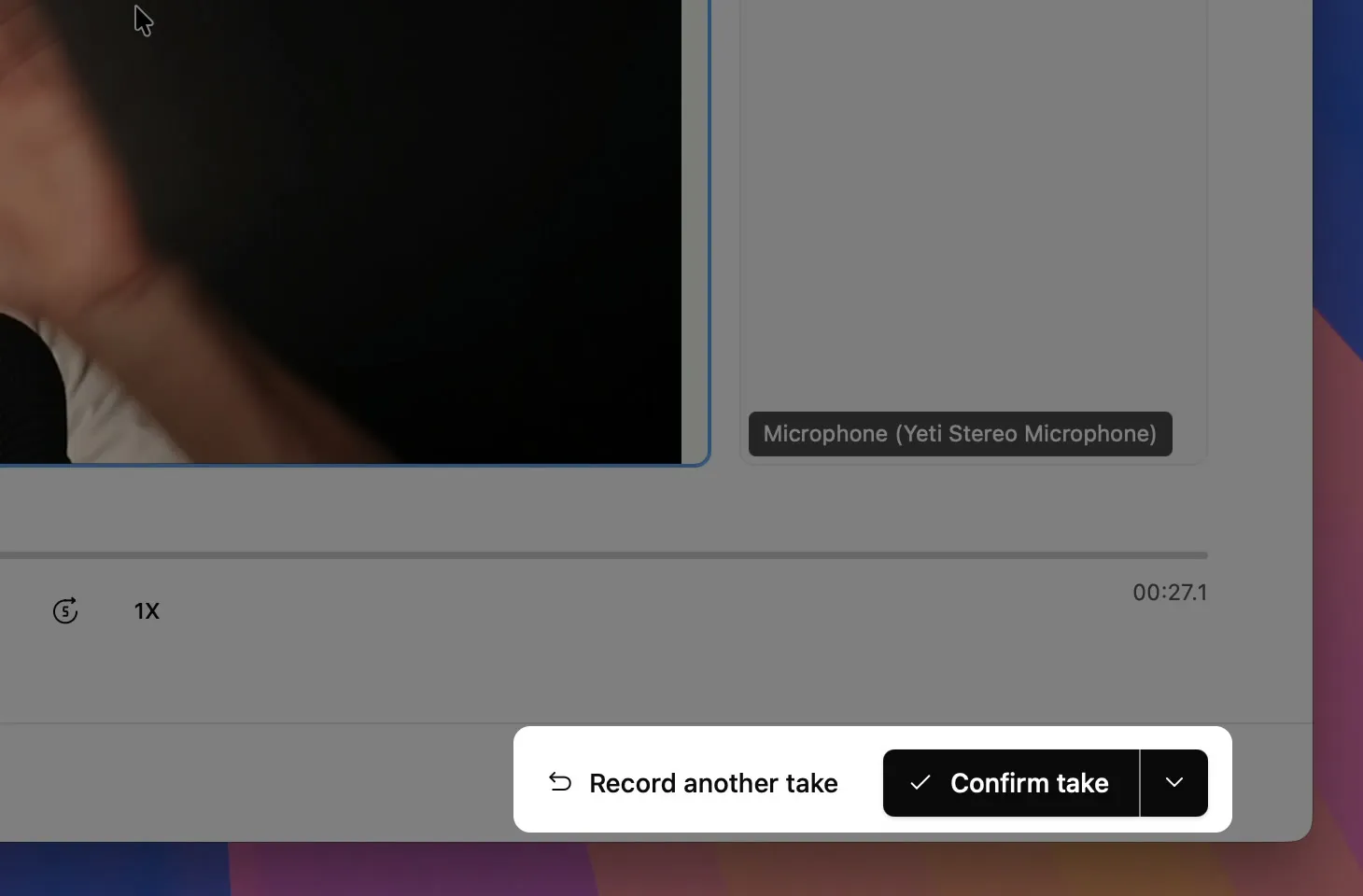
Section titled “Keep or redo the take”When you stop, Borumi shows a preview of your take:
- Click Confirm take if you’re happy with it.
- Click Record another take to try again. Borumi keeps every take, so you can still choose a different one later.
Next steps
Section titled “Next steps”This guide covered the basics of recording a video in Borumi. You might also want to learn how to set up your camera, screen, and audio. Here are some guides you might find useful:
- Your camera: change its resolution or rotate and mirror it.
- Your screen: record your whole screen, a region, or a single window.
- Your audio: record in stereo or fix audio and video sync.
- Your computer’s sound: record what your computer plays, like a video or your music software.
Once you’ve recorded your scenes, click Continue to Editing to start editing your video.