
Connect other AI apps
Borumi works with any AI app that supports MCP, the standard that lets AI apps use Borumi to edit your projects. This guide shows you how to connect one.


This video can't be played right now. Please try again later.
Turn on the connection in Borumi
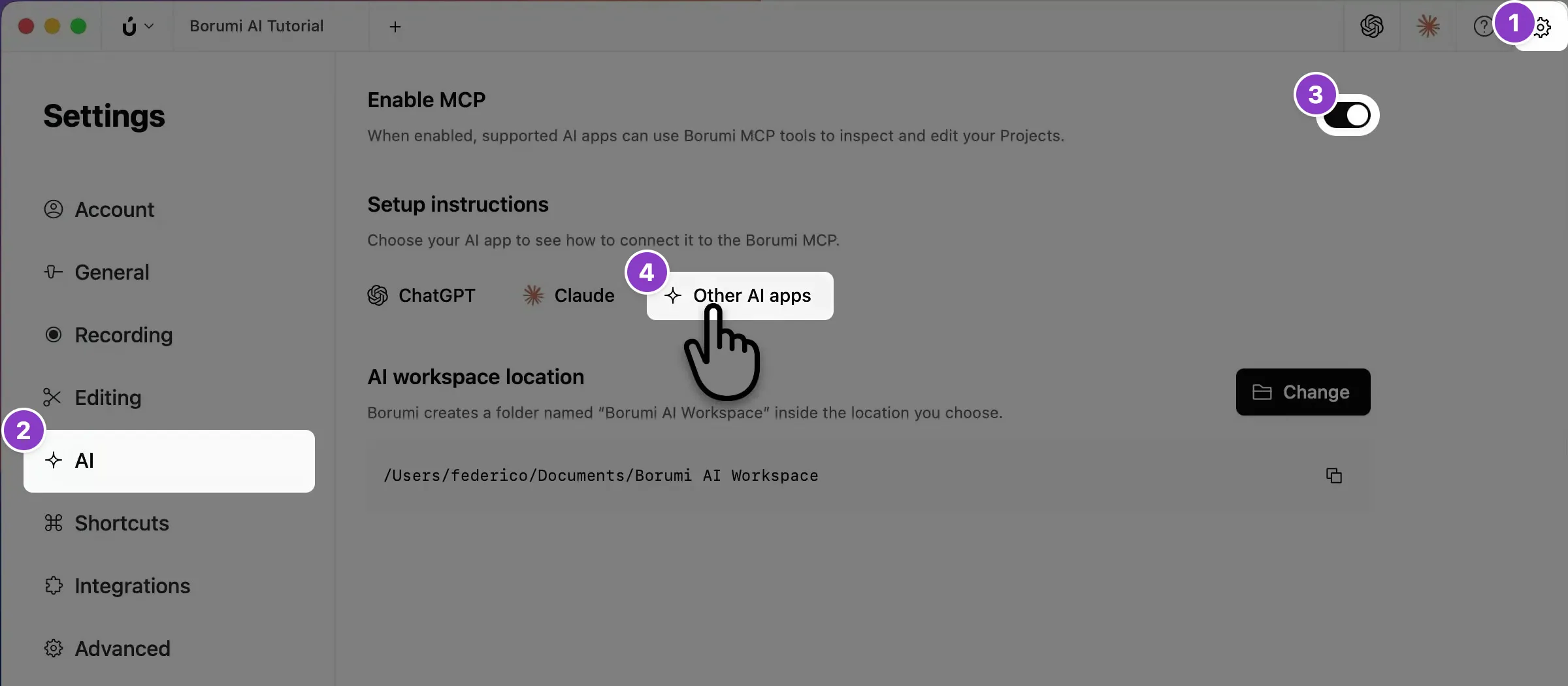
Section titled “Turn on the connection in Borumi”- Click the gear icon at the top right to open Settings, then click AI .
- Turn on Enable MCP. Borumi creates a folder named Borumi AI Workspace in your Documents folder.
- Under Setup instructions, click Other AI apps.
Add Borumi to another AI app
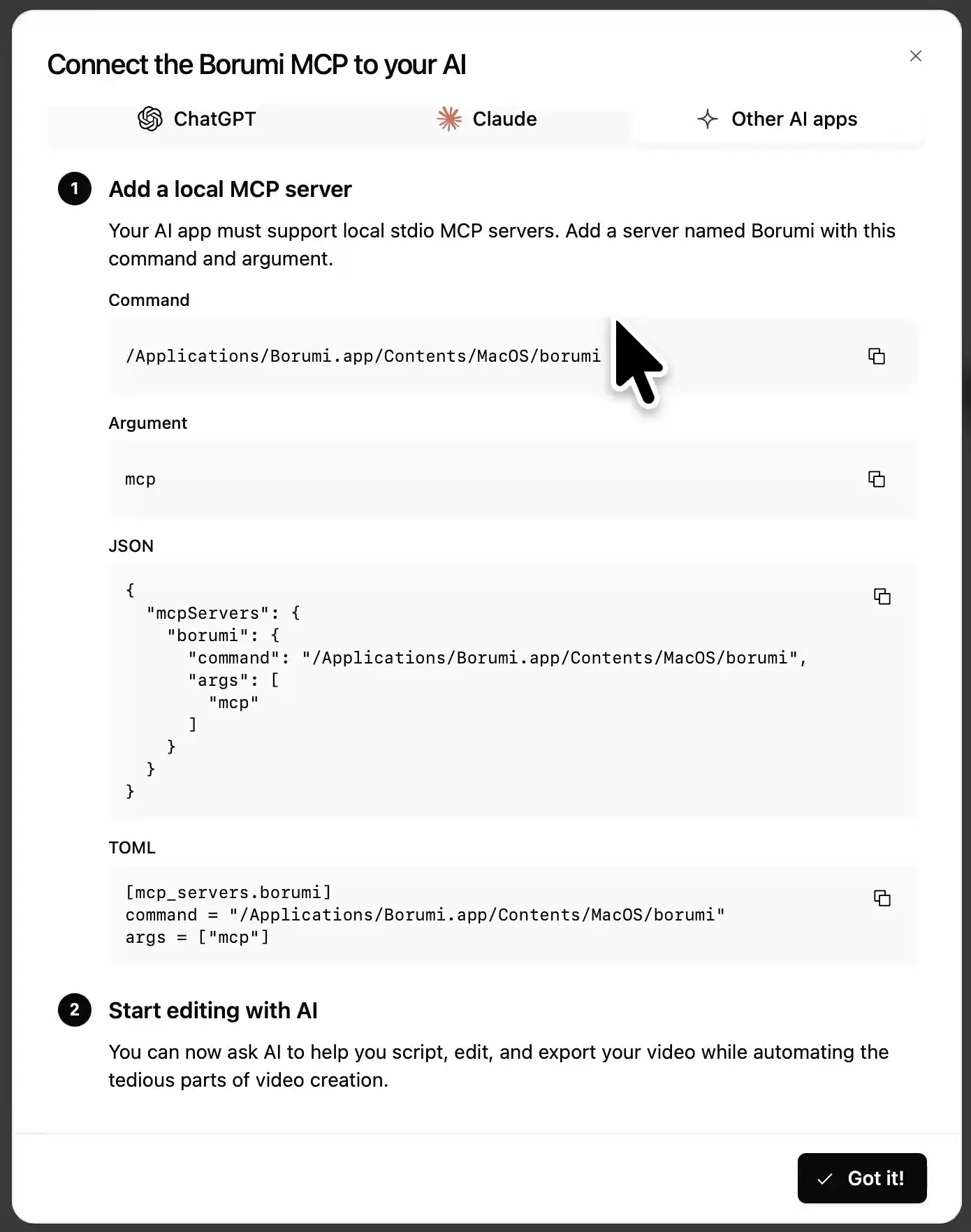
Section titled “Add Borumi to another AI app”In the Other AI apps tab, you’ll find what to add to your AI app: a server named Borumi with the Command and the Argument shown in the dialog. If your AI app uses a configuration file instead, copy the JSON or TOML snippet.
Then ask your AI app something like “Can you see my recent Borumi projects?” to check that it works.