
Replace your camera background
Borumi lets you easily replace your camera background with a professional-looking one. This guide discusses how you can do that.


This video can't be played right now. Please try again later.
Replace your background
Section titled “Replace your background”-
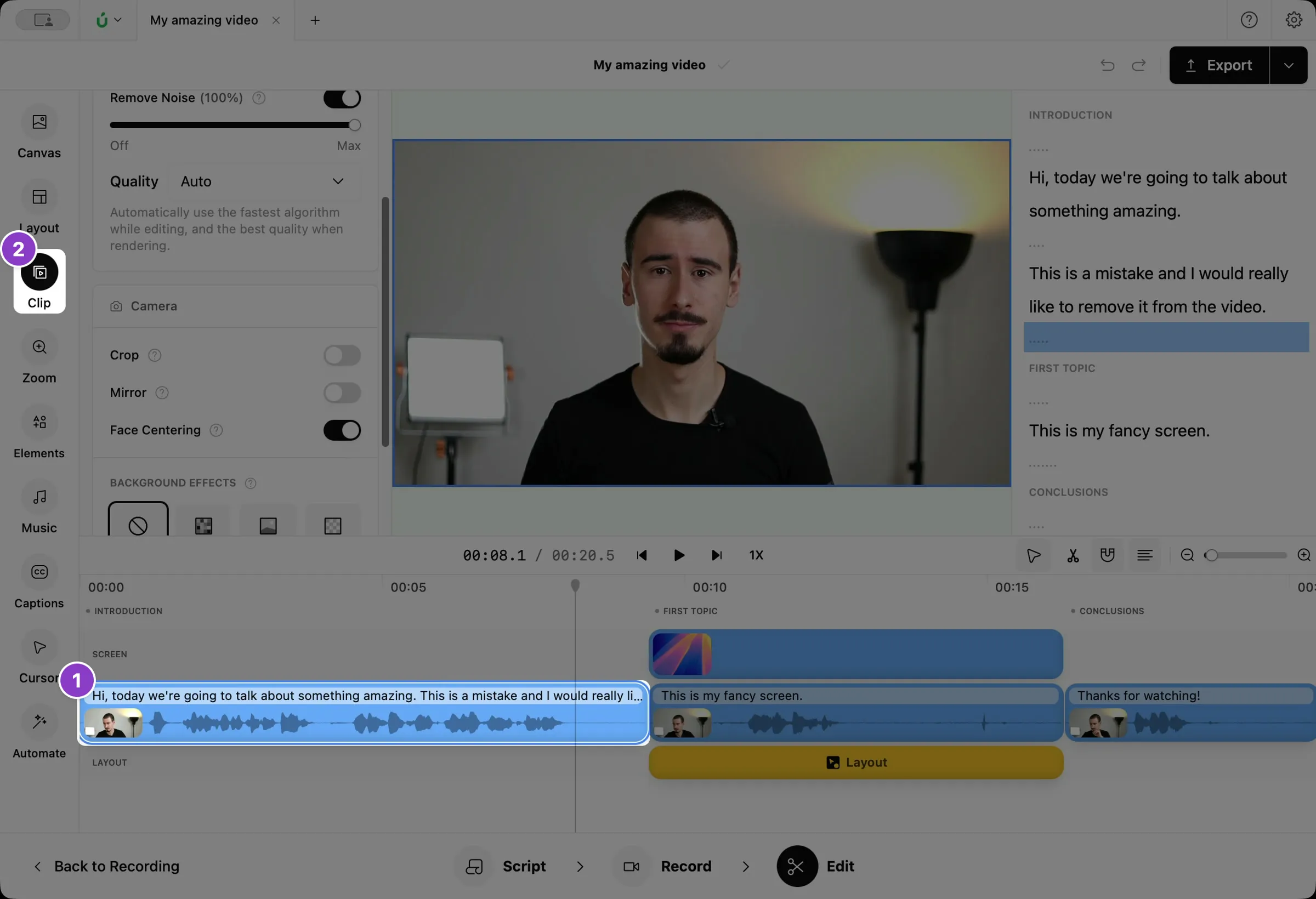
Click your camera clip on the timeline.
-
Click Clip in the left sidebar.
-
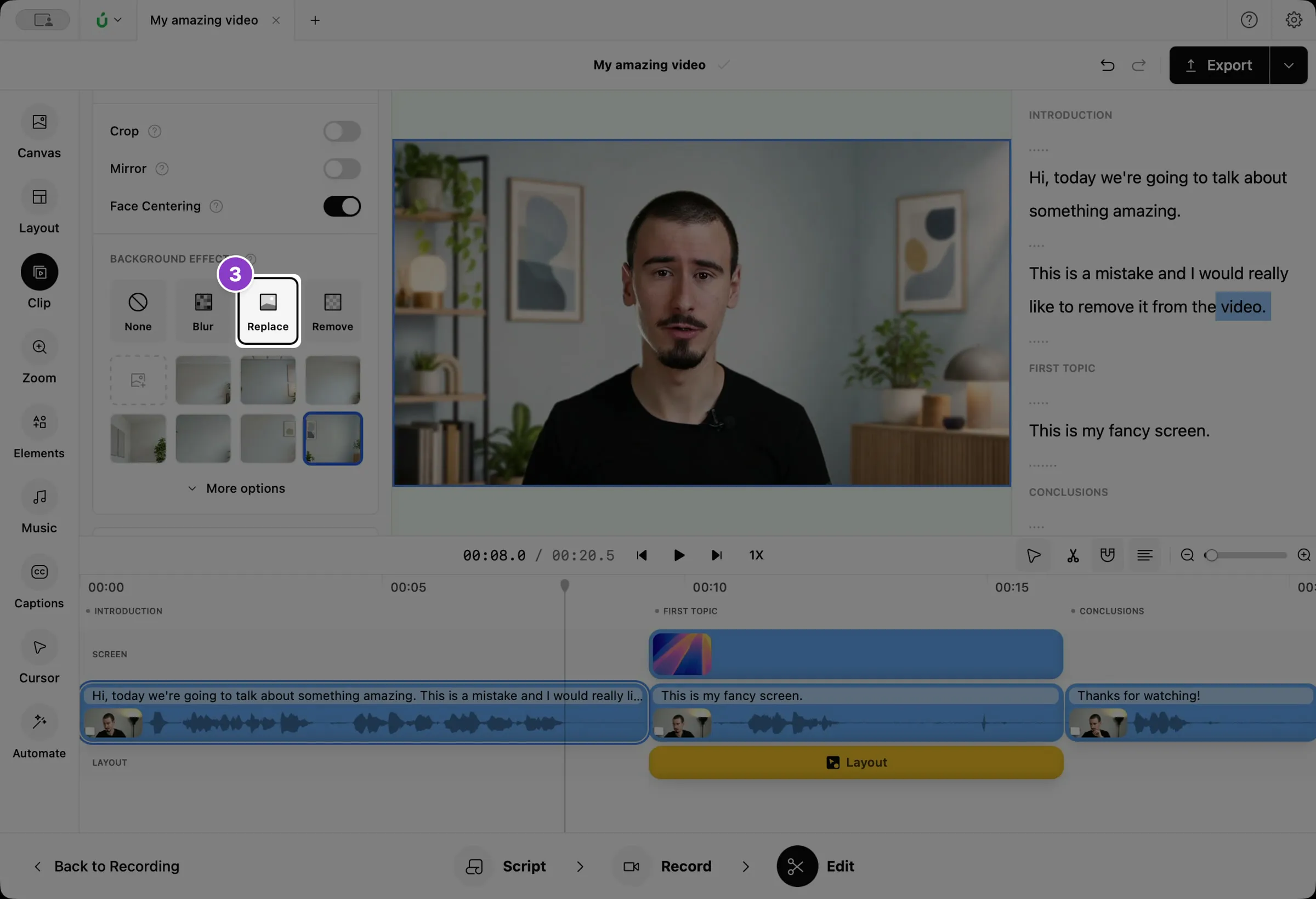
Under Background effects, click Replace.
-
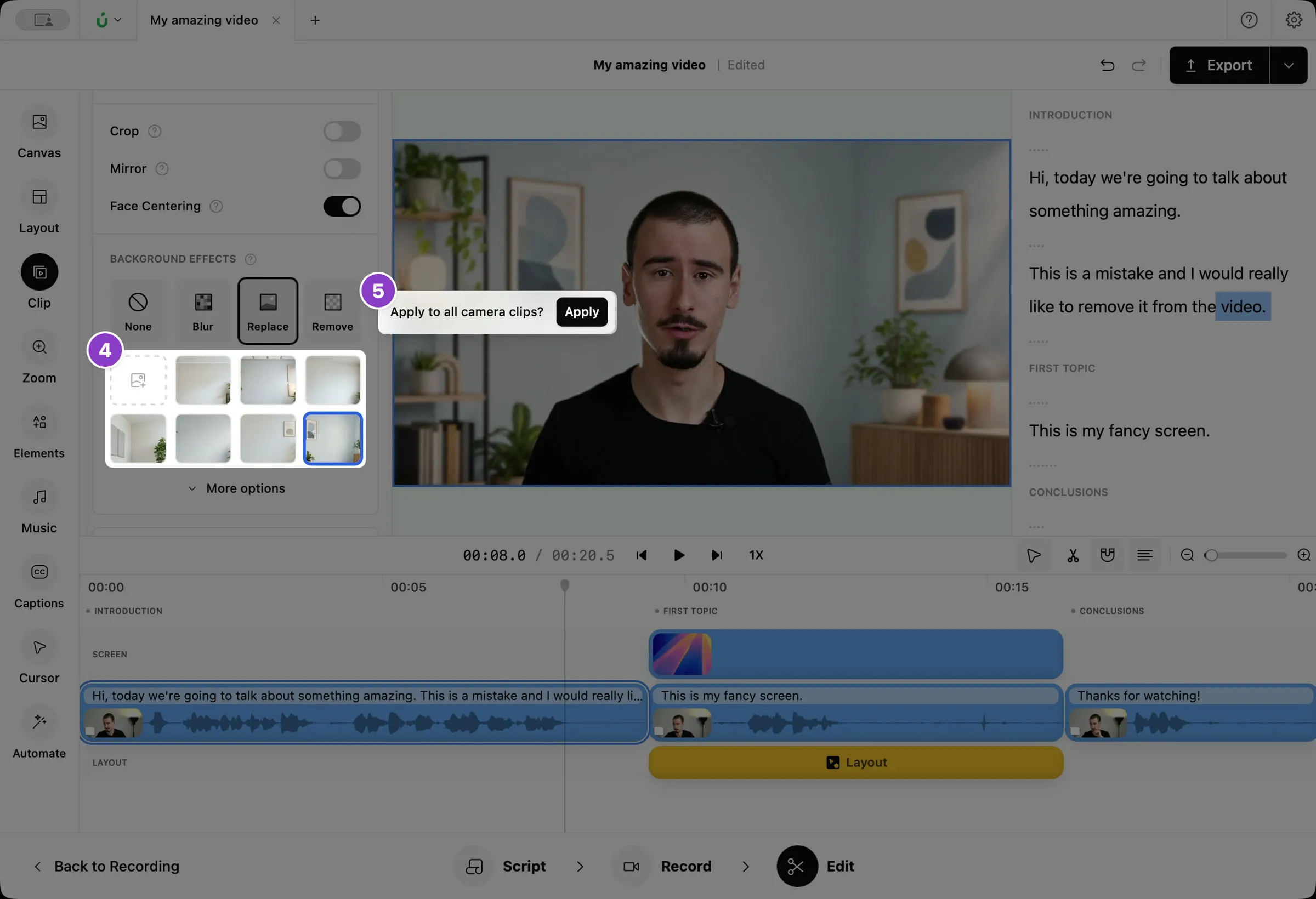
Pick one of the suggested backgrounds, which match the lighting of your video.
-
To use it in the whole video, click Apply in the message that appears.
To bring your real background back, click None .
Use your own image
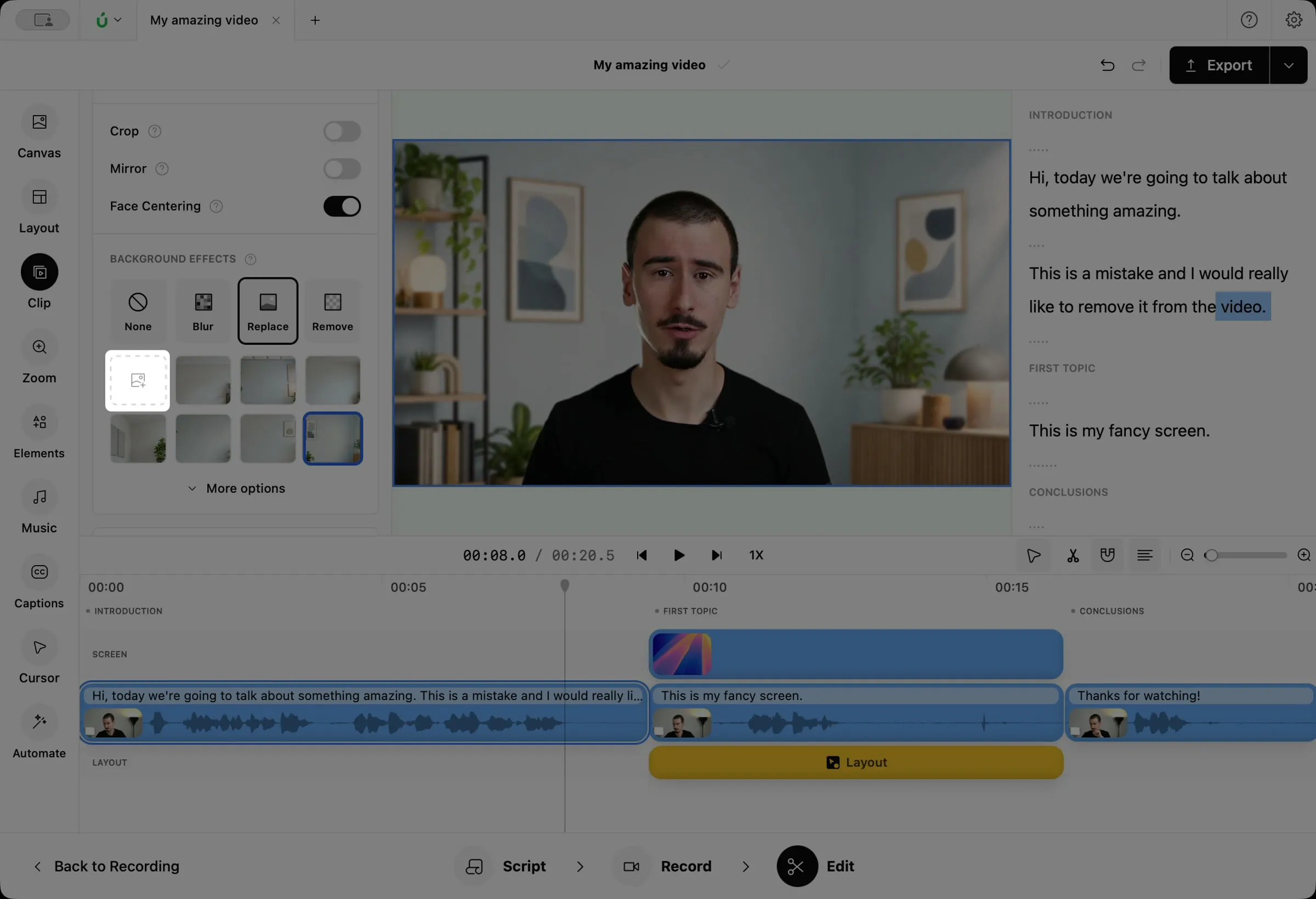
Section titled “Use your own image”Click the first tile in the grid and choose a PNG or JPG image. You can also drag an image onto the grid.
Make it look natural
Section titled “Make it look natural”If the result doesn’t look quite right, click More options under the backgrounds:
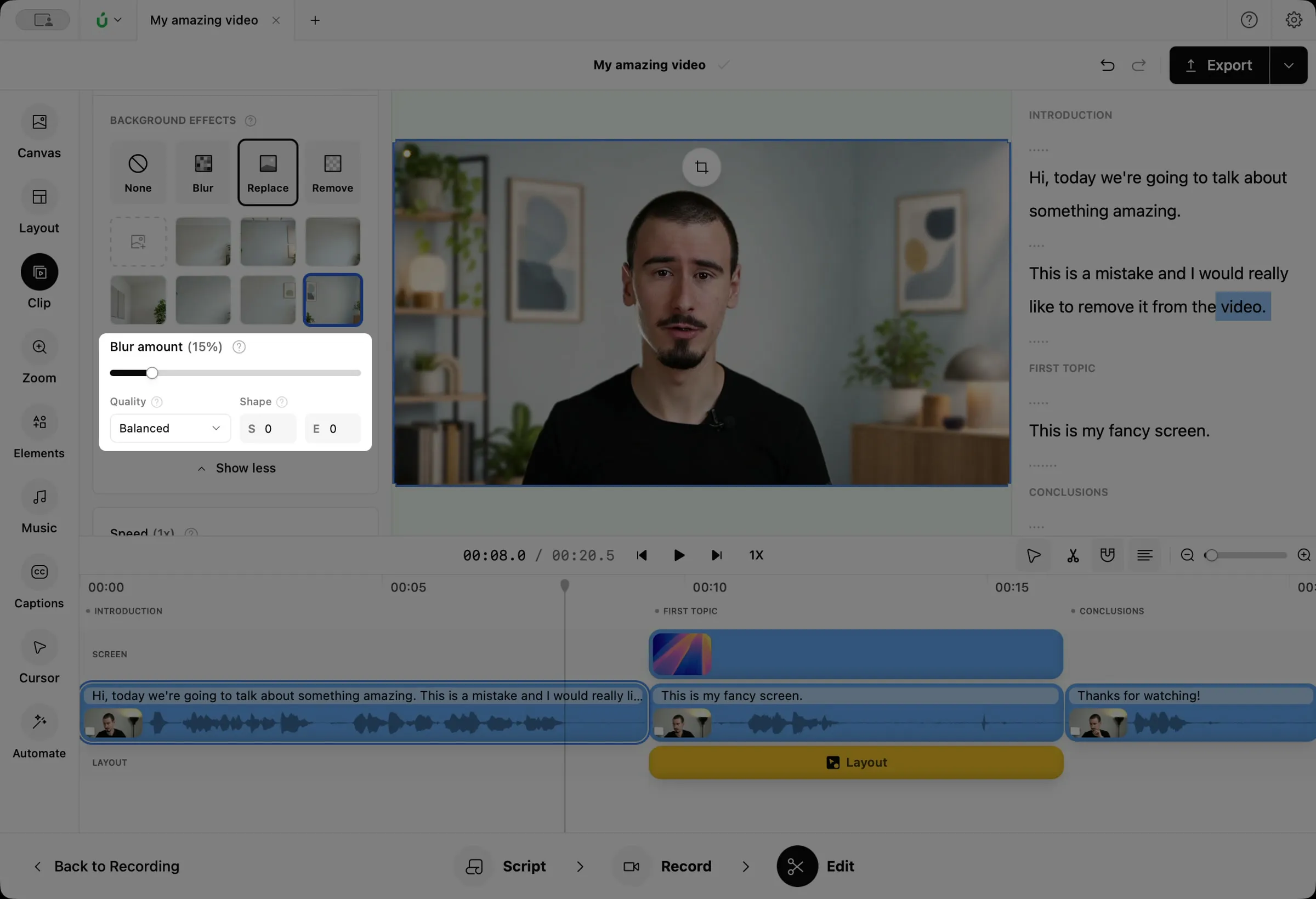
- Blur amount: blurs the new background a little, like a real camera would.
- Quality: higher quality keeps finer details, like hair, but takes longer to process.
- Shape: S softens the edge around you, and E makes the cutout around you larger or smaller. Change them in small steps.