
Customize the cursor
Borumi lets you freely customize the cursor in your video. You can make it bigger, change its colors to match your brand, and hide it when it gets in the way.


This video can't be played right now. Please try again later.
Choose a cursor style
Section titled “Choose a cursor style”-
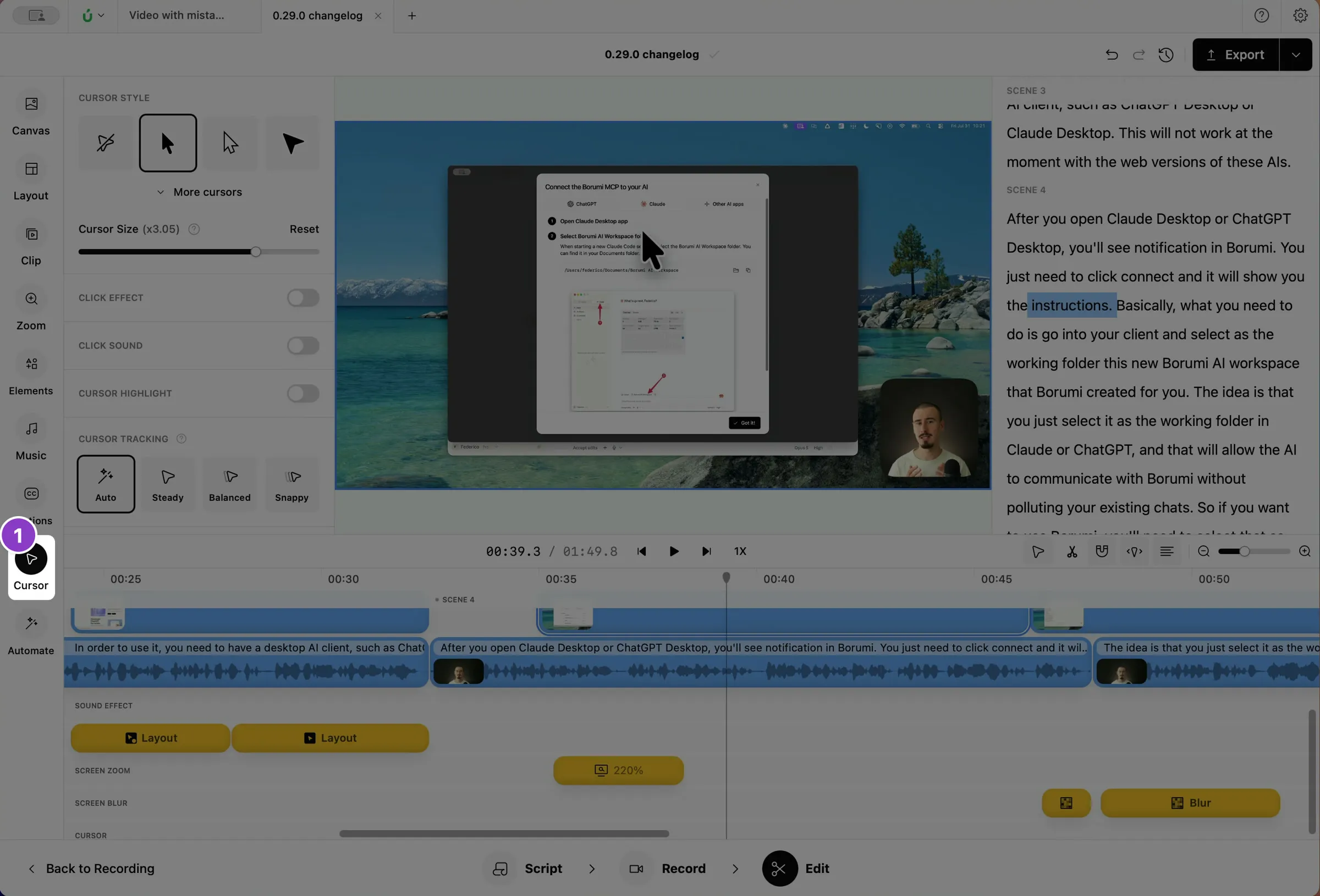
Click Cursor in the left sidebar.
-
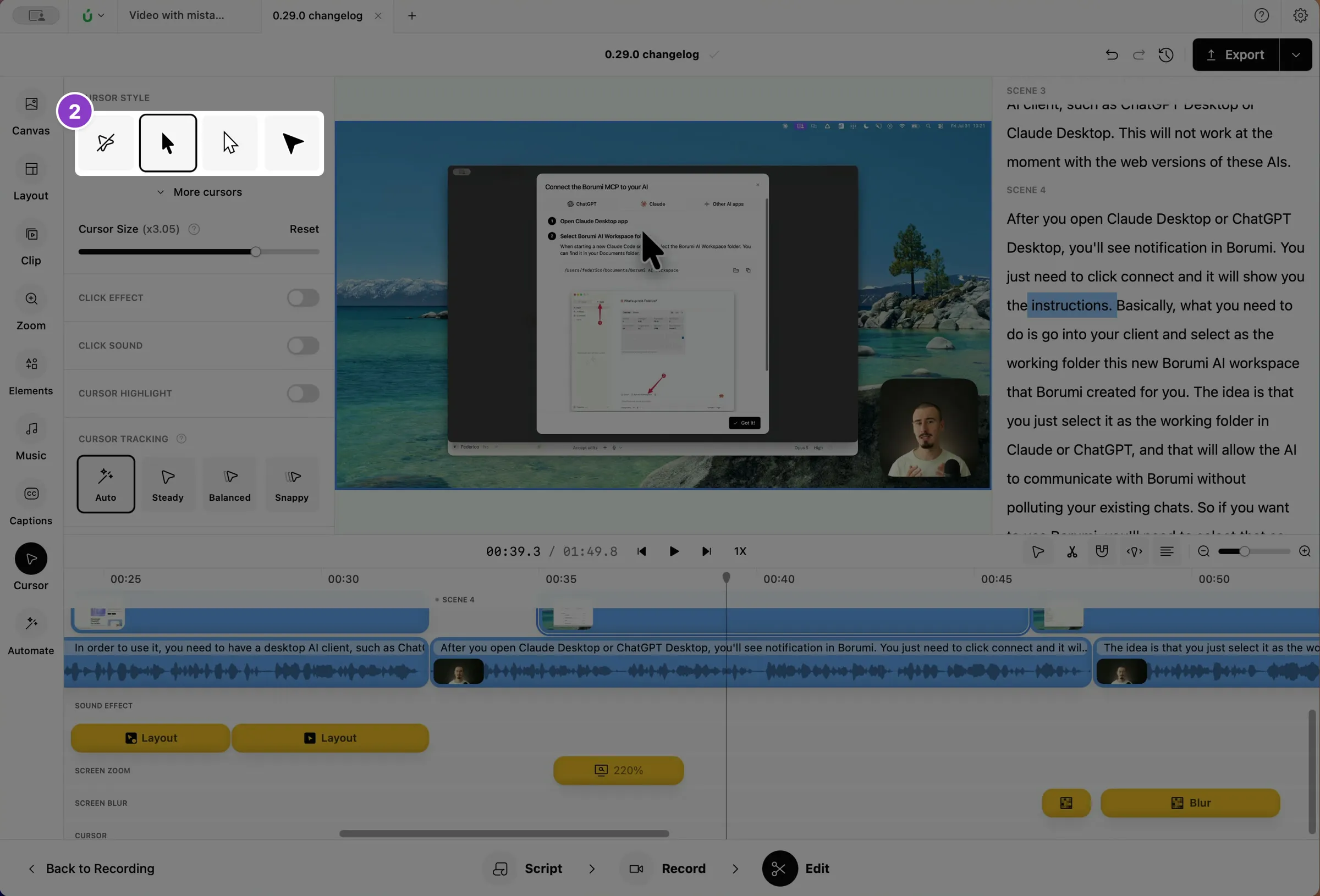
Under Cursor style, pick one of these:
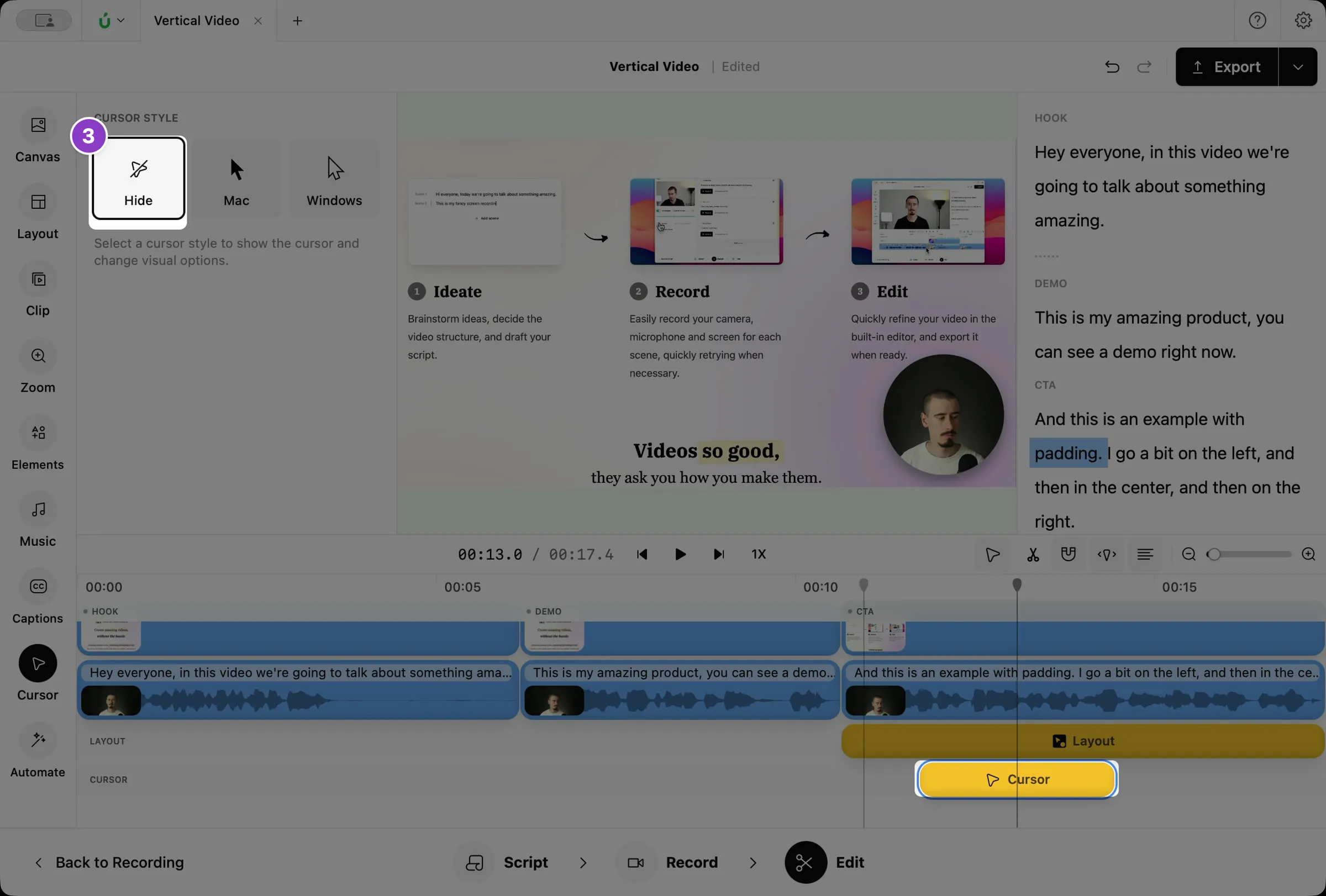
- None: hides the cursor.
- Mac: the macOS cursor. This is the default on Mac.
- Windows: the Windows cursor. This is the default on Windows.
- Pointer: a pointer whose colors you choose, which is great for branded videos.
-
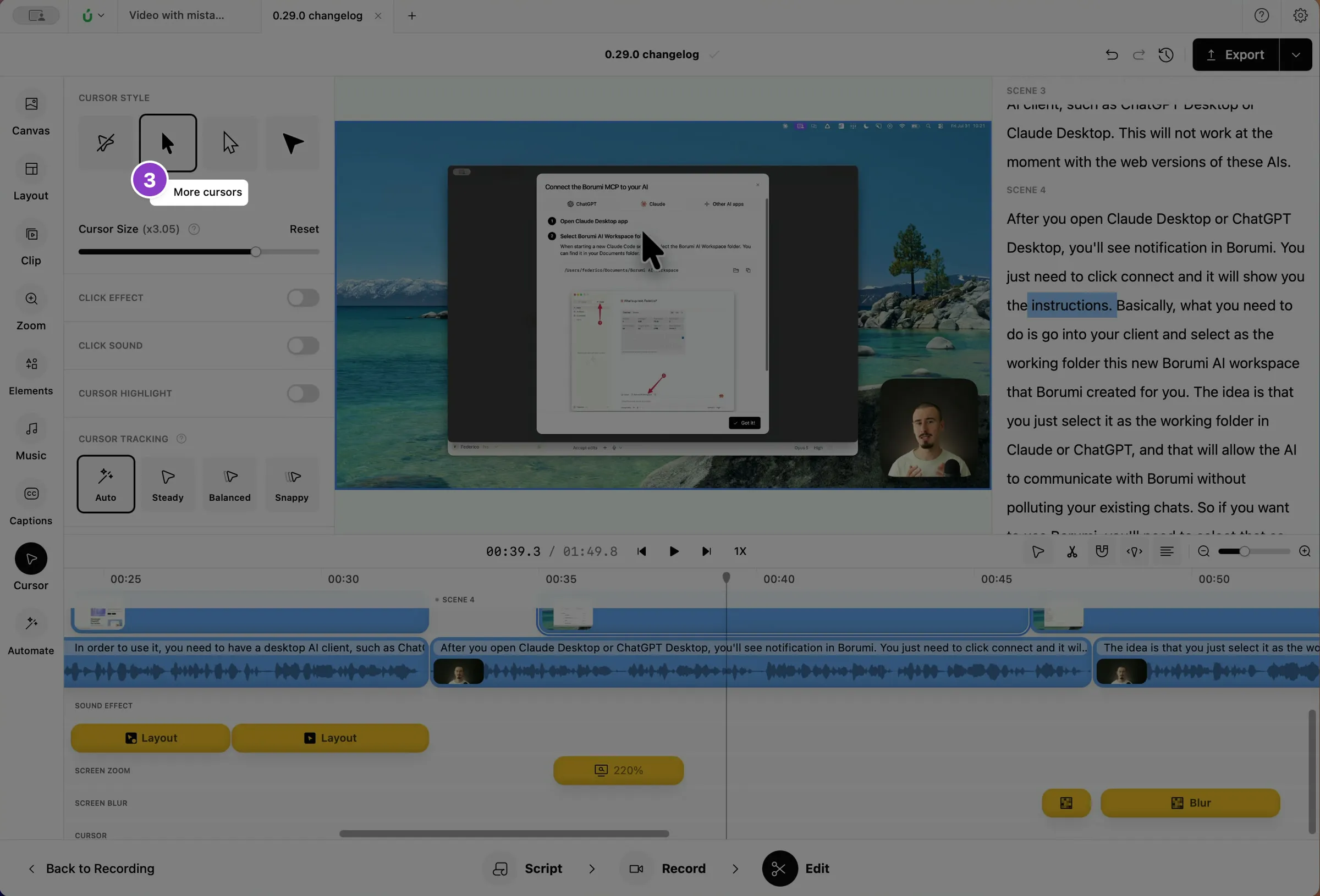
To see more styles, click More cursors.
Change the size and colors
Section titled “Change the size and colors”Drag the Cursor Size slider to make the cursor smaller or bigger. Click Reset to go back to normal size.
With the Pointer style, you can also customize the cursor’s color, for example to match your brand.
Click effect
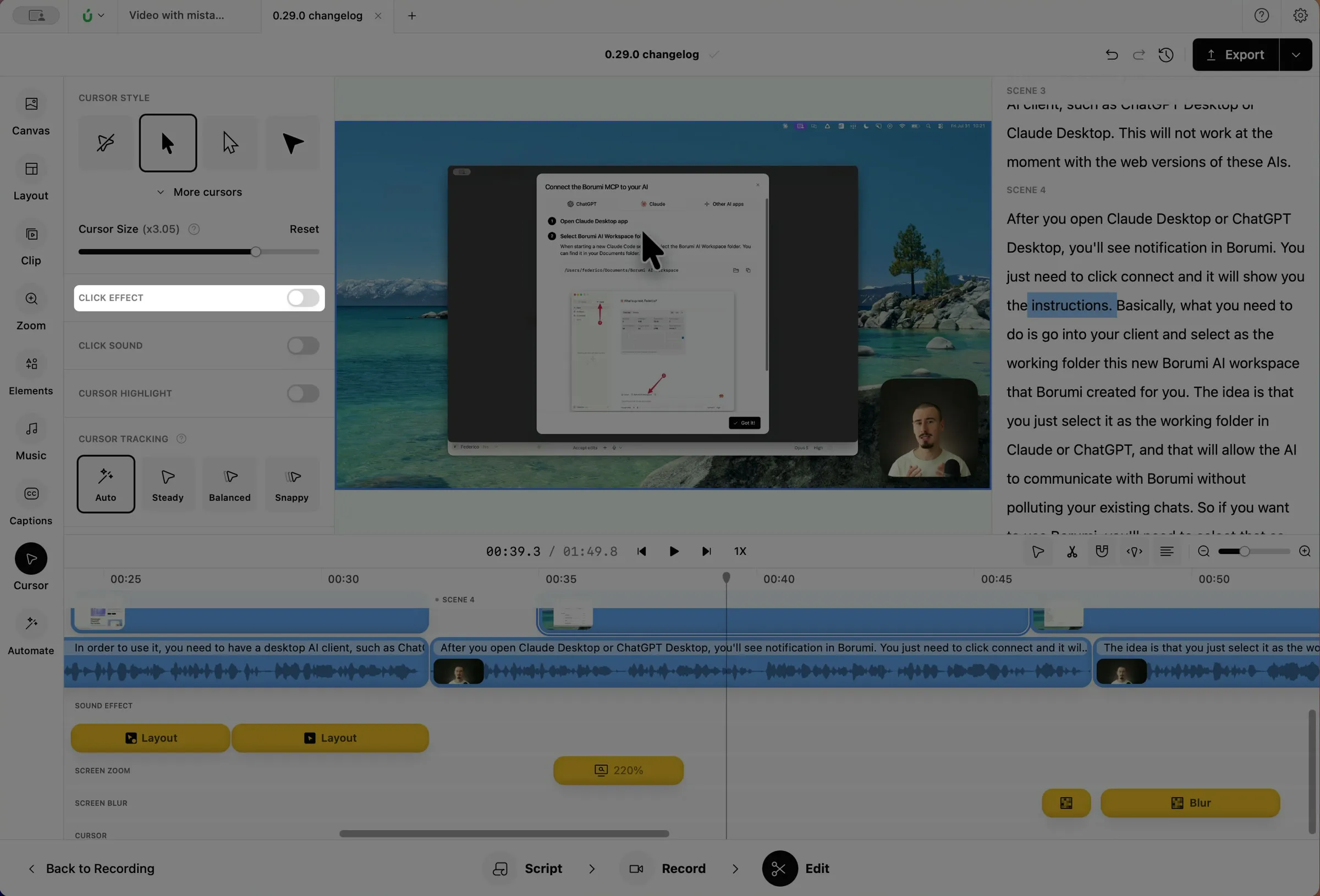
Section titled “Click effect”Shows a circle or a ring each time you click, so viewers see exactly where you click. Turn on Click Effect in the Cursor panel.
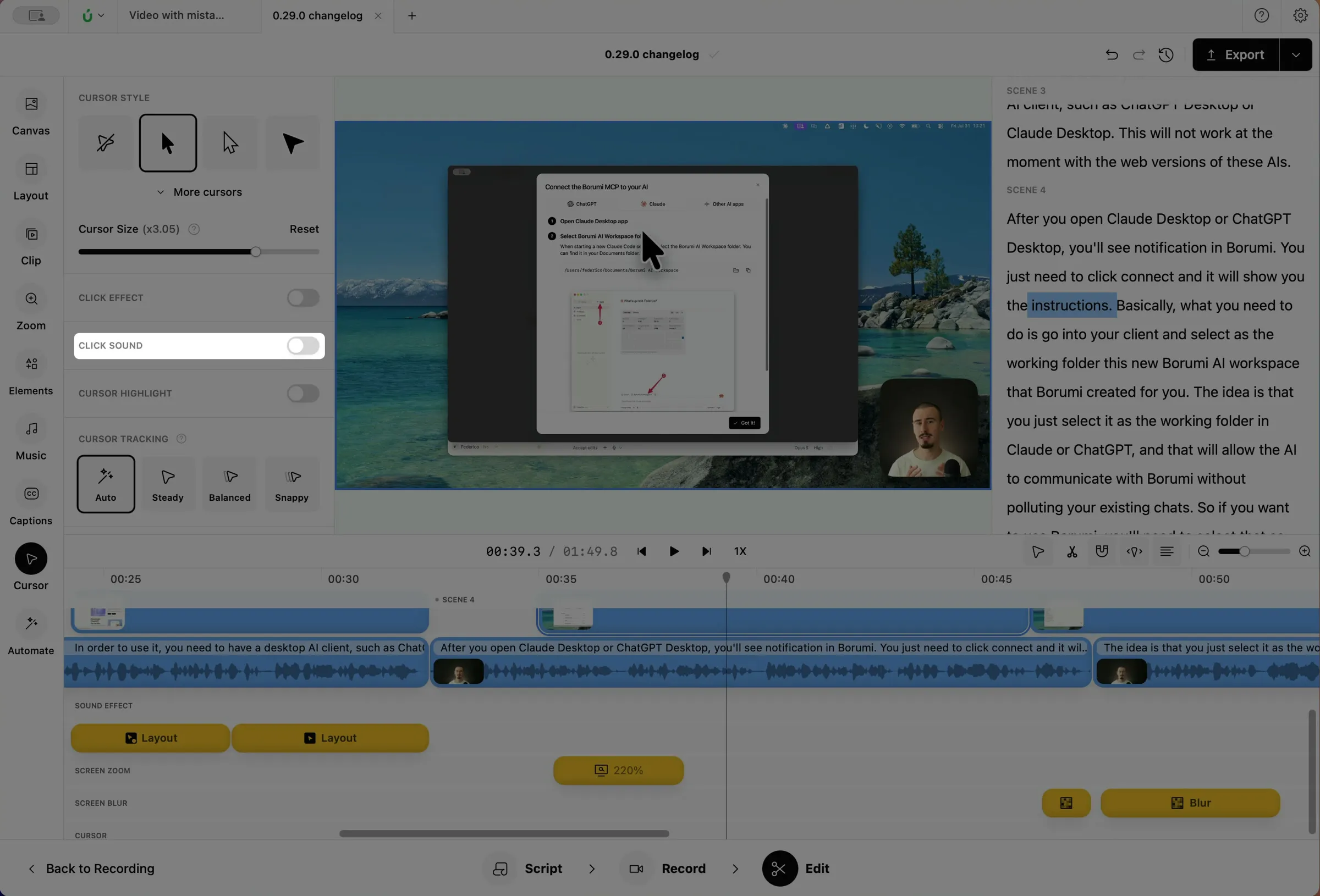
Click sound
Section titled “Click sound”Plays a click sound each time you click. Turn on Click Sound in the Cursor panel.
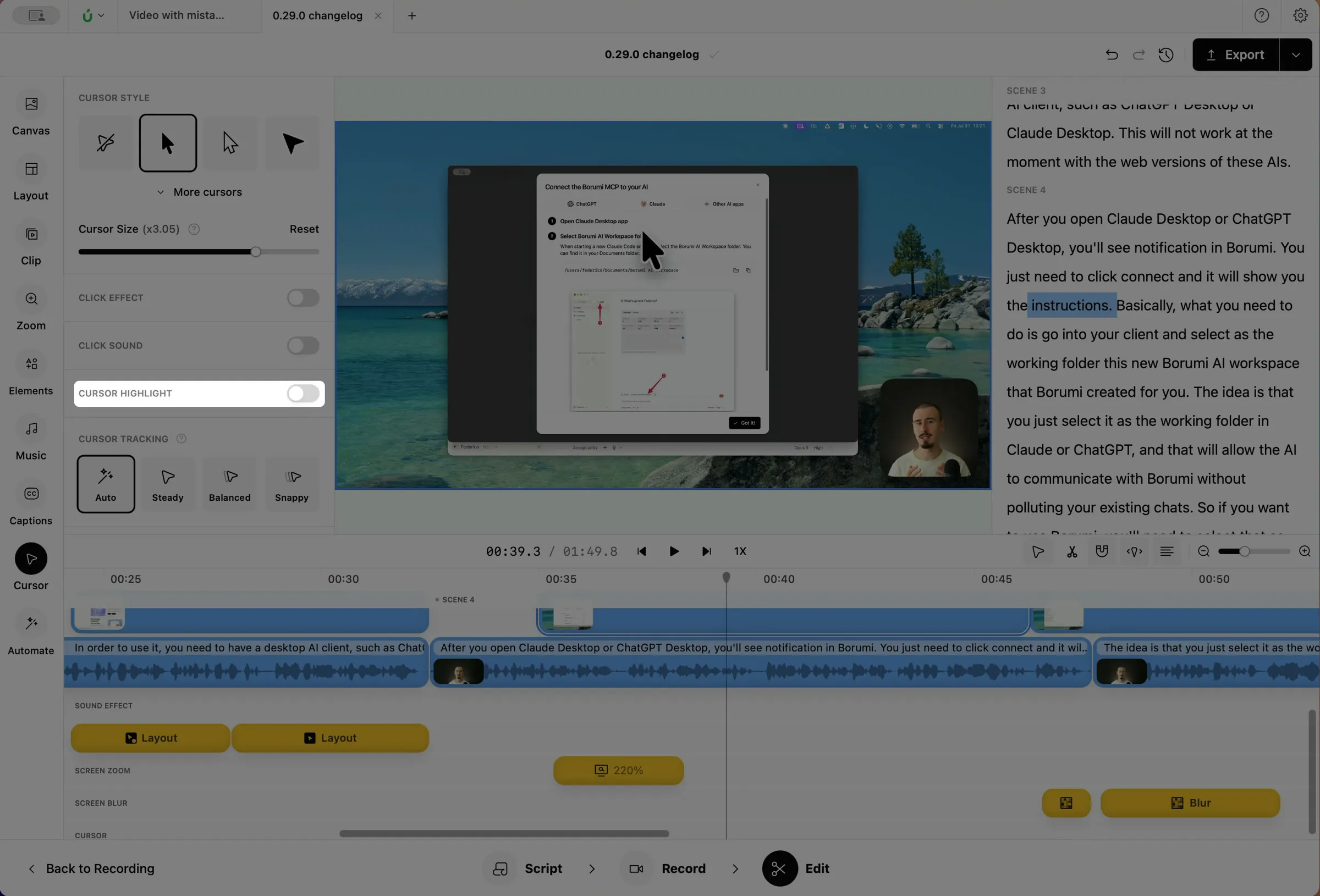
Cursor highlight
Section titled “Cursor highlight”Adds a colored circle around the cursor, so it’s easy to follow. Turn on Cursor Highlight in the Cursor panel.
Choose how the screen follows the cursor
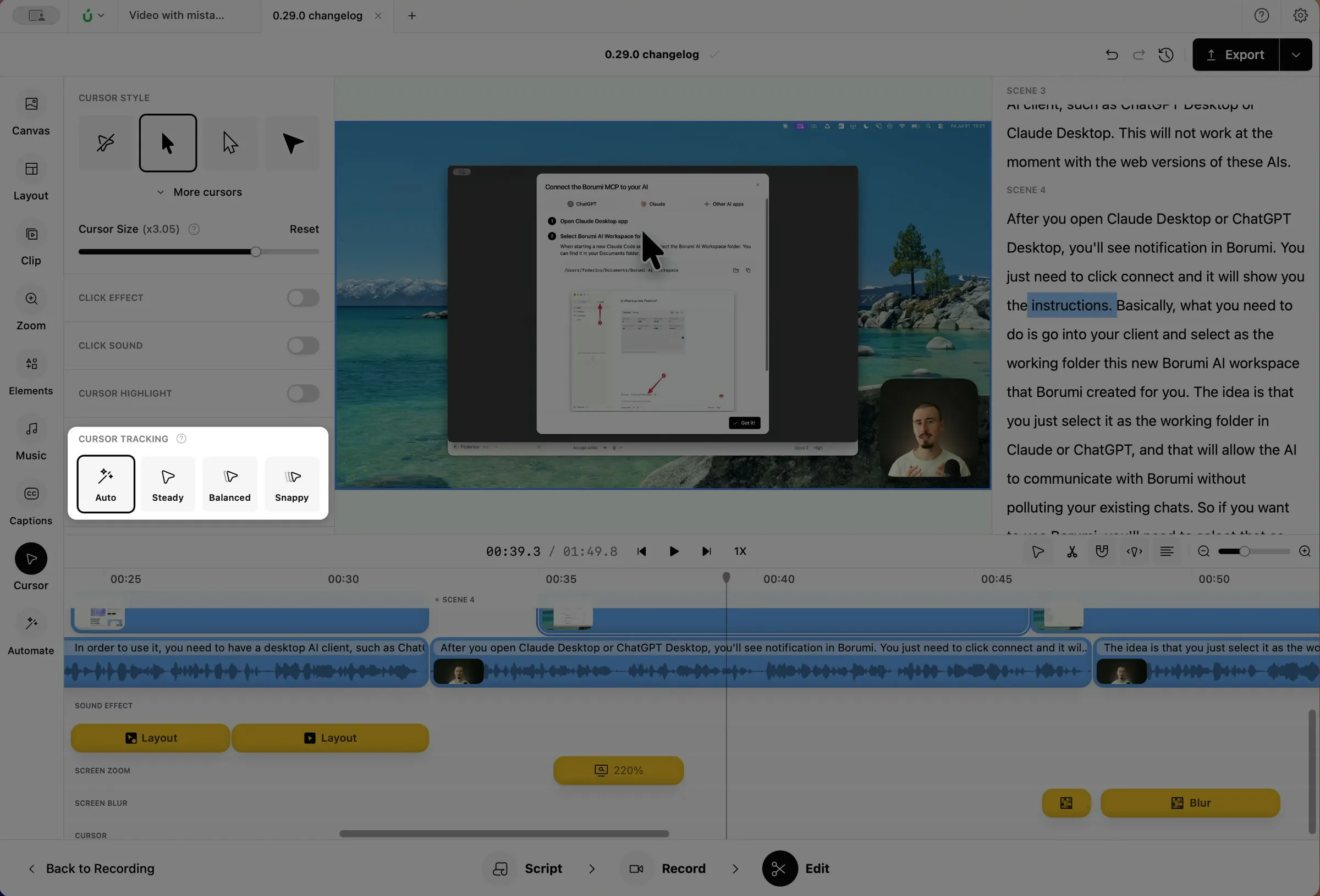
Section titled “Choose how the screen follows the cursor”When Borumi shows only part of your screen, for example during a zoom or in a vertical video, it tries to keep your cursor visible at all times. To do that, it moves the screen underneath the cursor. This movement can be calmer or quicker, depending on the feel you want for your video. Under Cursor tracking, choose one of these:
- Auto: picks the right amount for your video format. This is the default.
- Steady: moves the screen as little as possible, so text stays easy to read.
- Balanced: moves the screen more, while keeping text readable.
- Snappy: follows the cursor closely.
Hide the cursor when still
Section titled “Hide the cursor when still”Turn on Hide cursor when still to hide the cursor when you don’t move it for a moment. It shows up again as soon as you move it.
Hide the camera on overlap
Section titled “Hide the camera on overlap”Turn on Hide camera on overlap to hide your camera while the cursor is over it, so it never covers what you’re clicking.
Hide or change the cursor for part of the video
Section titled “Hide or change the cursor for part of the video”Your cursor settings apply to the whole video. To use different settings for one part, for example to hide the cursor during an intro, add a cursor clip. Inside the clip, its settings replace the ones used in the rest of the video.
This video can't be played right now. Please try again later.
-
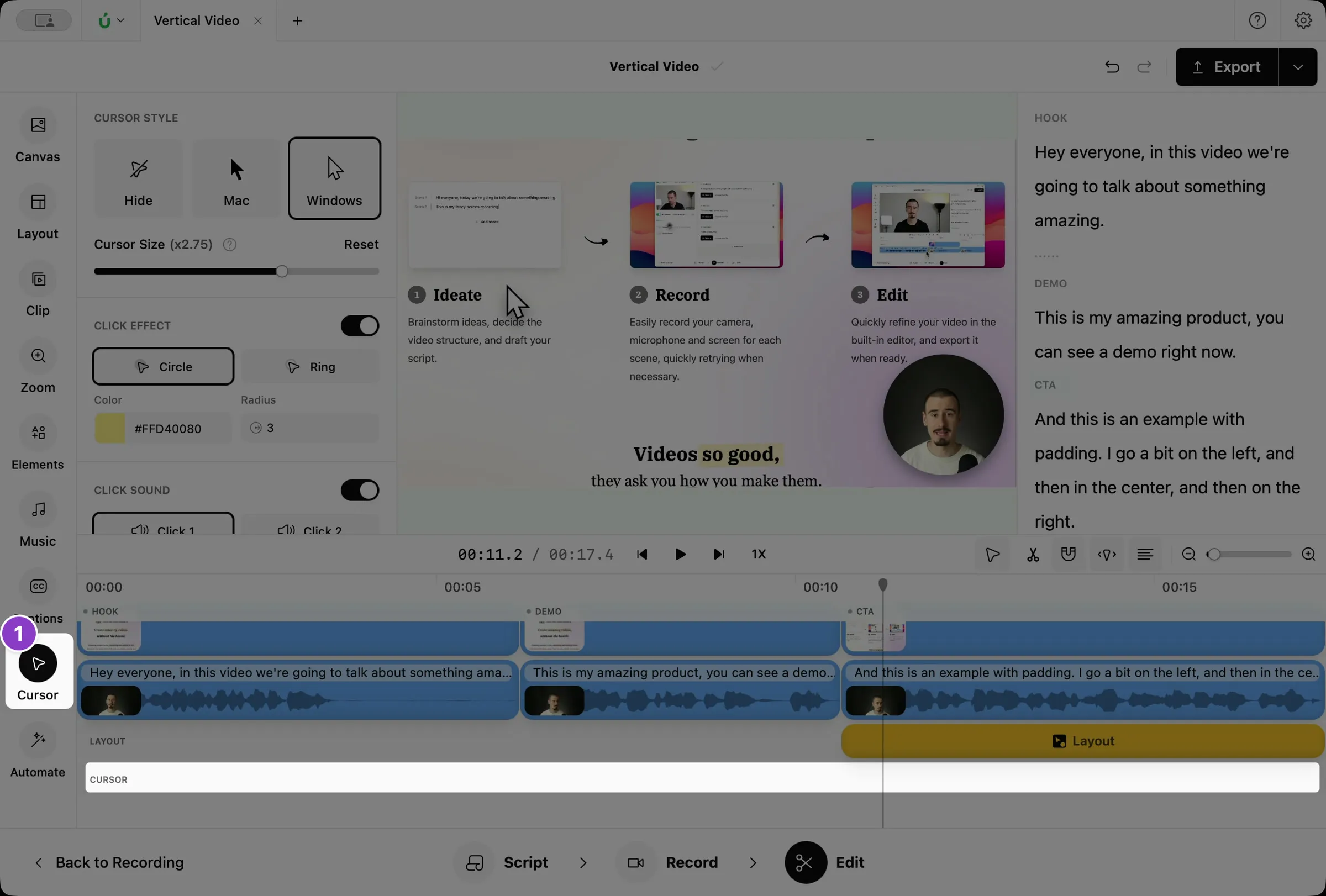
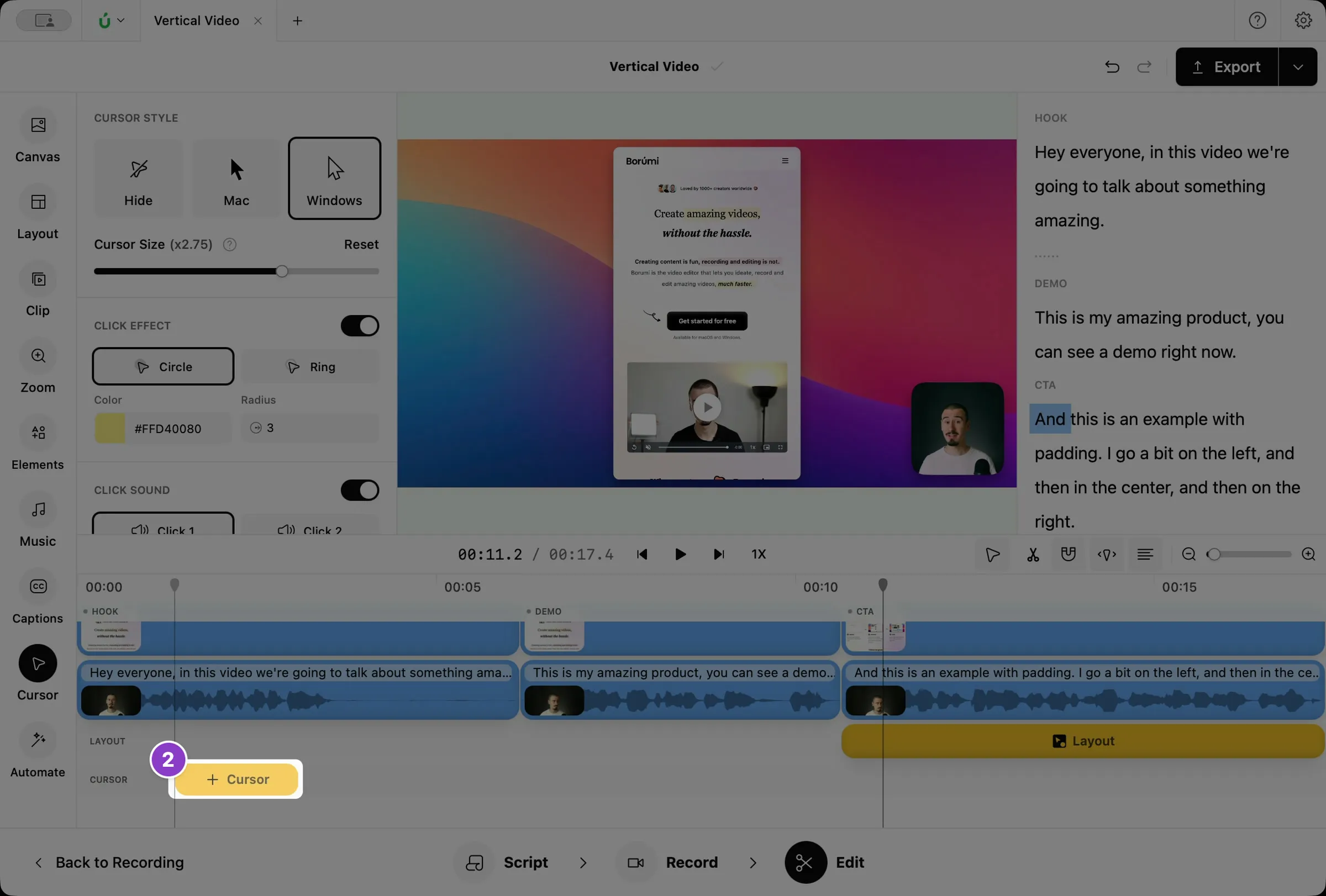
Click Cursor in the left sidebar. A Cursor layer appears at the bottom of the timeline.
-
Move the pointer over the Cursor layer, where the change should start, and click + Cursor. Borumi adds a cursor clip there.
-
With the cursor clip selected, change its settings in the Cursor panel. For example, click None to hide the cursor for that part.
-
Drag the edges of the cursor clip to change which part of the video it covers.
Use a stick cursor
Section titled “Use a stick cursor”For something playful, click More cursors and pick one of the stick cursors. Your cursor becomes a hand or an object on a long arm that reaches into the screen and follows your original cursor movements.
This video can't be played right now. Please try again later.