
Add sound effects
Sound effects can help your video stand out. Borumi comes with a rich set of built-in sounds you can use in a few clicks, and this guide shows you how.


This video can't be played right now. Please try again later.
Borumi lets you add sound effects in different ways:
- Attach a sound to an effect: many effects, like a layout change, a zoom, or text appearing, can play a sound exactly when they happen.
- Add your own sounds: drag a sound file from your computer onto the timeline.
- Play a sound on each click: turn on the click sound for your cursor.
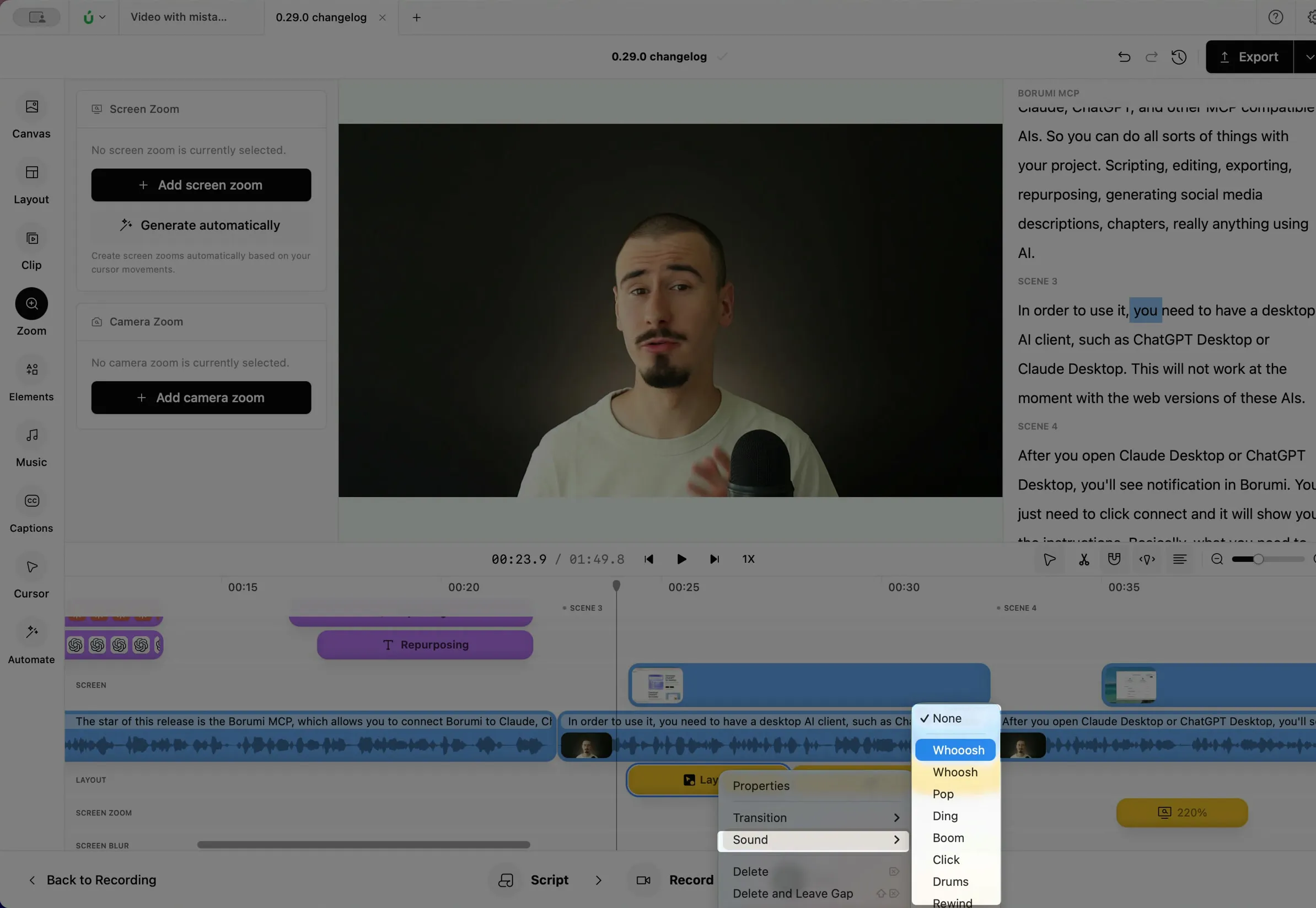
Add a sound to a layout change
Section titled “Add a sound to a layout change”Right-click the layout clip on the timeline, choose Sound, and pick a sound. The sound plays when the layout starts. See Choose a layout.
Add a sound to a zoom
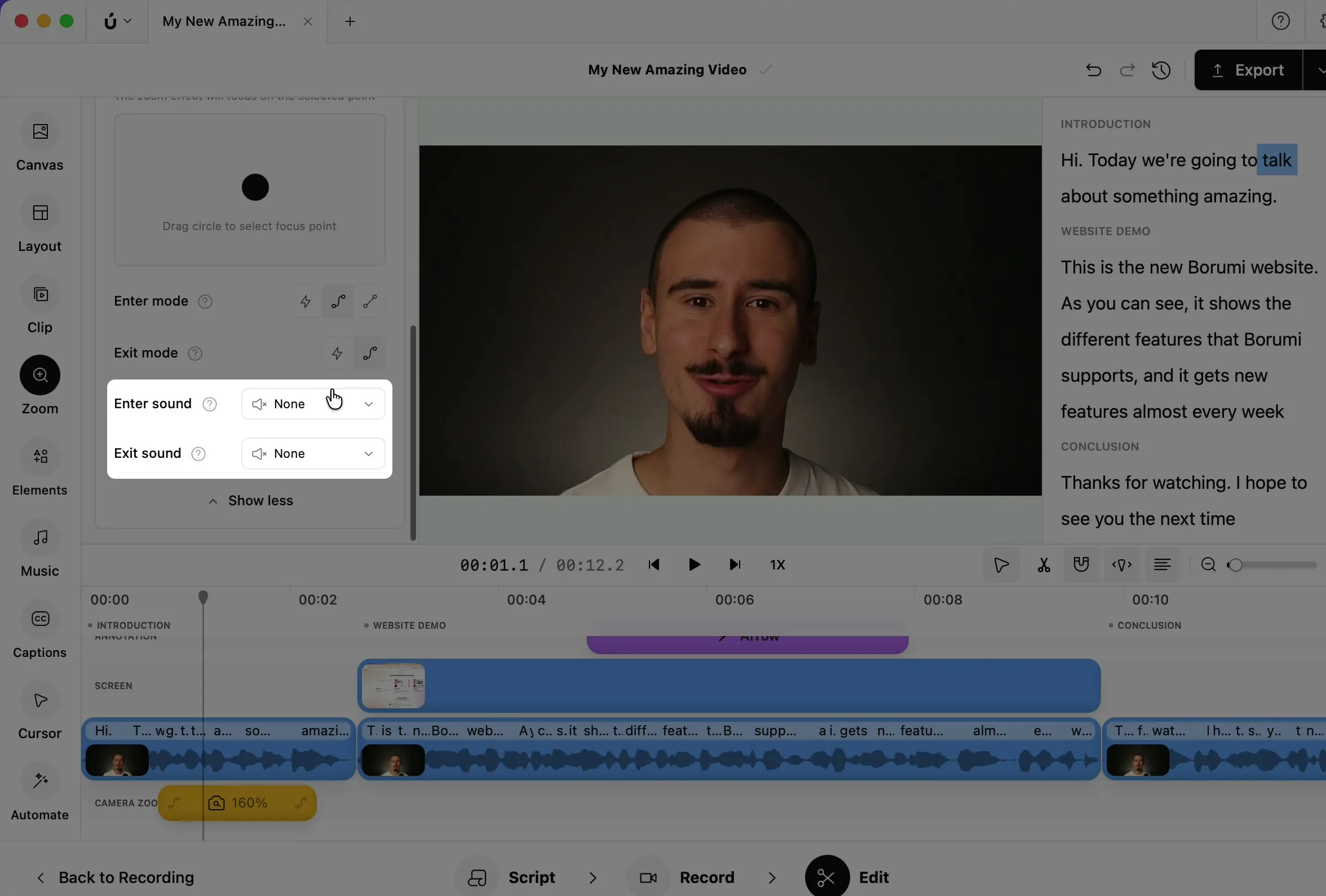
Section titled “Add a sound to a zoom”Select the zoom on the timeline, click More options in the Zoom panel, and choose an Enter sound and an Exit sound. See Add a screen zoom and Add a camera zoom.
Add a sound to text, images, and annotations
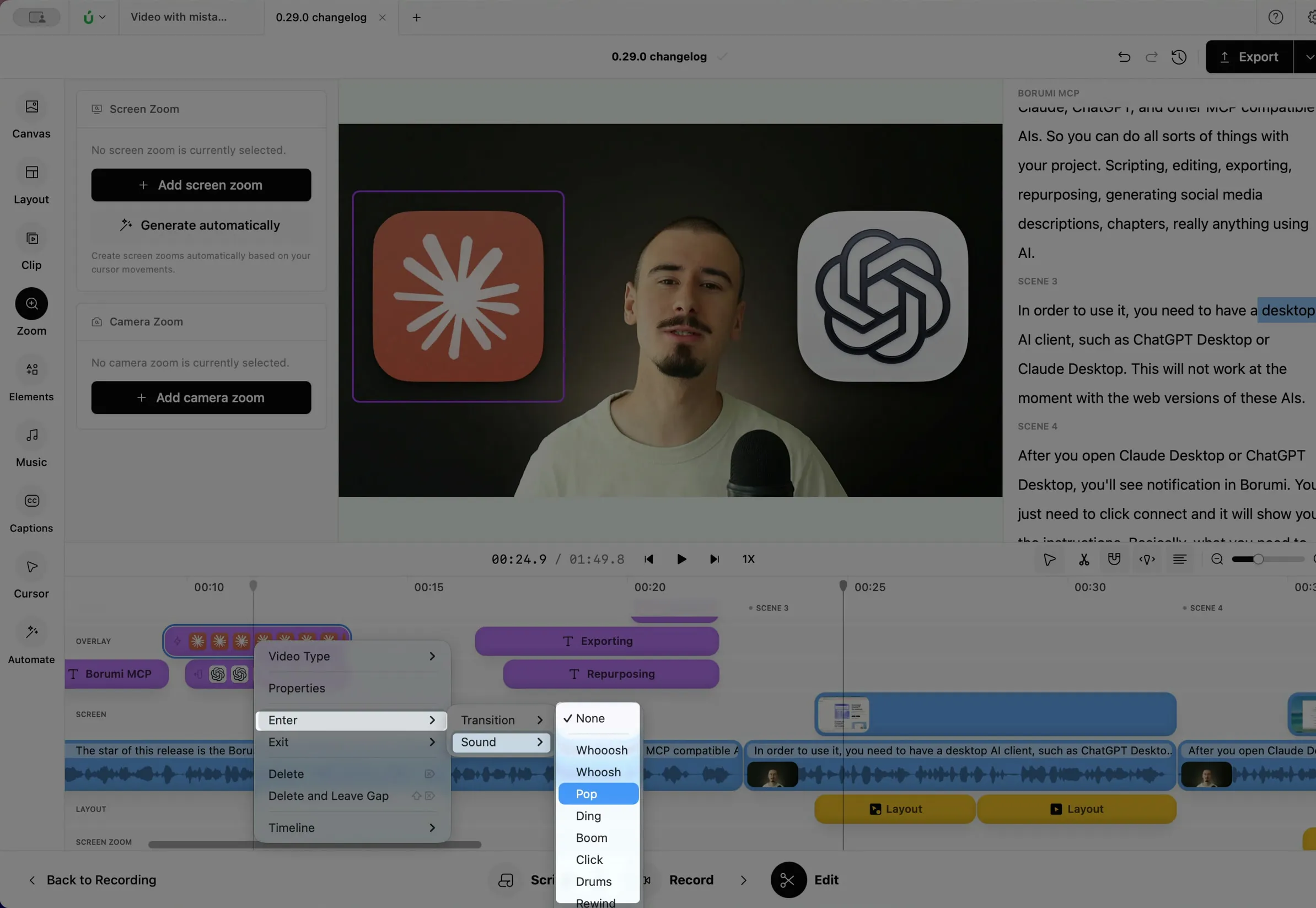
Section titled “Add a sound to text, images, and annotations”Right-click the element on the timeline, choose Enter → Sound or Exit → Sound, and pick a sound. This works for text, images and videos, and annotations.
Add your own sound effect
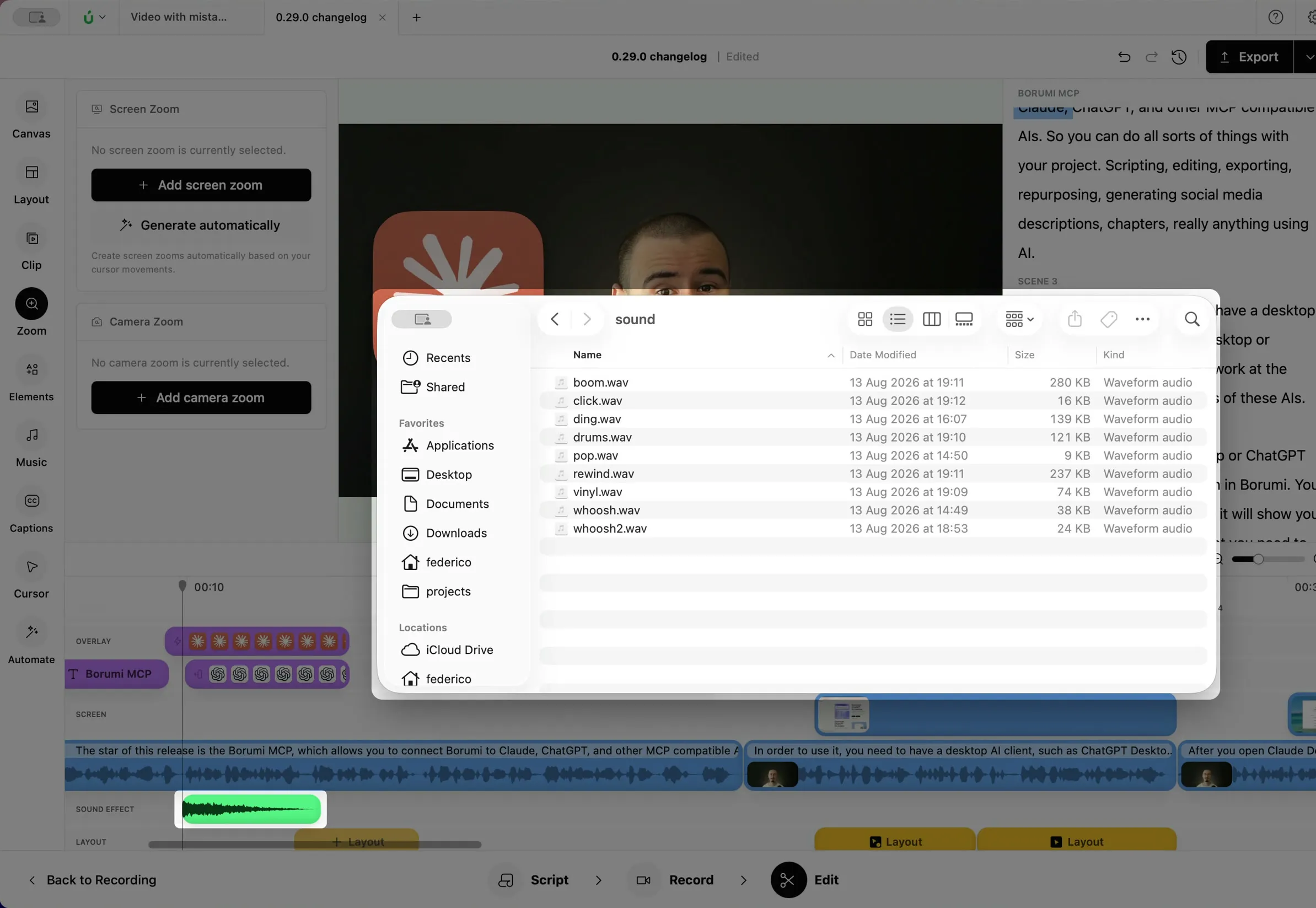
Section titled “Add your own sound effect”Drag a sound file (MP3, WAV, or M4A) from your computer onto the timeline, then drag the clip to the moment where it should play.
Add a click sound to the cursor
Section titled “Add a click sound to the cursor”To play a sound every time you click, turn on Click Sound in the Cursor panel. See Customize the cursor.