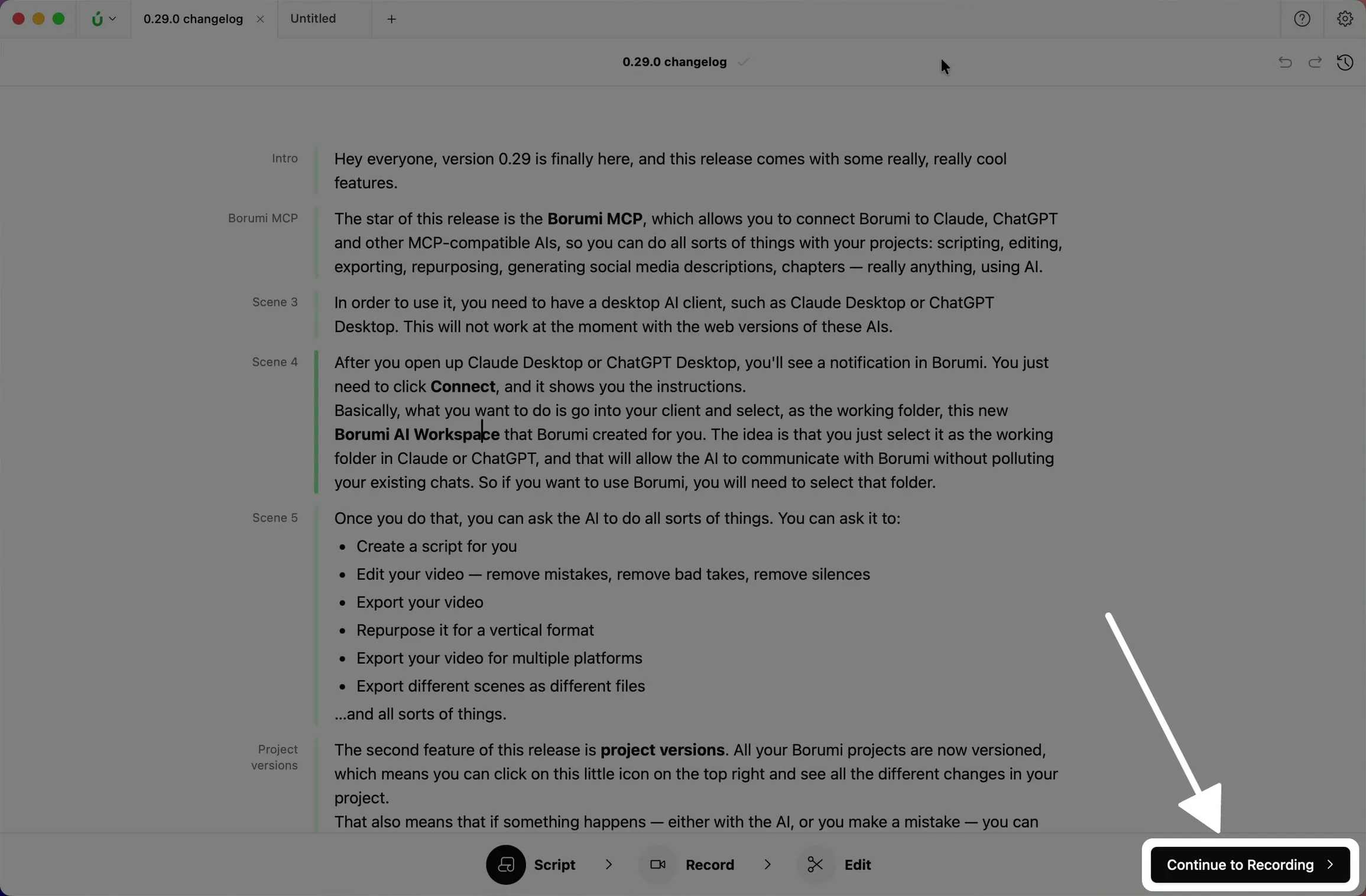
Write your script
The Script tool is where you plan your video before recording. Your script can be a simple list of bullet points, a word-for-word script, or a mix of both.
Start a scripted video
Section titled “Start a scripted video”On the home screen, choose Structured video. Borumi creates a new project and opens the Script tool.
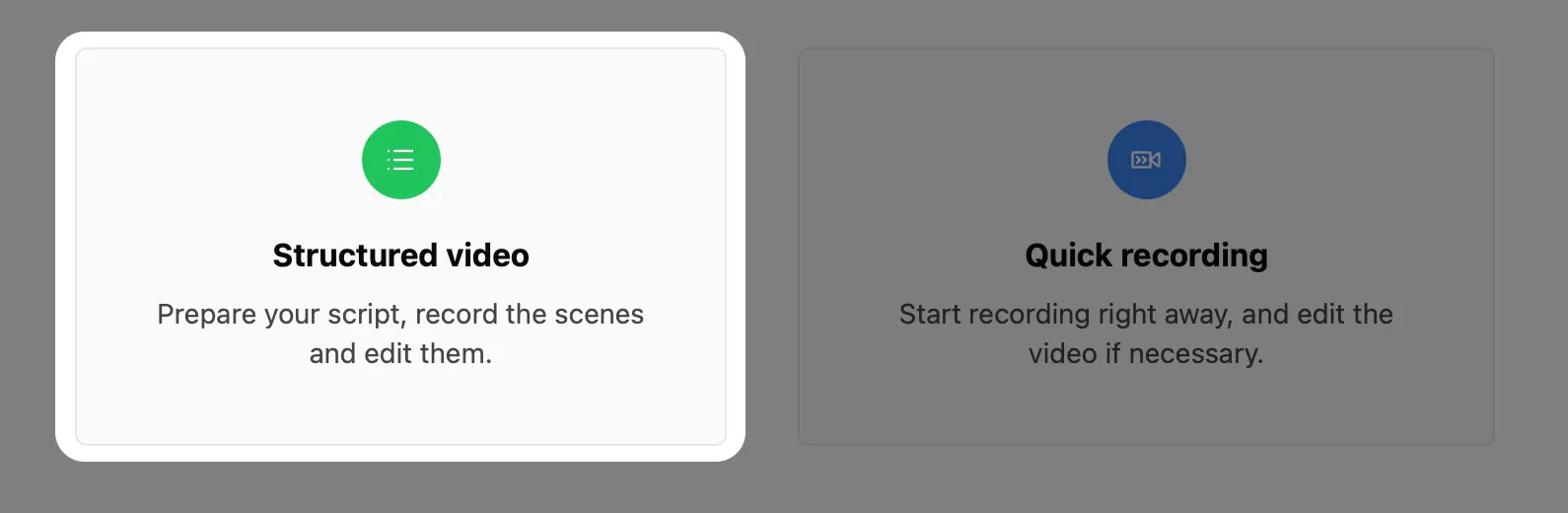
You can also open the Script tool at any time from Script in the bar at the bottom of the window.
Choose a script style
Section titled “Choose a script style”Now you can start writing your script right away. Choose the style that best fits how you like to record:
- Bullet points for more freedom: note what to cover, then say it in your own words.
- A word-for-word script for more guidance: write exactly what to say, then read it from the teleprompter.
Split your video into scenes
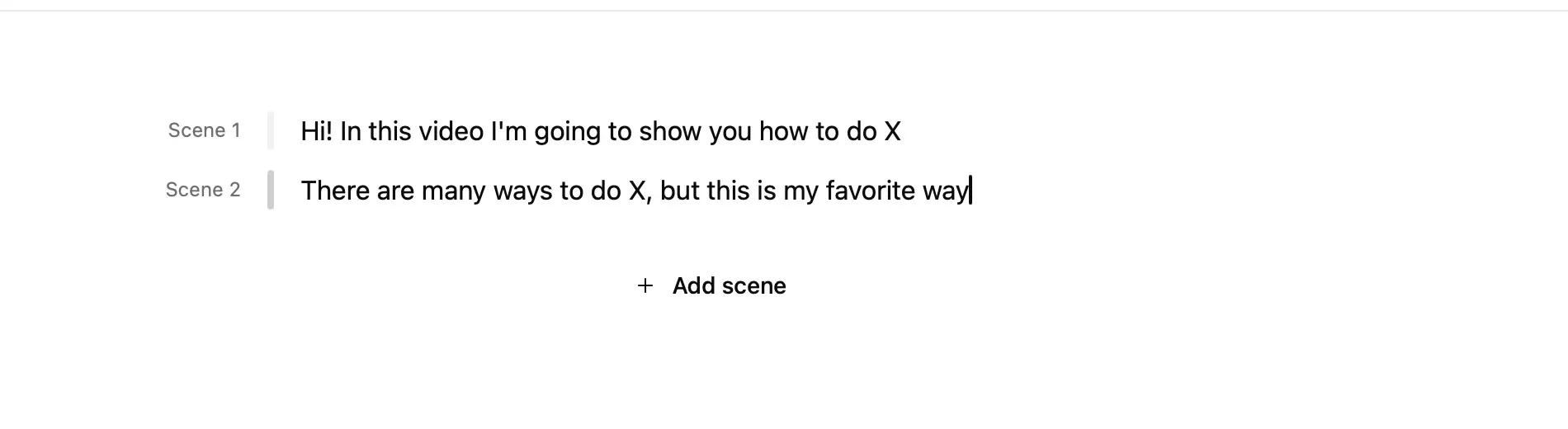
Section titled “Split your video into scenes”In the Script tool, you decide whether to split your video into scenes or keep it all in a single one. Both work, with different trade-offs:
- Several scenes: you record each part separately, so if you make a mistake, you only record that part again. It takes a little more structure, but long videos stay manageable.
- A single scene: you record the whole video in one go, which can feel more natural. If you make a mistake along the way, you’ll fix it while editing.
To add a scene, click Add scene below the last one.
Tips & tricks
Section titled “Tips & tricks”Format your script
Section titled “Format your script”The Script tool supports the usual text shortcuts, such as for bold and for italic.
Name your scenes
Section titled “Name your scenes”Every scene starts as Scene 1, Scene 2, and so on. Click a scene’s name to rename it.
Reorder your scenes
Section titled “Reorder your scenes”You can rearrange your scenes at any time: hover over a scene, then drag its handle to a new position. Your video always follows the order of your script, so the timeline updates automatically.
Next steps
Section titled “Next steps”When your scenes are ready, click Continue to Recording and record your first scene.