
Add text
Text is a great way to add titles, labels, and key points to your video. Borumi comes with many built-in text styles, and in this guide, we’re going to discuss how to use them.


This video can't be played right now. Please try again later.
Add text
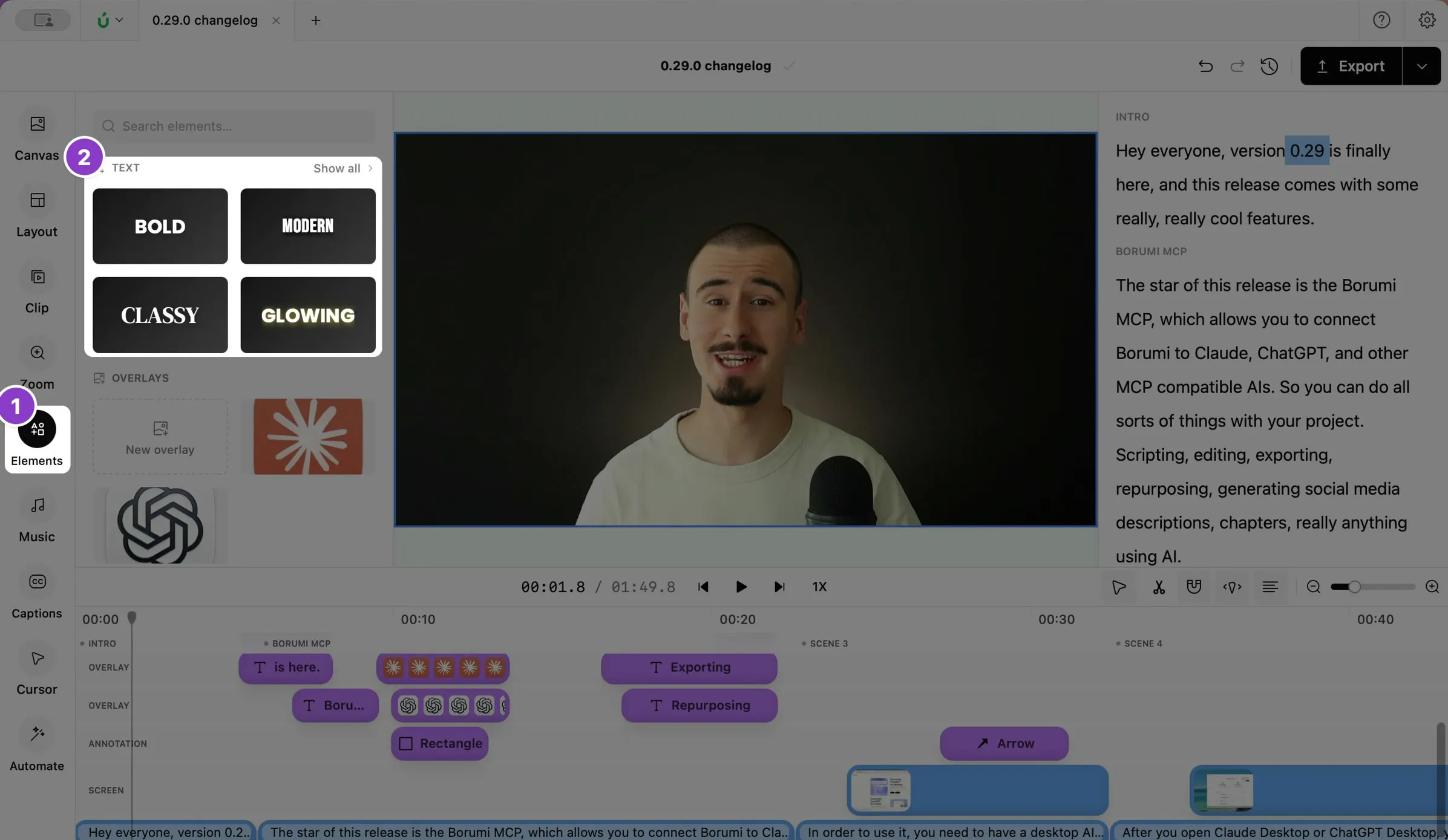
Section titled “Add text”- Click Elements in the left sidebar.
- Under Text, click a style. The text appears at the playhead.
Change how your text looks
Section titled “Change how your text looks”When you click the text, its Element properties open on the left. There you can change everything about it:
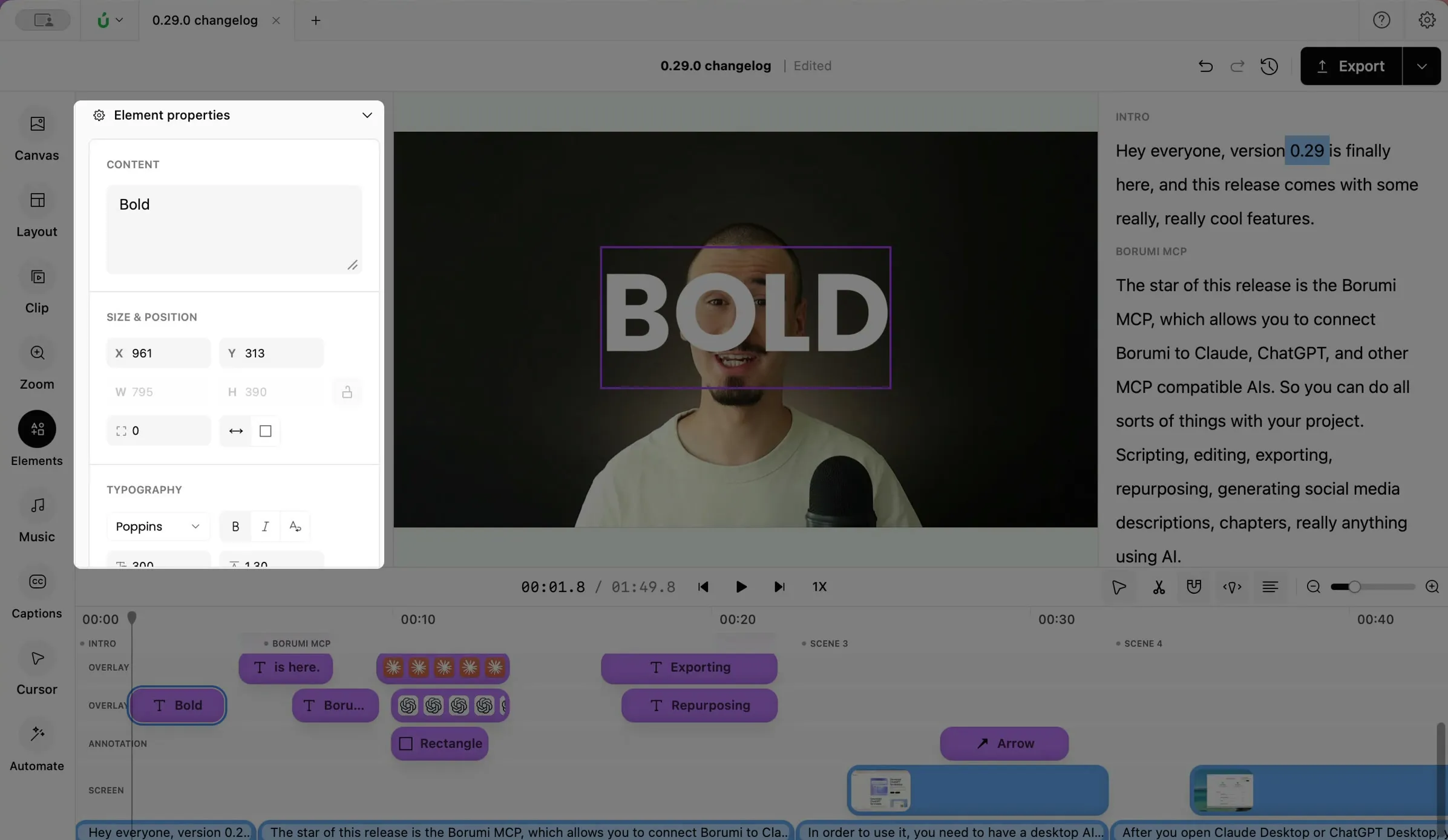
- Size & Position: the exact position and size. You can also drag the text in the video to move it, and drag a corner to resize it.
- Typography: the font, size, bold and italic, casing, and alignment. You can use any font installed on your computer.
- Colors: the text color. To color only some words, select them in Content first.
- Shadow & Glow, Background, and Stroke: a shadow or glow, a box behind the text, or an outline around the letters.
- Behind subject: puts the text behind you. See Put text behind yourself.
- Transition & sound: how the text appears and disappears. See Customize transitions.
Change when the text shows
Section titled “Change when the text shows”You can change when the text shows, and for how long, by dragging its clip on the timeline as usual.