
Change the video format
Depending on where you publish your video, you might need a different video format. For example, the default landscape format is great for YouTube, but for TikTok, Instagram Reels, or YouTube Shorts you’ll want a vertical one. This guide shows you how to change it.


This video can't be played right now. Please try again later.
Change the format
Section titled “Change the format”-
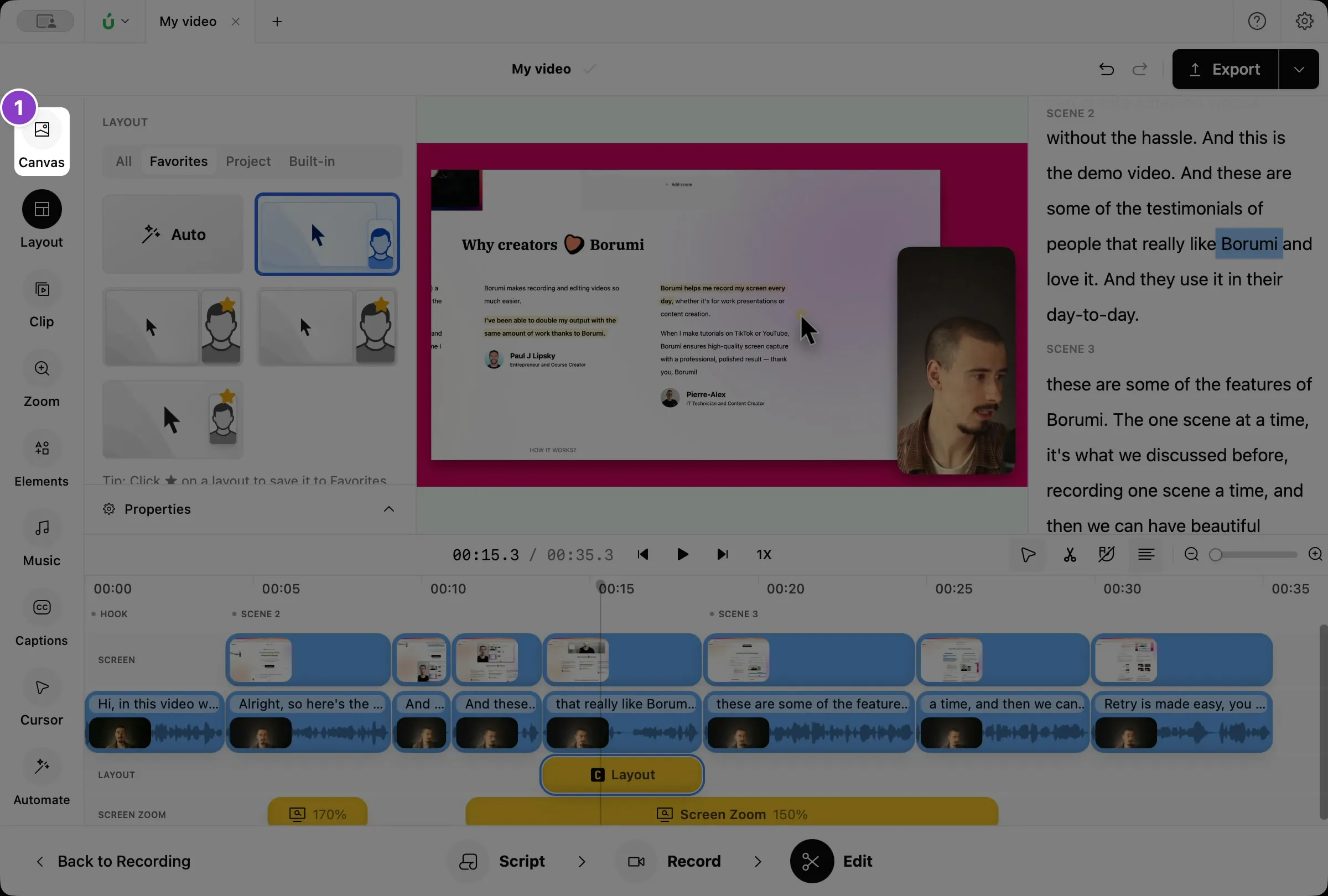
In the Edit tool, click Canvas on the left.
-
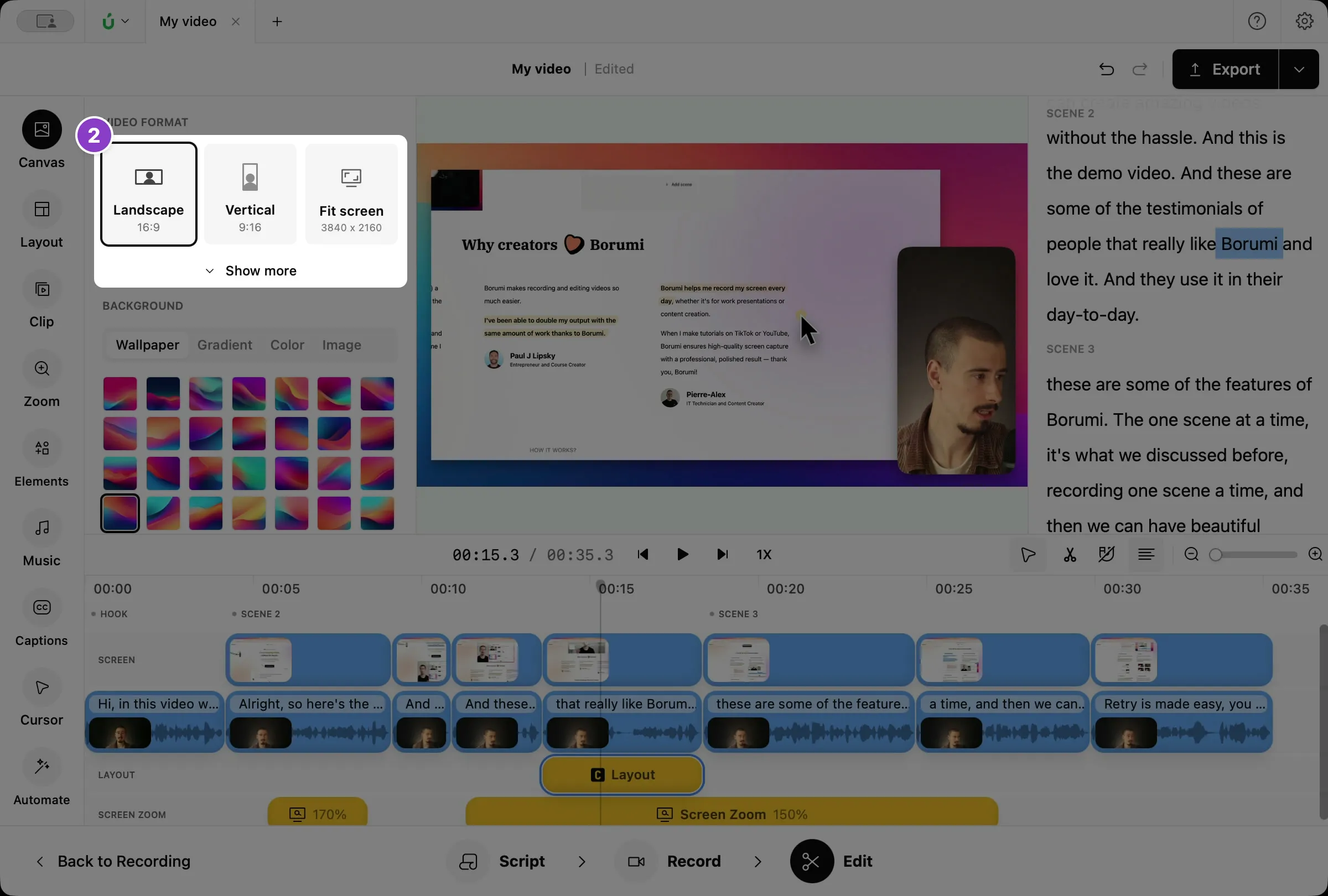
Under Video Format, click a format. Click Show more to see all of them.
Pick the right format
Section titled “Pick the right format”Choosing the right format is important, and it depends on where you’ll publish your video:
- Landscape (16:9, 1920 × 1080): YouTube, websites, and most tutorials. This is the default.
- Vertical (9:16, 1080 × 1920): TikTok, Instagram Reels, and YouTube Shorts.
- Square (1:1, 1080 × 1080) and Portrait (4:5, 1080 × 1350): social media feeds.
- Fit screen: makes the video exactly the size of your screen recording, with no padding around it. It’s only available when you recorded your screen, and it shows the size it will use.
- Custom: enter your own width and height.