
Motion graphics overview
Motion graphics can really level up the quality of your videos, but they usually take hours to make. With Borumi, you describe what you want to your AI, and it adds the animations straight to your project. This guide explains how.


This video can't be played right now. Please try again later.
How it works
Section titled “How it works”Borumi has its own motion graphics engine built in, so your AI creates the animations directly in your project:
- There’s nothing to render or import. The graphics appear on your timeline, ready to play.
- You can edit them in Borumi, like any other element: change the text, the colors, and more. See Customize motion graphics.
- They adapt to your video. When you change the layout or the video format, they adjust on their own, without being made again.
Graphics and overlays
Section titled “Graphics and overlays”Borumi can show a motion graphic in two ways:
- Graphics take the place of your screen in the layout. They’re on the Graphics track of the timeline and behave like a screen recording, so you can show them full screen or next to your camera. Use them for slides and full-screen animations. See Add animated slides.
- Overlays sit on top of your video, like text and images, so you can place them anywhere. Use them for callouts, lower thirds, and calls to action. See Add callouts and overlays.
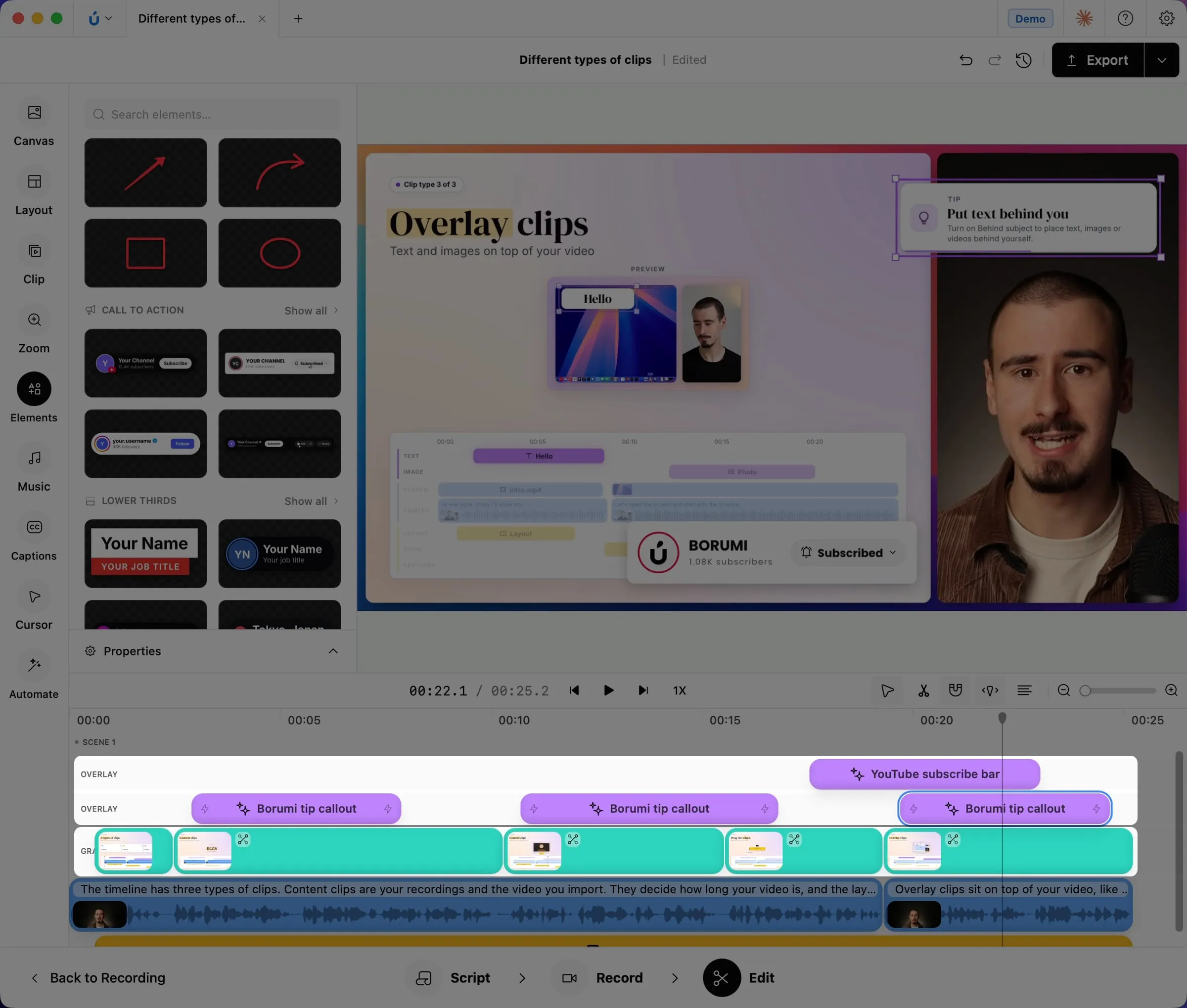
To turn one into the other, right-click its clip on the timeline and choose Video Type → Graphic or Overlay.
Next steps
Section titled “Next steps”- Add animated slides: turn a talking-head video into an animated explainer.
- Add callouts and overlays: add tips, lower thirds, and calls to action on top of your video.
- Customize motion graphics: change the text, colors, and more in Borumi.
- Get better animations: tips for more polished results and smooth playback.