
Editor overview
The Edit tool is where you edit your video. Here you can trim clips, add effects, and export your video when you’re ready.
Open the Edit tool
Section titled “Open the Edit tool”Click Edit in the bar at the bottom of the window, or Continue to Editing in the Record tool.

Find your way around
Section titled “Find your way around”The Borumi editor is divided into five main areas:
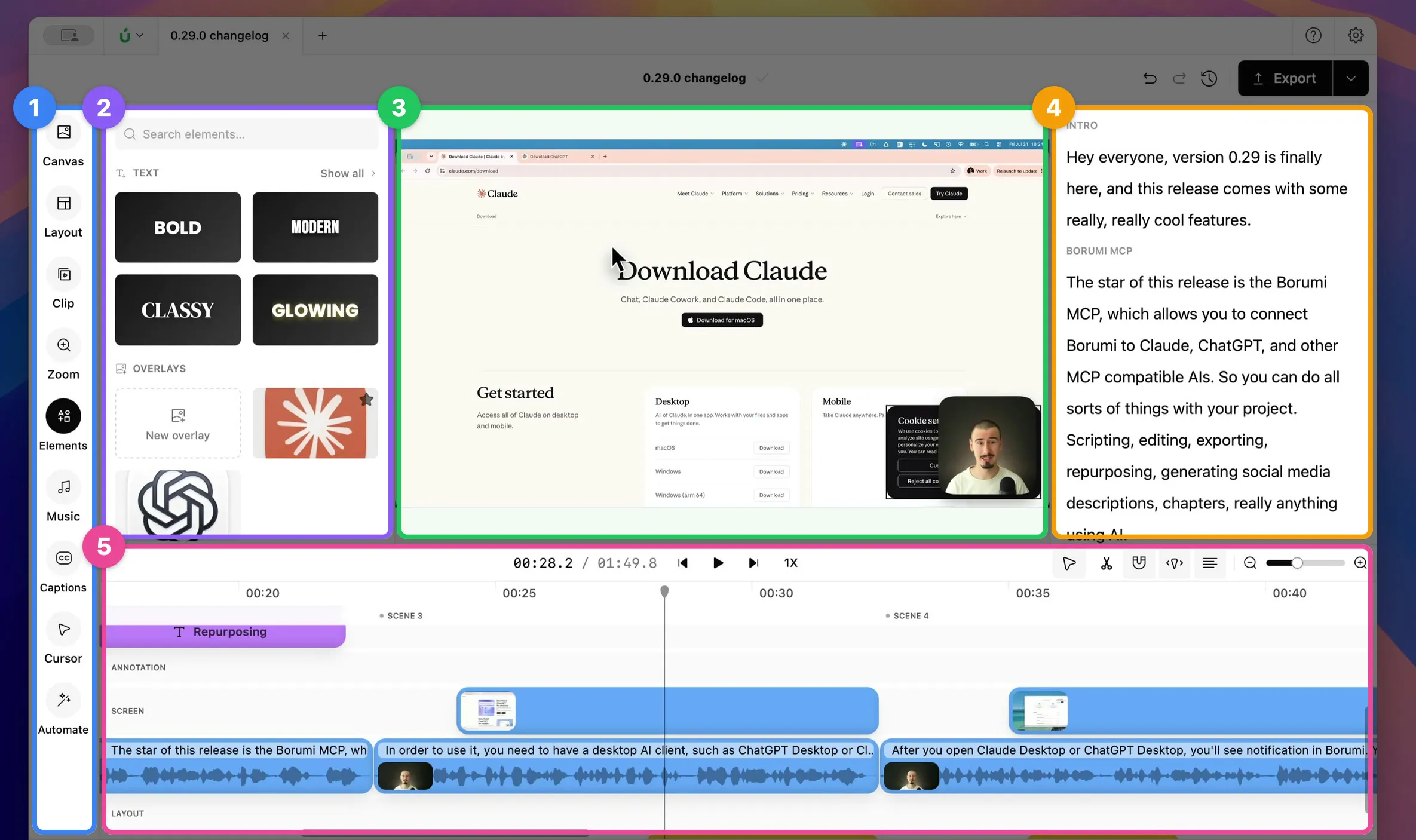
- Sidebar: controls every aspect of your video, like layouts, zooms, text, music, and captions.
- Panel: the options of what you selected in the sidebar. For example, select Layout to see all the available layouts.
- Preview: watch your video, and move, resize, and rearrange what’s on it.
- Transcript: the transcript of your video. Use it to jump to any moment, or to edit your video via transcript.
- Timeline: all the clips of your video. Trim them, change how long they last, rearrange them, and add effects.
The panels
Section titled “The panels”Each panel controls a different aspect of your video:
| Panel | Use it to |
|---|---|
| Canvas | Change the video format and the background. |
| Layout | Choose how your camera and screen are arranged. |
| Clip | Change the selected clip: volume, voice, speed, crop, camera background, and colors. |
| Zoom | Add screen zooms and camera zooms. |
| Elements | Add text, images and videos, annotations, and calls to action. |
| Music | Add music. |
| Captions | Add captions. |
| Cursor | Customize the cursor. |
| Automate | Remove silences automatically. |
The different types of clips
Section titled “The different types of clips”The timeline has three types of clips:
- Content clips are your recordings and the videos you import. They decide how long your video is, and the layout decides how they’re arranged on the canvas.
- Control clips apply an effect, like a layout, a zoom, or captions, for as long as they last. To make an effect last longer or shorter, drag the edges of its clip.
- Overlay clips sit on top of your video, like text and images. They don’t follow the layout, so you can place them anywhere.
00:0000:0500:1000:15
IntroDemo
Screen
Camera
Hi everyone, today I'll show you…
Let's open the project and start with the timeline…
Layout
Layout
Layout
Zoom
Screen Zoom150%
Next steps
Section titled “Next steps”Start by trimming and arranging your clips and choosing the layout of your video.