
Connect Claude
Borumi works with Claude out of the box, so you can edit your videos with your AI. This guide shows you how to connect Borumi to Claude.


This video can't be played right now. Please try again later.
Before you start
Section titled “Before you start”- Install the Claude desktop app from claude.com/download, and sign in. Claude on the web can’t connect to Borumi.
- Keep Borumi open while you work with Claude.
Turn on the connection in Borumi
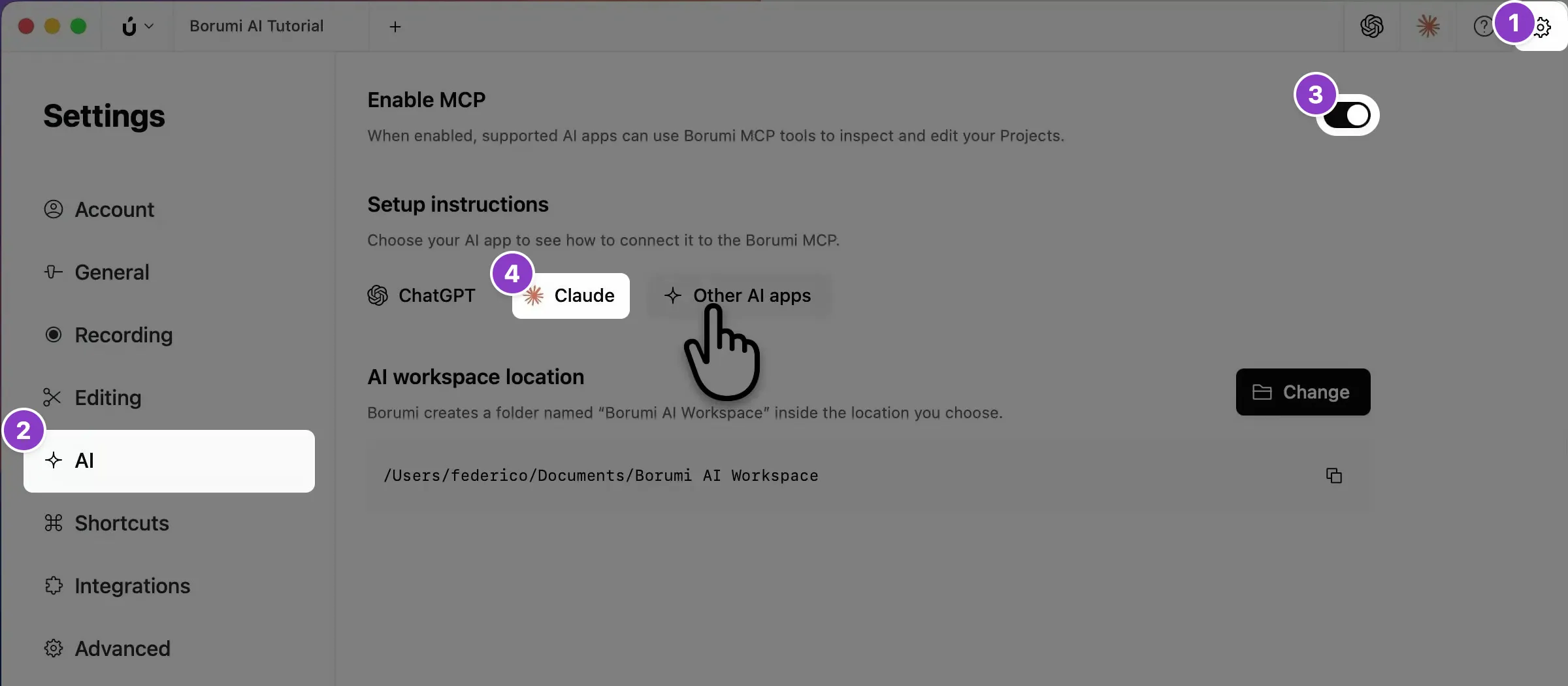
Section titled “Turn on the connection in Borumi”- Click the gear icon at the top right to open Settings, then click AI .
- Turn on Enable MCP. Borumi creates a folder named Borumi AI Workspace in your Documents folder.
- Under Setup instructions, click Claude.
Borumi shows the steps to connect Claude, which you can follow below.
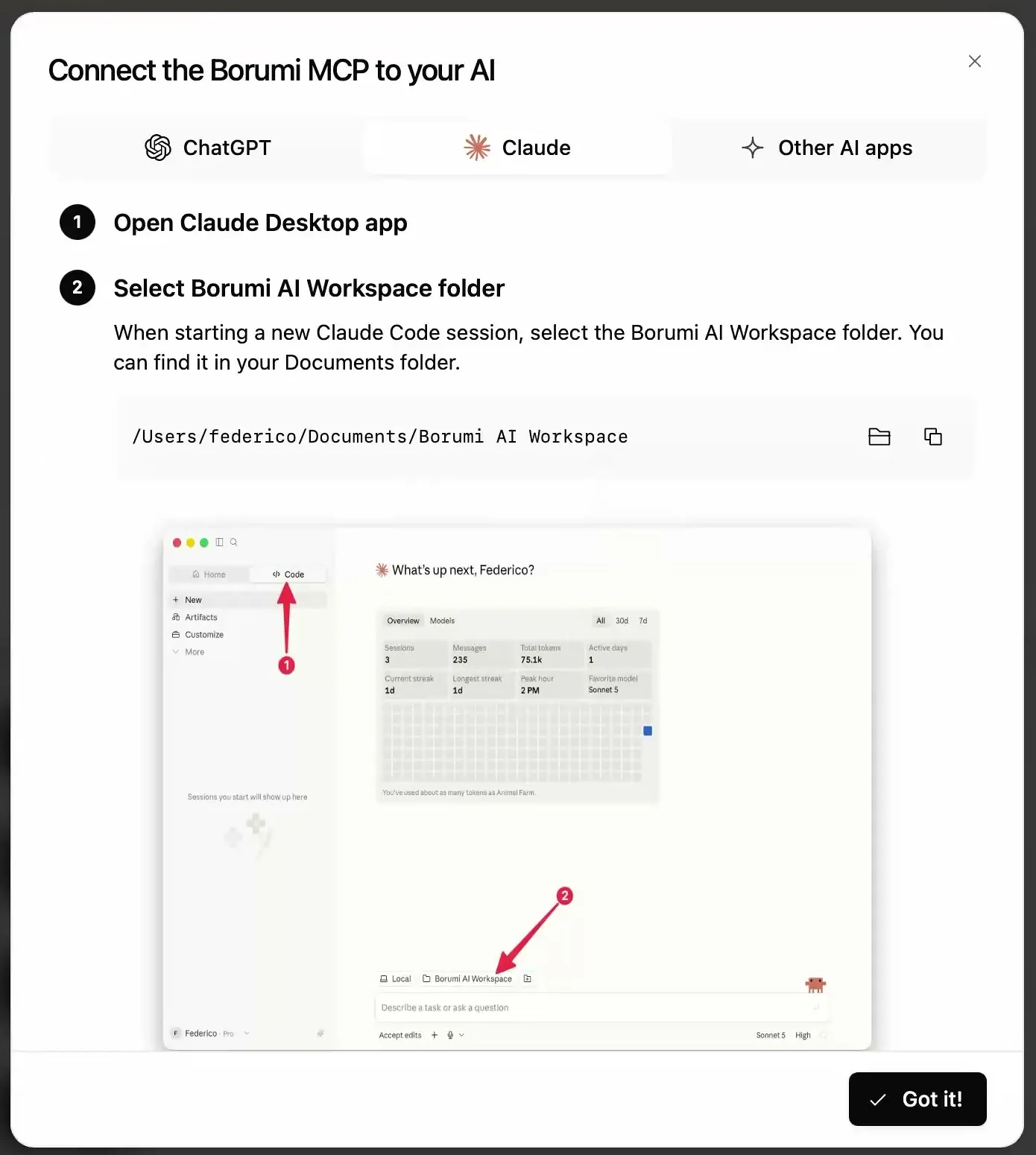
Open the Borumi AI Workspace in Claude
Section titled “Open the Borumi AI Workspace in Claude”-
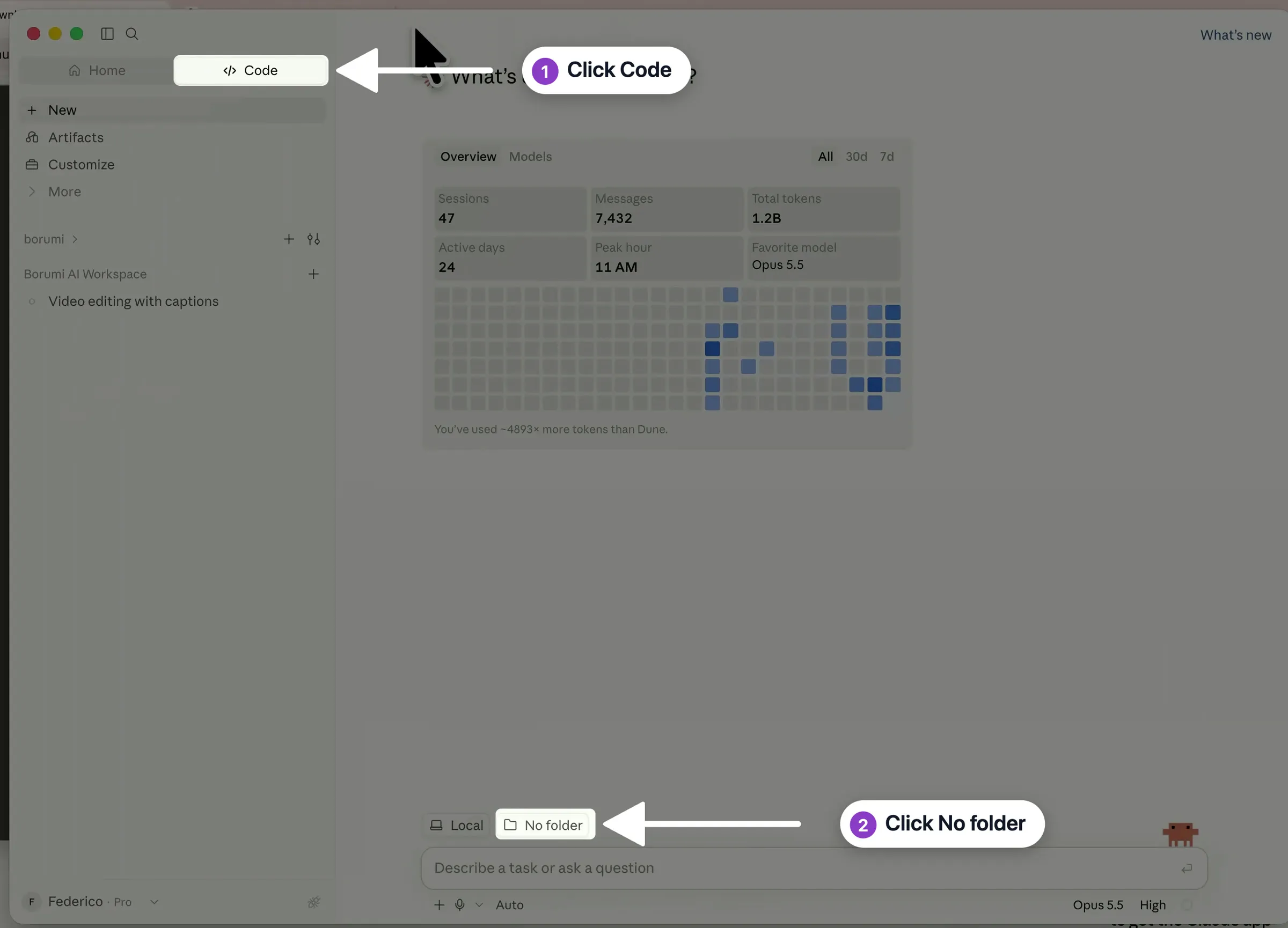
In the Claude desktop app, click Code at the top left.
-
Below the message box, leave Local selected and click No folder.
-
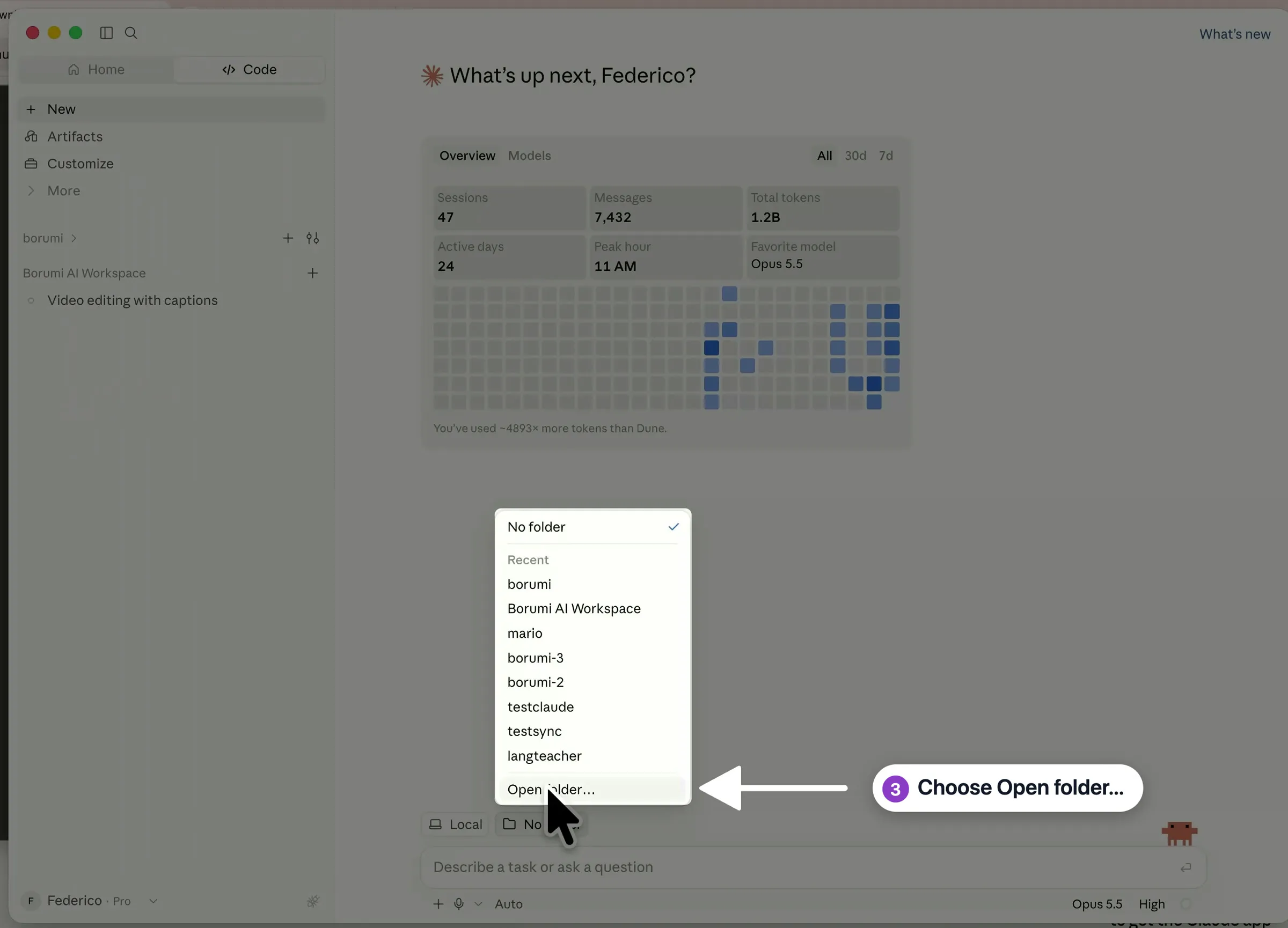
Choose Open folder…, go to your Documents folder, select Borumi AI Workspace, and click Open.
-
If Claude asks whether you trust the folder, allow it.
Start your Borumi chats from this folder every time. After the first time, you’ll find it among the recent folders in the same menu.
Check that it works
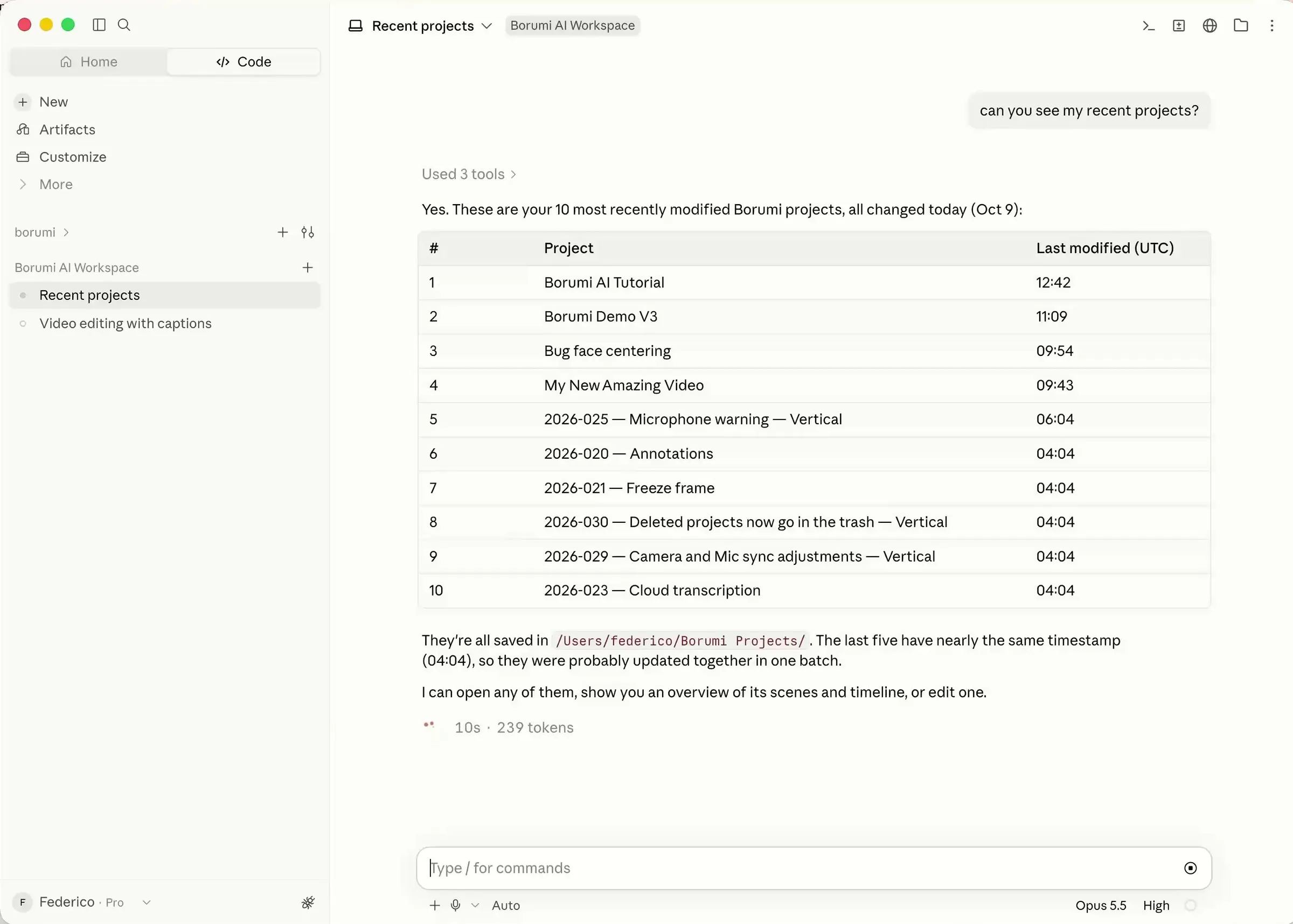
Section titled “Check that it works”Ask Claude:
Can you see my recent projects?
If the connection works, Claude lists your most recent Borumi projects.
What to ask next
Section titled “What to ask next”- Remove silences and mistakes
- Fix transcript errors
- Add effects
- Add motion graphics
- Prepare a video for YouTube
- Repurpose a video
If you don’t like a change, you can always go back. See Undo the AI’s changes.
If Claude can’t see your projects
Section titled “If Claude can’t see your projects”- Check that Borumi is open and that Enable MCP is on in Settings → AI.
- Check that you’re in the Code tab and that the chat uses the Borumi AI Workspace folder.