
Customize motion graphics
Borumi lets you customize your motion graphics directly inside the editor. This guide shows you how.
Change the text
Section titled “Change the text”- Click the graphic in the preview to select it.
- Click the text you want to change, and type.
You can also change the text in Element properties, on the left.
Change the colors, images, and more
Section titled “Change the colors, images, and more”When you select a graphic, Element properties shows everything you can change, like the title, the colors, and the images. Click More options to see all of them.
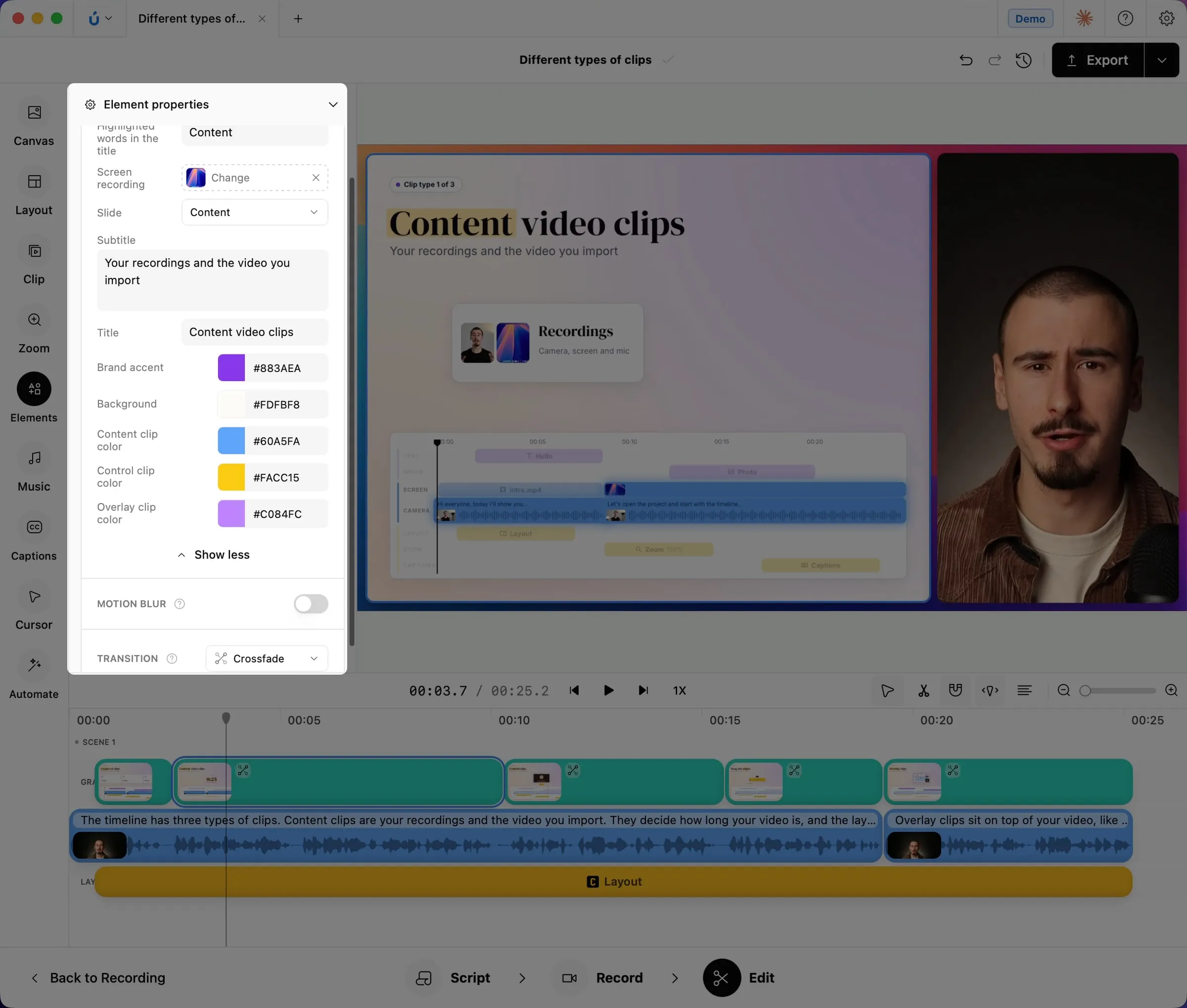
To replace an image or a recording in the graphic, click Change next to it.
Depending on the graphic, you can also change:
- Motion blur: makes fast movements look smoother.
- Sound effects: the sounds that play with the animation.
- Transition (Transition & sound for overlays): how the graphic appears and disappears. See Customize transitions.
Ask for more settings
Section titled “Ask for more settings”What you can change depends on how the AI created the graphic. If something you want to change isn’t in Element properties, ask your AI to add it, for example:
- “Can you make the title and the subtitle of these slides editable?”
- “Can you add a setting to change the accent color of the callouts?”
The new settings appear in Element properties right away.
Ask your AI for bigger changes
Section titled “Ask your AI for bigger changes”Some changes are faster to describe than to make by hand, like a new animation or a different layout of the slide. Ask your AI in the same chat, for example:
On the slide about control clips, can you animate the timeline so the clips appear one by one?
For tips on getting the result you want, see Get better animations.